

3D Printed Planter & Vase Generator
Describe a character and get a printable planter or vase
Describe it in one sentence. About 2–3 min later you download a printable planter or vase as STL or 3MF, ready to print. No 3D skills needed.
Make printable planter or vase
Describe a character and get a printable planter or vase. The prompts and settings are already done for you.
~2–3 min · open top, flat bottom · STL & 3MF · free to try
Made with this template
The card in the corner shows what went in.


Each example is an actual run of this template at Standard quality, made from a typed idea or a sketch.
From idea to file in about 2–3 min
Type what you want, then wait while 2 AI steps run. Nothing to set up.
- 1Typed“A sleepy cat curled around the pot”YouYou describe it
Or upload a drawing
- Image Studio2
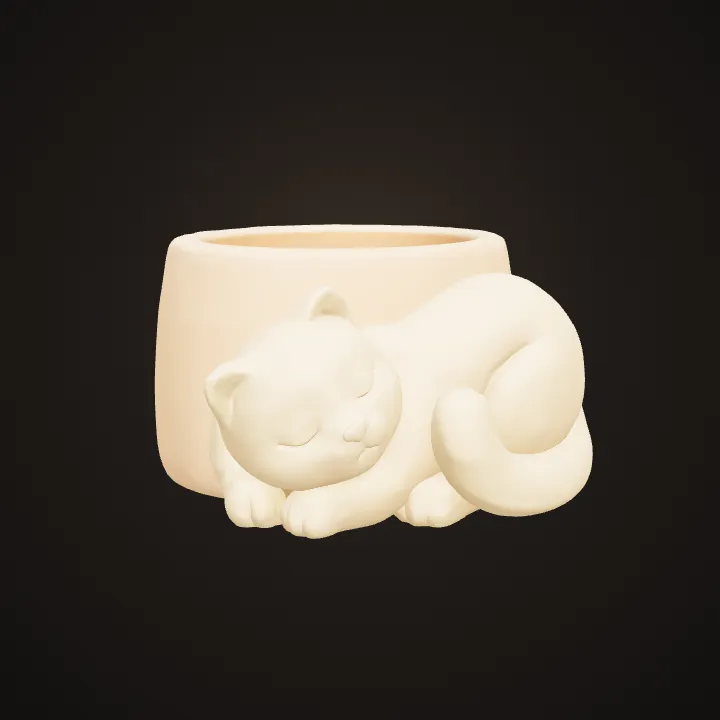 AIAI draws your idea
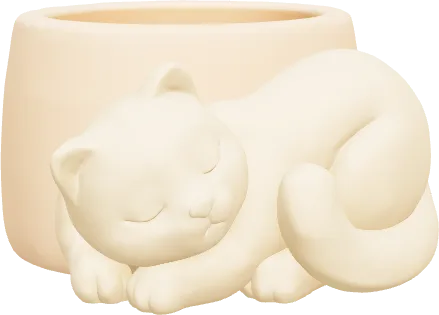
Image Studio designs a container with the character sculpted on the outside, thick walls, no thin parts and an open rim you can see.
- Image to 3D3AIAI builds it in 3D
Image to 3D (Prism 3.1) builds it with Fast textures and Standard mesh quality.
- STL 3MF OBJ4YoursYou download the file
As STL, 3MF or OBJ. You can use it however you like.
Print it at home or order it
Open the STL in your slicer, or upload it to a print service if you don't have a printer.
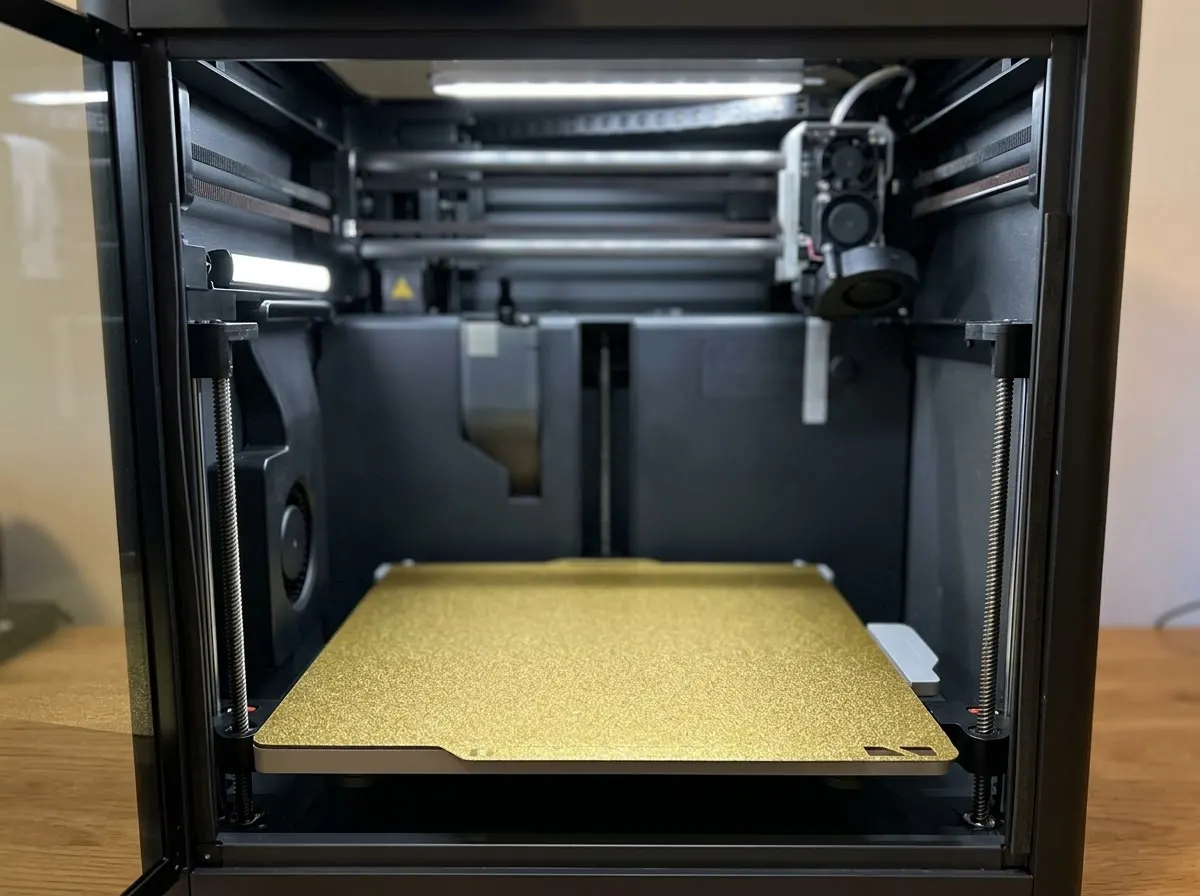
Any FDM or resin printer works. Open the file in your slicer and press print.
Upload the STL to an online print service or a local print shop and get it delivered.
Birthdays, weddings, a thank-you for a teacher. Nobody else will have the same one.
Print in grey and paint it, or print in colour if your printer can.
How this template works
Planters and pen holders are maker favourites. Image Studio shapes your idea into a container with an open top and a flat base, then Image to 3D builds the model.
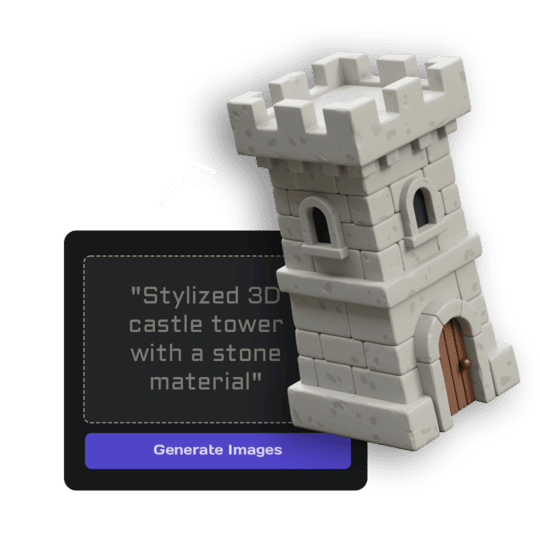 1Open Image StudioStep 1 · Image Studio
Design the container
Image Studio designs a container with the character sculpted on the outside, thick walls, no thin parts and an open rim you can see.
Nano Banana 2.1 (text) or GPT Image 2.5 Flare (sketch)
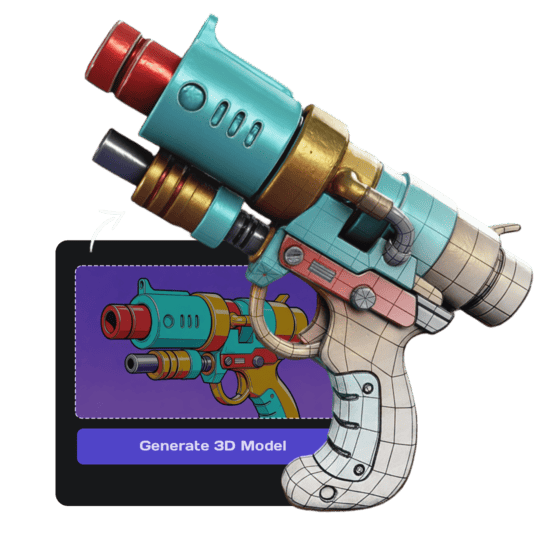 2Open Image to 3DStep 2 · Image to 3D
Build the 3D model
Image to 3D (Prism 3.1) builds it with Fast textures and Standard mesh quality.
Prism 3.1 · Fast textures · Standard mesh
Do it yourself for more control
- Slice in vase (spiral) mode for a hollow, fast, watertight print, or slice normally and hollow it with a top cut.
- Drill a small drainage hole after printing for real plants, or use it as a cache pot.
- Scale it up to fit your pot: most succulent pots are 8 to 10 cm wide.
What is 3D AI Studio?
3D AI Studio is a web app that makes 3D models, images and sounds with AI. It runs in your browser, so there is nothing to install.
A template is a saved recipe. It runs a fixed set of AI tools with settings we've already tested, so all you add is a photo or a sentence.
- Step 1Image Studio
Draws a picture from a sentence or a sketch.
- Step 2Image to 3D
Turns a single picture into a textured 3D model.
What you need
- One sentence or a sketchNo prompt skills needed
- 3D software or skillsNot needed. It all happens in the browser
- A 3D printerOptional. You can order the print online
- A free accountSign up with Google or email
Sign up for free and make your first one right away. Downloading the files is part of the paid plans.
Type: a squat plant pot about as wide as it is tall, in soft matte pastel colours.
Type: a tall flower vase with a narrower neck, in soft matte colours.
Type: a cylindrical desk pen holder, taller than it is wide, in soft matte colours.
The files you get
Open it in a slicer such as Bambu Studio, PrusaSlicer or Cura, then press print.
Best for Bambu Lab and Prusa printers.
Opens in Blender and almost every 3D app.
How to describe it
- Characters with round bodies make the best pots: cats, frogs, octopuses, heads.
- Keep ears and arms close to the body so they print without supports.
- Matte PLA and silk filaments both look great.
Good to know: The 3D model can be solid inside; slice it in vase mode or hollow it in your slicer to get the opening. It isn't watertight for water without sealing.
Run this template from Claude, ChatGPT or Cursor
Connect the 3D AI Studio MCP to your AI assistant and paste the brief into the chat. It runs the same steps with the same prompts and settings, shows you the result in the conversation and saves it to your library.
- Connect the MCP once in your account settings. It's included in every paid plan.
- Copy the brief and swap the example in the first line for your own.
- Paste it into a new chat. Your assistant runs every step and shows you each result.
generate_image_nano_2_1upload_imageedit_image_gptgenerate_prism_3_1convert_modelget_generationshow_generationUse the 3D AI Studio MCP to run the "Character Planter & Vase" template (https://www.3daistudio.com/templates/custom-planter-vase) for me.
My idea: A sleepy cat curled around the pot
Type: Planter
Surface: Smooth
Follow these steps in order. The prompts and settings are the template's own, so use them word for word and only put my idea where it says {MY IDEA}.
1. Design the container
Call generate_image_nano_2_1 with aspect_ratio "1:1", resolution "1K", output_format "png" and this prompt:
"""
Character or idea: {MY IDEA}. Type: a squat plant pot about as wide as it is tall, in soft matte pastel colours. A single decorative 3D printable container shaped like the described character or object: a hollow vessel with a wide open top rim and a flat bottom, thick smooth walls, chunky simple shapes with no thin protruding parts, the character's features sculpted on the outside of the container, standing upright, three-quarter front view from slightly above so the opening is visible, the entire piece visible with generous empty margin. Empty inside: no plants, no soil, no flowers. Isolated on a seamless pure white (#FFFFFF) background, soft even studio lighting, no shadows on the background, no text.
"""
If I want to start from a sketch or reference image instead, call upload_image so I can hand it over, then call edit_image_gpt with the upload in images, quality "low", output_format "png" and this prompt:
"""
Turn the character in the reference image into a decorative container, keeping its design and colours. Type: a squat plant pot about as wide as it is tall, in soft matte pastel colours. A single decorative 3D printable container shaped like the described character or object: a hollow vessel with a wide open top rim and a flat bottom, thick smooth walls, chunky simple shapes with no thin protruding parts, the character's features sculpted on the outside of the container, standing upright, three-quarter front view from slightly above so the opening is visible, the entire piece visible with generous empty margin. Empty inside: no plants, no soil, no flowers. Isolated on a seamless pure white (#FFFFFF) background, soft even studio lighting, no shadows on the background, no text.
"""
2. Build the 3D model
Call generate_prism_3_1 with the task_id of the image from step 1 in images, texture_model "3.5", texture_quality "fast", geometry_quality "standard", pbr false.
3. Export
Export it for printing: call convert_model on the 3D model with output_format "3mf" (or "stl" if I ask for it), plus max_size and unit "cm" if I gave you a print size.
After each generation call, keep polling get_generation with its task_id until it completes, then show me the result with show_generation before you start the next step.Or automate it with the API
The same tools are available through the 3D AI Studio API. Call them from your own code to make hundreds at once, build them into your app or run them in your pipeline.
Character Planter & Vase: questions & answers
3D AI Studio is a web app that makes 3D models, images and sounds with AI. It runs in your browser, so there is nothing to install. A template is a saved recipe. It runs a fixed set of AI tools with settings we've already tested, so all you add is a photo or a sentence.
Slice it in vase (spiral) mode: the slicer prints only the outer wall and the bottom, so the pot comes out hollow with an open top.
Yes. Drill a drainage hole or put a nursery pot inside; for water vases, seal the inside or use PETG.
Yes. Designs you generate are yours to print and sell.
Sign up for free and make your first one right away. Downloading the files is part of the paid plans.
Describe a character and get a printable planter or vase
Similar templates
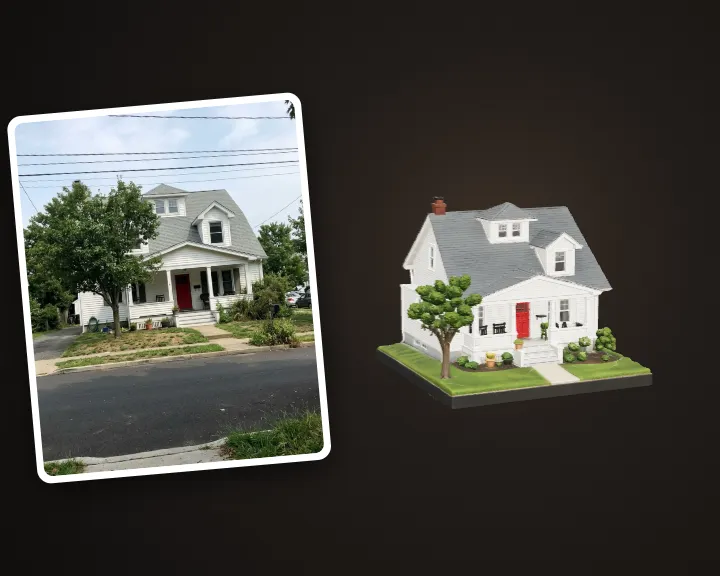 House MiniatureTurn a photo of your home into a printable miniature
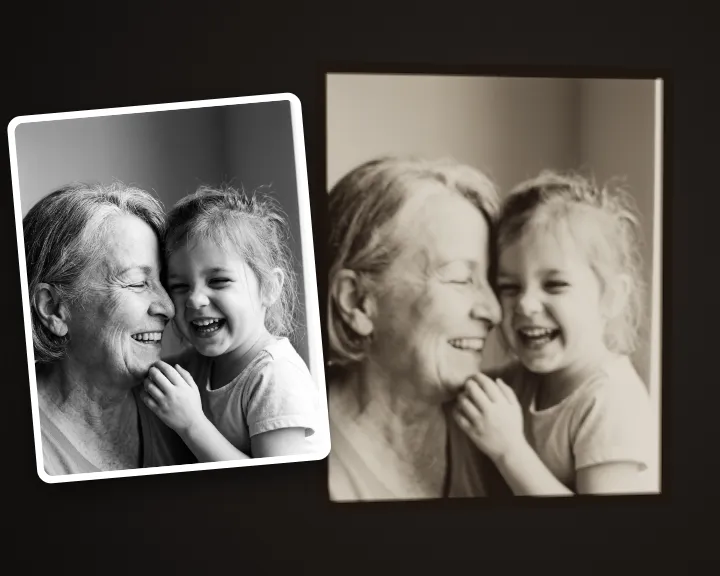 Lithophane MakerTurn any photo into a printable lithophane
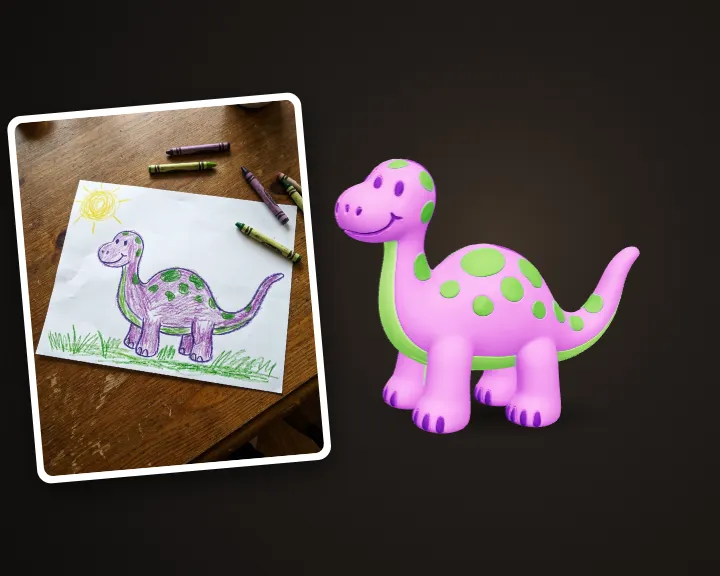 Kid's Drawing to ToyTurn a child's drawing into a 3D printable toy
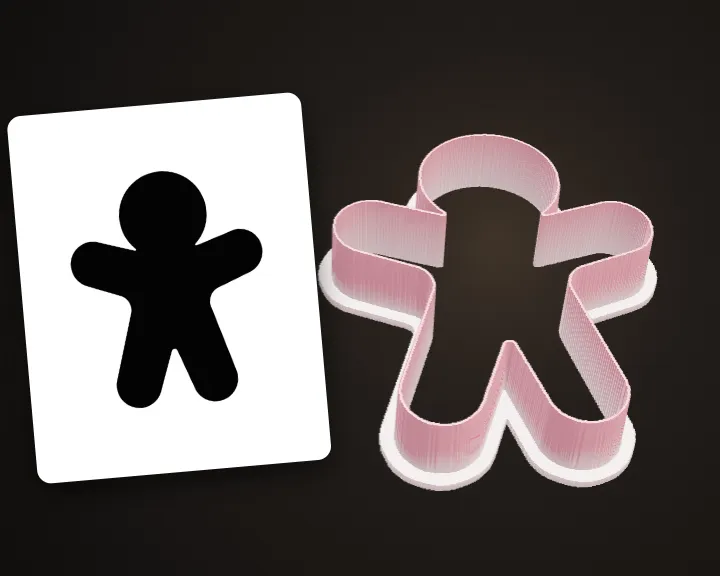 Cookie Cutter MakerTurn any shape or drawing into a cookie cutter
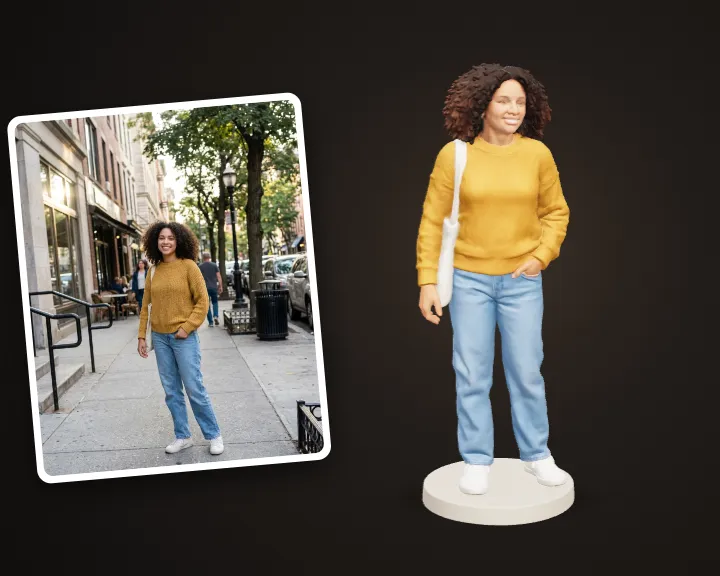 Photo to FigurineTurn your photo into a 3D printable figurine
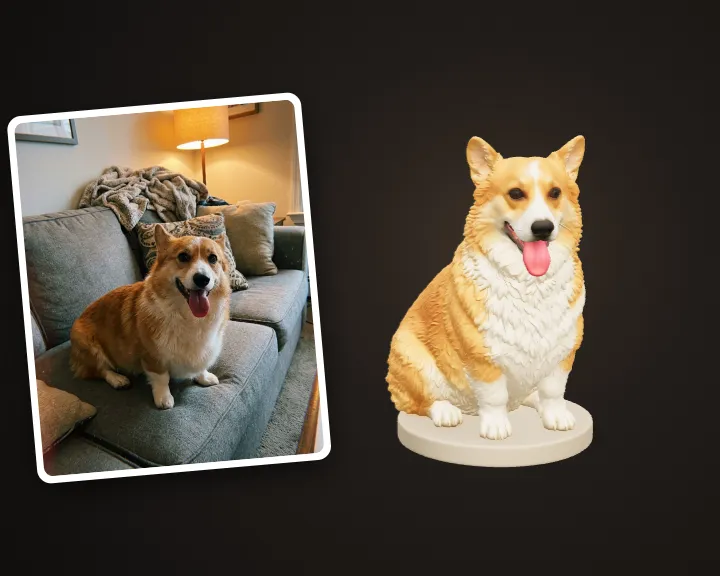 Pet FigurineTurn your pet's photo into a 3D printable figurine
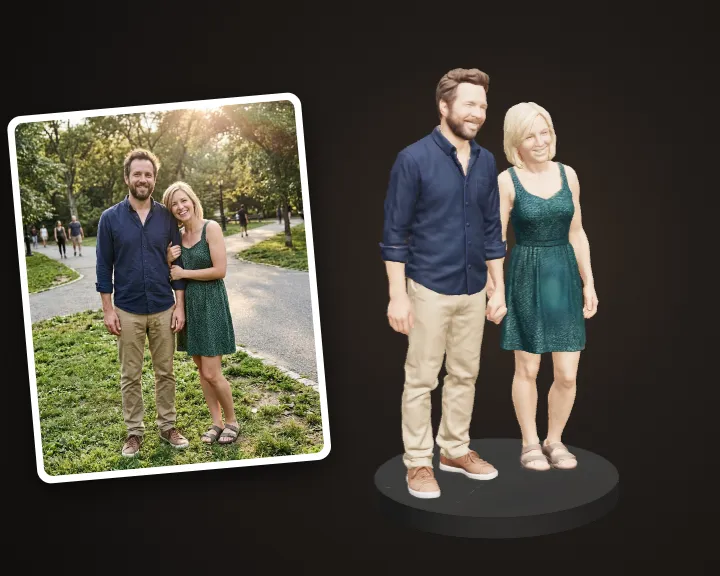 Couple & Family FigurineTurn a couple or family photo into one figurine
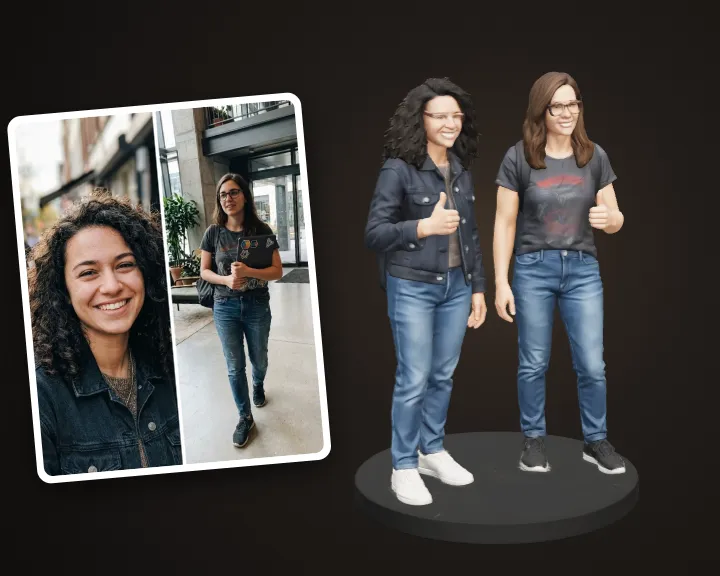 Friends FigurineTurn photos of you and your friends into one figurine