
Remesh 3D Model
Upload a GLB file to optimize mesh topology and reduce polygon count
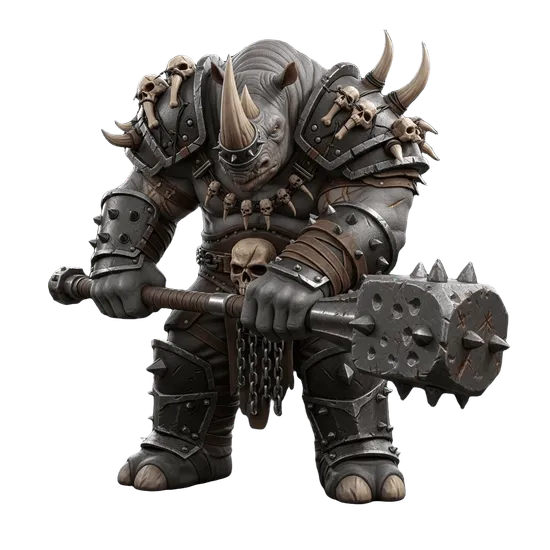
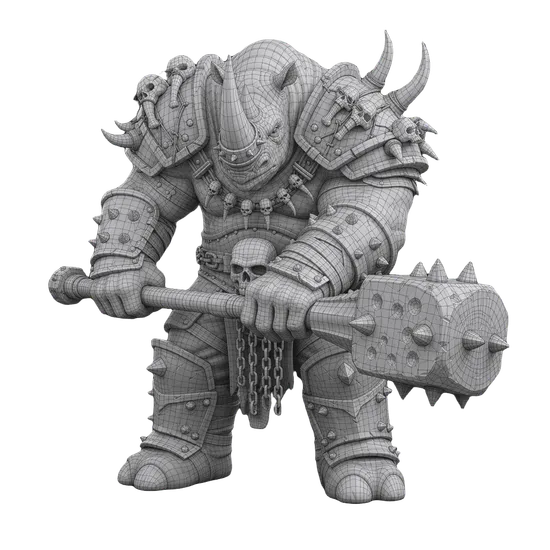
Drop your GLB file here or click to browse
GLB format only
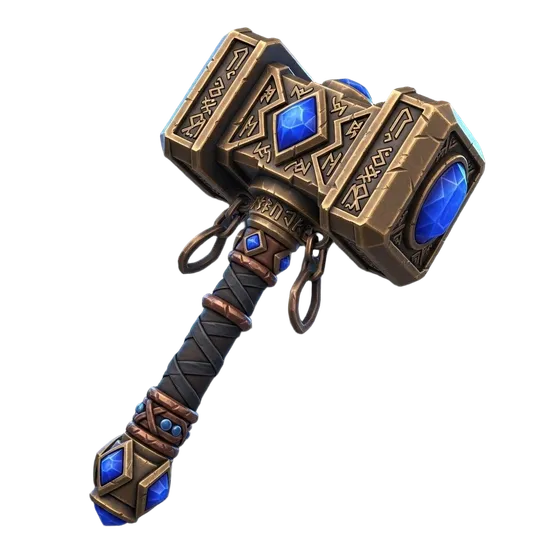
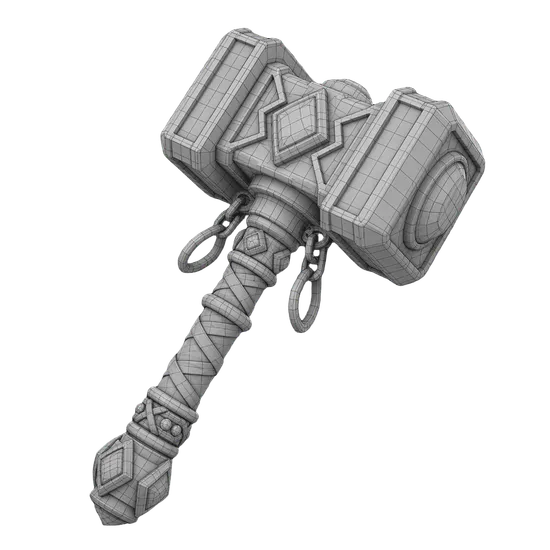
AI 3D Model Remeshing & Retopology Tool
Upload any GLB file and optimize its mesh topology with AI-powered remeshing. 3D AI Studio's remesh tool rebuilds polygon structure, reduces face counts, and converts messy triangle meshes into clean quad topology - all in your browser with no software to install. Choose from three remeshing engines: Prism for quad retopology with full texture control, Pro for multi-format output with triangle or quad options, and Hunyuan for AI-driven polygon reduction with optional texture baking. Models generated with Image to 3D or Text to 3D can be remeshed directly from your Dashboard. Free credits on signup, no credit card required.
Built for Real Workflows
Game Development
Optimize AI-generated models for Unity and Unreal Engine. Reduce polygon counts to meet performance budgets, convert to quad topology for proper edge flow, and export as FBX or GLB ready for import into game engine material systems.
3D Printing
Clean up mesh topology for reliable slicing and printing. Create watertight geometry, reduce unnecessary detail, and export as STL or 3MF. Enable vertex color export for multi-color 3D printing workflows.
Animation & Film
Convert dense triangle meshes into clean quad topology with proper edge loops for deformation. Quad remeshing produces meshes that bend naturally at joints, making models ready for AI rigging and skeletal animation.
Web & AR
Compress and optimize 3D models for fast loading on websites and AR experiences. Reduce polygon counts and texture sizes while preserving visual quality. Export as GLB for web viewers or USDZ for Apple AR Quick Look.
How AI Remeshing Works
When you upload a GLB file, the AI analyzes the existing mesh structure and rebuilds it with optimized polygon distribution. The process preserves the model's visual shape while reorganizing how the surface is defined.
Triangle remeshing redistributes faces evenly across the surface, eliminating dense clusters and sparse gaps. This improves rendering performance and produces more predictable behavior in physics engines and collision systems.
Quad remeshing goes further by converting the entire surface into four-sided polygons arranged in flowing edge loops. Quad meshes are the standard in professional 3D work because they subdivide cleanly, deform predictably during animation, and give artists intuitive control when editing. The AI places edge loops to follow the model's natural surface curvature.
Texture preservation rebakes the original surface appearance onto the new mesh topology. You control the output texture size (up to 4096px) and format (JPEG or PNG). Additional options include UV repacking, forced symmetry for symmetrical objects, scale adjustment, and pivot centering.
For models created in 3D AI Studio, the Dashboard offers one-click remeshing optimized for AI-generated geometry. For external models from Blender, Maya, ZBrush, or other 3D software, use this upload tool.
Tips for Best Remeshing Results
Input Quality
Upload clean GLB files without corrupted geometry or overlapping faces. Models with a single mesh body produce the most consistent results. If your model has multiple separate objects, consider merging them in Blender before uploading.
Polygon Settings
Set your target face limit based on the intended use. Game assets typically need 5,000 to 15,000 faces. Cinematic models can go up to 50,000. Lower polygon counts run faster in real-time applications but lose fine surface detail.
What to Avoid
Extremely thin geometry like single-polygon planes and wire-like structures may not remesh well. Models with interior faces or non-manifold edges can produce artifacts. Very large file sizes over 100MB may time out during processing.
Format Selection
Choose FBX for game engines and animation software, GLTF for web applications, OBJ for maximum compatibility, STL for 3D printing, USDZ for Apple AR, and 3MF for multi-color printing. Each format preserves different aspects of the mesh data.
Get Started
Upload a GLB file using the upload area above, select a remeshing engine, adjust your settings, and click Remesh. For AI-generated models, we recommend starting with Prism using quad remeshing enabled for the cleanest topology. Need a 3D model first? Generate one with Image to 3D from a photo, Text to 3D from a description, or create a reference image with Image Studio. After remeshing, your model is ready for AI rigging, mesh segmentation, or direct export to your preferred 3D software.
Frequently Asked Questions
What is remeshing and why do I need it?
Remeshing is the process of rebuilding a 3D model's mesh with cleaner, more efficient polygon structure. AI-generated 3D models typically have messy, triangulated topology that makes them difficult to animate, rig, or edit. Remeshing converts these into clean quad or optimized triangle meshes, improving edge flow, reducing polygon count, and making models production-ready for games, animation, and 3D printing.
How do I remesh a 3D model online?
Upload a GLB file to the remesh tool, choose between quad or triangle remeshing, set your target polygon count and texture size, then click Remesh. The tool automatically rebuilds your mesh topology while preserving textures. No software installation required. The entire process runs in your browser and takes just a few seconds to complete.
What is the difference between quad and triangle remeshing?
Quad remeshing creates a mesh made entirely of four-sided polygons with clean, flowing edge loops. This is ideal for animation, rigging, and subdivision modeling. Triangle remeshing produces optimized triangulated meshes better suited for real-time rendering, game engines, and 3D printing. Quad remeshing costs 3 credits per model while triangle remeshing costs 1 credit.
What file formats does the remesh tool accept?
The remesh tool accepts GLB files as input. If your model is in OBJ, FBX, STL, or another format, you can convert it to GLB first using 3D AI Studio's format conversion tools in the Dashboard. After remeshing, the optimized model is exported with preserved textures and can be further converted to FBX, OBJ, BLEND, DAE, USDZ, or 3MF.
Can I control the polygon count after remeshing?
Yes. You can set a specific target polygon count before remeshing. The tool also offers options for texture size (up to 4096px resolution), texture format (JPEG or PNG), forced symmetry for symmetrical objects, and pivot centering. These controls let you optimize the mesh for your exact use case, whether that's a low-poly game asset or a high-detail cinematic model.
How does remeshing improve AI-generated 3D models?
AI-generated models from tools like Image to 3D and Text to 3D typically have dense, irregular triangle meshes. Remeshing cleans this up by creating uniform polygon distribution, proper edge flow for deformation, and reduced polygon counts for better performance. The result is a model that's easier to animate, rig, UV map, and import into professional 3D software like Blender, Maya, or game engines.
Is the remesh tool free to use?
Remeshing is available on all paid plans. Triangle remeshing costs 1 credit per model and quad remeshing costs 3 credits. The tool is accessible directly from the Remesh page or from your Dashboard after generating a 3D model. See the Pricing page for current plan details.