
Drop any 3D model to view
Drag a GLB · GLTF · FBX · OBJ · STL file anywhere on this page — your file never leaves your device.

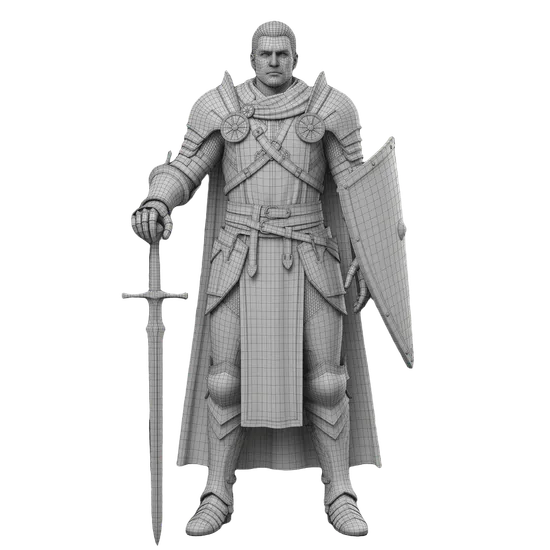

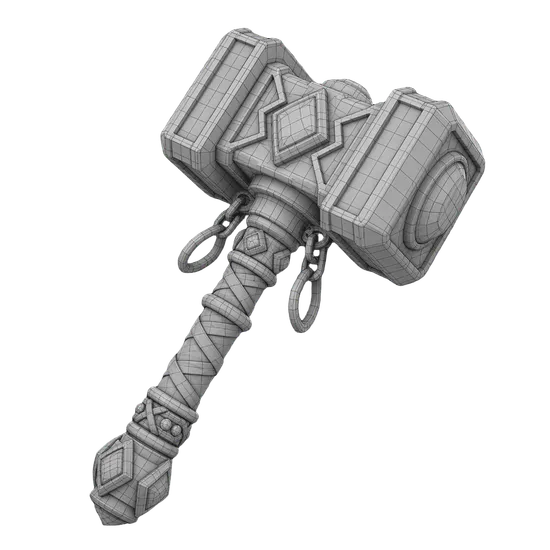

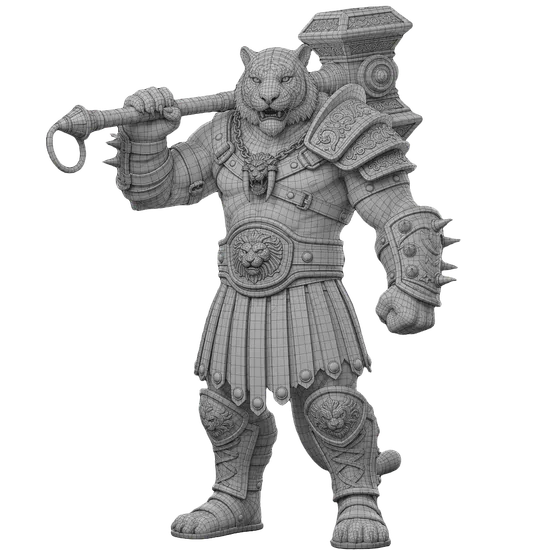
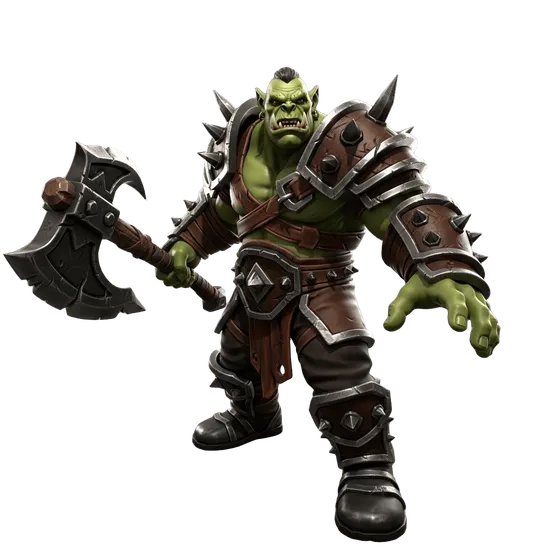
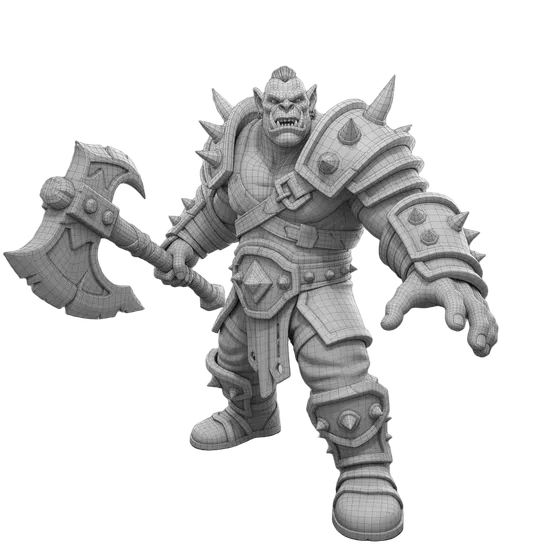



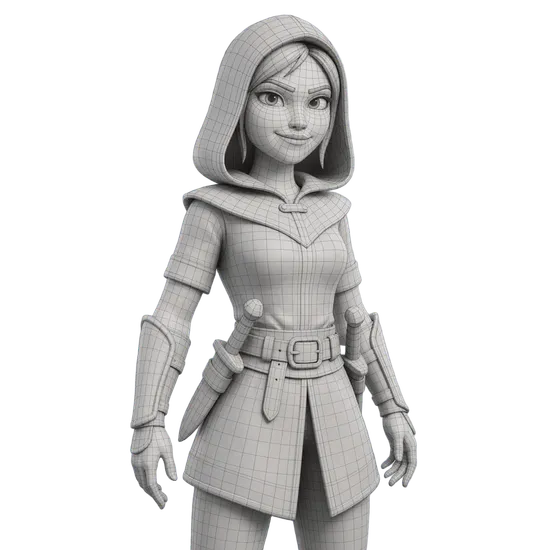
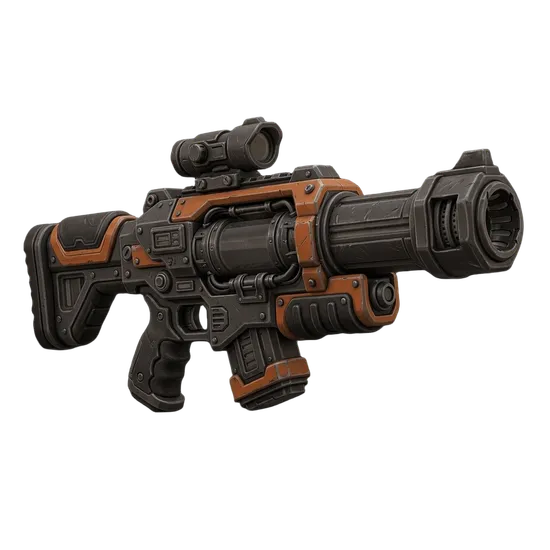
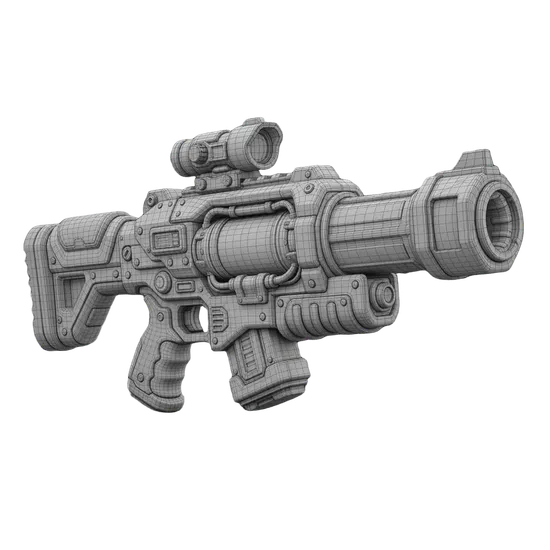
The 3D model viewer that opens anything
Drop a GLB, GLTF, FBX, OBJ or STL file onto the viewer above. Inspect topology, swap HDRI lighting, switch materials, and export crisp screenshots — all without installing a thing.
Free Online 3D Model Viewer
Open and inspect any 3D model directly in your browser with the 3D AI Studio Viewer. Drop a GLB, GLTF, FBX, OBJ, or STL file onto the viewport and the model loads instantly with full orbit, zoom, and pan controls. No accounts, no uploads to a server, no plugins, no installations. The viewer is completely free and runs 100% client-side, so your files stay on your device. Need to create or edit 3D content first? Generate models from photos, text descriptions, retopologize imported meshes, or convert formats using the rest of 3D AI Studio.
Built for Inspecting Any 3D Format
View GLB & GLTF
GLB is the web-native 3D format with materials, textures, and animations packed into a single file. The viewer uses the same Khronos-standard loader as Sketchfab, model-viewer, and Babylon.js so what you see here is exactly what other GLB viewers see.
View FBX
FBX files commonly arrive from Autodesk Maya, 3ds Max, Cinema 4D, and many marketplace stores. The viewer parses binary FBX, loads embedded textures automatically, and centers the model so you don't have to fight the import scale.
View OBJ
OBJ is the universal exchange format for Blender, ZBrush, MeshLab, and most CAD tools. Drop the .obj alone for clay preview, or together with its .mtl file and texture images to view the model with its full original shading.
View STL
STL is the standard for 3D printing. The viewer renders STL meshes with a smooth clay material so you can verify silhouettes and surface finish before slicing, then switch to wireframe to inspect topology issues that could cause print failures.
Why Use a Browser-Based 3D Viewer
Heavyweight 3D applications like Blender, Maya, and Unreal Engine are powerful but slow to launch and have steep learning curves. When all you need to do is preview a downloaded model, verify a client deliverable, or share a quick render with teammates, opening a desktop editor is overkill.
The 3D AI Studio Viewer fills that gap. Drop any GLB, FBX, OBJ, or STL file onto the page and it appears in under a second with smooth orbit, zoom, and pan controls. Switch between materials, lighting setups, and HDRI environments to see how the model performs under different conditions.
Because the viewer runs entirely in your browser using WebGL and three.js, your model files never leave your device. This is critical for proprietary game assets, unreleased product designs, and client work under NDA. There is no upload step, no server processing, and no waiting in queues. You can confirm this by watching the network tab while you load a model. The only network request is for the viewer's own JavaScript bundle.
The viewer also doubles as a quality control tool for your AI generations. Models created with Image to 3D, Text to 3D, or after running through Remesh can be downloaded as GLB and re-opened here to confirm they look right outside the generation environment, with the same renderer most engines use.
Customization & Inspection Tools
HDRI Environments
Switch between five hand-picked HDRI environments to instantly change the lighting mood. Toggle the HDRI as the visible background or keep it for lighting only and use a solid color or transparent background for clean studio shots.
Material Modes
Beyond the original textures, switch the model to wireframe with a custom color, clay for silhouette analysis, X-ray to see hidden geometry, or matcap-style normals to debug surface direction. Toggle modes without re-uploading the file.
Camera & Auto-Fit
Use jump-to-view shortcuts for front, back, sides, top, bottom, and perspective. Auto-fit re-centers the camera on the model bounding box. Auto-rotate spins the object slowly so you can capture turntable-style screen recordings without touching the mouse.
Mesh Statistics
The Stats panel reports vertex count, triangle count, draw calls, and live FPS. Use it to verify a model fits a game engine budget, to compare topology before and after retopology, or to spot heavy meshes that need optimization.
How the Viewer Loads Each Format
When you drop a file onto the viewport, the viewer detects the format from its extension and routes it to the matching loader. GLB and GLTF files are parsed with the official Khronos GLTFLoader, which reads embedded buffers, materials, textures, and animations. FBX files are parsed with FBXLoader, which understands both binary and ASCII FBX revisions and decodes embedded texture data when present.
OBJ files use OBJLoader. If you drop the .mtl file and referenced texture images at the same time, MTLLoader resolves the material library and remaps relative texture paths to in-browser blob URLs through a custom URL modifier. This means OBJ exports from Blender, ZBrush, or any modeling tool render with their original shading without manual setup. You can also drop a single .obj for a fast geometry-only preview.
STL files use STLLoader. Because STL is a triangle-soup format with no colors or texture coordinates, the viewer applies a high-quality default material and centers the geometry. Smooth shading is computed automatically for organic shapes while the original facets are preserved for hard-surface and engineering parts.
Every loaded model is automatically centered and scaled to fit a reference frame. The camera is positioned to frame the bounding box, and you can re-center at any time with the auto-fit shortcut. This avoids the common headache of importing a model and finding it tiny, gigantic, or off-camera.
Tips for Best Viewing Results
Use GLB When Possible
GLB is the fastest and most accurate format for the web. Materials, textures, and animations are packed into one file with no path resolution headaches. Most modeling tools can export GLB, and you can convert from FBX or OBJ using free tools or 3D AI Studio's own export pipeline.
Drop OBJ With Its MTL & Textures
If your OBJ uses external materials, select the .obj, .mtl, and texture files together when dropping or browsing. The viewer reads them as a group and resolves all references in-memory. Without the MTL, the OBJ renders as untextured clay which is still useful for geometry inspection.
Reduce Heavy Meshes First
Models above 1–2 million triangles can stutter on integrated GPUs and mobile devices. Use the Remesh tool to reduce polygon count while preserving silhouette and texture quality, then re-open the result here for smooth interaction at full frame rate.
Match Background to Asset
Light or stylized assets read better against a dark background, while dark or moody assets pop against neutral studio HDRIs. Try a few backgrounds before screenshotting. The viewer keeps your camera angle stable when you swap environments so you can compare looks fairly.
Get Started
Drag a GLB, GLTF, FBX, OBJ, or STL file onto the viewport above to start, or pick one of the sample models to explore the controls. Use the right-side sidebar to switch HDRI environments, toggle wireframe, change materials, frame the camera, and download a high-resolution screenshot. Need to create the perfect 3D model first? Generate one from a photo, a text prompt, or optimize an existing model for animation, printing, or game engines. All processed models export back to GLB, FBX, OBJ, STL, USDZ, BLEND, DAE, or 3MF and re-open right here in the viewer.
Frequently Asked Questions
What is the 3D AI Studio Viewer?
The 3D Viewer is a free online tool that lets you open and inspect 3D models directly in your browser. It supports GLB, GLTF, FBX, OBJ, and STL files with full orbit, zoom, and pan controls. No installation, plugin, or sign-up is required, and your files never leave your device. It works on desktop, tablet, and mobile.
Which 3D file formats can I view?
The viewer opens GLB, GLTF, FBX, OBJ, and STL files. GLB and GLTF carry embedded materials and textures and are the recommended formats for the web. FBX preserves embedded textures and animations. OBJ files load with optional MTL and texture images. STL files are geometry-only and ideal for 3D printing inspection.
Can I view textured OBJ and FBX models?
Yes. For FBX, embedded textures inside the binary file load automatically. For OBJ, drop the .obj together with its .mtl file and any texture images (PNG, JPG, WebP) at the same time and the viewer will resolve them. You can also apply a single override texture to any model from the sidebar to quickly try a different look.
Is the 3D viewer free to use?
Yes. The 3D Viewer is completely free, requires no account, and has no upload limits beyond your browser's memory. Models stay on your device, nothing is uploaded to a server. If you need to generate, retopologize, texture, or convert 3D models you can use the rest of the 3D AI Studio platform with free credits on signup.
How do I open a GLB file online without Blender?
Drag your GLB file onto the viewer or click the upload area. The model loads instantly and you can rotate, zoom, and pan it with the mouse or touch. There's no need to install Blender, Maya, or any other 3D software. GLB files are the web-native 3D format and load fastest because materials and textures are packed into a single file.
How do I open an STL file in the browser?
Drop your STL file onto the viewer to open it instantly. STL files are geometry-only with no colors or textures, so the viewer applies a clean clay material by default. Use the sidebar to switch to wireframe, X-ray, or normal-view materials, change the surface color, and inspect the geometry from any angle before sending it to your 3D printer.
Can I see the wireframe and polygon count?
Yes. Toggle Wireframe in the sidebar to overlay the mesh structure with a custom color. The Stats panel shows live triangle count, vertex count, draw calls, and FPS. This is useful for inspecting topology, checking if a model is too dense for a game engine, or verifying a remesh result before exporting from another pipeline.
Can I change the lighting and HDRI environment?
Yes. Pick from five built-in HDRI environments to instantly change the lighting mood, from neutral studio to dramatic sunset. Toggle the HDRI as the visible background, adjust environment intensity, and tweak ambient and key light strength. You can also choose between ACES, AGX, or Linear tone mapping for cinematic, film, or technical looks.
Does the viewer work on mobile?
Yes. The viewer is fully responsive and works on iOS and Android. Use one finger to orbit, two fingers to pinch-zoom, and three fingers (or two-finger drag) to pan. The settings panel collapses into a floating button on small screens so the model gets the full viewport. Touch performance scales with your device, so heavier models load faster on newer phones.
Can I take a screenshot of the model?
Yes. Click the Screenshot button in the sidebar to download a high-resolution PNG of the current view, including your background color or HDRI. Screenshots use the canvas's native pixel ratio for crisp output, so the result is suitable for portfolio shots, store listings, presentations, or sending preview renders to clients without exporting from a renderer.
Are my files uploaded anywhere?
No. The viewer is fully client-side. Your model files are read directly in your browser using object URLs and are never sent to a server. This keeps proprietary or unreleased designs private and makes loading instant even for large GLB or FBX files. You can verify this by opening DevTools and watching the Network tab while you load a model.
What's the difference between this and a Blender or game engine viewer?
Blender, Maya, Unity, and Unreal are full editors with steep learning curves. The 3D AI Studio Viewer is a focused inspection tool that opens any common 3D format in seconds. Use it to quickly preview downloads, share link-free renders with teammates, verify exports, or check models before importing them into a heavier 3D application.
Can I view models I created with 3D AI Studio?
Yes. Models you generated with [Image to 3D](/ImageTo3D) or [Text to 3D](/TextTo3D) can be viewed here by dragging the downloaded GLB onto the viewer. For an integrated experience, your full library is also available in the [Dashboard](/Dashboard) where each model has its own viewer. Use this tool when inspecting external files or files from other software.
How large can my model be?
There is no fixed file size limit. The practical limit depends on your device's memory. Most modern computers handle GLB files up to 200 MB and FBX files up to 500 MB without issues. For very dense meshes above one million triangles, consider running them through the [Remesh tool](/Tools/Remesh) first to reduce polygon count for smoother viewing.
Can I rotate the model automatically?
Yes. Enable Auto-Rotate in the Camera section of the sidebar to slowly orbit the model. Adjust the rotation speed with the slider. This is useful for showcase videos, presentations, social media clips captured with screen recording, or simply admiring your work without touching the mouse. Disable auto-rotate any time you want to inspect a specific angle.