
Turn a Text Prompt into a 3D Model in Seconds
Describe the object in plain language and the AI generates a fully textured 3D model, ready for game engines, 3D printing, and product work. No reference image, no 3D experience needed.
Updated July 2026
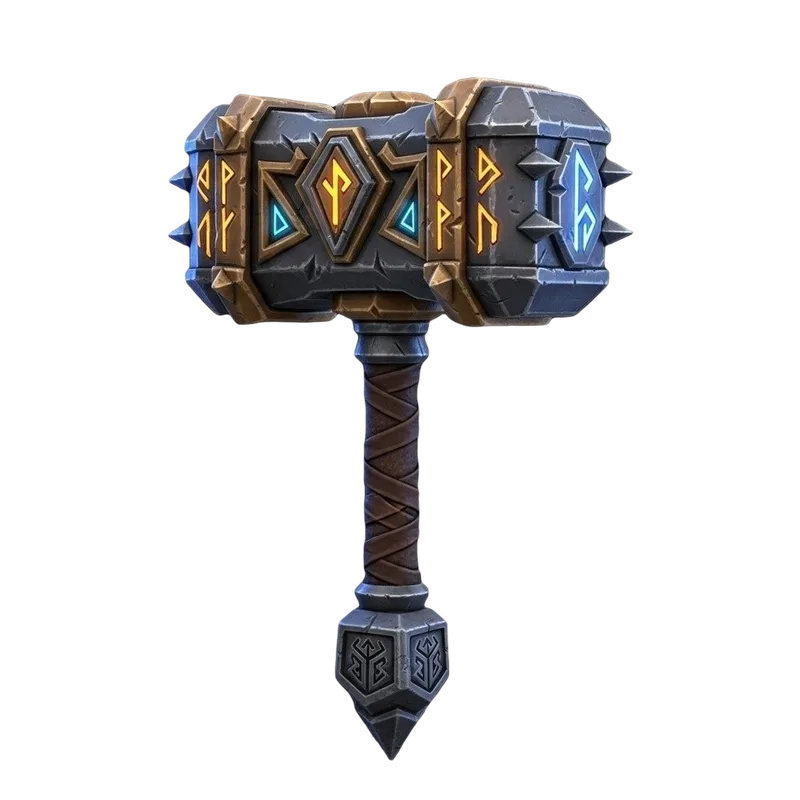
“dwarven warhammer with glowing runes, dark steel”
Trusted by creators at top game studios and tech companies
















How to generate a 3D model from text
Three steps, no 3D experience needed
Write your prompt
Describe the object in a sentence. Subject, material, and one distinctive detail is enough.
Prompt
dwarven warhammer with glowing runes, dark steel
Generate and preview
Pick one of 15+ AI engines, hit Generate, and inspect the result in the 3D viewer.
My generations
Export and use it
Download as GLB, OBJ, FBX, STL and more. Ready for Blender, Unity, or your slicer.
Download
~60sFastest Generation
Prism Turbo engine
14+AI Models
Prism, Meshy, Hunyuan, Rodin…
8Export Formats
GLB, OBJ, FBX, STL, USDZ…
100Free Credits / Month
No credit card
Everything the generator handles
One prompt covers the full distance from idea to production asset
Prompt to 3D model
One sentence becomes a fully textured model. Pick from 14+ engines to trade speed against quality per generation.
Fast iteration
Rerun the same prompt with different wording, styles, or engines and compare the results. Prism Turbo drafts land in about a minute.
Background generations
Send a generation to the background and keep working. Slower, higher-quality engines finish while you write the next prompt.
8 export formats
GLB, OBJ, FBX, STL, USDZ, BLEND, DAE, and 3MF. Files open straight in Blender, Unity, Unreal, or your slicer with no conversion detour.
PBR textures included
Models come with material maps; the top engines offer full PBR output. Refine textures with AI afterwards without leaving the workspace.
Game-ready AI
Smart low-poly generation and quad remeshing produce lean, engine-ready topology. FBX drops straight into Unity, Unreal, or Godot.
Print-ready AI
Mesh repair makes every model watertight and slicer-ready, and the texture bakes into vertex colors for multi-color 3MF export. No hole-patching afterwards.
Rigging & animation
Rig generated characters and animate them in the same workspace, or hand the model to Blender through the one-click bridge.
Image-first control
Want to art-direct the result? Generate a reference image from the same prompt first, refine it, then convert the image to 3D.
Watch a generation happen
Screen capture of the workspace: type, generate, preview, export.
See what a prompt becomes
Each handwritten note is the prompt; the model above it is the raw result, no cleanup. Click any tile to spin the actual 3D model.
Every top text-to-3D model, in one studio
Prism, Meshy, Hunyuan, Rodin, and the rest live here side by side. No separate subscriptions, no picking a provider and hoping. Switch engines per generation.

Prism 3.1
Flagship detail and textures
3D AI Studio · 3-5 min

Tripo P1
Game-ready topology
Tripo · 60-90 sec

Meshy 6
Production topology and PBR
Meshy · 5-10 min

Hunyuan 3.1 Pro
Premium geometry, PBR option
Tencent · 3-4 min

Rodin 2.5
High-detail sculpts
Hyper3D · 6-7 min
Forge Gen-2
Deep mesh and material controls
Hyper3D · 5-7 min
Prism Turbo
Quality at draft speed
3D AI Studio · 50-90 sec
Forge Sketch
Instant low-poly concepts
Hyper3D · 50-90 sec
That is 8 of 14+. See the full lineup on the Models page or run the same prompt through several at once in the live comparison tool.
What creators generate from prompts
Text to 3D is at its best when the thing you need does not exist yet.
Fantasy & stylized assets
Creatures, magical items, alien props, and original character designs with no real-world reference to photograph. Describe the look and the AI builds it from scratch.
Brainstorming variations
Describe the same object with different materials, styles, or proportions and compare outputs side by side. A dozen variations in the time manual modeling takes for one.
Blockouts & placeholders
Rough 3D shapes from descriptions for level design, scene composition, and layout previews. Replace them with final art later, or clean them up with retopology.
Custom props from briefs
Turn a client brief into a model directly. A steampunk lantern with copper gears and a green glass panel becomes a tangible asset you can preview and iterate on.
And the work after the generation
The editor around the generator gets the model into your pipeline without external tools.
What makes a good prompt
The single biggest factor in output quality is how you describe the object
Subject, material, one detail
A weathered wooden treasure chest with iron bands beats a chest every time. Name the object type, the material, and one or two distinctive features.
One object, not a scene
Describe a single subject. Full scenes with multiple objects confuse the reconstruction; generate the pieces separately and assemble them in your 3D tool.
Say what it is for
Add the target use to the prompt: game-ready, photorealistic, or 3D-printable. Avoid thin parts like wires and fingers spread apart; they are the hardest geometry.
Full walkthrough with examples in the text-to-3D guide.
Want more control? Generate the image first
For art-directed results, turn the prompt into a reference image, edit it until it looks right, then convert that image to 3D. The picture pins down proportions and style before the 3D step. All of it inside 3D AI Studio, on the same credits.
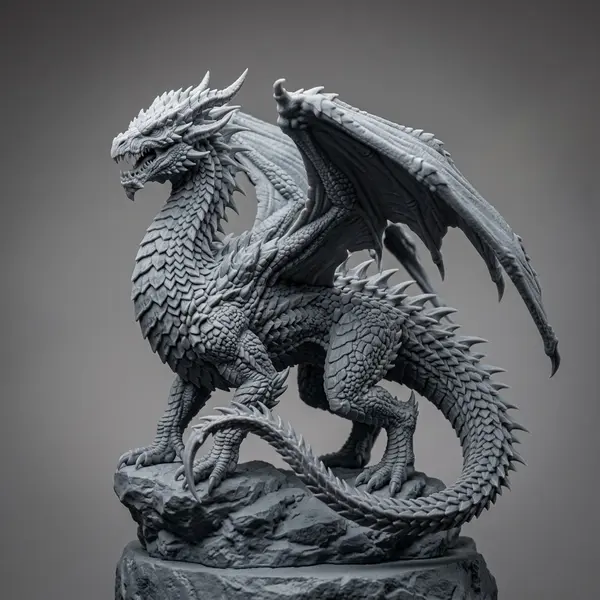
“3D printable dragon figurine”
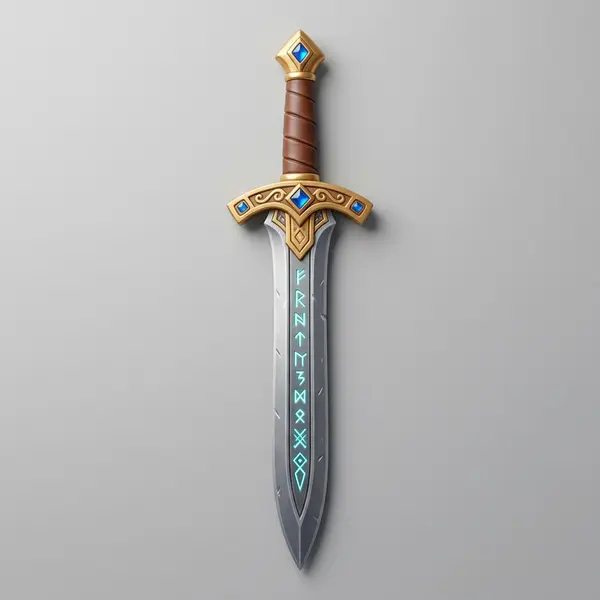
 Before
+“keep only the sword”
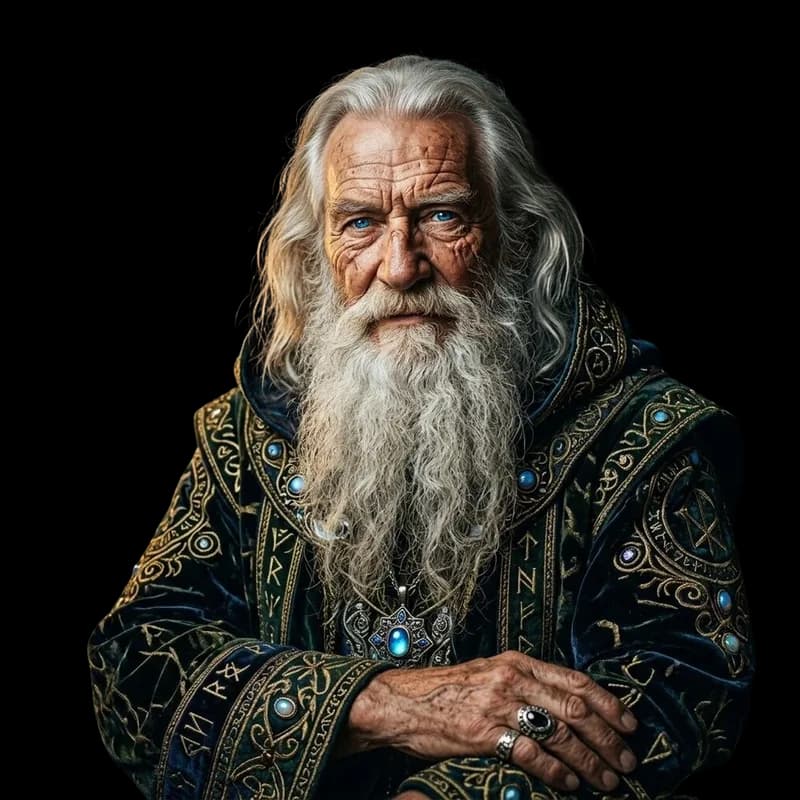
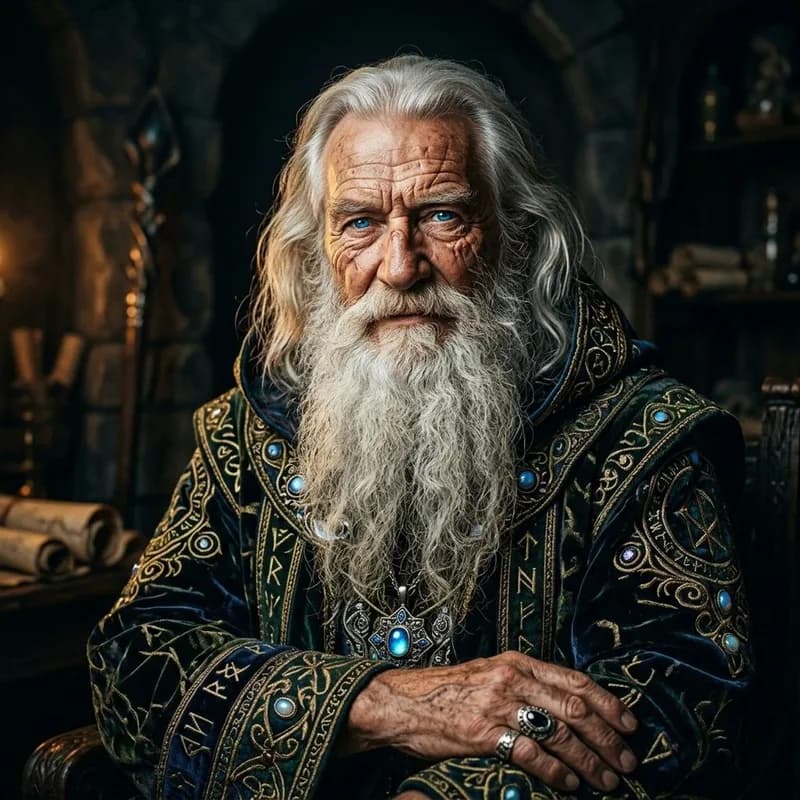 Input
InputGenerate and edit the reference in Image Studio, then convert it with Image to 3D. Same workspace, same credits.
What creators say
Rated 4.6/5 on Trustpilot
The speed in which I can generate 3D models is astonishing. Its simplified my workflow and given my applications an aesthetic uplift that impresses clients. I even 3D printed a few of those Models and they came out great

Tim Karlowitz
Website Developer
With the 3D AI STUDIO, Ive been able to create complex, high-quality 3D models in seconds, shaving hours off of my usual timescales and allowing me to focus more on getting creative. It has been a game-changer. This is the best AI 3D Model Generator i have ever used!

Noah Böhringer
Game Developer at BHR Studios
So cool! I just logged in and was very quickly able to make a 3D model from a prompt. Could see a lot of applications of this in video editing / animation. Cant wait for all the new Features!

Dillion Verma
Developer @Nvidia

The Best image to 3D Model generator out there. Un matched from my comparisons. Has saved me so much time and $$$. I am very picky about how the models look and 3D AI Studio is able to give you that REAL Detail that you need to be legit.

Junior Lopez
Canada
3D AI Studio is the best service I've found out there. They have a far superior output for highly detailed, realistic models and several amazing tools for source image generation, retexturing and model re-meshing/refining. The interface is clean, easy-to-use and intuitive.

Paul Hoover
United States
Mind blowing customer support. The results are pretty amazing, you generate cool game assets within minutes AND there's an option to make them pretty low poly. When I stopped using I asked a refund for the last month - got it within 30 seconds. Mind blown.

Yuri Shmorgun
Israel
I've tried several 3D modeling solutions, but 3D AI Studio stands out for its product and its support. Jan is amazing, he is constantly adding new features and improving on the experience, and extremely responsive to any support requests. Highly recommend!

Ian Chaplin
United States
3d models that wont break the bank. I made around 25 models rigged a few. It was able to use just my png 2d artwork to generate a 3d model which can be saved as glb, fbx, stl, which port over into game engines easy. Some of my characters have armor on an it made them look so AAA in thier armor.

Brad J Bigner
United States
Overall the best AI website I have tried. The team is amazing! They are really going with what the community wants, they listen and they go from our very own requests. I would say that you really get your money worth! highly recommend!

XshadowX
Canada
The speed in which I can generate 3D models is astonishing. Its simplified my workflow and given my applications an aesthetic uplift that impresses clients. I even 3D printed a few of those Models and they came out great
Tim Karlowitz
Website Developer
With the 3D AI STUDIO, Ive been able to create complex, high-quality 3D models in seconds, shaving hours off of my usual timescales and allowing me to focus more on getting creative. It has been a game-changer. This is the best AI 3D Model Generator i have ever used!
Noah Böhringer
Game Developer at BHR Studios
So cool! I just logged in and was very quickly able to make a 3D model from a prompt. Could see a lot of applications of this in video editing / animation. Cant wait for all the new Features!
Dillion Verma
Developer @Nvidia
The Best image to 3D Model generator out there. Un matched from my comparisons. Has saved me so much time and $$$. I am very picky about how the models look and 3D AI Studio is able to give you that REAL Detail that you need to be legit.
Junior Lopez
Canada
3D AI Studio is the best service I've found out there. They have a far superior output for highly detailed, realistic models and several amazing tools for source image generation, retexturing and model re-meshing/refining. The interface is clean, easy-to-use and intuitive.
Paul Hoover
United States
Mind blowing customer support. The results are pretty amazing, you generate cool game assets within minutes AND there's an option to make them pretty low poly. When I stopped using I asked a refund for the last month - got it within 30 seconds. Mind blown.
Yuri Shmorgun
Israel
I've tried several 3D modeling solutions, but 3D AI Studio stands out for its product and its support. Jan is amazing, he is constantly adding new features and improving on the experience, and extremely responsive to any support requests. Highly recommend!
Ian Chaplin
United States
3d models that wont break the bank. I made around 25 models rigged a few. It was able to use just my png 2d artwork to generate a 3d model which can be saved as glb, fbx, stl, which port over into game engines easy. Some of my characters have armor on an it made them look so AAA in thier armor.
Brad J Bigner
United States
Overall the best AI website I have tried. The team is amazing! They are really going with what the community wants, they listen and they go from our very own requests. I would say that you really get your money worth! highly recommend!
XshadowX
Canada
“I've watched thousands of head-to-head votes across every major 3D AI model. 3D AI Studio is the one place you can actually use the top models together - with a full toolkit around them.”
Stefan Vaskevich
Founder of Top3D.ai - the independent 3D AI leaderboard

Frequently asked questions
Everything people ask before their first generation
Something else? Write us at support@3daistudio.com.
Have a reference image? Convert it directly
Image to 3D turns photos, sketches, and concept art into textured 3D models. More control than a prompt when you know what it should look like.
Need 3D lettering instead of objects?
The 3D text generator extrudes any font and text string into a printable 3D mesh. Signs, logos, and typography live there, not here.
Compare every 3D engine side by side
Same prompt across all models at once, so you can see which engine handles your style best before spending credits.