
Veo 3.1 AI Video Generator
Make realistic videos with sound. Veo 3.1 is Google's flagship AI video model - it turns your text or images into cinematic clips with native audio, real lip-sync, lifelike motion, and resolution up to 4K. Use it free inside 3D AI Studio's Video Studio.
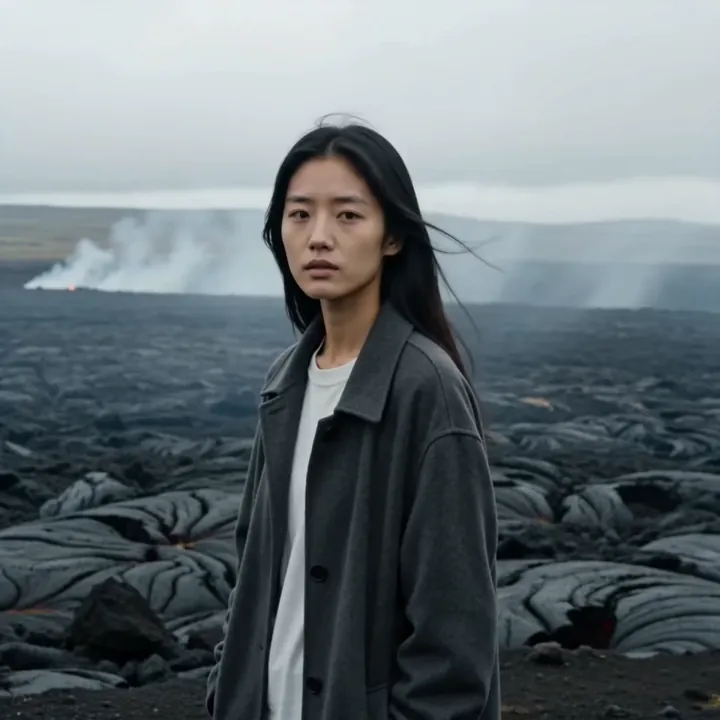
“Hair blowing in the wind, cinematic volcanic landscape”
Two ways to create with Veo 3.1
Start from a written idea, or bring an existing image to life. Both generate matching sound automatically.
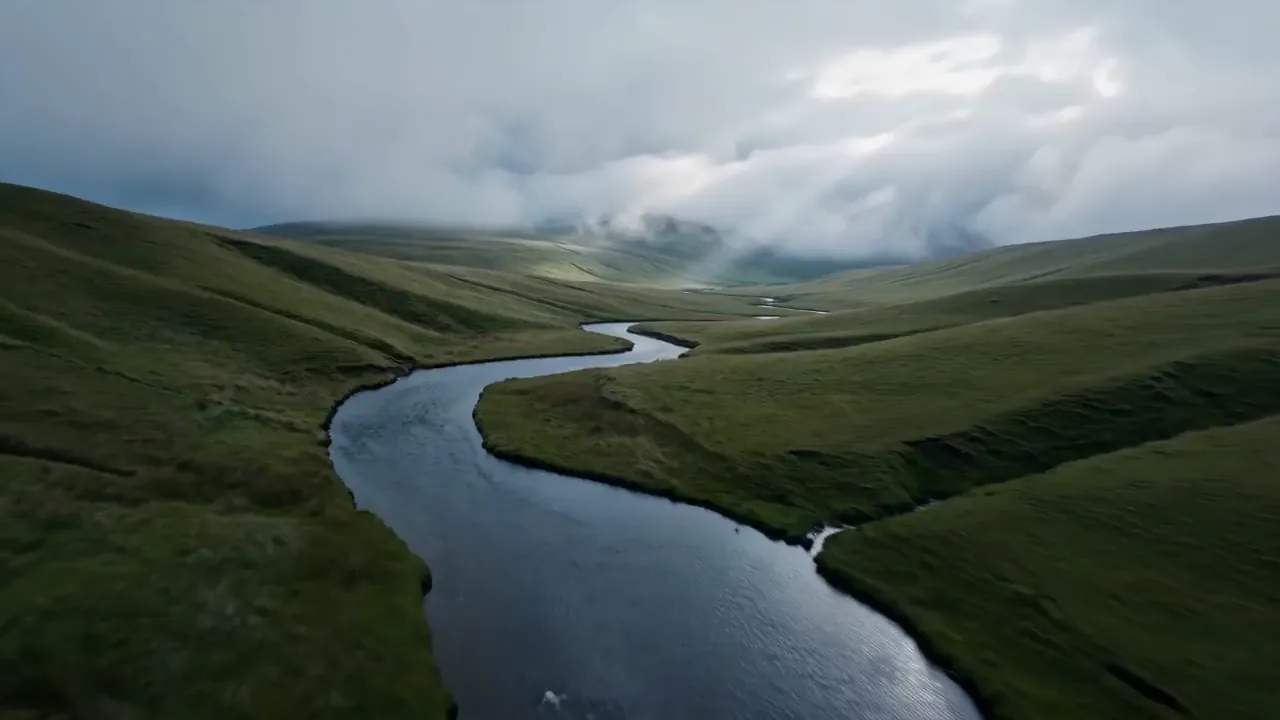
“Aerial drone shot over a misty river valley at dawn”
Text to Video
Veo 3.1 LiteDescribe a scene in plain English and Veo builds the whole clip from scratch - camera, lighting, motion, and sound. No footage or image needed.
- Great for scenes you don't have footage of
- Add dialogue in quotes for lip-synced speech
- Cheapest on the Lite tier
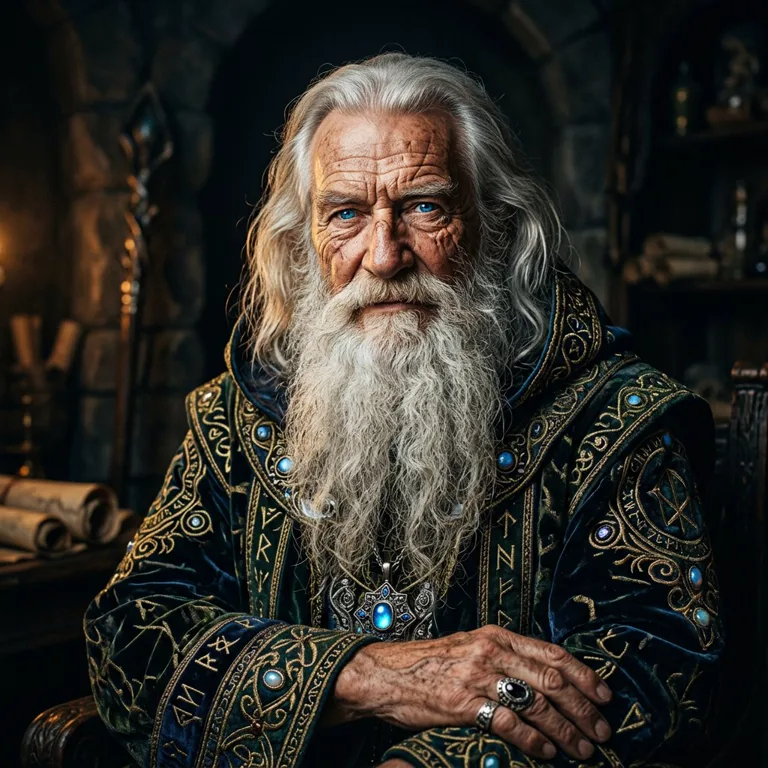
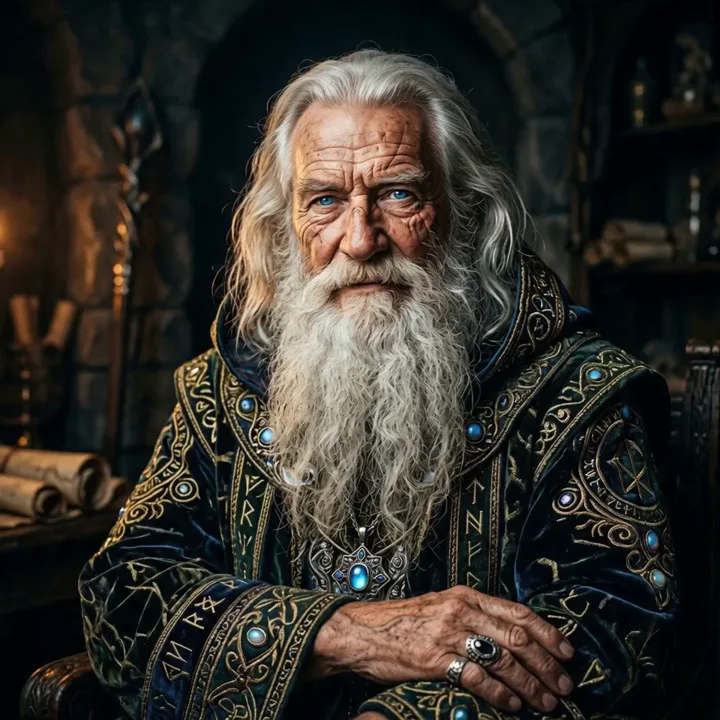
Image to Video
Veo 3.1 FastUpload a photo or an AI-generated image and describe the motion. Veo keeps the look of your image and animates it with believable movement.
- Keeps your exact character or product
- Up to 4K on the Fast tier
- Perfect after generating an image in Image Studio
What Veo 3.1 can do
Google's most advanced video model, built for realism and sound.
Native audio
Veo 3.1 generates sound with the video in one pass - dialogue, sound effects, ambient noise, and music, all matched to the action on screen.
Talking & lip-sync
Add dialogue in your prompt with quotation marks. Veo syncs spoken words to mouth movements with around 120ms accuracy, even with multiple speakers.
Up to 4K
Render crisp 720p and 1080p, or jump to native 4K (Fast tier) for cinema-quality detail and rich textures.
Real-world physics
Gravity, weight, reflections, and lighting behave naturally, so movement looks convincing instead of 'AI-floaty'.
Scene extension
Continue a clip beyond its first few seconds by extending from the final frames, so you can build longer, connected sequences.
Strong prompt following
Veo 3.1 understands long, detailed prompts - multiple subjects, specific camera moves, and mood - and sticks to them closely.
Turn any image into a video with sound
Upload a character, product, or scene. Veo adds lifelike motion and matching audio while keeping your image exactly as it is - these clips each started from one still image.
motion“He lifts his hand and a spell shimmers to life, robe shifting and candle flames reacting, with a low magical hum in the audio.”


motion“A confident hero beat: he plants his feet and glances toward the camera as leaves and dust drift past.”


motion“She breathes softly and blinks, ears twitching, as the forest glows and tiny chimes ring in the background.”
Generate video from a text prompt
No image, no footage - just words. Describe the shot and Veo creates it with synchronized sound.
“Aerial drone shot over a misty river valley at dawn”
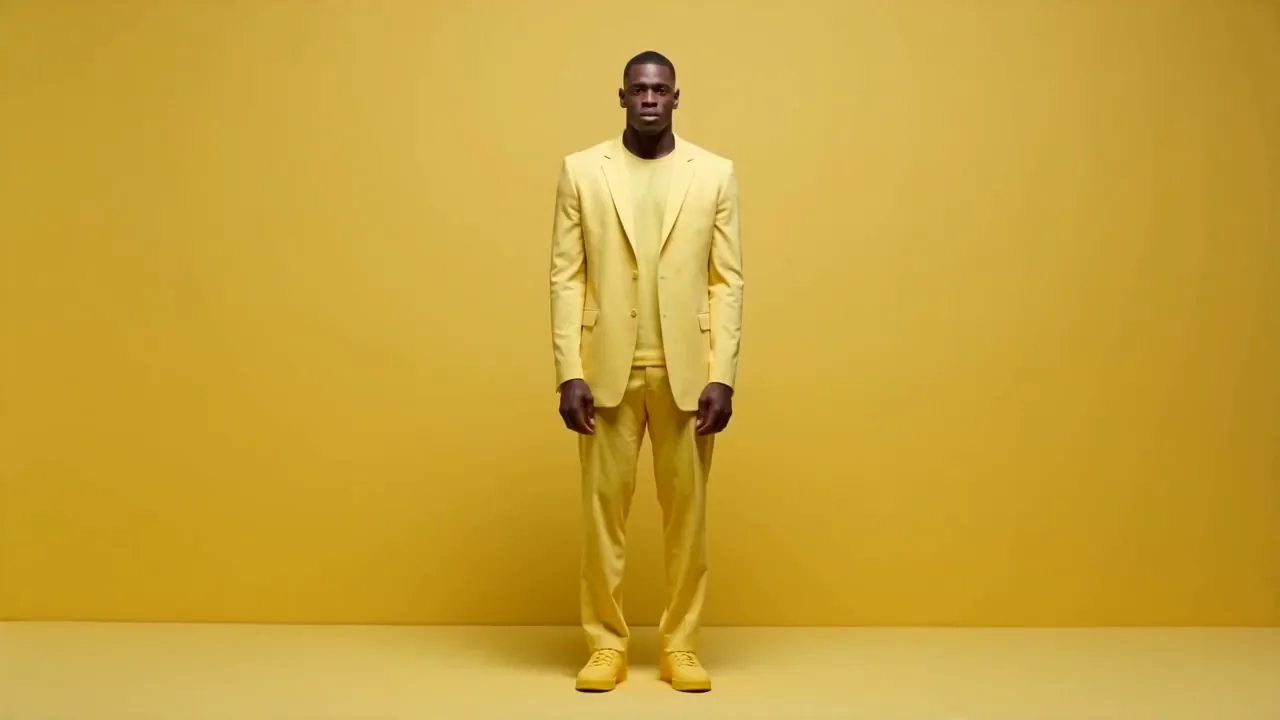
“Man in a yellow suit dancing in an empty warehouse, dynamic”
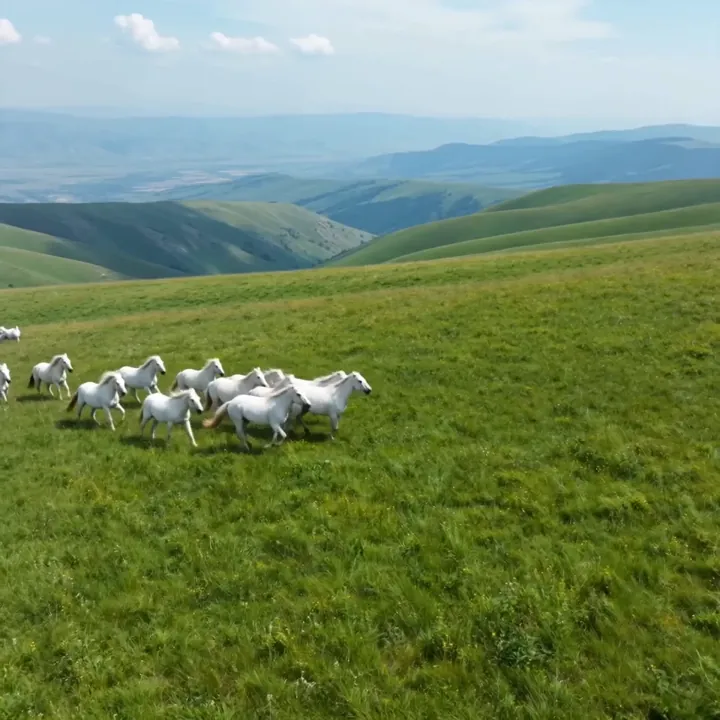
“Wild horses running through a mountain meadow, golden hour”
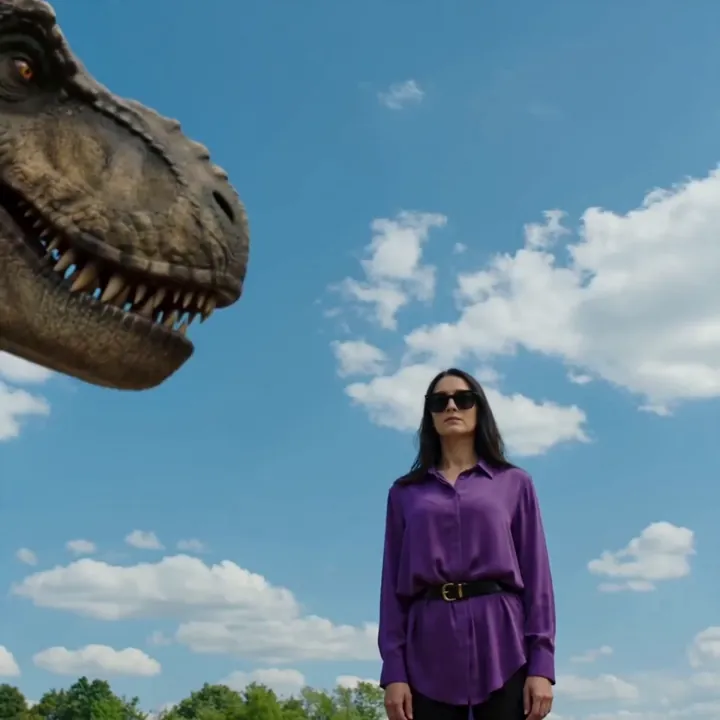
“Woman faces a T-Rex in a ruined city, cinematic rain”
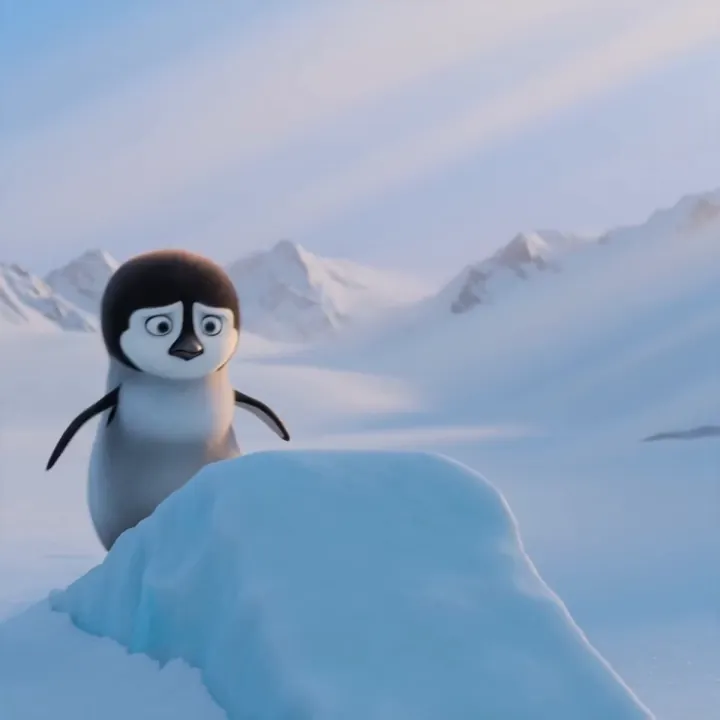
“Pixar-style penguin sliding down an icy slope, playful”
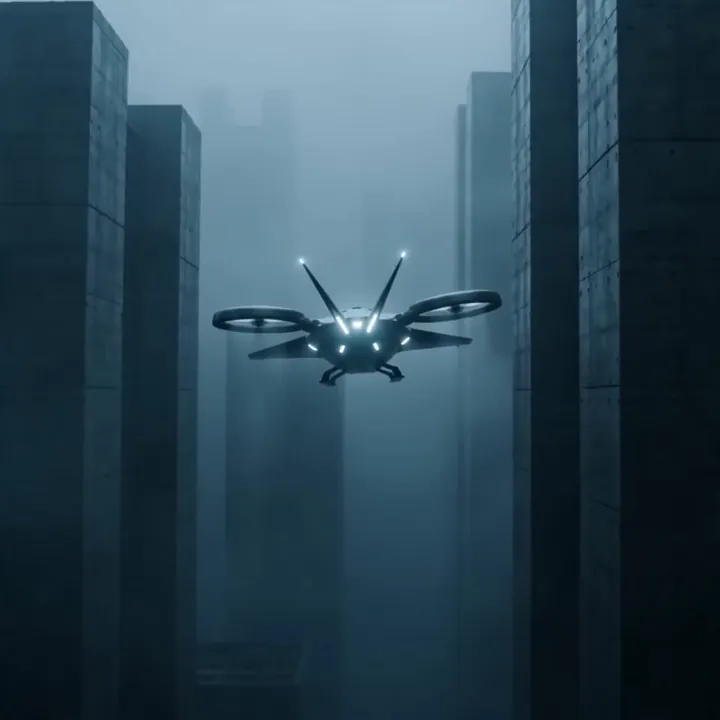
“Sci-fi drone navigating through a foggy neon city”
More videos made with Veo
A mix of Veo 3.1 and Veo 3 outputs from inside Video Studio.
“Hair blowing in the wind, cinematic”
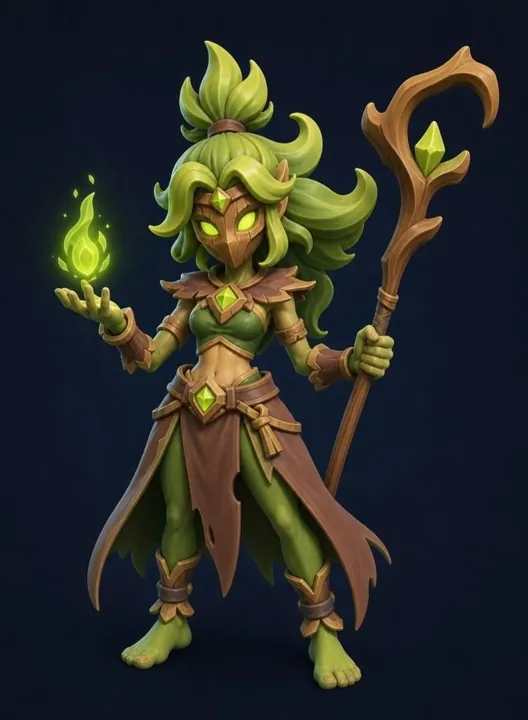
“Nature mage casting a spell, magical particles”
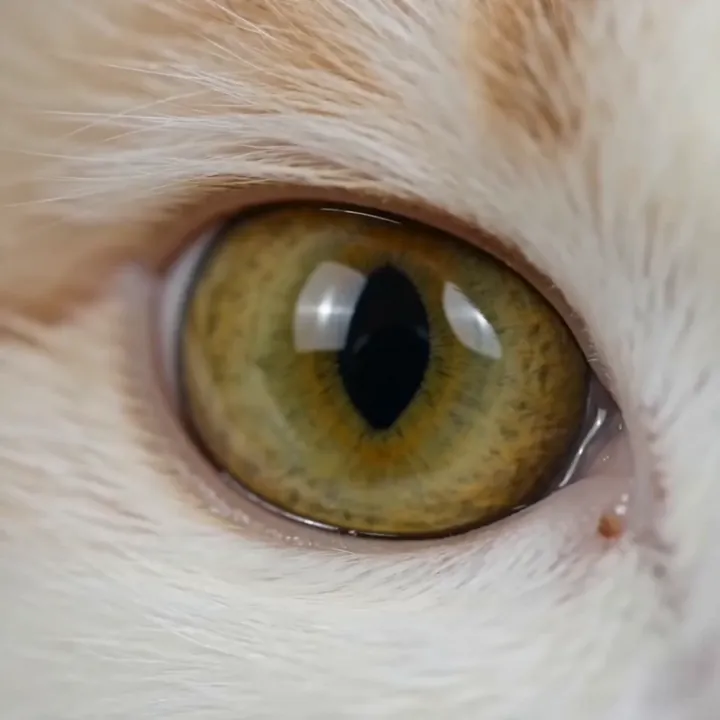
“Slow blink, macro dolly-in on a cat's eye”
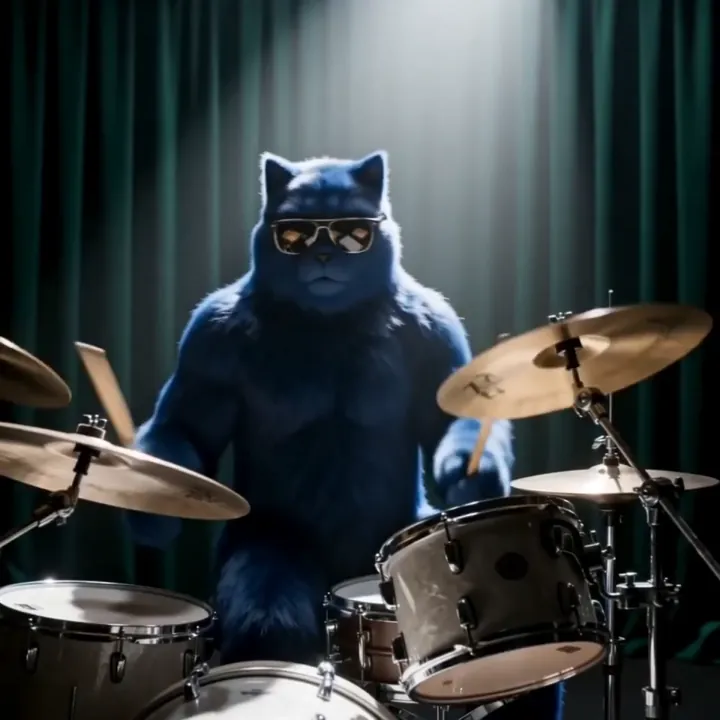
“Drumming in a band, energetic motion”
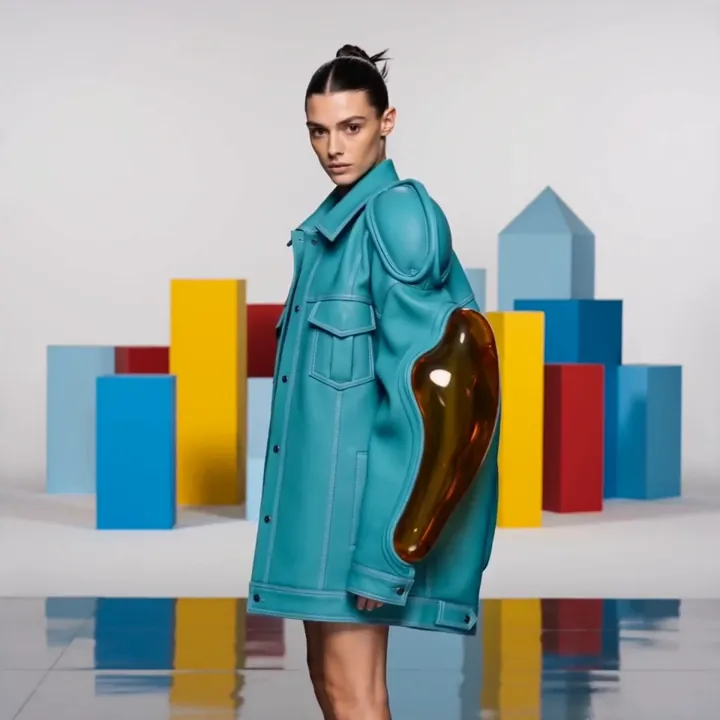
“Slow walk forward, fashion runway”
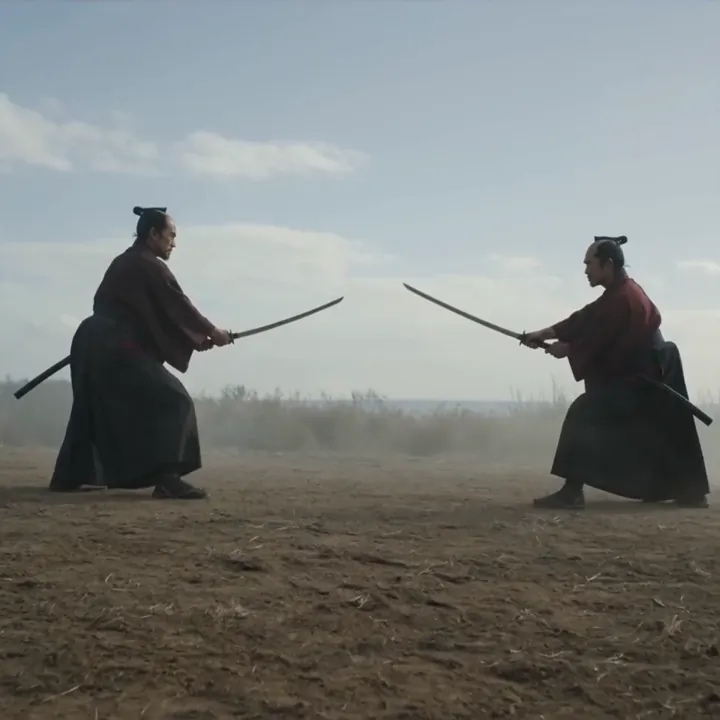
“Two samurai duel in a vast desert, cinematic”
How to make a video with Veo 3.1, step by step
From a blank prompt to a finished, sound-on clip in five steps - no editing software needed.
Open Veo 3.1 in Video Studio
Head to Video Studio and select Veo 3.1. Choose Veo 3.1 Fast when you want maximum quality or 4K, or Veo 3.1 Lite for the most affordable runs. Then pick your input: Text to Video or Image to Video.
Describe the scene
Write what happens in one clear sentence or two: who or what is in frame, where they are, and the single camera move you want (for example 'slow dolly-in'). Veo follows specific, concrete prompts far better than vague ones.
Add dialogue and sound
Veo generates audio with the picture, so describe the ambient sound, and put any spoken line in quotation marks - like a guide saying "follow me" - to get lip-synced speech that lands on the right frames.
Set resolution, length and shape
Choose 720p, 1080p, or 4K (Fast tier), a length of 4-8 seconds, and an aspect ratio: 16:9 for YouTube and landscape, or 9:16 for TikTok, Reels, and Shorts.
Generate, refine and download
Hit generate and Veo renders with synchronized audio in about a minute on most settings. If something's off, change one thing at a time - the camera move, then the lighting - then download in HD or 4K.
How to write great Veo 3.1 prompts
Veo rewards detail. The more clearly you describe the shot, the closer the result.
Name the camera move
Tell Veo how the camera should move. Specific terms work far better than 'the camera moves'.
“slow dolly-in on the subject, shallow depth of field”
Add dialogue in quotes
Put exact spoken lines in quotation marks and Veo will lip-sync them to the character.
“a barista smiles and says "your usual?"”
Set the mood and lighting
Lighting words change everything. Describe time of day, weather, and tone.
“golden hour, warm rim light, soft film grain”
Describe the sound
Veo generates audio too, so mention the sounds you want to hear in the scene.
“gentle rain, distant thunder, footsteps on wet pavement”
Veo 3.1 specs
Everything you can control when you generate.
Veo 3.1 Fast vs Lite
Both generate native audio and lip-sync. Pick Fast for maximum quality and 4K, Lite for the lowest cost.
| Feature | Veo 3.1 Fast | Veo 3.1 Lite |
|---|---|---|
| Best for | Hero shots, 4K, realism | Quick social clips, volume |
| Max resolution | 4K | 1080p |
| Native audio | Yes | Yes |
| Lip-sync | Yes | Yes |
| Speed | Fast | Fast |
| Relative cost | Higher | Lowest |
What people make with Veo 3.1
Talking videos
Spokesperson clips, explainers, and avatars with synced dialogue.
Ads & product
Photoreal product shots and short ad creative with sound.
Social content
Vertical 9:16 clips for TikTok, Reels, and Shorts.
Cinematic scenes
4K establishing shots, trailers, and concept films.
Explainers
Narrated how-to and educational clips with on-screen action.
Music & mood
Atmospheric visuals timed to a feeling or soundtrack.
Real estate & travel
Sweeping aerial and walkthrough shots from a single image.
Character animation
Bring a portrait or mascot to life with natural movement.
Veo works best with the rest of the studio
Generate a flawless starting image, animate it with Veo, then take it further into 3D - every tool shares one account and one credit balance.
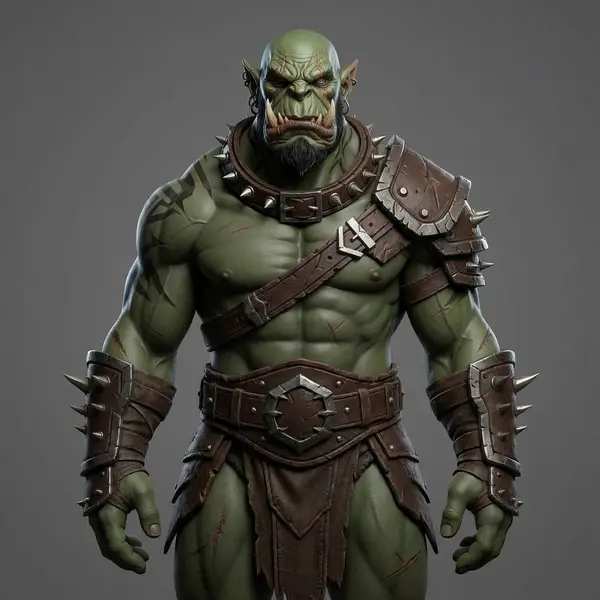
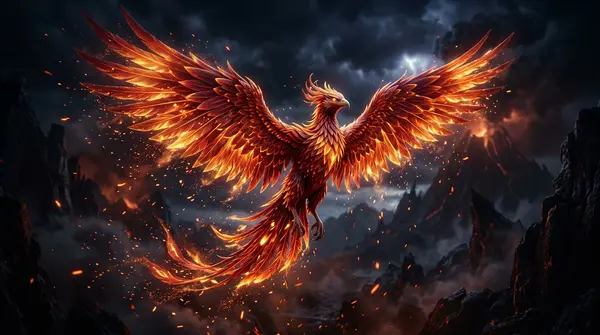
What is Veo 3.1?
Veo 3.1 is Google DeepMind's flagship AI video generation model. It creates short, high-quality video clips from a simple text prompt or a single image - and unlike most earlier models, it generates the sound at the same time as the picture. That means dialogue, sound effects, ambient noise, and music all come out of a single generation, already matched to what's happening on screen.
Google first launched Veo 3 in May 2025 and followed with Veo 3.1 in October 2025, adding richer audio, better prompt understanding, and stronger image-to-video quality. A lower-cost Veo 3.1 Lite tier arrived in 2026 for teams that need to generate a lot of video affordably. Inside 3D AI Studio you can use Veo 3.1 Fast, Veo 3.1 Lite, and the original Veo 3 - all from the same Video Studio, with no separate Google account or API setup.
Text to Video vs Image to Video
Veo 3.1 works two ways. With Text to Video, you describe a scene and Veo invents everything - the subject, the setting, the camera, and the sound. It's the fastest way to create a shot you don't have any footage or images for, like an aerial over a misty valley or a cinematic creature scene.
With Image to Video, you start from a picture. Upload a photo, a product shot, or an AI-generated character, and Veo animates it while keeping the exact look of your image. This is the best choice when you need a specific person, product, or style to stay consistent. A popular workflow is to generate the perfect starting image in 3D AI Studio's Image Studio, then animate it with Veo here.
Why native audio matters
Most AI video tools produce silent clips, leaving you to find music and sound effects separately and line them up by hand. Veo 3.1 generates audio as part of the video, so footsteps land on the right frame, a slamming door sounds when it shuts, and a character's lips move in time with their words.
This is a big deal for talking-head videos, ads with narration, and any scene where sound sells the realism. You can specify dialogue directly in your prompt by wrapping it in quotation marks, and Veo will generate lip-synced speech with around 120 millisecond accuracy - close enough to look natural in almost any clip.
Veo 3.1 vs other AI video models
Veo 3.1's biggest strength is realistic audio and lip-sync. If your video needs a person talking, a product demo with narration, or believable sound effects, Veo is usually the best choice. It also leads on physical realism - water, hair, reflections, and lighting behave the way they do in real life.
For pure cinematic length and multi-shot storytelling, you might reach for Kling 3.0 (up to 15-second single shots) or ByteDance Seedance 2.0 (multi-reference, multi-shot). The good news: 3D AI Studio gives you all of them under one subscription, so you can pick the right model for each shot instead of being locked into one.
Tips for better Veo 3.1 videos
Be specific about the camera. Phrases like 'slow dolly-in', 'aerial drone shot', or 'handheld tracking shot' guide Veo far better than 'the camera moves'. Describe the lighting and mood too - 'golden hour', 'soft studio lighting', or 'moody rain' all change the result.
For dialogue, put the exact spoken line in quotation marks. For image-to-video, start from a clean, well-lit image - Veo keeps the look of your input and adds motion, so a sharp input gives a sharp video. If a generation isn't quite right, change one thing at a time (the camera move, then the lighting, then the action) rather than rewriting the whole prompt.
Explore other video models
Every plan includes access to all of them. Pick the right tool for each shot.