
Veo 3 AI Video Generator
The model that brought sound to AI video. Veo 3 is Google's breakthrough generator from 2025 - it creates clean, cinematic clips with native audio and lip-sync, from text or images, at a friendly credit cost. Use it free in 3D AI Studio's Video Studio.
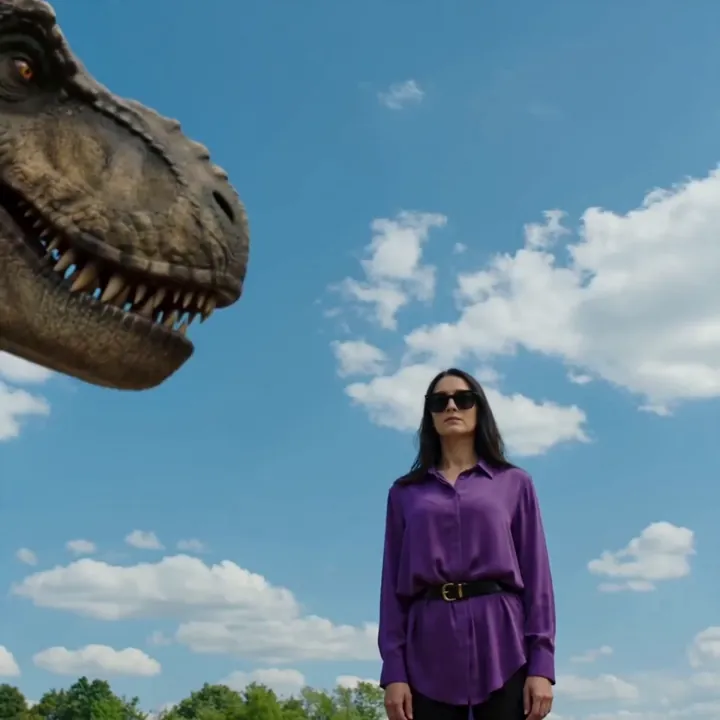
“A woman faces a T-Rex in a ruined city, cinematic rain”
Two ways to create with Veo 3
Write a scene from scratch or animate an image. The Standard tier even generates matching sound.


Image to Video
Veo 3 StandardUpload an image and describe the motion. Veo 3 Standard animates it with realistic movement and generates native audio to match.
- Keeps your exact subject
- Native audio on the Standard tier
- Up to 1080p, 8 seconds
“Pixar-style penguin sliding down an icy slope, playful”

Text to Video
Veo 3 TextDescribe a scene in plain English and Veo 3 builds the whole clip - subject, camera, and motion - from nothing but your words.
- No image needed
- Fast and economical
- Great for quick concepts
What Veo 3 can do
Google's 2025 breakthrough model - realistic, cinematic, and the first Veo with sound.
Native audio
Veo 3 Standard generates synchronized sound effects, ambient noise, and dialogue with the video, the feature that put Veo on the map.
Lip-synced dialogue
Write a line in quotation marks and Veo 3 has the character speak it, matching mouth movement to the words.
Real-world physics
Veo 3 famously reasons about physics, so motion, weight, and even how sounds change with a scene feel grounded and believable.
Image to video
Animate a photo or AI-generated image while keeping its look, for product shots, characters, and scenes you already have.
Text to video
Generate a complete clip from a written description alone, with no footage or image required.
Great value
Veo 3 delivers Google-grade quality at a lower credit cost than the newer Veo 3.1, making it a strong everyday choice.
Turn an image into a video
Upload a still and Veo 3 brings it to life with realistic motion - and, on the Standard tier, matching sound. These clips each started from one image.


motion“The knight adjusts his grip and looks up as leaves drift past, with clean, grounded motion.”


motion“She blinks and breathes softly while fireflies bob around her in the glow.”
motion“He raises his hand as the candle gutters and his robe shifts with natural weight and light.”
Made with Veo 3
Cinematic clips from the model that first paired AI video with sound.
“Woman faces a T-Rex in a ruined city, cinematic rain”
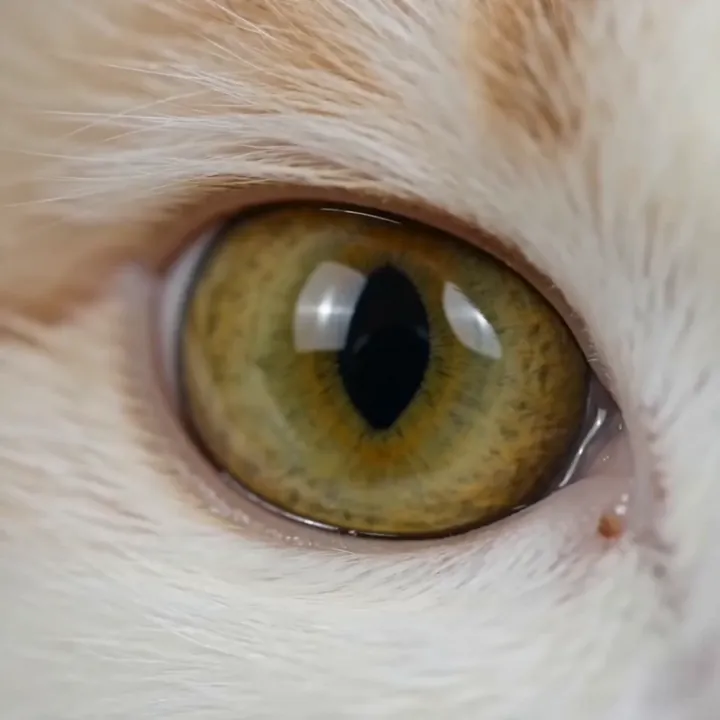
“Slow blink, macro dolly-in on a cat's eye”
“Pixar-style penguin sliding down an icy slope”
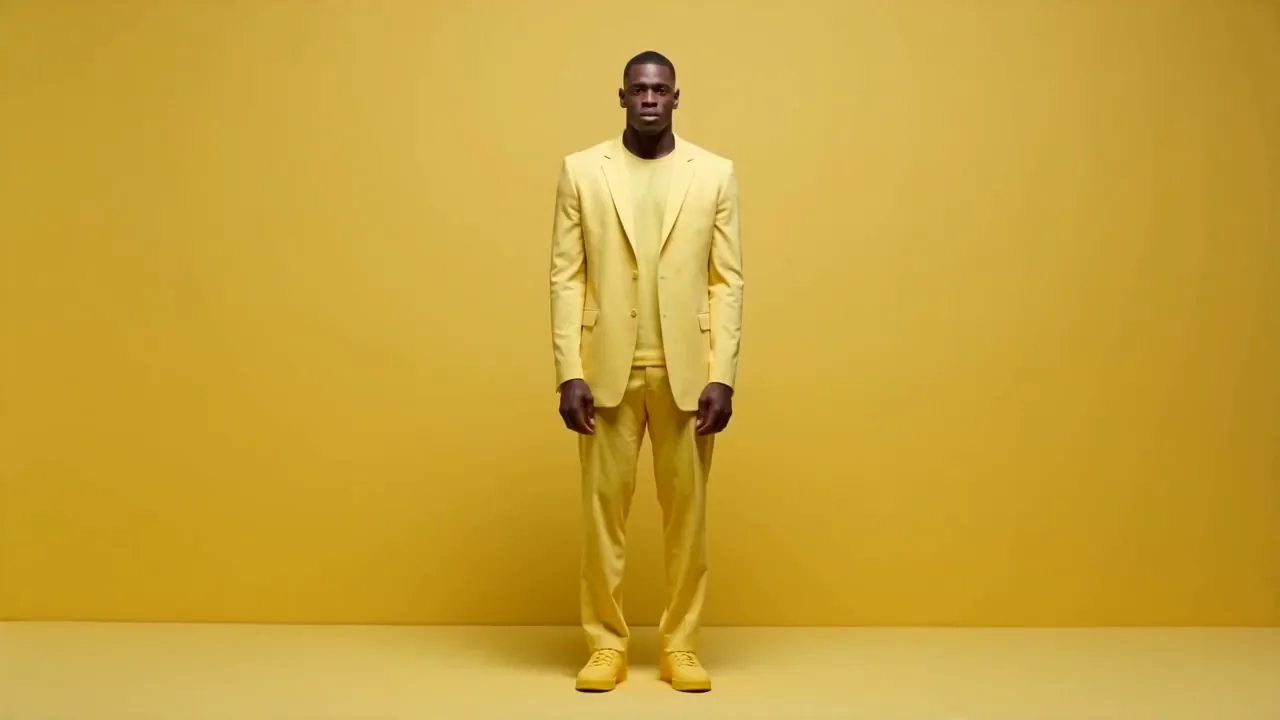
“Man in a yellow suit dancing in a warehouse”
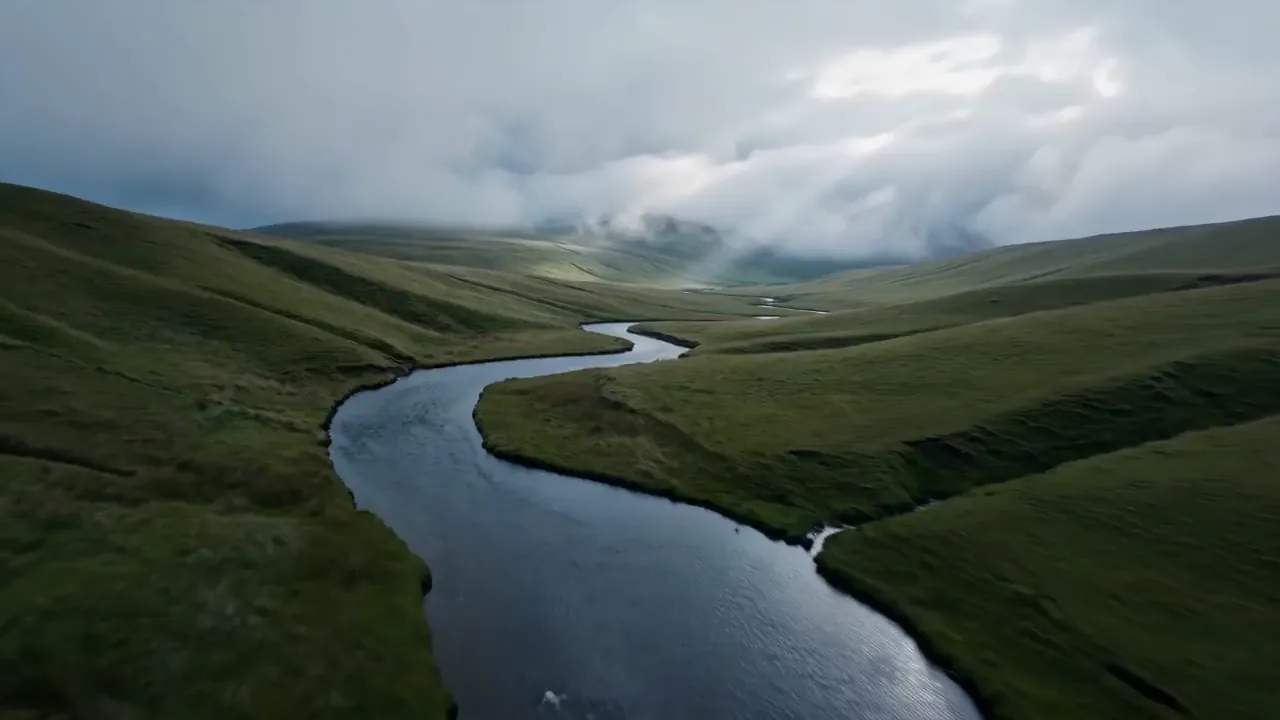
“Aerial over a misty river valley at dawn”
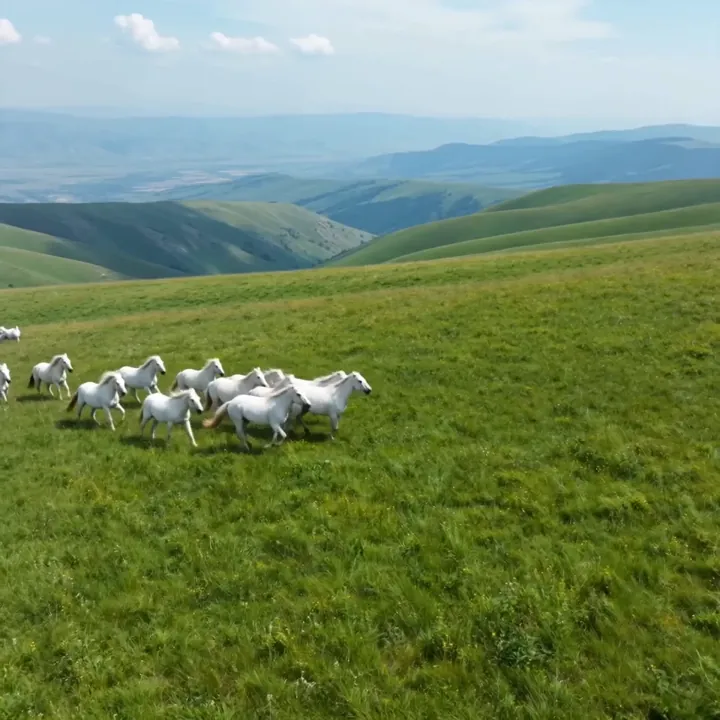
“Wild horses in a mountain meadow, golden hour”
How to make a video with Veo 3
Five steps from idea to a finished, sound-on clip.
Open Veo 3 in Video Studio
Select Veo 3 and choose your input. Use Veo 3 Standard for image-to-video with native audio, or Veo 3 Text for quick text-to-video.
Describe your scene
Write the subject, setting, and one clear camera move. Veo 3 follows concrete prompts well, so be specific rather than vague.
Add dialogue and sound
On the Standard tier, name the ambient sounds you want, and put any spoken line in quotation marks for lip-synced speech.
Pick your settings
Choose the length and aspect ratio. Veo 3 renders up to 1080p, with vertical 9:16 for social or 16:9 for landscape.
Generate and download
Veo 3 renders your clip with synchronized audio. Refine one element at a time if needed, then download in HD and share.
How to write great Veo 3 prompts
Veo 3 is famously good with grounded, specific prompts. Describe the picture and the sound.
Name the camera move
A single, specific camera instruction guides the shot.
“slow tracking shot following the runner”
Put dialogue in quotes
Quoted lines get lip-synced on the Standard tier.
“he turns and says "we made it"”
Describe the sound
Veo 3 generates audio, so mention what should be heard.
“heavy rain, distant thunder, tense music”
Set lighting and mood
Lighting words change the whole feel of the clip.
“neon-lit night, reflections on wet streets”
Veo 3 specs
Everything you can control when you generate.
Veo 3 vs Veo 3.1
Veo 3 is the proven, great-value original. Veo 3.1 is the upgrade with richer audio and 4K.
| Feature | Veo 3 | Veo 3.1 |
|---|---|---|
| Released | May 2025 | Oct 2025 |
| Max resolution | 1080p | 4K (Fast) |
| Native audio | Yes (Standard) | Yes, richer |
| Prompt adherence | Strong | Stronger |
| Cost | Lower | Higher |
| Best for | Value, everyday clips | Top realism & 4K |
What people make with Veo 3
Talking clips
Characters that speak with lip-synced dialogue.
Social video
Vertical clips for Reels, TikTok, and Shorts.
Ads & promos
Short promotional spots with sound.
Cinematic scenes
Dramatic, atmospheric shots from a prompt.
Explainers
Narrated, on-screen demonstrations.
Concept tests
Quick text-to-video idea sketches.
Nature & travel
Aerials and landscapes that feel real.
Product motion
Bring a product photo to life with sound.
Veo 3 is one piece of the studio
Generate a starting image in Image Studio, animate it with Veo 3, or take a frame into 3D - all on one account and one credit balance.

What is Veo 3?
Veo 3 is the AI video model Google DeepMind unveiled at Google I/O in May 2025. It was the release that made native audio mainstream: instead of producing a silent clip, Veo 3 generates synchronized sound effects, ambient noise, and lip-synced dialogue alongside the picture. It also became known for reasoning about real-world physics, which gives its motion a grounded, believable feel.
In 3D AI Studio you can use Veo 3 in three forms: Veo 3 Standard (image-to-video with native audio), Veo 3 Fast (quick, economical image-to-video), and Veo 3 Text (text-to-video). All render up to 1080p. Veo 3 remains a fantastic everyday choice, and its successor, Veo 3.1, adds even richer audio and 4K when you need the absolute best.
Veo 3 vs Veo 3.1 - which should you use?
Veo 3 and Veo 3.1 are closely related. Veo 3 is the proven 2025 original: great quality, native audio on the Standard tier, up to 1080p, and a lower credit cost. Veo 3.1, released in October 2025, builds on it with richer, more natural audio, stronger prompt adherence, improved image-to-video, and native 4K on the Fast tier.
If you want the best realism and the option of 4K, choose Veo 3.1. If you want Google-grade results at a friendlier price for everyday clips, Veo 3 is an excellent pick. Both live in the same Video Studio, so you can switch between them shot by shot.
The three Veo 3 tiers explained
Veo 3 Standard is the full-quality image-to-video tier with native audio - the one to use when you want sound and the best Veo 3 fidelity. Veo 3 Fast is a quicker, cheaper image-to-video option for drafts and social content where speed matters more than maximum polish. Veo 3 Text generates a clip purely from a written prompt, ideal for concepts you have no footage for.
Picking the right tier saves credits: sketch ideas on Fast or Text, then render the keeper on Standard for the version with sound. Because all three sit in the same Studio, moving between them is just a click.
Tips for better Veo 3 videos
Be specific and grounded. Veo 3 responds best to concrete prompts: name the subject, one camera move, the lighting, and - on the Standard tier - the sound. For dialogue, wrap the exact line in quotation marks so it gets lip-synced.
For image-to-video, start from a clean, well-lit image; Veo preserves your input and adds motion, so a sharp photo gives a sharp clip. You can generate that starting image in 3D AI Studio's Image Studio first. If you need 4K or the richest audio, step up to Veo 3.1.
Explore other video models
Every plan includes access to all of them. Pick the right tool for each shot.