
Kling 3.0 AI Video Generator
Direct your own short films. Kling 3.0 is Kuaishou's most powerful video model - it makes cinematic clips up to 15 seconds long with native audio, multi-shot storytelling, and strong character consistency. Use it free inside 3D AI Studio's Video Studio.
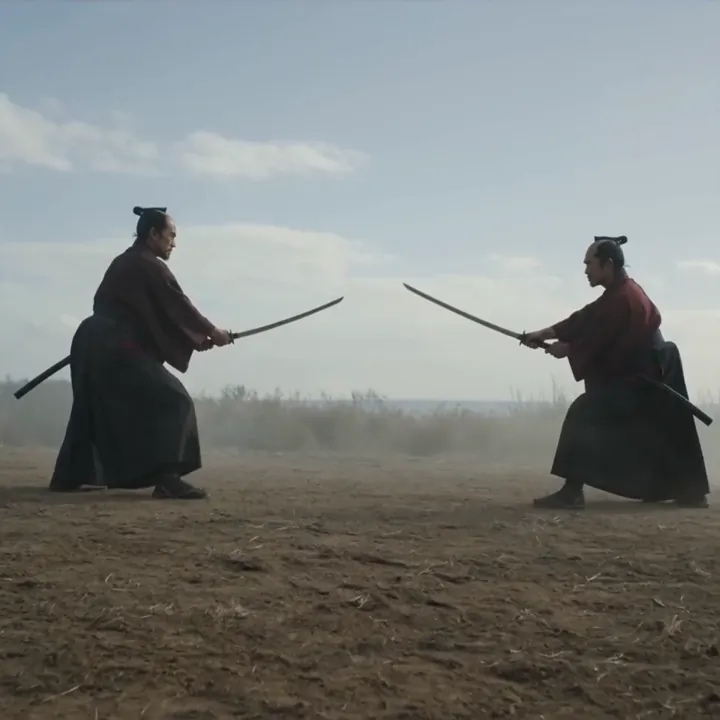
“Two samurai duel in a vast desert, cinematic wide shot”
The Kling toolkit in Video Studio
Kling is more than one button. Animate an image, morph between two frames, or transfer real motion onto your character.
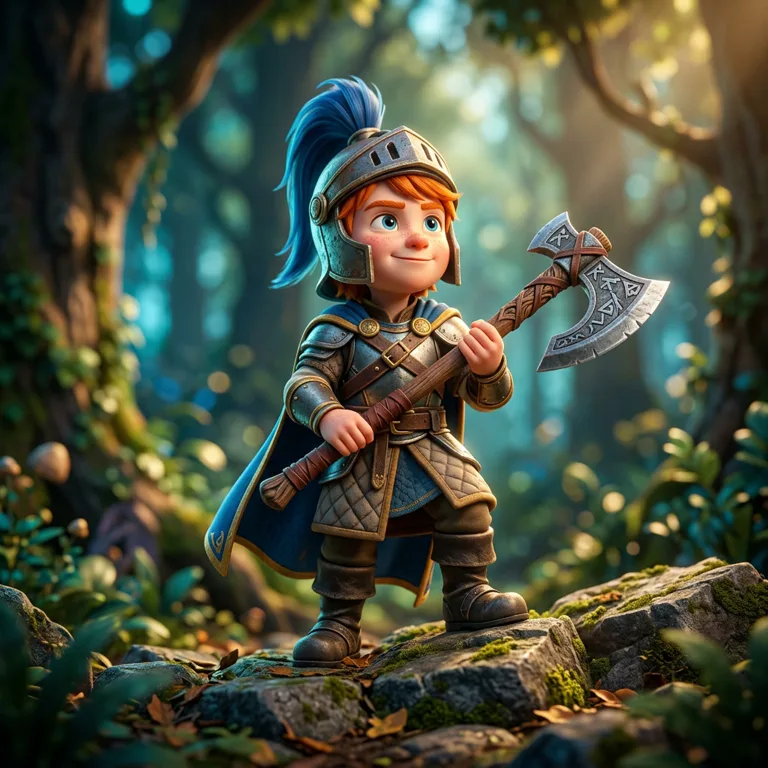
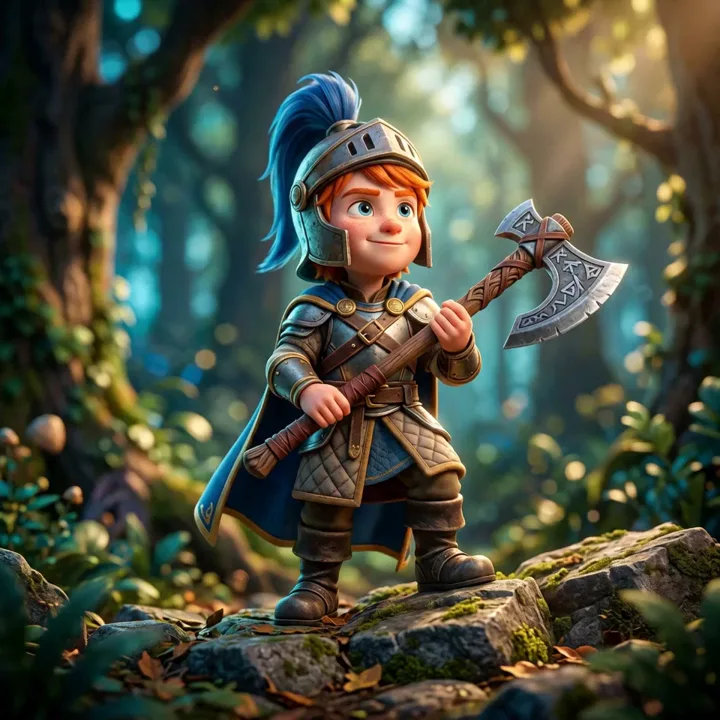
Image to Video
Kling 3.0Upload an image and describe the action and camera move. Kling 3.0 animates it into a cinematic clip up to 15 seconds with native audio.
- Up to 15-second single shots
- Native audio + lip-sync
- Keeps your character consistent
Start frame + end frame
Start & End Frame
Kling O1Give Kling O1 a start image and an end image and it fills in the motion between them - perfect for smooth transitions and morphs.
- Control how the clip begins and ends
- Great for reveals and morph effects
- Chain clips into longer sequences
Character image + reference video
Motion Control
Reference videoUpload a character image and a reference video. Kling Motion Control transfers the movement - dance, gestures, action - onto your character.
- Copy real motion onto any character
- Up to 30 seconds of choreography
- Works on photos, art, and 3D renders
What Kling 3.0 can do
Kuaishou's flagship model, built for cinematic storytelling.
Up to 15 seconds
Kling 3.0 generates single shots up to 15 seconds long - twice the length of most models - so you can hold a moment and tell a real story.
Multi-shot storyboards
Plan several camera angles in one generation. Kling acts like a director, cutting between shots with smooth, film-like transitions.
Native audio
Dialogue, sound effects, and music are generated with the video across multiple languages, dialects, and accents - with accurate lip-sync.
Character consistency
Upload reference images so characters, objects, and scenes stay visually consistent from shot to shot.
Realistic physics
Gravity, weight, collisions, and the way hair and clothing move in wind or rain all behave naturally and convincingly.
Cinematic quality
Photorealistic output with lifelike characters, expressive performances, and crisp, high-resolution detail.
Direct a cinematic shot from one image
Give Kling a single still and a director's note. It adds film-grade motion, camera work, and sound while keeping your character on-model - up to a full 15 seconds.
motion“Push in slowly as the knight readies his axe; cape billowing, dust motes catching the light - a heroic establishing beat.”


motion“A tender close-up: she tilts her head and blinks, tail flicking, as fireflies pulse around her in the dark wood.”
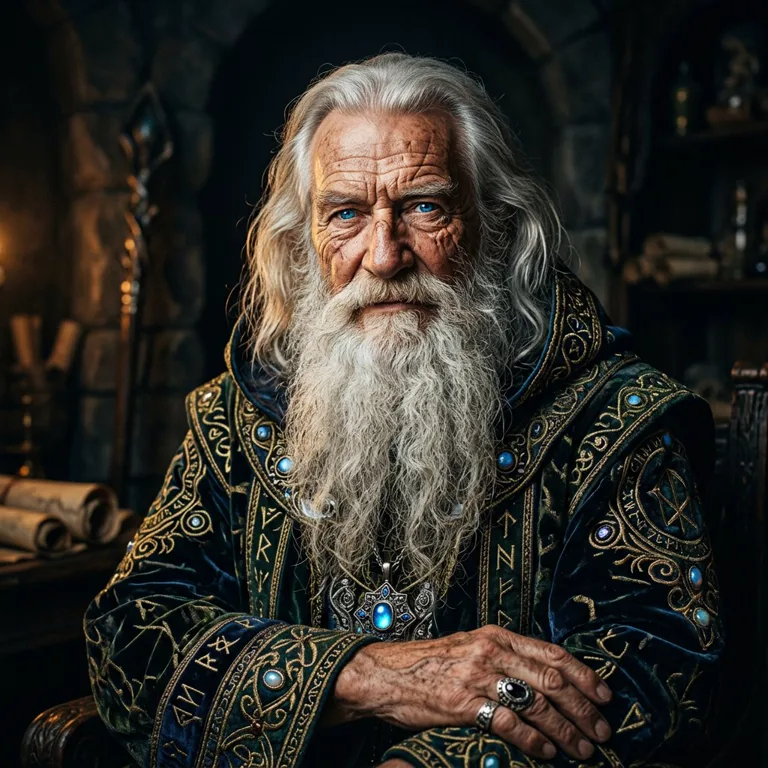
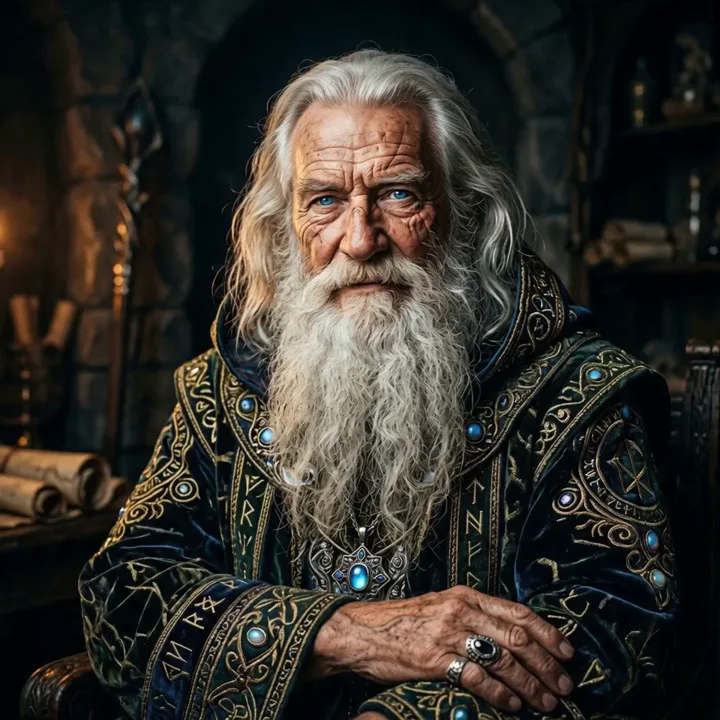
motion“Hold on the sorcerer as he raises a hand and the runes on his robe begin to glow, embers rising in the firelight.”
Made with the Kling family
Real outputs from Kling models inside Video Studio.
“Two samurai duel in a vast desert, cinematic”
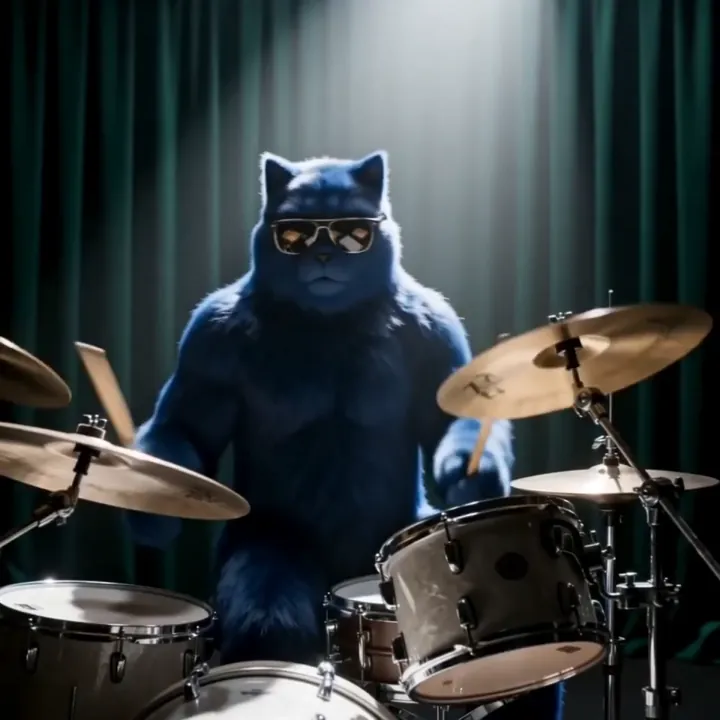
“Drumming in a band, energetic motion”
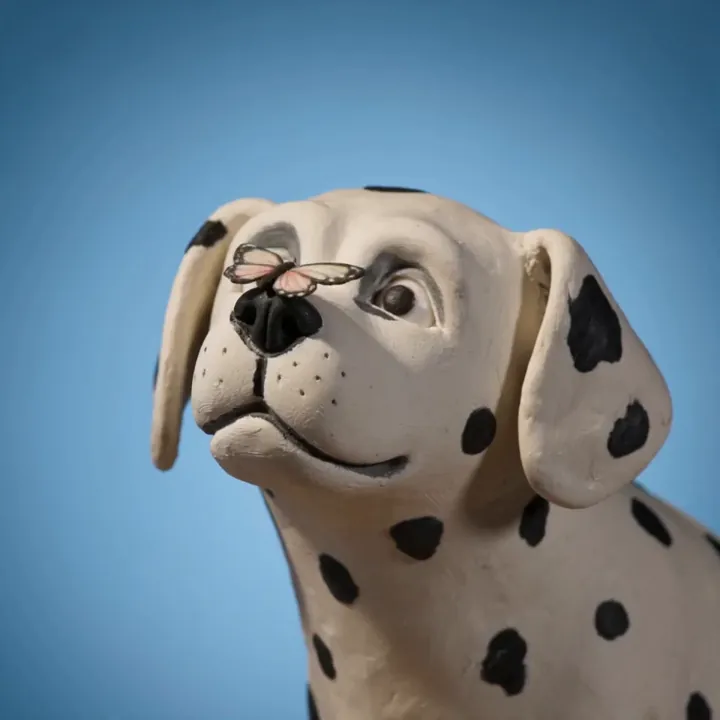
“Butterfly lands gently, soft claymation motion”
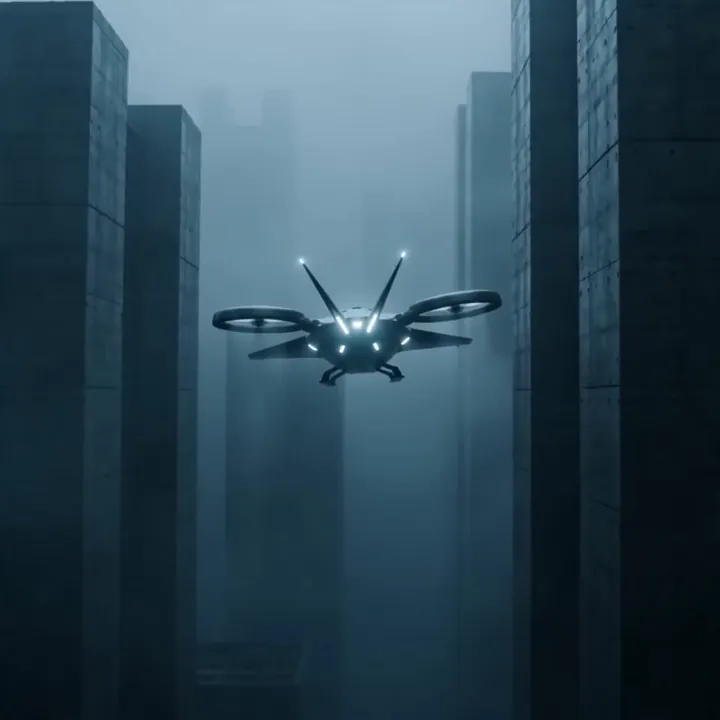
“Sci-fi drone navigating a foggy neon city”
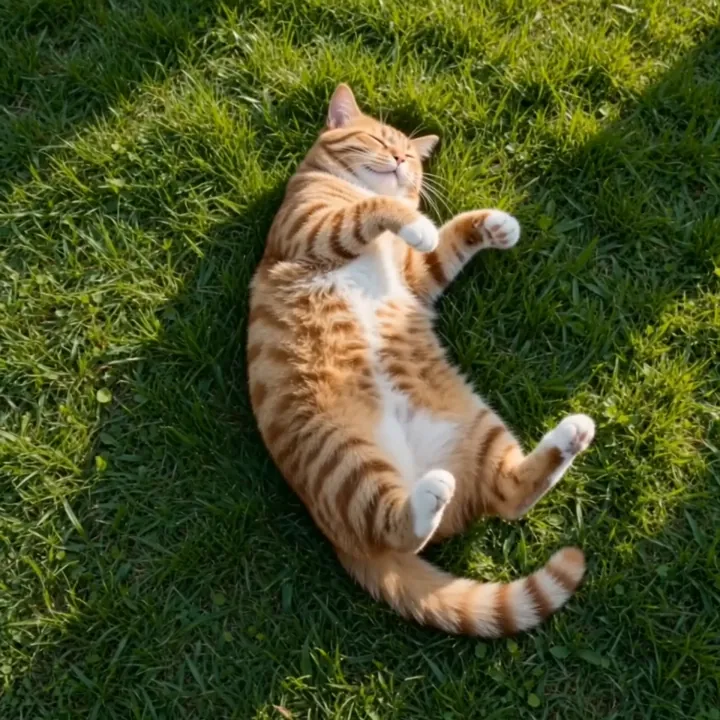
“Cat rolls playfully on the grass”
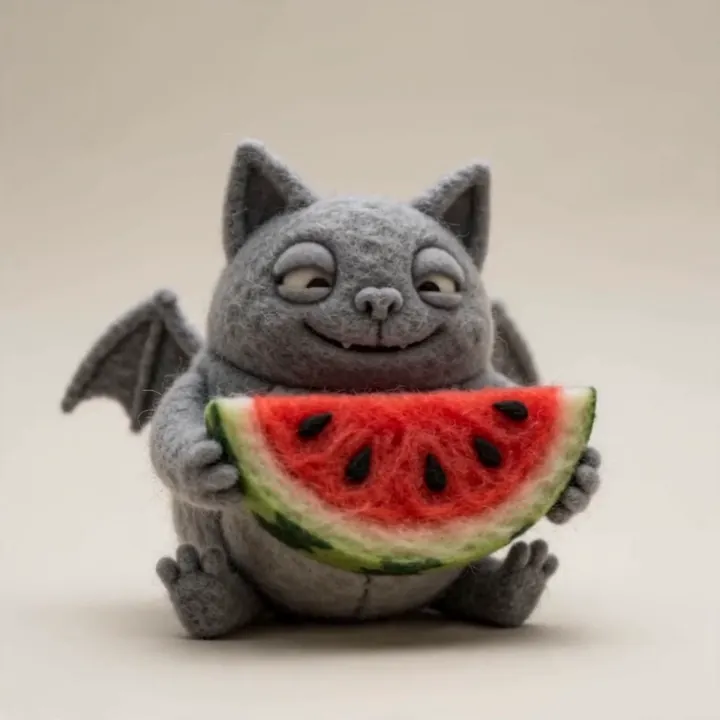
“Felt-craft bat nibbling watermelon, playful”
How to direct a video with Kling 3.0, step by step
Treat each generation like a shot in a film. Five steps take you from a still image to a finished cinematic clip.
Open Kling 3.0 and choose Image to Video
In Video Studio, select Kling 3.0 (or Kling 3.0 Pro for the highest fidelity) and switch to Image to Video, Kling's main mode in the Studio.
Upload a clean opening frame
Pick a sharp, well-composed image - it becomes the first frame of your shot. If you don't have one yet, generate it in Image Studio first so the character is exactly how you want it.
Write the shot like a director
Describe a short sequence of beats and the camera language: 'wide establishing shot, slow push-in as she draws her sword'. Kling rewards detailed, film-style prompts over single static descriptions.
Lock the look, length and audio
Add reference images to keep your character consistent across shots, choose a duration up to 15 seconds, and leave native audio on so dialogue, effects, and ambience are generated with the picture.
Generate, then build the scene
Render your clip, then keep going: create a smooth transition with Kling O1's start-and-end frames, or apply real movement with Kling Motion Control - then stitch the shots together and download in HD.
How to write great Kling 3.0 prompts
Kling follows detailed, director-style prompts well. Describe the shot like you're briefing a film crew.
Name the shot type
Tell Kling how the camera should frame and move through the scene.
“wide establishing shot, slow push-in toward the hero”
Describe a small sequence
To use the full 15 seconds, write a few beats instead of one frozen moment.
“she turns, draws her sword, then steps forward into the light”
Lock the look
Mention the art style and key details so Kling keeps your character on-model.
“stylized 3D Pixar look, blue cape, glowing rune axe”
Set mood with light
Lighting and weather words shape the whole feel of the clip.
“golden hour, volumetric light through fog, cinematic”
Kling 3.0 specs
Everything you can control when you generate.
Kling 3.0 Pro vs Kling 3.0
Both make cinematic 15-second clips with audio. Pro adds the highest fidelity for hero pieces.
| Feature | Kling 3.0 Pro | Kling 3.0 |
|---|---|---|
| Best for | Hero shots, premium ads | General cinematic content |
| Quality | Excellent | Great |
| Max duration | 15s | 15s |
| Native audio | Yes | Yes |
| Motion fidelity | Top-tier | Strong |
| Relative cost | Higher | Lower |
What people make with Kling 3.0
Short films
Multi-shot scenes and trailers with consistent characters.
Brand & ads
15-second hero spots with synced audio and motion.
Music videos
Cinematic, stylized visuals timed to a vibe.
Character animation
Bring a character to life across multiple shots.
Dance & motion
Transfer real choreography onto a character with Motion Control.
Transitions & reveals
Smooth morphs between two frames with Kling O1.
Game & concept
Animated concept art and in-engine-style cinematics.
Storyboards
Previsualize scenes before a real shoot.
From still frame to finished film
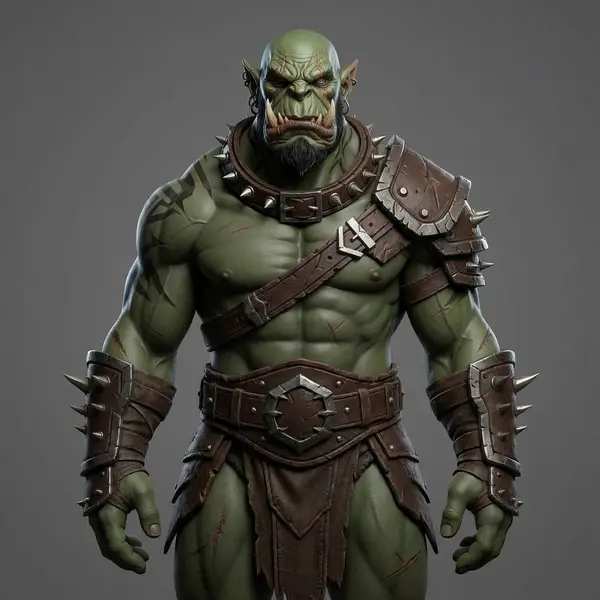
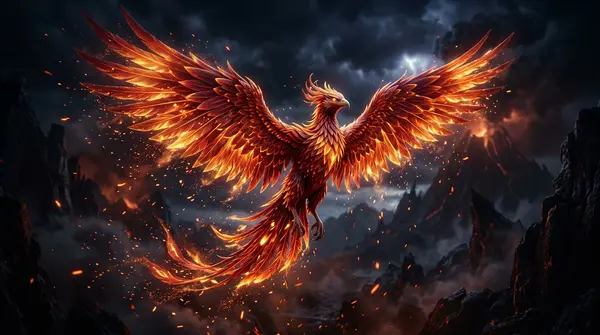
Design your hero in Image Studio, animate it with Kling, and turn the same character into a 3D model - one account, one credit balance, one creative pipeline.
What is Kling 3.0?
Kling 3.0 is the third generation of Kuaishou's Kling AI video model, released in February 2026. It's built for cinematic storytelling: it can generate a single continuous shot up to 15 seconds long, plan multiple camera angles in one go, and generate native audio - dialogue, sound effects, and music - across many languages and accents.
What sets Kling 3.0 apart is narrative control. Instead of one short, random-feeling clip, you get film-like sequences with smooth transitions, consistent characters, and believable physics. In 3D AI Studio you can use Kling 3.0 Pro and Kling 3.0, alongside earlier Kling models like 2.6 Pro and 2.5 Turbo, plus Kling's specialty tools.
Every Kling tool, in one place
Kling isn't a single feature - it's a family of tools, and Video Studio gives you all of them. Image to Video animates a still image into a cinematic clip. Kling O1 takes a start frame and an end frame and fills in the motion between them, which is ideal for transitions, product reveals, and morphs. Kling Motion Control transfers the movement from a reference video onto your character, so you can apply a real dance or action to an illustration or 3D render.
Because these all live in the same Video Studio, you can mix them in one project: animate a hero shot with Kling 3.0, create a smooth transition with O1, and add a dancing character with Motion Control - then stitch the clips together.
Image to video, and where text to video fits in
In 3D AI Studio, Kling is used as an image-to-video model: you give it a picture and it brings it to life. This is perfect when you already have a character, product, or scene and want it to move while staying exactly on-model.
If you want to generate a video purely from a text description with no image, pair Kling with Google Veo 3.1 or ByteDance Seedance 2.0, which both offer dedicated text-to-video. A common workflow is to generate a starting image in Image Studio (or with a text-to-image model), then animate it with Kling 3.0 for the most control over the final look.
Kling 3.0 vs Veo 3.1 vs Seedance 2.0
Kling 3.0 is the model to reach for when you want length and cinematic feel - its 15-second single shots and multi-shot storyboards are ideal for trailers, short films, and brand pieces. Google Veo 3.1 leads on realistic talking and lip-sync from a simple prompt, while ByteDance Seedance 2.0 is strongest for multi-reference work, combining several images, videos, and audio clips into one result.
You don't have to choose just one. Every 3D AI Studio plan includes all of them, so you can storyboard with Kling, add a talking shot with Veo, and composite references with Seedance - then bring the best clips together.
Tips for better Kling 3.0 videos
Think like a director. Describe the shot type ('wide establishing shot', 'slow push-in', 'over-the-shoulder'), the action, and the mood. Kling 3.0 follows dense, detailed prompts well, so more direction usually means a better result.
For consistent characters across shots, upload reference images. To get the most from the 15-second length, describe a small sequence of beats rather than a single static moment. And if you need a strong starting frame, generate it first in 3D AI Studio's Image Studio, then animate it with Kling.
Explore other video models
Every plan includes access to all of them. Pick the right tool for each shot.