
Kling Motion Control - AI Motion Transfer
Make any character move exactly how you want. Kling Motion Control takes a reference video and transfers its movement - dance, gestures, action - onto your character image, no motion-capture suit required. Use it free in 3D AI Studio's Video Studio.
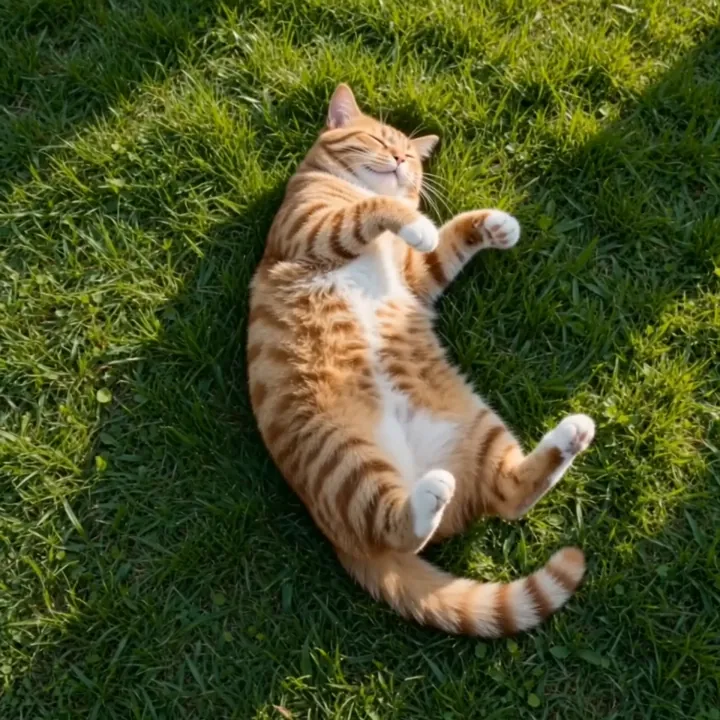
“Transfer a playful rolling motion onto the character”
What Kling Motion Control can do
Show the AI exactly what to do - it copies real movement onto your character.
Motion transfer
Upload a character image and a reference video, and Kling extracts the movement and applies it to your character while keeping its identity.
Full-body capture
It reconstructs complete motion sequences - walking, dancing, martial arts - from a 3 to 30 second reference clip, frame by frame.
Precise hands & gestures
Delicate hand movements and finger gestures are preserved, so close-ups and expressive motion look natural.
Works on any character
Apply real motion to photos, illustrations, mascots, concept art, or 3D renders - your character keeps its look.
Orientation modes
Choose to match the reference video's framing (up to 30s) or keep your image's orientation with camera movement (up to 10s).
Cinematic 1080p
Render smooth, high-energy motion at up to 1080p, ready for social, music, and content series.
Made with the Kling family
Kling Motion Control is built for movement. Here's the kind of motion the Kling line produces.
“Playful rolling motion transferred to a character”
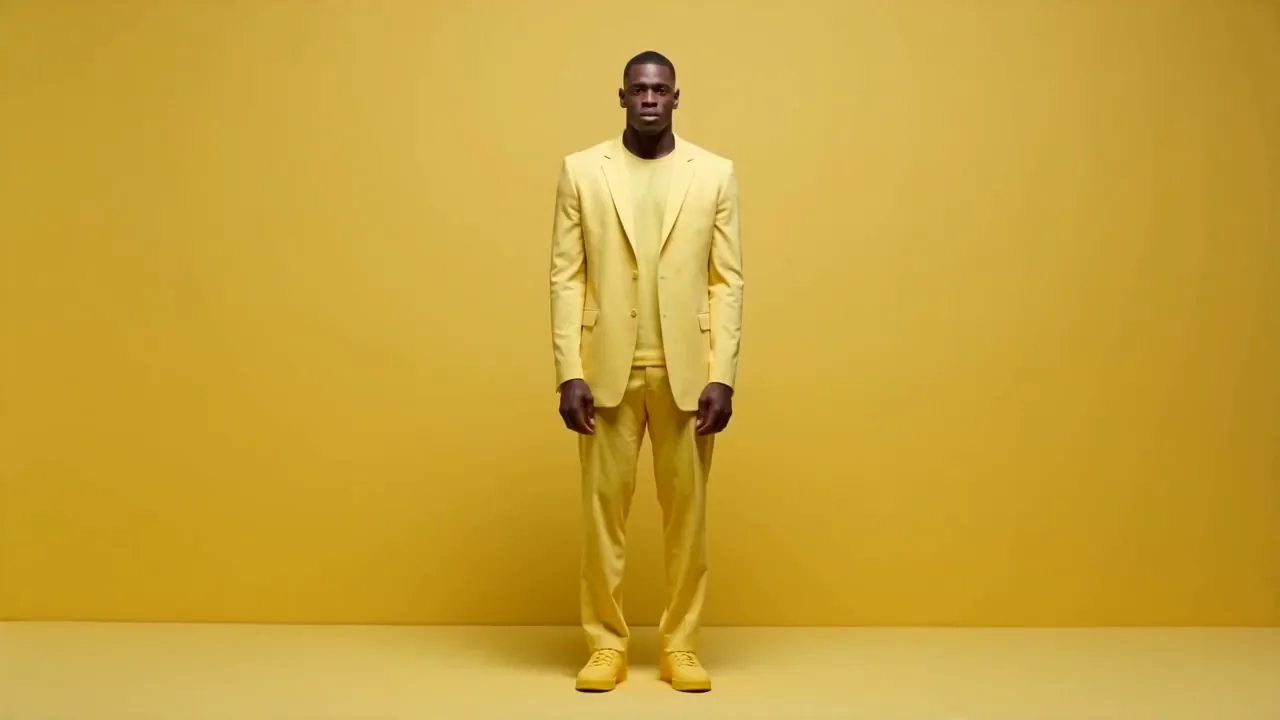
“Energetic dance choreography”
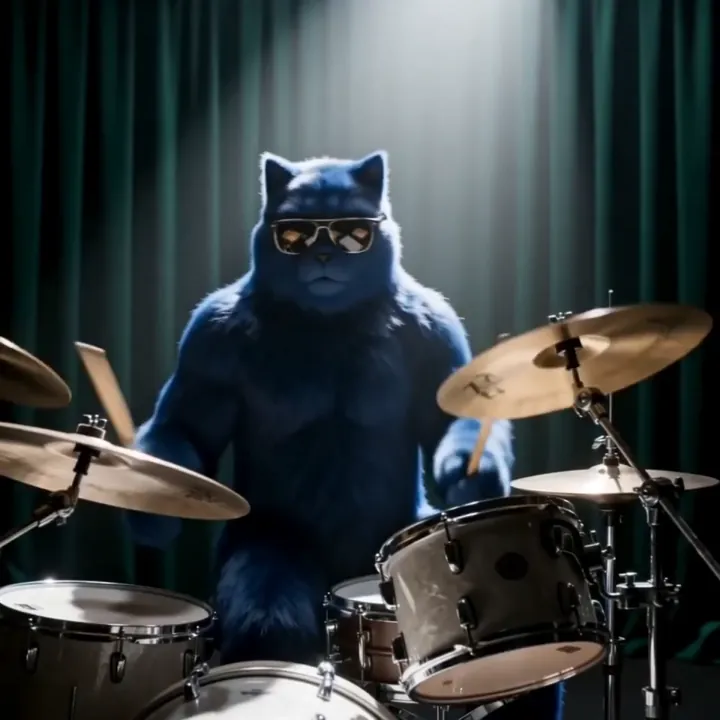
“Drumming with full-body rhythm”
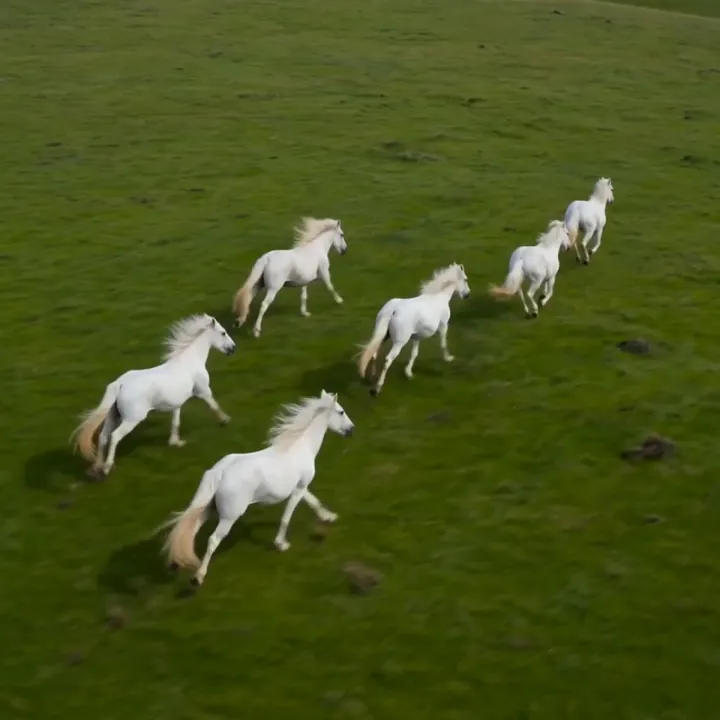
“Powerful galloping motion”
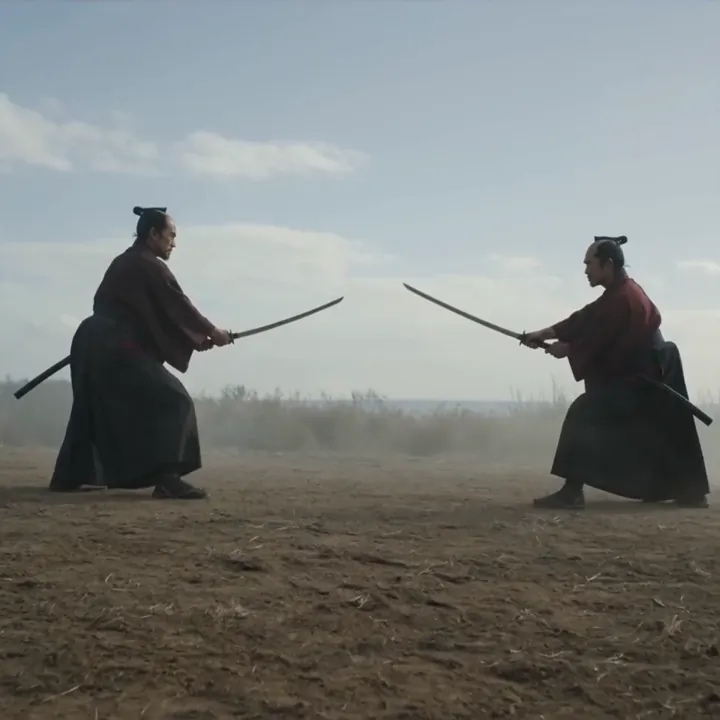
“Martial arts choreography”
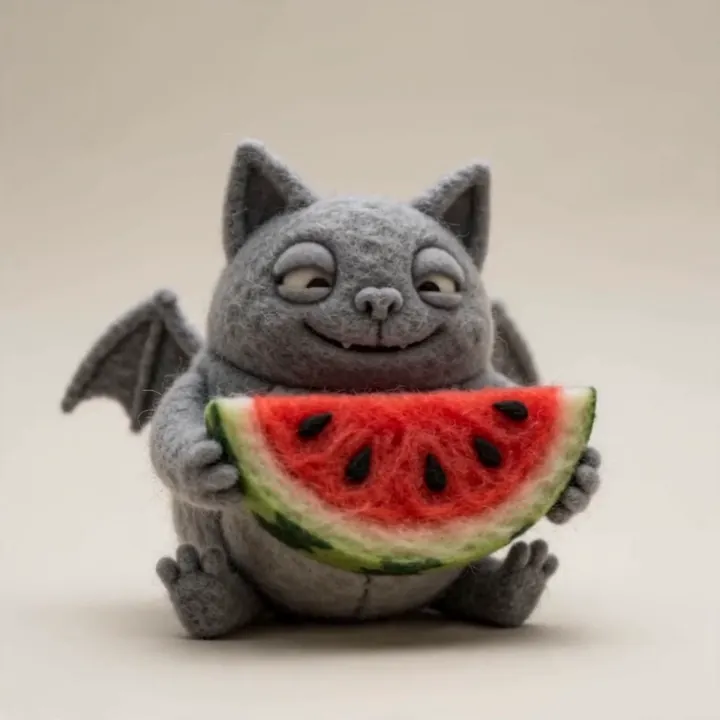
“Bouncy character gestures”
How to transfer motion with Kling Motion Control
Five steps to make your character perform any movement you can film or find.
Open Kling Motion Control in Video Studio
Select Kling Motion Control. It's the model for applying real, specific movement to a character instead of guessing motion from a text prompt.
Upload your character image
Add a clear image showing the character's head, shoulders, and torso. It can be a photo, illustration, mascot, or 3D render.
Add a reference video
Upload a 3 to 30 second clip of the motion you want - a dance, a gesture, an action. Clean, well-lit clips with a single full-body subject work best.
Pick an orientation mode
Choose 'match video' for full-body choreography up to 30 seconds, or 'match image' to keep your framing with camera movement up to 10 seconds. Add a prompt for background or style.
Generate and download
Kling extracts the motion and applies it to your character. Review the result, adjust if needed, and download in HD.
How to get great Kling Motion Control results
Most of the magic is in your two inputs. The prompt fine-tunes the scene around the transferred motion.
Pick a clean reference
Use a clear clip with one full-body subject and a simple background for the best extraction.
“single dancer, plain backdrop, even lighting”
Match the framing
Use a close-up reference for face motion, full-body for dance or walking.
“full-body reference for a dance transfer”
Describe the scene
Use the prompt to set the background, lighting, and style around the motion.
“neon stage, spotlights, smoke”
Mind proportions
A character whose proportions match the reference subject transfers most cleanly.
“full-body character, similar build to the dancer”
Kling Motion Control specs
Everything you can control when you generate.
Motion Control vs text-prompt animation
Text prompts guess the motion. Motion Control copies exact movement from a reference video.
| Feature | Kling Motion Control | Text-prompt video |
|---|---|---|
| Motion source | Reference video | Text description |
| Precision | Exact choreography | Approximate |
| Best for | Dance, action, gestures | General scenes |
| Max length | Up to 30s | Shorter clips |
| Hands & detail | Preserved | Less reliable |
| Control | Show, don't tell | Describe only |
What people make with Kling Motion Control
Dance videos
Apply trending choreography to any character.
Character animation
Make illustrations and mascots move for real.
Gesture replication
Copy specific hand and body gestures precisely.
Action scenes
Transfer martial arts and stunts onto a character.
Virtual performers
Drive an avatar with a recorded performance.
Sign language
Preserve precise hand movement for clarity.
Mascot content
Bring a brand mascot to life with real motion.
Music & viral clips
Beat-matched character moves for short feeds.
Design the character, then make it move
Create your character in Image Studio, animate it with real motion in Kling Motion Control, or turn it into a 3D model - one account, one credit balance.
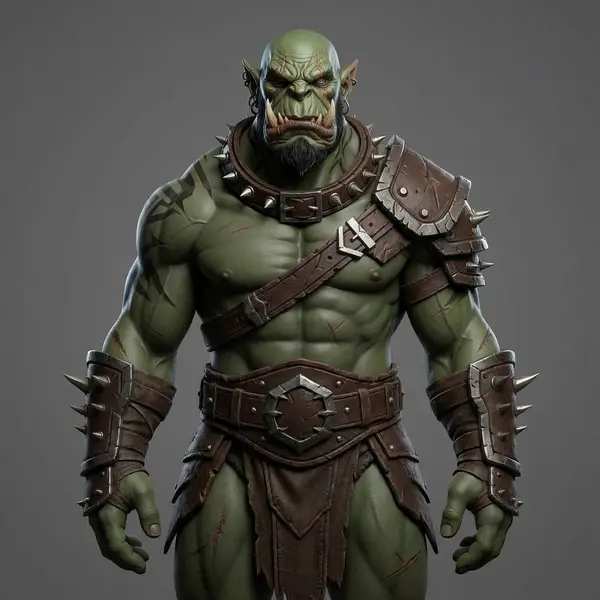
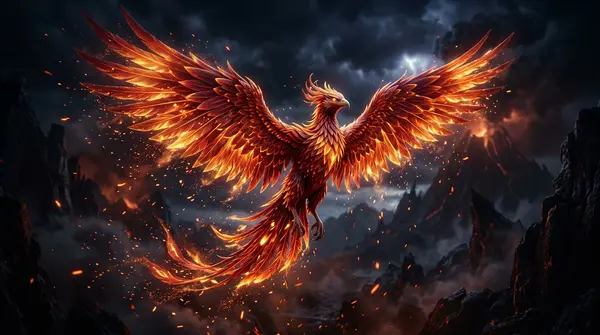
What is Kling Motion Control?
Kling Motion Control is an AI motion-transfer tool in Kuaishou's Kling family. Instead of guessing how a character should move from a text prompt, you show the AI exactly what to do: you provide a character image and a reference video, and Kling extracts the movement from the video and applies it to your character while keeping its identity.
It works like a digital puppeteer. The model reads the reference clip at a skeletal level - body position, limb articulation, posture, and timing - then maps that motion onto your image. The character can be a photo, an illustration, a mascot, or a 3D render. In 3D AI Studio it runs as an image-to-video model with a reference-video input, producing clips up to 1080p.
How motion transfer works
You give Kling Motion Control two things: a character image showing at least the head, shoulders, and torso, and a reference video of the motion you want, between 3 and 30 seconds long. The model extracts the full motion sequence - including precise hand and finger movement - and reconstructs it on your character frame by frame.
There are two orientation modes. 'Match video' aligns your character to the reference video's framing and supports the longest sequences, up to 30 seconds, which is ideal for full-body dance and choreography. 'Match image' keeps your image's orientation and adds camera movement like pans and tilts, up to 10 seconds, which suits portrait-style animation. A text prompt lets you set the background, lighting, and style around the transferred motion.
Why use Motion Control instead of a text prompt
Text-to-video and image-to-video models guess motion from your description, which is great for general scenes but unreliable when you need a specific, complex movement - a particular dance, a precise gesture, or a fast action sequence. Motion Control removes the guesswork: the reference video is the exact blueprint, so the result follows real choreography with believable physics.
That makes it the obvious choice for dance trends, gesture replication, character animation, and action scenes. Pair it with the rest of Kling - generate a hero shot with Kling 3.0, a transition with Kling O1, and a dancing character with Motion Control - all in the same Video Studio.
Tips for better Motion Control results
The quality of your two inputs matters most. Use a clean reference video with a single, clearly visible full-body subject and a simple, high-contrast background so the motion extracts cleanly. Match the framing between your image and the reference - a close-up reference for face animation, a full-body reference for dance or walking.
Choose a character whose proportions are similar to the reference subject to avoid awkward stretching, and use the prompt to set the scene around the motion. For full-body choreography pick 'match video' mode; for portrait animation with camera movement pick 'match image'. You can design the character itself in 3D AI Studio's Image Studio first.
Explore other video models
Every plan includes access to all of them. Pick the right tool for each shot.