
Kling 2.6 Pro AI Video Generator
Give your characters a voice. Kling 2.6 Pro was the first Kling model with native audio - it generates speech, sound effects, and music with the video, and lets you pick or clone a voice so the same character sounds the same in every clip. Use it free in 3D AI Studio's Video Studio.
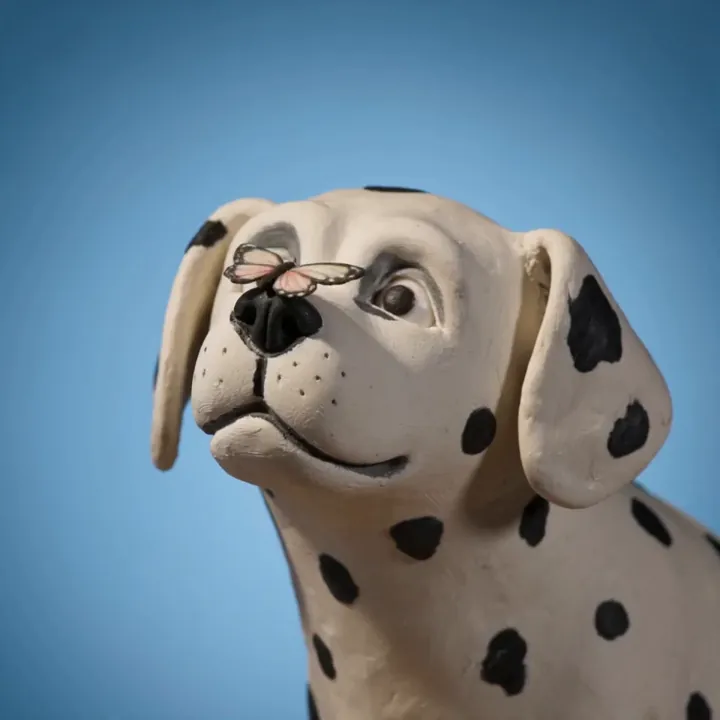
“A butterfly lands gently on its nose, soft claymation motion with playful sound”
What Kling 2.6 Pro can do
The Kling model built around sound - speech, music, and a consistent voice for your characters.
Native audio engine
Kling 2.6 Pro generates the visuals and the full soundtrack in a single pass - voiceover, sound effects, and ambient atmosphere, all matched to the action.
Voice control & cloning
Pick a target voice or upload your own. Kling reproduces its tone and character, so the same voice carries across every clip you make.
Voice binding for dialogue
Assign a voice to a specific character with simple [Character@VoiceName] tags, making multi-character conversations with distinct voices effortless.
Speech, singing and rap
It handles more than plain narration - dialogue, singing, and even rap, plus ambient and composite scene sounds for fuller scenes.
Upgraded motion
Improved full-body movement with cleaner, blur-free hands and natural facial expressions, so talking and action both look believable.
Cinematic 1080p
Sharp, 1080p output with the audio-visual sync Kling 2.6 is known for - ready for social, ads, and content series.
Animate an image - with sound
Upload one image and Kling 2.6 Pro brings it to life with motion and a matching soundtrack. These clips each started from a single still image.
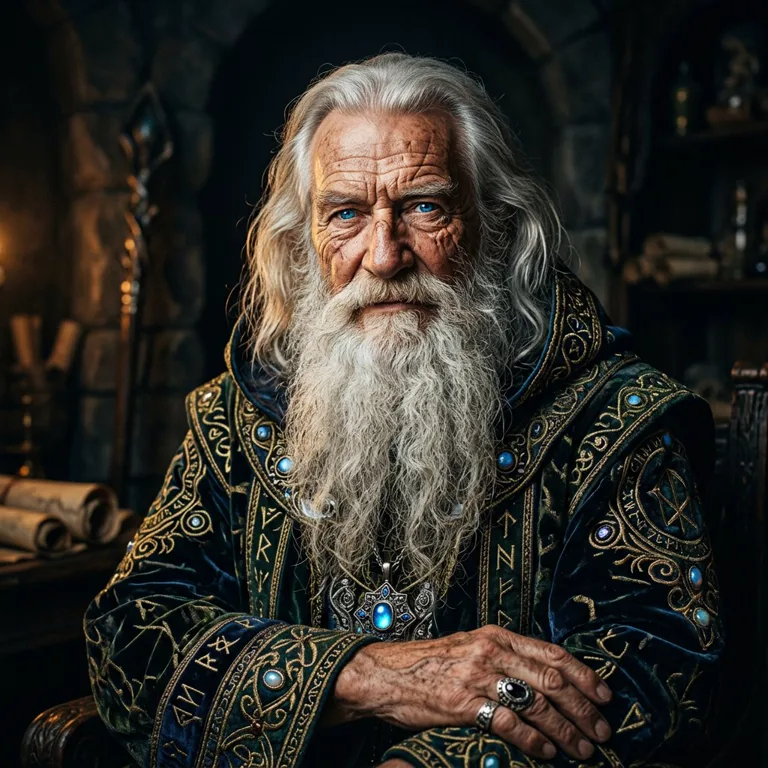
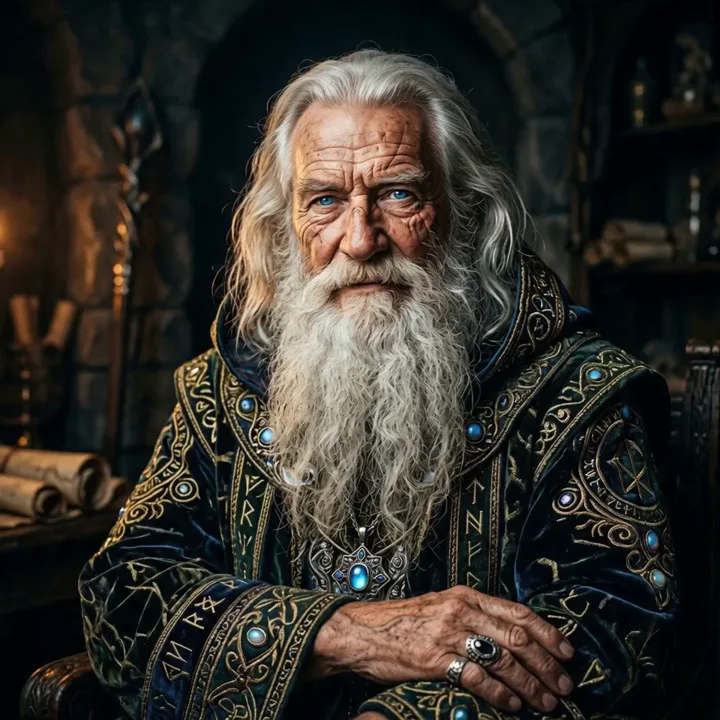
motion“He raises his hand and murmurs an incantation as the voice, crackling fire, and a low magical hum are generated with the video.”

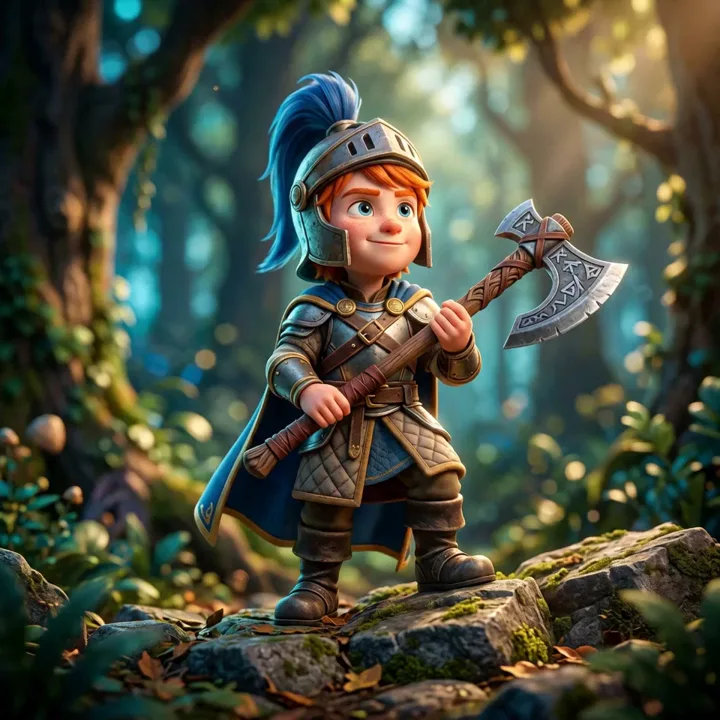
motion“The young knight taps his axe twice and calls out a short battle cry, with footsteps and forest ambience filling the scene.”


motion“She giggles and the tiny bell on her hat chimes, with soft woodland sounds playing underneath.”
Made with Kling 2.6 Pro
Character-driven clips where sound and motion are generated together.
“Butterfly lands gently, soft claymation motion”
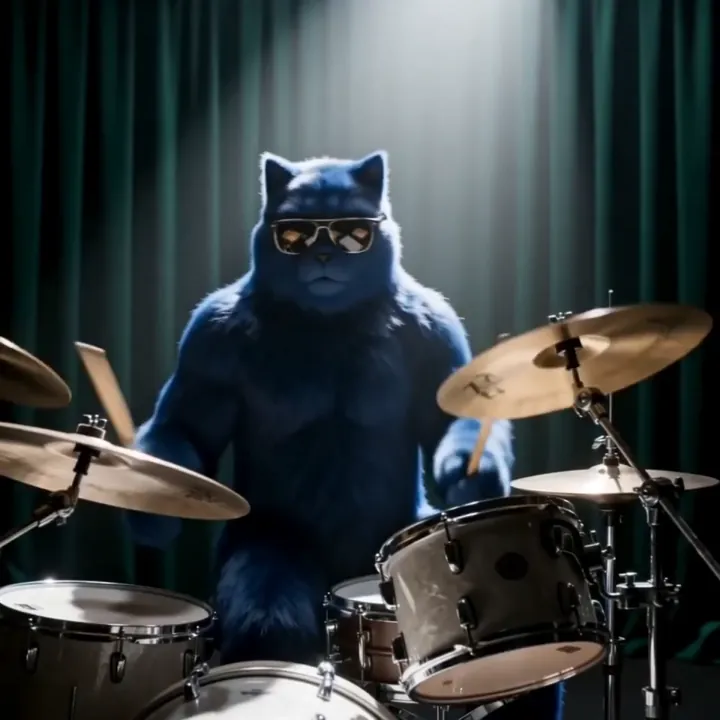
“Drumming in a band, energetic rhythm”
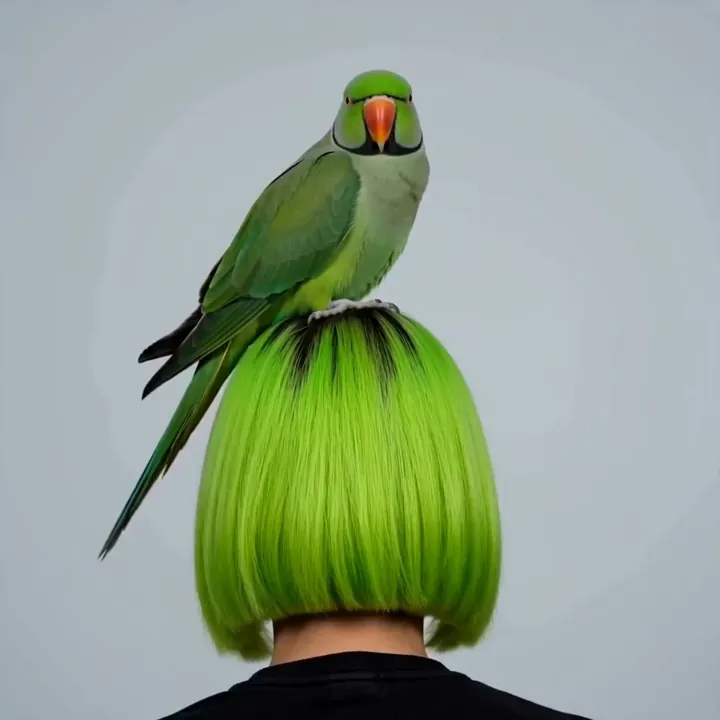
“Parrot tilts its head and squawks, gentle sway”
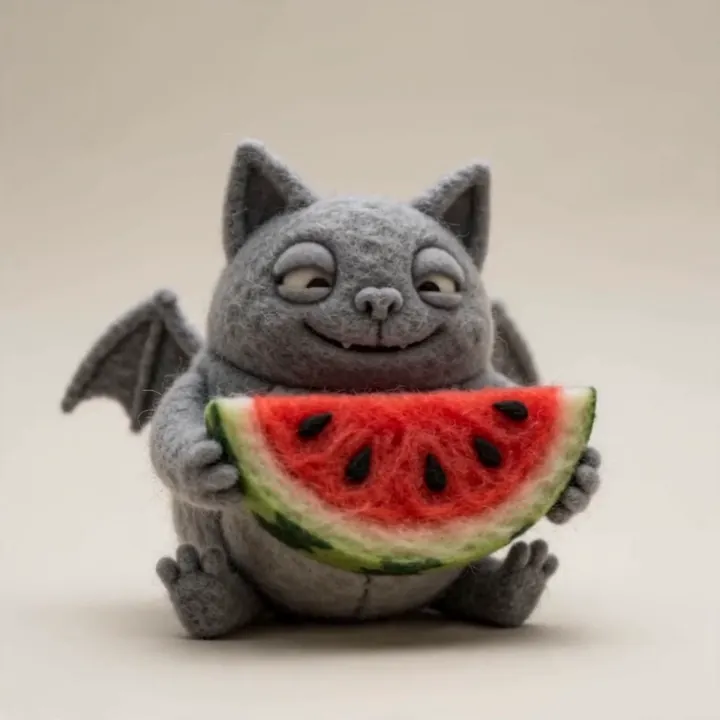
“Felt-craft bat nibbling watermelon, playful sounds”
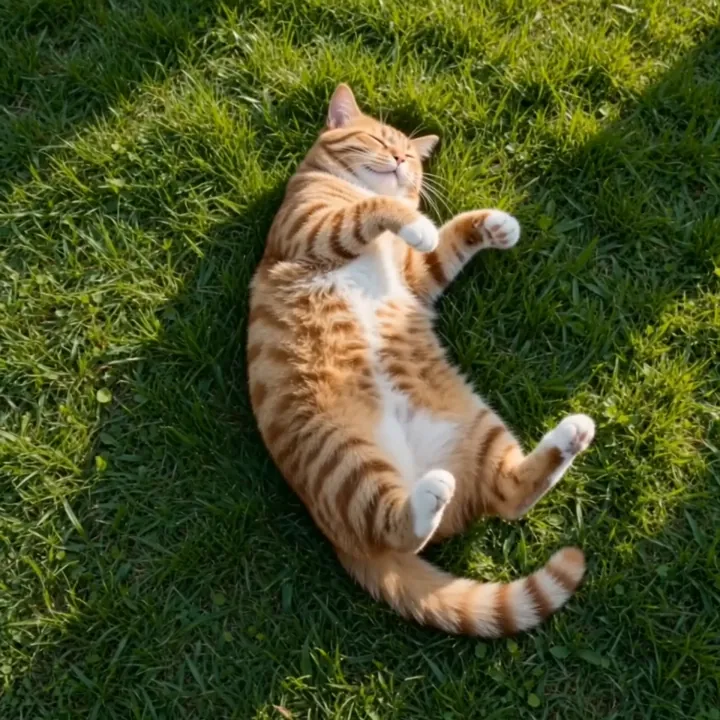
“Cat rolls playfully on the grass, ambient outdoors”
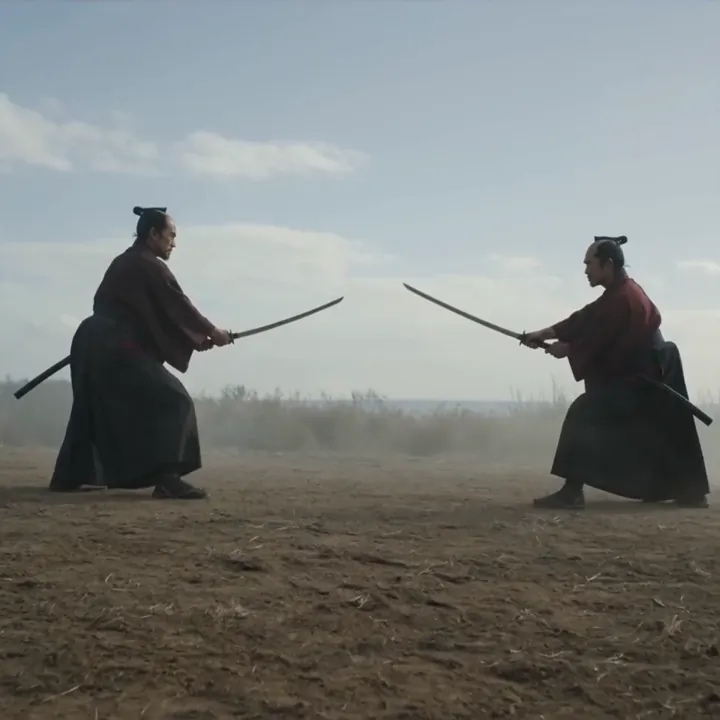
“Two warriors clash with the ring of steel”
How to make a talking video with Kling 2.6 Pro
Five steps from a still image to a clip that moves and sounds right.
Open Kling 2.6 Pro in Video Studio
Select Kling 2.6 Pro and choose Image to Video. This is the Kling model to pick when sound, speech, or a specific voice matters for your clip.
Upload your character image
Use a clear, well-lit image of the character or scene you want to animate. A sharp, front-facing subject gives the most natural movement and lip-sync.
Describe the action and the sound
Write what happens and what you want to hear - the spoken line, the music, the ambience. Be specific: 'she waves and says hello, warm room tone, soft piano' guides both picture and audio.
Choose a voice and turn audio on
Select or upload a target voice for your character, and bind it with a [Character@VoiceName] tag if you have more than one speaker. Pick a length of 5 or 10 seconds.
Generate and download
Kling 2.6 Pro renders the visuals and the full soundtrack together. Review the sync, regenerate if a line needs tightening, then download in 1080p.
How to write great Kling 2.6 Pro prompts
Because Kling 2.6 generates sound, your prompt should describe what you hear as well as what you see.
Spell out the audio
Name the voice, the effects, and the ambience you want, not just the visuals.
“she smiles and says "welcome back", warm room tone, soft background piano”
Bind voices to characters
When you have more than one speaker, tag each so they keep distinct voices.
“[Knight@DeepVoice] shouts the order while [Mage@SoftVoice] replies”
Keep spoken lines short
Short, clear lines sync best inside a 5 or 10 second clip.
“he nods and says "let's go"”
Match motion to sound
Describe an action that fits the audio so the two line up naturally.
“drummer hits the cymbal on the beat, crowd cheering”
Kling 2.6 Pro specs
Everything you can control when you generate.
Kling 2.6 Pro vs Kling 3.0
2.6 Pro is the audio and voice specialist. Step up to Kling 3.0 when you need longer, multi-shot cinematics.
| Feature | Kling 2.6 Pro | Kling 3.0 |
|---|---|---|
| Best for | Voice & audio clips | Cinematic, multi-shot |
| Max length | 10s | 15s |
| Voice control | Yes (clone & bind) | Native audio |
| Multi-shot | Single shot | Storyboards |
| Resolution | 1080p | Up to 1080p |
| Relative cost | Lower | Higher |
What people make with Kling 2.6 Pro
Talking characters
Avatars and mascots that speak with a consistent voice.
Singing & music
Short musical clips with singing or rap performances.
Explainers
Narrated how-to clips where the voice carries the message.
Dialogue scenes
Two characters talking, each with a distinct bound voice.
Social skits
Funny, voiced character moments for short-form feeds.
Brand voices
A recognizable voice across a whole series of clips.
Audiobook visuals
Narrated scenes to accompany spoken stories.
Ads with VO
Product clips that talk for themselves.
Pair Kling 2.6 with the rest of the studio
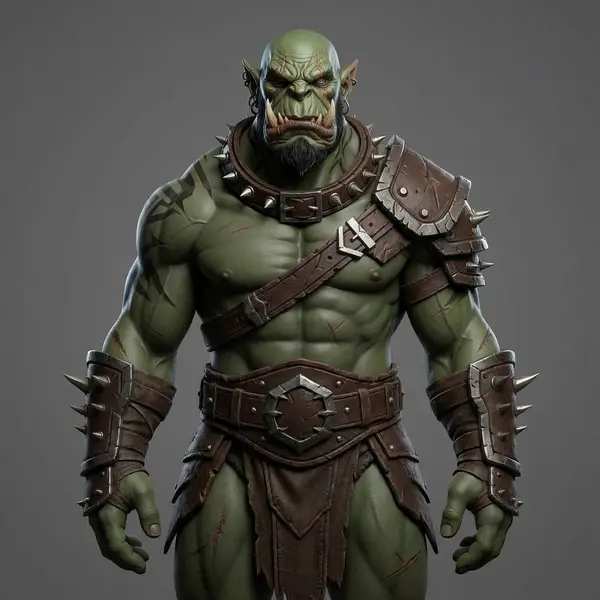
Design a character in Image Studio, give it a voice with Kling 2.6 Pro, and turn it into a 3D model - one account, one credit balance.

What is Kling 2.6 Pro?
Kling 2.6 Pro is Kuaishou's audio-first AI video model and the first in the Kling line to introduce native audio. Instead of producing a silent clip you have to score later, it generates the visuals and a complete soundtrack at the same time - voiceover, sound effects, and ambient atmosphere - all aligned to what happens on screen.
Its signature feature is voice control. You can choose a target voice or upload one of your own, and Kling reproduces its character so the same voice can carry across an entire series of clips. In 3D AI Studio, Kling 2.6 Pro runs as an image-to-video model: you give it an image and a prompt, and it returns a 1080p clip with sound, up to 10 seconds long.
Voice control and voice cloning
Most AI video tools that add audio give you generic, one-off voices. Kling 2.6 Pro is different: you can lock in a specific voice and reuse it, which is what makes consistent characters possible. Upload a sample or pick a target voice, and Kling matches its tone and delivery.
For scenes with more than one speaker, voice binding uses a simple [Character@VoiceName] tag so each character keeps a distinct voice. That makes multi-character dialogue - a knight barking an order while a mage answers - straightforward, with the right voice attached to the right face and synced to their lips.
Kling 2.6 Pro vs Veo 3.1 for talking video
Both models can make characters talk, but they shine in different ways. Veo 3.1 generates lip-synced speech directly from dialogue you write in quotation marks and leads on photoreal realism. Kling 2.6 Pro's edge is voice identity - choosing or cloning a voice and reusing it across clips - plus its handling of singing and rap.
If you need a specific, repeatable voice for a recurring character, reach for Kling 2.6 Pro. If you want maximum realism and 4K from a simple prompt, use Veo 3.1. Both are included in 3D AI Studio, so you can use whichever fits the shot.
Tips for better Kling 2.6 Pro videos
Treat your prompt as a script and a shot list at once. Describe the action and, just as importantly, the audio: the spoken line, the music, and the ambience. Keep spoken lines short so they sit comfortably inside a 5 or 10 second clip, and give the character a beat before they speak.
Start from a clean, front-facing image for the best lip-sync, and reuse the same voice across clips to build a recognizable character. If you only need silent motion, a faster model like Kling 2.5 Turbo will cost fewer credits; if you need length and multi-shot, move up to Kling 3.0.
Explore other video models
Every plan includes access to all of them. Pick the right tool for each shot.