
Glossy coloured plastic with soft highlights
Type something to start
How this template works
Every icon uses the same style prompt, so a rocket, a padlock and a chart made with this template look like one set. You get the render and a 3D model.
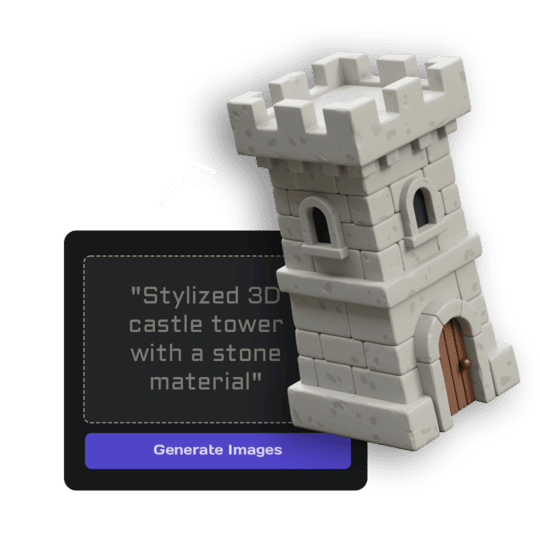 1Open Image StudioStep 1 · Image Studio
Design the icon
Image Studio draws your icon as one chunky, rounded 3D object in the chosen finish and palette, centered on white.
Nano Banana 2.1 (text) or GPT Image 2.5 Flare (sketch) · 1K
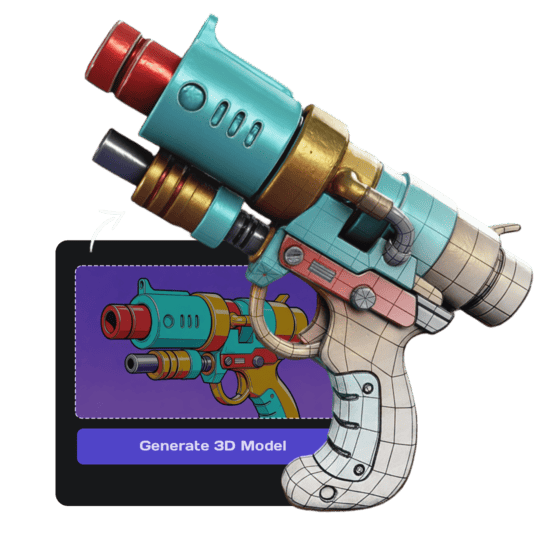 2Open Image to 3DStep 2 · Image to 3D
Build the 3D model
Image to 3D (Prism 3.1) builds a textured model with Fast textures and Standard mesh quality.
Prism 3.1 · Fast textures · Standard mesh
Tips for the best result
- Describe one object, not a scene: "a padlock", "a gift box".
- Simple shapes read best at small sizes.
- Make a whole set in one sitting so the palette stays the same.
Do it yourself for more control
- Save the Image Studio render as a PNG for slides, landing pages and app stores.
- Use the same style for every icon in a set; only change the description.
- Animate the GLB in Spline for hover effects on your site.
Good to know
Icons are 3D objects, not flat vectors; for SVG icon sets use a vector tool.
Made with this template
The card in the corner shows what went in.


Each example is an actual run of this template at Standard quality, made from a typed idea.
Run this template from Claude, ChatGPT or Cursor
Connect the 3D AI Studio MCP to your AI assistant and paste the brief into the chat. It runs the same steps with the same prompts and settings, shows you the result in the conversation and saves it to your library.
- Connect the MCP once in your account settings. It's included in every paid plan.
- Copy the brief and swap the example in the first line for your own.
- Paste it into a new chat. Your assistant runs every step and shows you each result.
generate_image_nano_2_1generate_prism_3_1convert_modelget_generationshow_generationUse the 3D AI Studio MCP to run the "3D Icon" template (https://www.3daistudio.com/templates/3d-icon-generator) for me.
My idea: A rocket taking off
Style: Glossy
Follow these steps in order. The prompts and settings are the template's own, so use them word for word and only put my idea where it says {MY IDEA}.
1. Design the icon
Call generate_image_nano_2_1 with aspect_ratio "1:1", resolution "1K", output_format "png" and this prompt:
"""
Icon: {MY IDEA}. Finish: glossy coloured plastic with soft highlights. A soft blue and violet palette. One single 3D icon object, chunky, simplified and instantly readable at small sizes, with soft rounded edges, shown large in a three-quarter front view from slightly above, the whole icon visible with generous empty margin, no text, no letters, no background shapes or circles behind it. Seamless pure white (#FFFFFF) background, soft even studio lighting, no cast shadows.
"""
2. Build the 3D model
Call generate_prism_3_1 with the task_id of the image from step 1 in images, texture_model "3.5", texture_quality "fast", geometry_quality "standard", pbr false.
3. Export
Export it for Website / Shopify unless I name another target: call convert_model on the 3D model with output_format "fbx_zip" (FBX with its textures) for Unity / 3D apps; output_format "usdz" for iPhone AR. Website / Shopify or Blender take the generated GLB as it is, no conversion needed.
After each generation call, keep polling get_generation with its task_id until it completes, then show me the result with show_generation before you start the next step.Or automate it with the API
The same tools are available through the 3D AI Studio API. Call them from your own code to make hundreds at once, build them into your app or run them in your pipeline.
Similar templates
More templates like 3D Icon, ready to use the same way.


