
Turn concept art into a clean 3D game model
Add a photo to start
How this template works
Painterly edges, notes and busy backgrounds in concept art confuse image-to-3D. The template first turns your art into a clean render of the design, then builds the model from that.
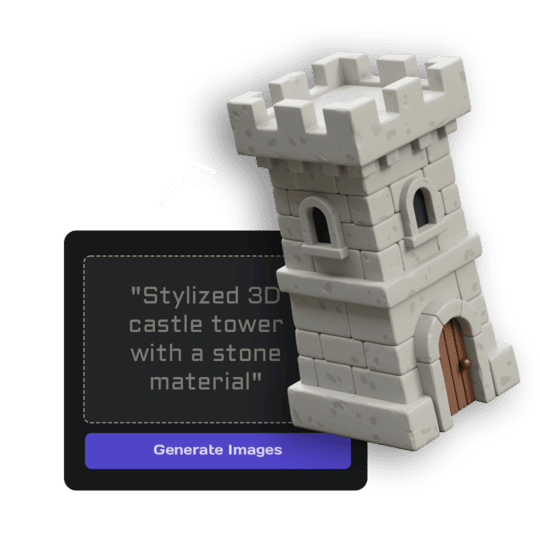 1Open Image StudioStep 1 · Image Studio
Clean up the design
Image Studio keeps the design, colours and proportions, drops notes, swatches and backgrounds, and renders the subject whole in a three-quarter view on white.
GPT Image 2.5 Flare · low quality · 1K
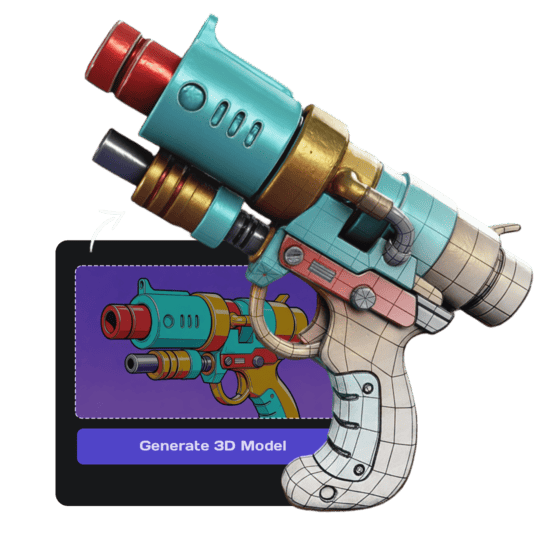 2Open Image to 3DStep 2 · Image to 3D
Build the 3D model
Image to 3D (Prism 3.1) builds the mesh with a 10,000-face limit and Fast textures.
Prism 3.1 · Fast textures · Standard mesh · 10,000 face limit · Baked lighting
Tips for the best result
- One design per upload works best; character sheets with many poses get simplified to one.
- Rough paintings are fine; the template fills in clean surfaces.
- Clear silhouettes give the most accurate models.
Do it yourself for more control
- Crop a busy sheet to the one design you want before uploading.
- Generate front, side and back views with Multi-View, then use Multi-view to 3D for the closest match.
- Use Remesh and LOD to fit the model into your polygon budget.
Good to know
Parts the art never shows (like the back) are designed to match the front; use Multi-View for full control.
Made with this template
The photo in the corner of each one is what went in.


Each example is an actual run of this template at Standard quality, made from a realistic sample photo.
Run this template from Claude, ChatGPT or Cursor
Connect the 3D AI Studio MCP to your AI assistant and paste the brief into the chat. It runs the same steps with the same prompts and settings, shows you the result in the conversation and saves it to your library.
- Connect the MCP once in your account settings. It's included in every paid plan.
- Copy the brief.
- Paste it into a new chat. Your assistant opens an upload card for your photo, then runs every step.
upload_imageedit_image_gptgenerate_prism_3_1generate_p2convert_modelget_generationshow_generationUse the 3D AI Studio MCP to run the "Concept Art to 3D" template (https://www.3daistudio.com/templates/concept-art-to-3d) for me. My photo: I'll hand it over when you call upload_image. Detail: Faithful Follow these steps in order. The prompts and settings are the template's own, so use them word for word. 1. Get my photo Call upload_image with purpose "Photo for the Concept Art to 3D template" so I can hand it over (images attached in the chat don't reach the MCP). 2. Clean up the design Call edit_image_gpt with my uploaded photo in images, quality "low", output_format "png" and this prompt: """ This is concept art. Recreate its main design as one finished 3D game asset render: keep the design, silhouette, proportions, colours, materials and key details exactly, and ignore the background, handwritten notes, colour swatches, callouts and any extra views or sketches. Characters and creatures stand in a neutral relaxed pose with the whole body visible; objects and vehicles are shown whole. Three-quarter front view, the entire subject visible with generous empty margin, clean readable shapes. Seamless pure white (#FFFFFF) background, soft even studio lighting, no cast shadows, no ground plane, no text. Surface and light: soft, even, diffuse studio light. Metal, gems, glass-like and wet or glossy materials show what they are through colour and a soft satin sheen, never through mirror reflections, bright specular hot spots or reflections of the surroundings. Glowing parts (eyes, runes, lava, neon, gems) are painted as bright, flat emissive colour on the surface itself, with no light spilling onto nearby surfaces, no halo, bloom or glow around the object, and no light rays, sparkles or particles in the air. """ 3. Build the 3D model Call generate_prism_3_1 with the task_id of the image from step 2 in images, texture_model "3.5", texture_quality "fast", geometry_quality "standard", pbr false, face_limit 10000, lighting_removal false. For a lighter, game-optimized mesh with clean low-poly topology, call generate_p2 instead with texture_model "3.5", texture_quality "standard", pbr false, lighting_removal false and no face_limit. 4. Export Export it for Unity unless I name another target: call convert_model on the 3D model with output_format "fbx_zip" (FBX with its textures) for Unity, Unreal / UEFN or Roblox Studio. Godot or Blender take the generated GLB as it is, no conversion needed. For Roblox, the mesh has to stay under 8,000 faces: pass face_limit 8000 to the 3D step. After each generation call, keep polling get_generation with its task_id until it completes, then show me the result with show_generation before you start the next step.
Or automate it with the API
The same tools are available through the 3D AI Studio API. Call them from your own code to make hundreds at once, build them into your app or run them in your pipeline.
Similar templates
More templates like Concept Art to 3D, ready to use the same way.


