
Smooth matte vinyl toy with bright, faithful colours
Add a photo to start
How this template works
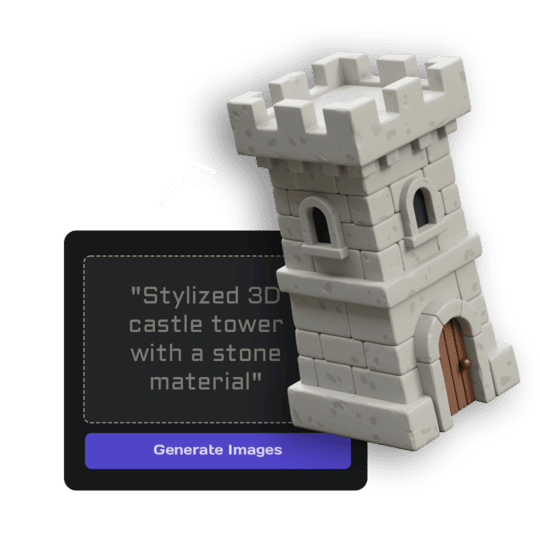
Kids draw in 2D with wobbly lines, so the template first redraws the character as a chunky physical toy that keeps the original design, then builds the 3D model from that.
 1Open Image StudioStep 1 · Image Studio
Bring the drawing to life
Image Studio keeps the character's shape, colours, face and number of limbs, and thickens everything so it survives printing and play.
GPT Image 2.5 Flare · low quality · 1K
 2Open Image to 3DStep 2 · Image to 3D
Build the 3D model
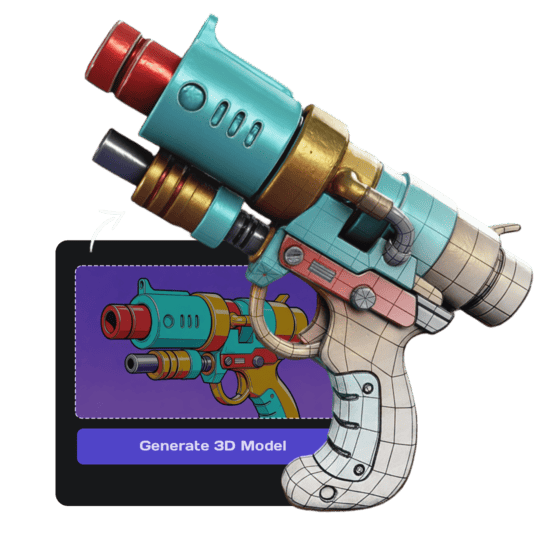
Image to 3D (Prism 3.1) builds the toy from the redrawn image.
Prism 3.1 · Fast textures · Standard mesh
Tips for the best result
- Photograph the drawing flat, from straight above, in daylight.
- Crop out the table and other drawings.
- Simple characters with clear outlines work best.
Do it yourself for more control
- Tell Image Studio to keep it even closer to the drawing, or to add a backpack or hat.
- Use Add Base if the toy wobbles, then Print Repair before slicing.
Good to know
Scenes with many characters become one combined figure; crop to the character you want.
Made with this template
The photo in the corner of each one is what went in.


Each example is an actual run of this template at Standard quality, made from a realistic sample photo.
Run this template from Claude, ChatGPT or Cursor
Connect the 3D AI Studio MCP to your AI assistant and paste the brief into the chat. It runs the same steps with the same prompts and settings, shows you the result in the conversation and saves it to your library.
- Connect the MCP once in your account settings. It's included in every paid plan.
- Copy the brief.
- Paste it into a new chat. Your assistant opens an upload card for your photo, then runs every step.
upload_imageedit_image_gptgenerate_prism_3_1convert_modelget_generationshow_generationUse the 3D AI Studio MCP to run the "Kid's Drawing to Toy" template (https://www.3daistudio.com/templates/drawing-to-3d-model) for me. My photo: I'll hand it over when you call upload_image. Style: Vinyl toy Shapes: Just like the drawing Follow these steps in order. The prompts and settings are the template's own, so use them word for word. 1. Get my photo Call upload_image with purpose "Photo for the Kid's Drawing to Toy template" so I can hand it over (images attached in the chat don't reach the MCP). 2. Bring the drawing to life Call edit_image_gpt with my uploaded photo in images, quality "low", output_format "png" and this prompt: """ This is a child's drawing. Turn it into a single cute physical toy figure based exactly on the drawing: keep the character's shape, colours, number of legs and arms, face and markings recognisable, and interpret it as a chunky, rounded vinyl toy with thick sturdy limbs and no thin fragile parts, standing on its own feet (or on a small flat round base if it could not stand). The entire figure visible, centered, three-quarter front view, generous empty margin. Isolated on a seamless pure white (#FFFFFF) background, soft even studio lighting, no shadows on the background, no paper, no text. Style: smooth matte vinyl toy with bright, faithful colours. Light and surfaces: soft, even, diffuse studio light from the front, and at most a soft satin sheen: no mirror-like gloss, no bright white hot spots or glare, and no reflections of lights, windows or surroundings. """ 3. Build the 3D model Call generate_prism_3_1 with the task_id of the image from step 2 in images, texture_model "3.5", texture_quality "fast", geometry_quality "standard", pbr false, lighting_removal false. 4. Export Export it for printing: call convert_model on the 3D model with output_format "3mf" (or "stl" if I ask for it), plus max_size and unit "cm" if I gave you a print size. After each generation call, keep polling get_generation with its task_id until it completes, then show me the result with show_generation before you start the next step.
Or automate it with the API
The same tools are available through the 3D AI Studio API. Call them from your own code to make hundreds at once, build them into your app or run them in your pipeline.
Similar templates
More templates like Kid's Drawing to Toy, ready to use the same way.


