
How to Use Hitem3D Online: Image to 3D Tutorial (2026)
Hitem3D reconstructs geometry at 1536³ resolution - higher than any other mainstream AI 3D model - with up to 2 million faces and watertight meshes built for 3D printing. This tutorial shows you how to use it online in your browser, which settings actually matter, and how to get from a single photo to a print-ready model.
One thing before we start: you don't need a Hitem3D account or subscription. Hitem3D 2.1 is available as a built-in engine on 3D AI Studio, where it shares one credit balance with Hunyuan, Meshy 6, Tripo, Rodin, and Trellis 2. New users get free credits to try it.
What is Hitem3D?
Hitem3D - rebranded to Hi3D in 2026 - is an AI image-to-3D model developed by Math Magic. Under the hood it combines two peer-reviewed research models: Sparc3D, which reconstructs watertight high-resolution geometry using sparse deformable marching cubes (published at NeurIPS 2025), and Ultra3D, a part-attention architecture that makes generation at that resolution fast enough to be practical.
The result is a model that captures surface detail other generators lose: cloth folds, engraved patterns, rivets, skin texture. That's why every independent comparison ranks it as the top choice for resin miniatures and print-first workflows.
Two things to know about its scope:
- It's image-to-3D only. There is no text prompt - you always start from 1 to 4 photos. (If you want text-to-3D, use Hunyuan 3.1 or Meshy 6 in the same studio.)
- Output is dense by design. Up to 2M faces is fantastic for printing and rendering, but you'll want to remesh for game engines - more on that below.
Step by Step: Image to 3D with Hitem3D
Step 1: Pick Your Image
The single biggest quality factor. You want:
- A sharp, well-lit photo with soft, even lighting (harsh shadows get baked into the reconstruction)
- The object centered, filling 60-80% of the frame
- A plain, contrasting background - or remove the background entirely
- At least 1024×1024 pixels; PNG, JPG, or WebP
Avoid reflective, transparent, or very glossy objects - every AI 3D model struggles with those, Hitem3D included.
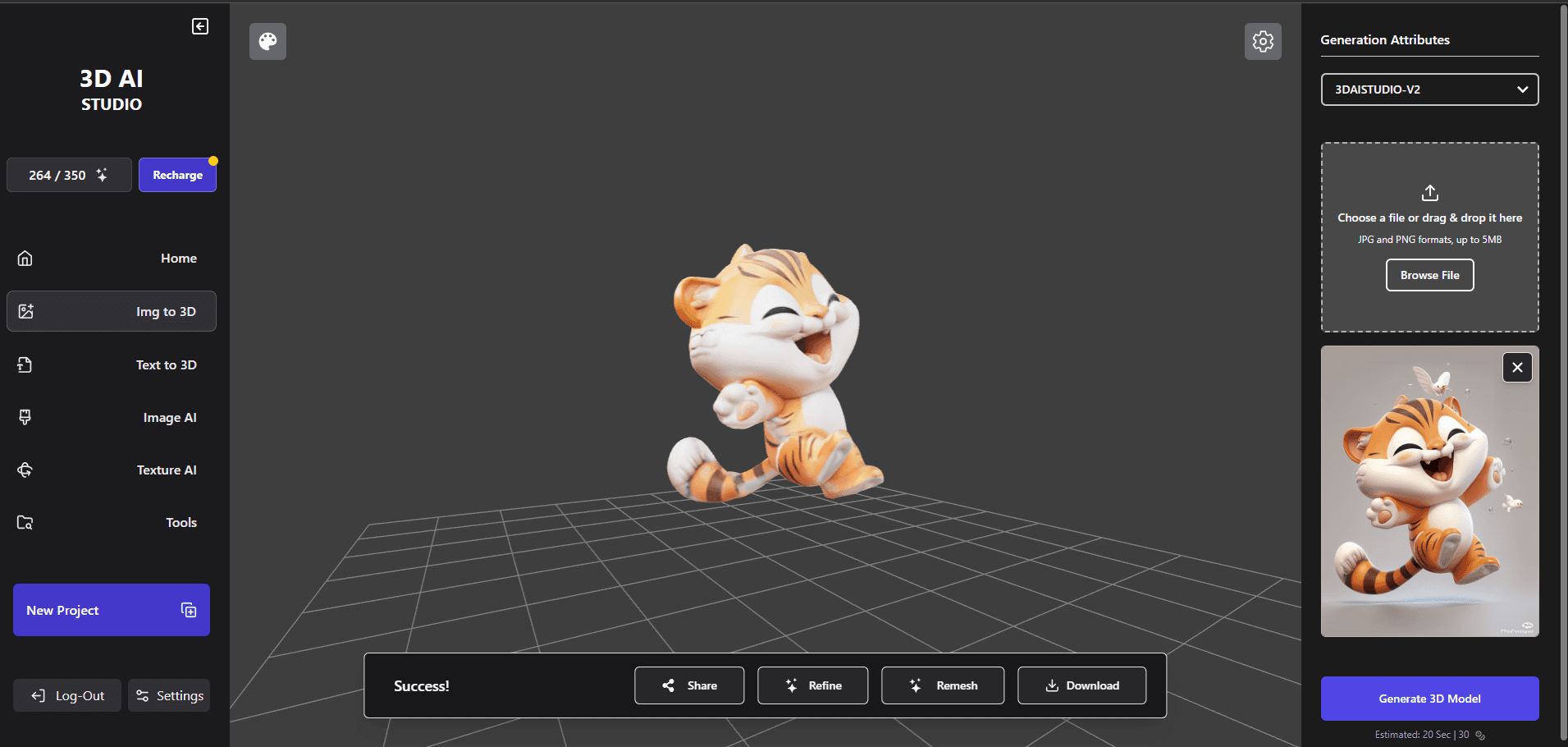
Step 2: Open the Image to 3D Tool
Go to the Image to 3D generator and select Hitem3D 2.1 from the model list. Signing up is free and comes with credits to test it.
Step 3: Choose Your Settings
This is where Hitem3D differs from simpler generators. Here's what each option does and what to pick:
| Setting | Options | Recommendation |
|---|---|---|
| Resolution | Fast (1536³) / Pro (1536³) | Fast for almost everything. Pro for hero assets and maximum print detail. |
| Material Type | Shaded / PBR | Shaded for 3D printing. PBR if the model goes into Unity, Unreal, or Blender with realistic lighting. |
| Enable Texturing | On / Off | Off for prints you'll paint anyway - it's faster and cheaper, and you only need the geometry. |
| Polygon Count | Auto, or 100K-2M | Auto for most work. Max it (2M) for resin miniatures; keep it modest if you plan to remesh for games. |
Fast vs Pro, honestly: both run at 1536³. Fast uses a distilled pipeline and is the right default - the difference only becomes visible on close-up hero details, and Pro roughly doubles the credit cost and adds several minutes.
Step 4: Generate
Hit generate. Hitem3D takes about 7 to 8 minutes for a Fast textured generation (Pro takes longer). You can queue other generations or leave the page - there's an optional email notification when it finishes.
Step 5: Preview and Iterate
Your model appears in the interactive 3D viewer. Rotate it and check the back and sides specifically - that's where single-image generation has to guess. If the back looks wrong, that's your cue for multi-view (next section).
Step 6: Export
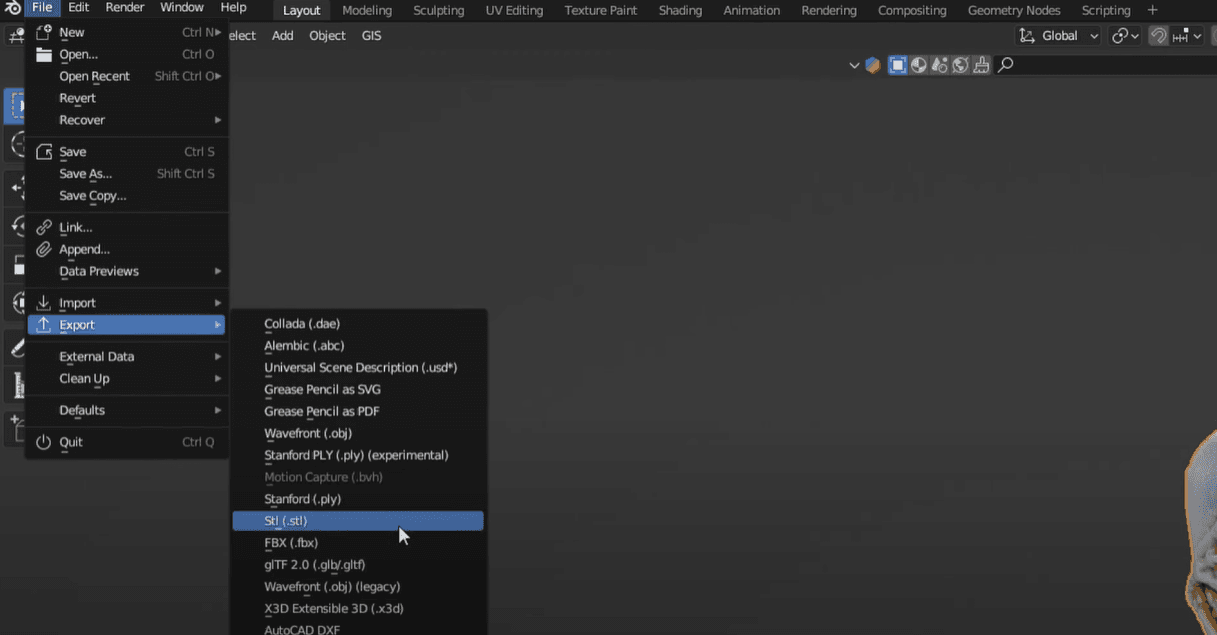
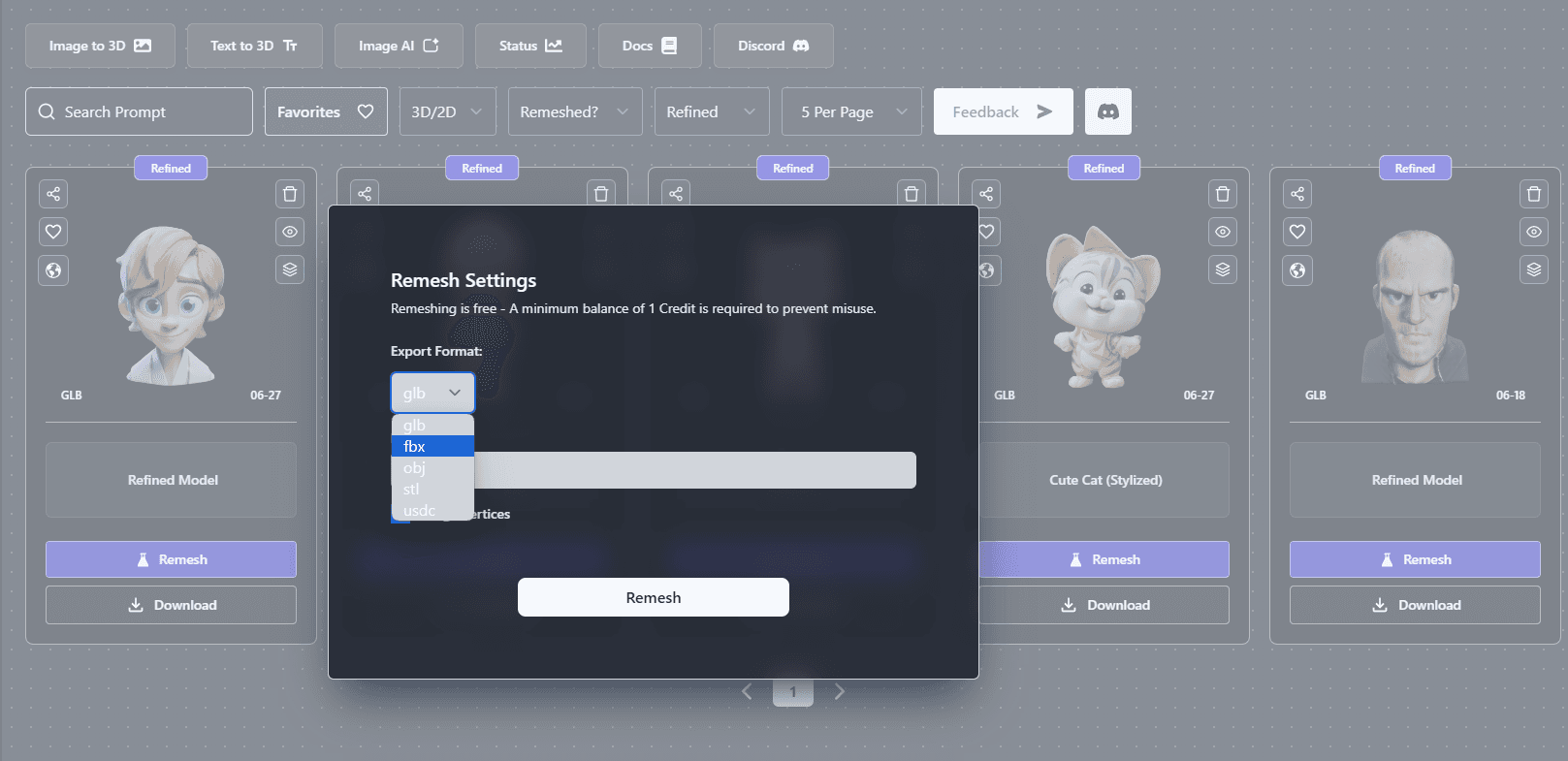
Download as GLB, or convert to STL or OBJ for 3D printing, FBX for game engines, USDZ for AR. Everything runs through the built-in converter - no external tools needed.
Multi-View: The Biggest Quality Upgrade
If your object has important detail on the sides or back - characters, sculptures, products - switch to Hitem3D multi-view and upload exactly four photos: front, left, back, right.
How to shoot them properly:
- Put the object on a turntable (a lazy Susan works) and lock your camera on a tripod at the object's mid-height
- Take the front shot, rotate 90°, shoot again - four times total
- Keep distance, height, framing, and lighting identical across all four shots
The reconstruction quality jump is substantial - and on 3D AI Studio, multi-view costs the same credits as a single image, which is unusual (most platforms charge extra for it).
For a deeper dive on photographing objects for AI reconstruction, see our photography guide for 3D scanning.
Preparing Hitem3D Models for 3D Printing
This is Hitem3D's home turf. The workflow:
- Generate with texturing off (geometry-only) if you plan to paint the print - you save credits and time
- Max the polygon count for resin prints; the 1536³ detail survives 0.05mm layer heights where lower-resolution meshes go soft
- Convert to STL with the built-in converter
- Too big for your build plate? Use the Segmentation Tool - it's powered by Hitem3D's split technology and cuts the model into parts with printable ball joints (snap-fit) or dovetail joints (slide-fit). Character templates split humanoids into 2-6 logical parts (head, torso, limbs); general mode splits any object by granularity.
Using Hitem3D Models in Games and Real-Time
Raw Hitem3D output is too dense for real-time rendering - a 2M-face prop will hurt your frame rate. Two ways to handle it:
- Remesh after generating: run quad remesh or smart low-poly on the generation right in the studio. You keep Hitem3D's silhouette accuracy at a fraction of the polygons.
- Use a game-focused engine instead: for assets that were never going to need ultra-detail, generate with Tripo P1 or Meshy 6 directly - that's the point of having multiple engines in one place.
What Doesn't Work Well
Knowing the limits saves credits:
- Reflective and transparent materials - glass, chrome, mirrors confuse the reconstruction
- Multiple overlapping objects - one object per image
- Extreme close-ups with cropped edges - the AI can't tell where the object ends
- Text prompts - Hitem3D doesn't take them; it's image-in only
- Very thin, wiry structures - better than most models thanks to the resolution, but still the hardest case for any AI
Failed generations are refunded automatically, so an experimental upload isn't wasted money.
Hitem3D Pricing: What It Actually Costs
On 3D AI Studio, a standard Hitem3D 2.1 generation (Fast, textured) costs 30 credits. Geometry-only costs less; Pro resolution costs roughly double; PBR adds a small premium. Compare that to subscribing to Hitem3D directly, where the Pro plan starts at $9.90/month intro and renews around $19.90 - for one engine.
The practical difference: on 3D AI Studio the same credits also run Hunyuan, Meshy 6, Tripo, Rodin, and Trellis 2, and there's no attribution requirement on anything you generate (Hitem3D's own free tier requires crediting "Generated with Hitem3D" on commercial products).
For a full platform comparison, read 3D AI Studio vs Hitem3D.
Try It
Upload a photo and see the 1536³ difference yourself: generate with Hitem3D 2.1. Free credits for new users, no card required.
Related reading:

Generate 3D models with AI
Easily generate custom 3d models in seconds. Try it now and see your creativity come to life effortlessly!
FAQ
Is Hitem3D free to use?
You can try it with the free credits every new 3D AI Studio account gets. After that it is pay-as-you-go: a standard Hitem3D 2.1 generation (Fast mode, textured) costs 30 credits, with no separate Hitem3D subscription required.
How long does Hitem3D take to generate a 3D model?
About 7 to 8 minutes in Fast mode, longer in Pro mode. You can queue other generations while you wait or enable an email notification for when it finishes.
Can I sell models made with Hitem3D?
Yes. Models generated on 3D AI Studio are yours to use commercially - 3D prints you sell, client work, games, and anything else.
Should I use Hitem3D or Hunyuan for my project?
Hitem3D for maximum surface detail and 3D printing; Hunyuan 3.1 for watertight meshes, clean topology, and text-to-3D. When it matters, generate the same image with both and keep the better result - with one credit balance covering both engines, that is actually practical.