
How to Make a Lithophane From a Photo (Settings That Actually Work)
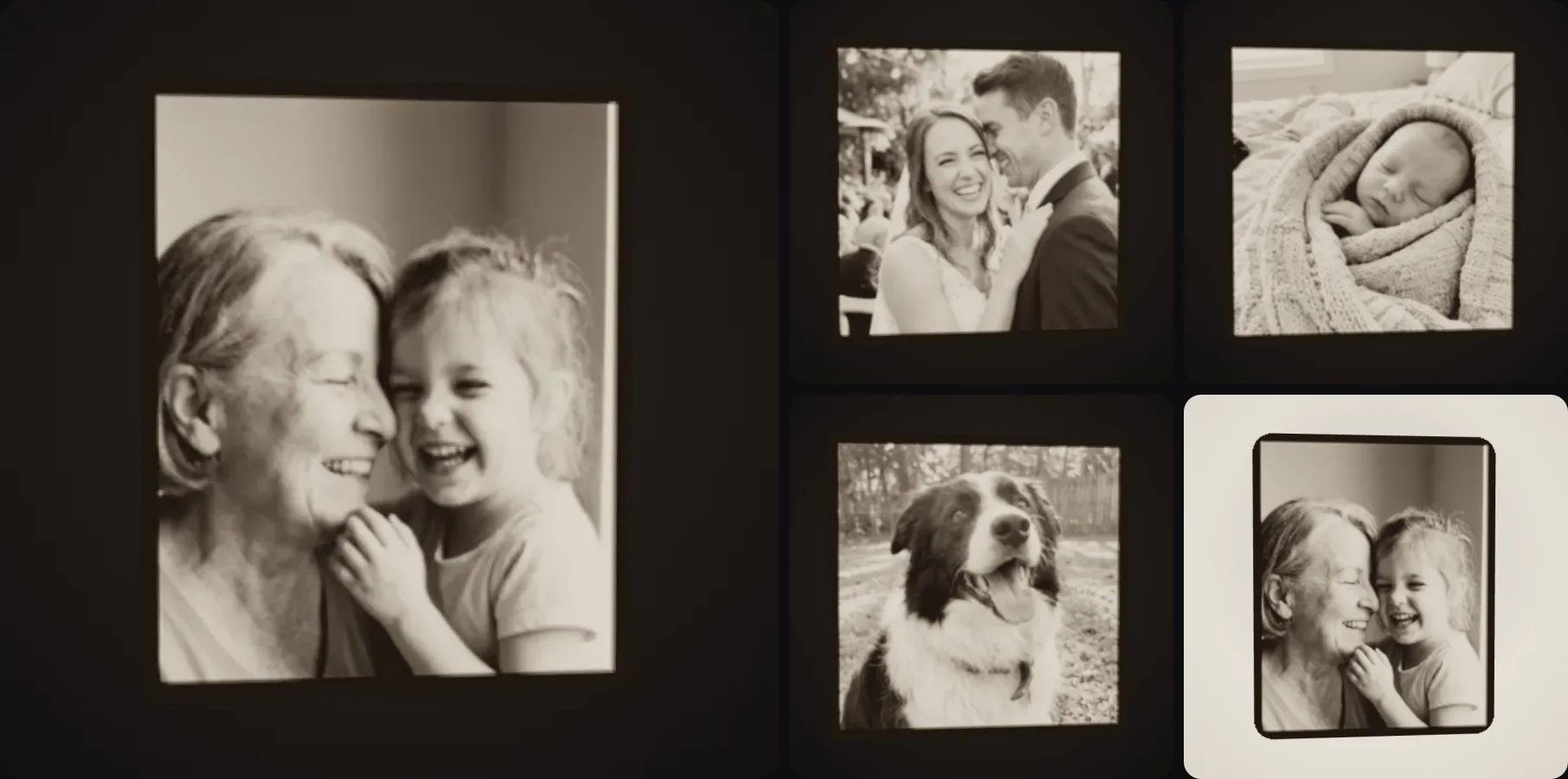
Lithophanes are one of those prints that look like nothing until you hold them up to a window, and then everyone in the room goes "wait, what?". They're also one of the best gifts you can print: a photo of someone's grandma, their wedding or their dog, glowing in a little frame.
They're pretty easy once you know the right settings. In this post I'll explain what a lithophane is, how to make one from any photo in a few seconds, and which print settings you need so the picture comes out sharp.
- A lithophane is a panel that's thick where the photo is dark and thin where it's light. Light shining through shows the picture.
- Make one by uploading a photo to the Lithophane Maker. It builds the STL right in your browser, instantly.
- Print it standing upright in white PLA at 100% infill with 0.12 to 0.16 mm layers.
- Put an LED or a window behind it.
What is a lithophane?
A lithophane is a thin panel whose thickness follows the brightness of a photo. Dark parts of the photo become thick, so they block light. Bright parts become thin, so light shines through. On its own the panel looks like a bumpy white tile, but backlit you see the photo in soft black and white.
They're not new at all. Lithophanes were carved in porcelain in Europe in the early 1800s and used as lampshades and window panels. 3D printing just made them something anyone can make in an afternoon.
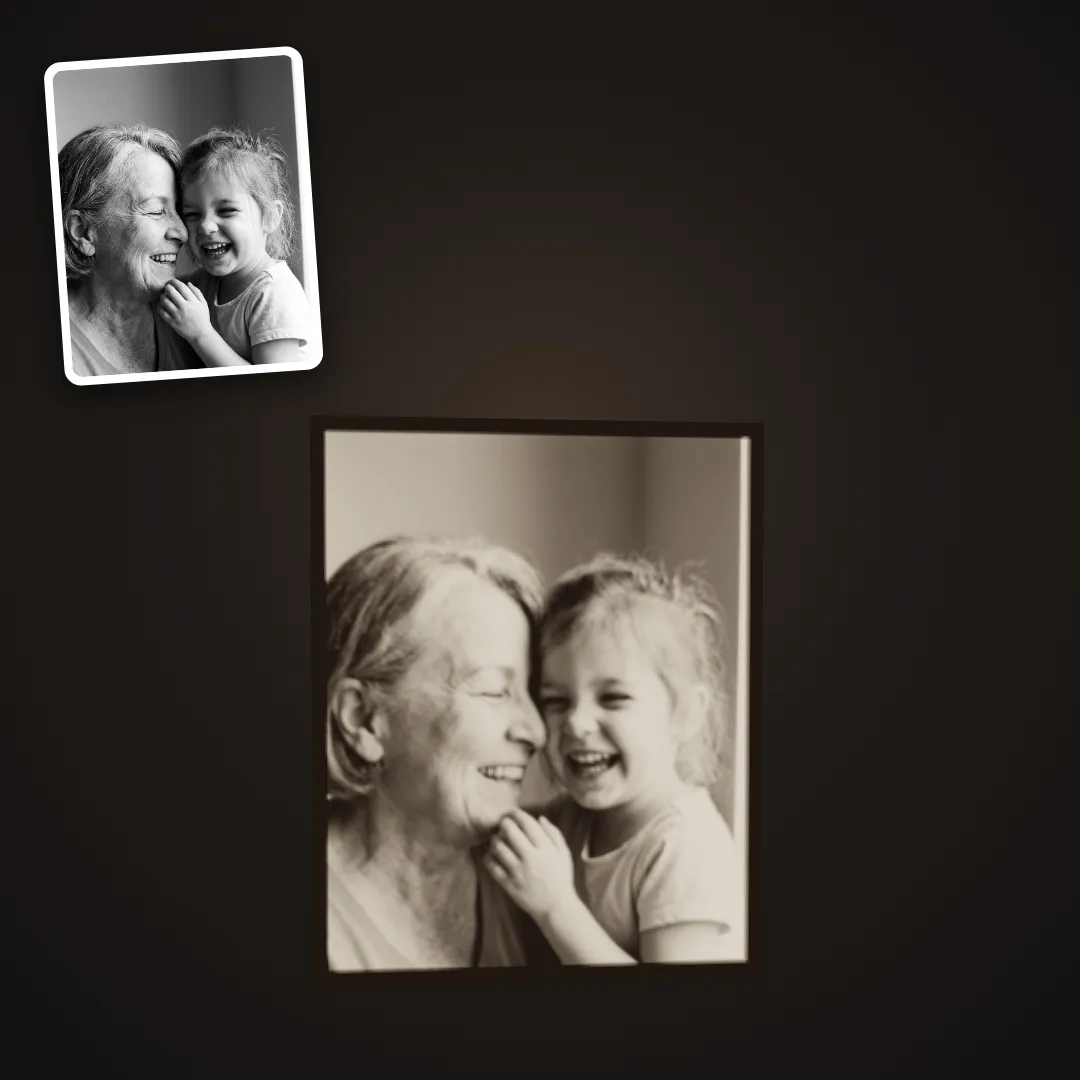
The photo in the corner went in, the glowing panel is the printed lithophane with a light behind it.
How to make a lithophane from a photo
You don't need to model anything. A lithophane generator does the brightness-to-thickness conversion for you.
- Pick a good photo. Faces and high-contrast photos look best. Very dark photos turn into thick, dull panels, so brighten them a little first.
- Upload it to the Lithophane Maker. It runs right in your browser, so the result appears in seconds and uses no credits.
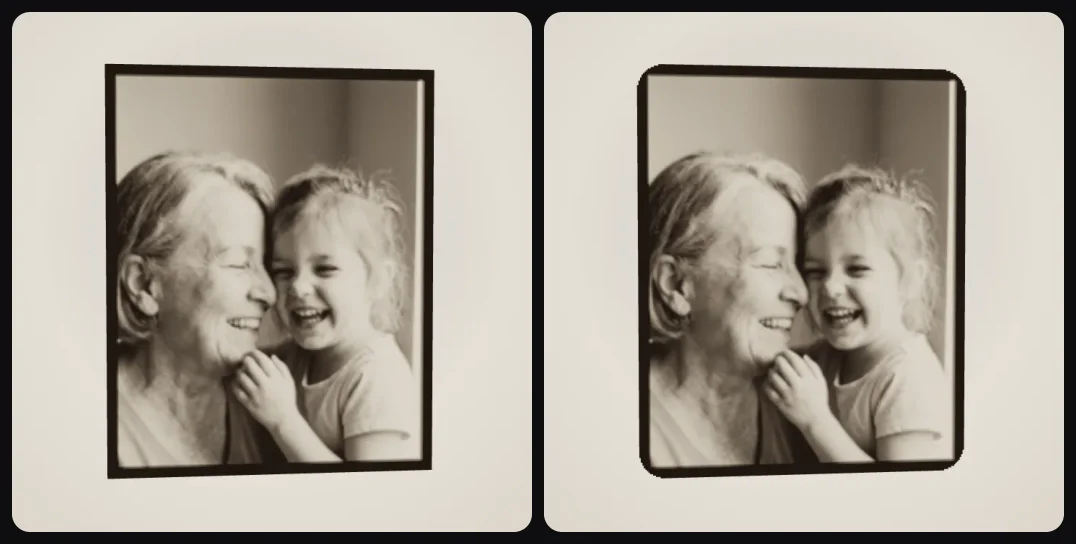
- Pick the width (80, 100 or 150 mm) and the shape (a framed panel or rounded corners).
- Check the preview, which shows the lithophane backlit before you print anything.
- Download the STL and slice it.
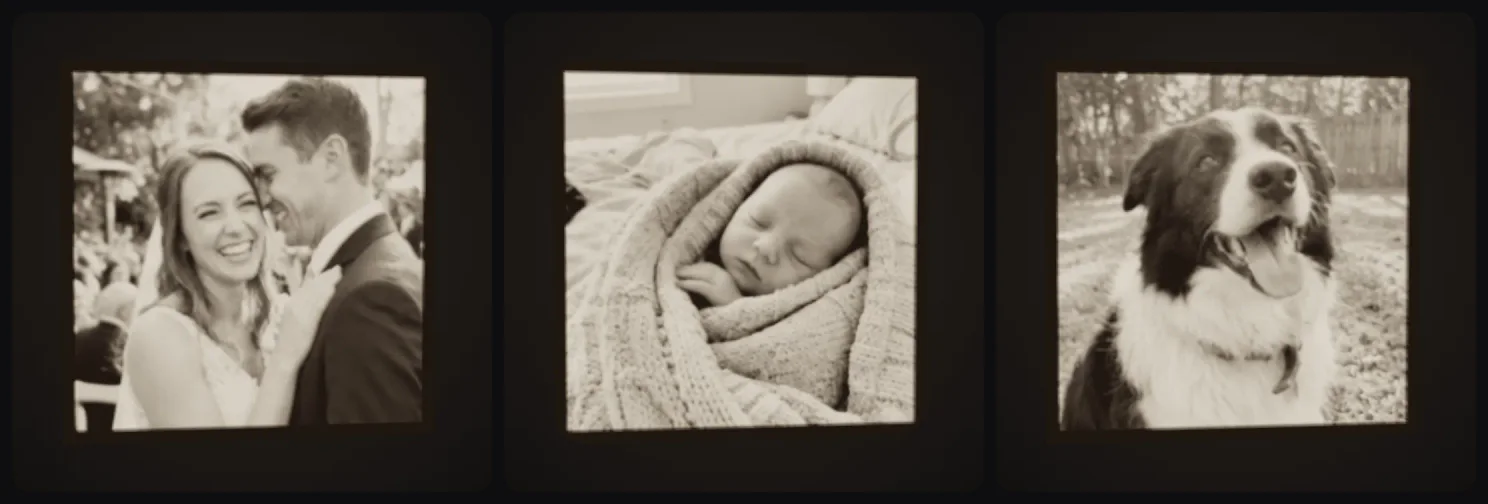
Here are a few made with it. The faces stand out clearly from the background because the photos have good contrast:
The framed panel gets a solid border, which makes it stiffer and easier to stand on a shelf or slide into a light box. Rounded gives you softer corners, which looks a bit more like a gift:
The best lithophane print settings
This is where most lithophanes go wrong. These settings work on any normal FDM printer with a 0.4 mm nozzle:
| Setting | Value | Why |
|---|---|---|
| Filament | Plain white PLA | Even light, no colour cast |
| Infill | 100% | Gaps in the infill show up as dark spots |
| Orientation | Standing upright | Detail comes from nozzle moves, not layers |
| Layer height | 0.12 to 0.16 mm | Smoother gradients |
| Outer wall speed | Slow (20 to 30 mm/s) | Fewer artefacts on the image |
| Thickness | about 0.6 mm (lightest) to 3 mm (darkest) | Enough range for real contrast |
| Brim | 5 to 8 mm | A tall, thin panel needs it to stay put |
The Lithophane Maker uses that thickness range by default (0.6 to 3 mm with a 3 mm frame), so you can slice and print without changing anything.
Why upright?
If you print a lithophane flat, the picture is built from stacked layers, and each layer is a visible step. Standing upright, the thickness changes come from how far the nozzle moves in and out, which is much finer. Of all the settings, this one makes the biggest difference.
How to light a lithophane
For a first look, just hold it up to a window, that works surprisingly well. A warm white LED (around 3000 K) gives you the classic soft glow, and in a light box or a lamp shade it becomes a night light. Leave a few centimetres between the LED and the panel so you don't see a bright dot in the middle.
I'd avoid cold, bluish light, because it makes the picture look flat.
Which photos make the best lithophanes?
Close-ups of faces work best, like two people cheek to cheek, a baby or a dog looking at the camera. Good contrast helps a lot too, for example light faces against a darker background (or the other way round), and a simple background so it doesn't take attention away from the faces.
Very dark photos and tiny faces don't work well, and neither does a group photo with ten people on a small panel. If you want a big group, go for the 150 mm size.
Common lithophane mistakes
Printing it flat is the most common one, and it always gives you a blurry result. Low infill is another, because the infill pattern shows up as dark lines when you put a light behind it. Coloured or silk filament looks nice on the spool but makes the picture muddy. If your photo is very dark, brighten it before uploading. And use a brim, since tall thin panels like to tip over halfway through the print.
Lithophane vs 3D relief
You look through a lithophane, with a light behind it. If you'd like a sculpted picture for the wall that's carved like wood or stone, you want a relief instead. The Relief Wall Art template does that from a photo too.
Getting started
Grab a photo you love and drop it into the Lithophane Maker. It only takes a few seconds, and the preview shows you what it will look like with a light behind it before you print anything.
More guides
Lithophanes are perfect gifts, and so are 3D printed Christmas ornaments made from a photo. For something for the windowsill, see how to design and print your own planters and vases, and if you'd rather have a figure than a panel, here's how to make a 3D printed figurine of yourself.
If you're making it as a present, I also have a list of 3D printed gift ideas sorted by who you're giving to.
Happy printing!

Generate 3D models with AI
Easily generate custom 3d models in seconds. Try it now and see your creativity come to life effortlessly!
FAQ
What is a lithophane?
A lithophane is a thin panel whose thickness follows the brightness of a photo. Dark areas are thick and block light, light areas are thin and let light through. When you hold it against a light, the photo appears. In the 1800s they were made from porcelain; today you can 3D print one.
How do I make a lithophane from a photo?
Upload the photo to a lithophane generator such as the Lithophane Maker in 3D AI Studio. It converts brightness to thickness and builds an STL in a few seconds, right in your browser. Then print it upright in white PLA with 100% infill and put a light behind it.
What are the best print settings for a lithophane?
White PLA, 100% infill, printed standing upright, 0.12 to 0.16 mm layer height and a slower outer wall speed. Thickness from about 0.6 mm for the brightest parts to 3 mm for the darkest works well with a 0.4 mm nozzle.
Why does my lithophane look blurry?
Usually it was printed flat or with too high a layer height. Print it standing upright so the detail is drawn by the nozzle movement instead of by layers, use 0.12 mm layers, and start from a sharp, well-lit photo.
What colour filament is best for lithophanes?
Plain white PLA. Coloured, silk or transparent filaments scatter light unevenly and wash out the picture.
Is the lithophane maker free?
Making and previewing a lithophane in 3D AI Studio is free: it's built in your browser and uses no credits. Downloading the STL is part of the paid plans.