
How to Create a 3D Printed Figurine of Yourself (Easy Guide)
Hey there! Ever wanted to create a cool stylized figurine of yourself? Like those awesome anime figures or Funko Pops, but with YOUR face on it? Well, I've got some good news - you can totally do this using AI, and it's way easier than you'd think!
I'm gonna show you how to turn a simple selfie into a 3D-printable figurine using 3D AI Studio. Let's get started!
AI 3D Models for 3D Printing - Full Demo
I actually went ahead and printed a bunch of AI-generated models to see what happens. Some worked great, some failed completely - quick video showing the results:
So it definitely works, but you need to know which models print well and which need fixing first. Here's the full breakdown:
What You'll Need
- A good photo of yourself (preferably standing)
- Access to 3D AI Studio
- A 3D printer (or a 3D printing service)
Quick Examples (Input → Edited → 3D)


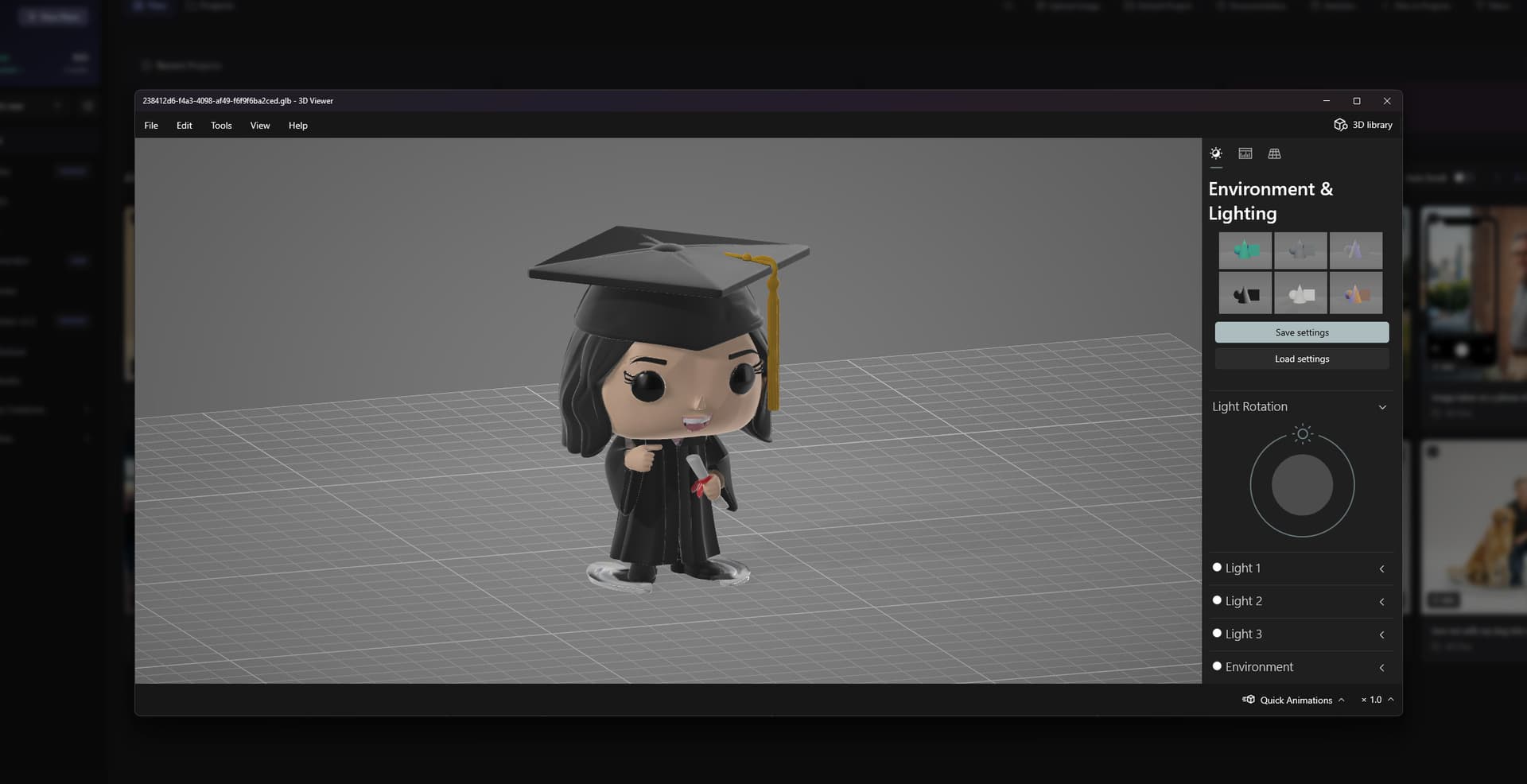
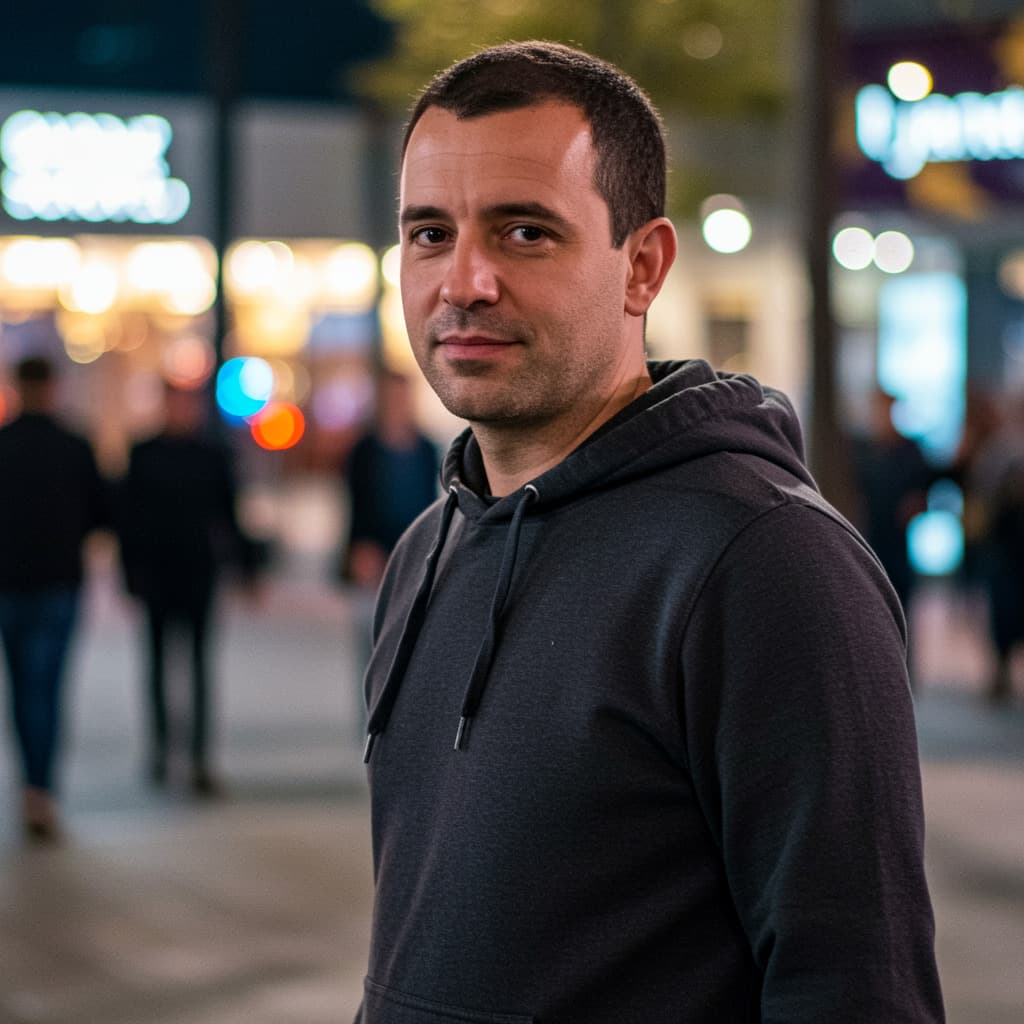
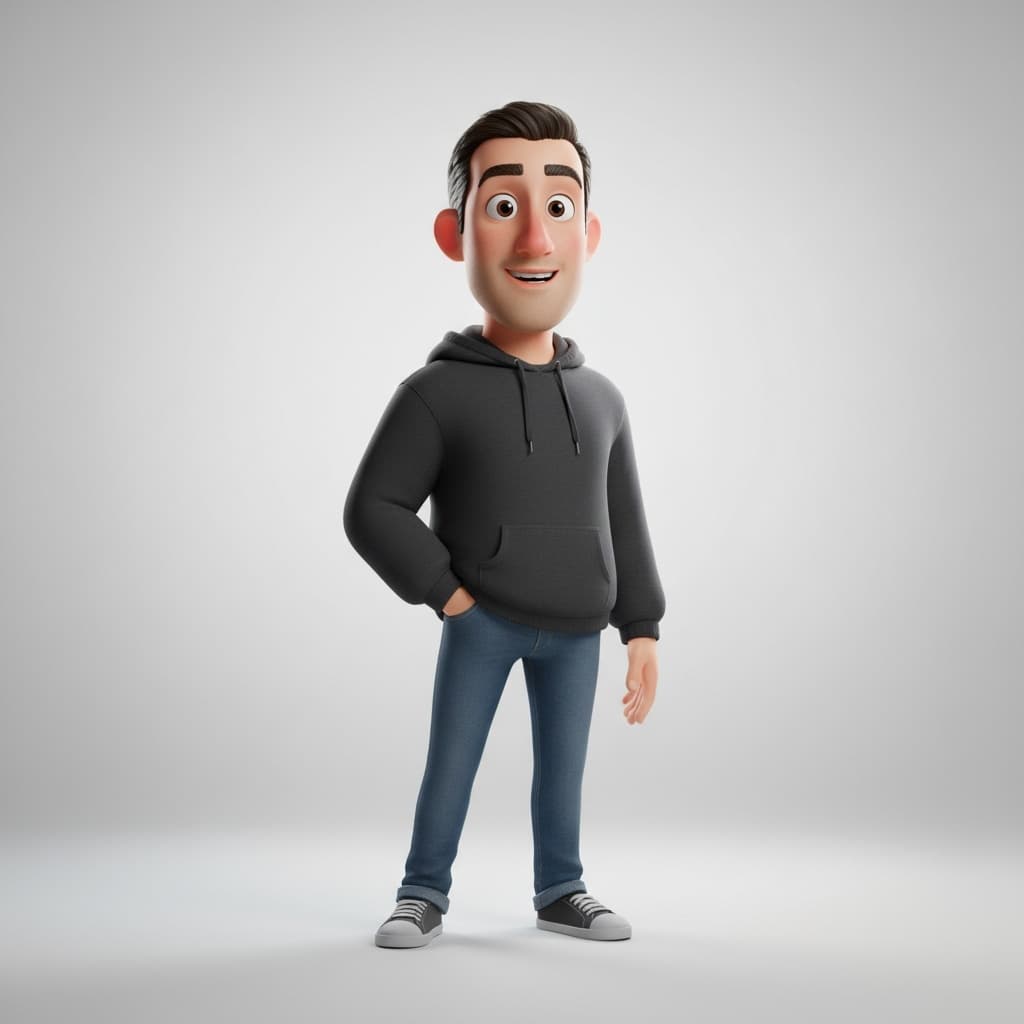
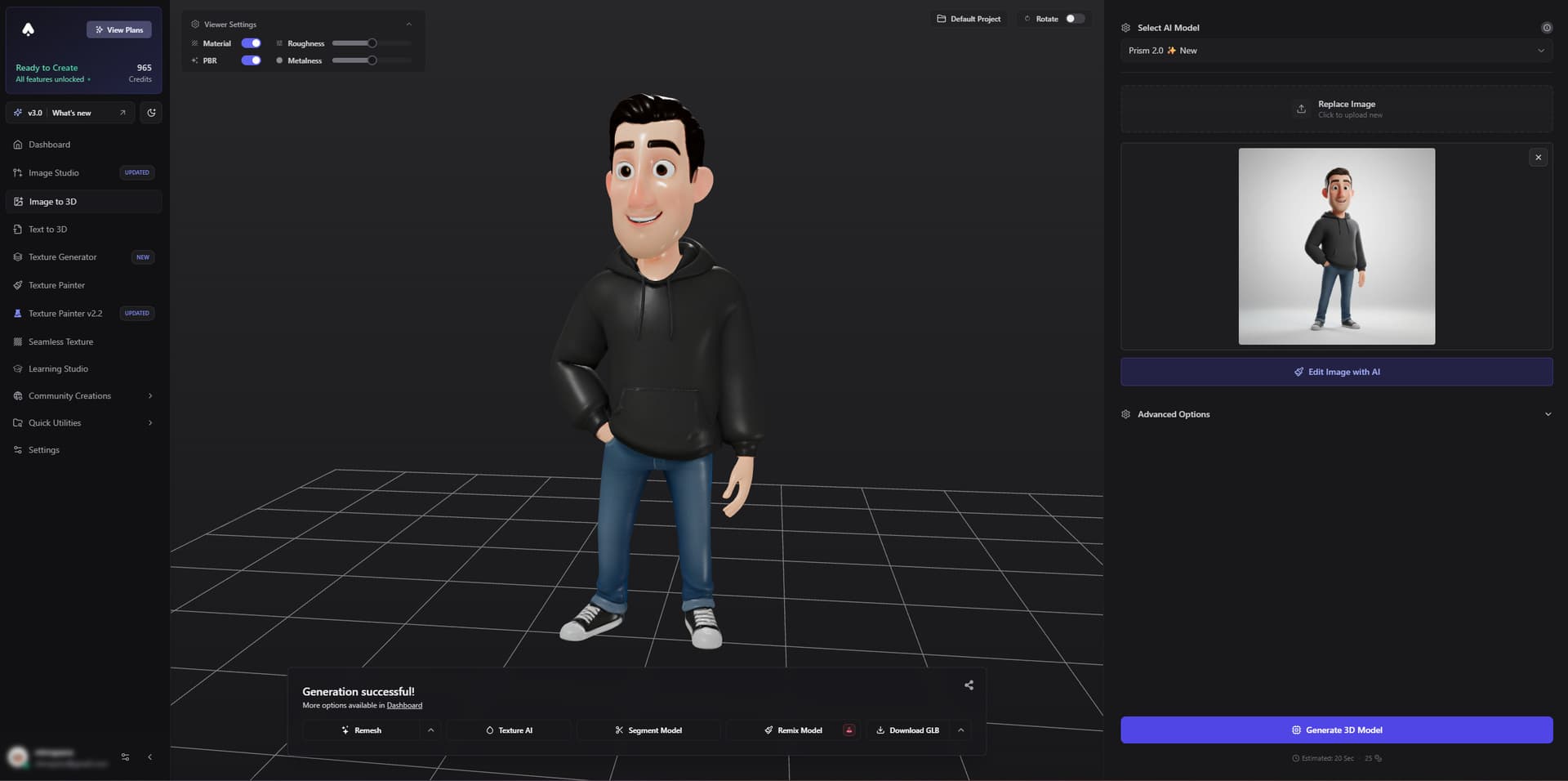
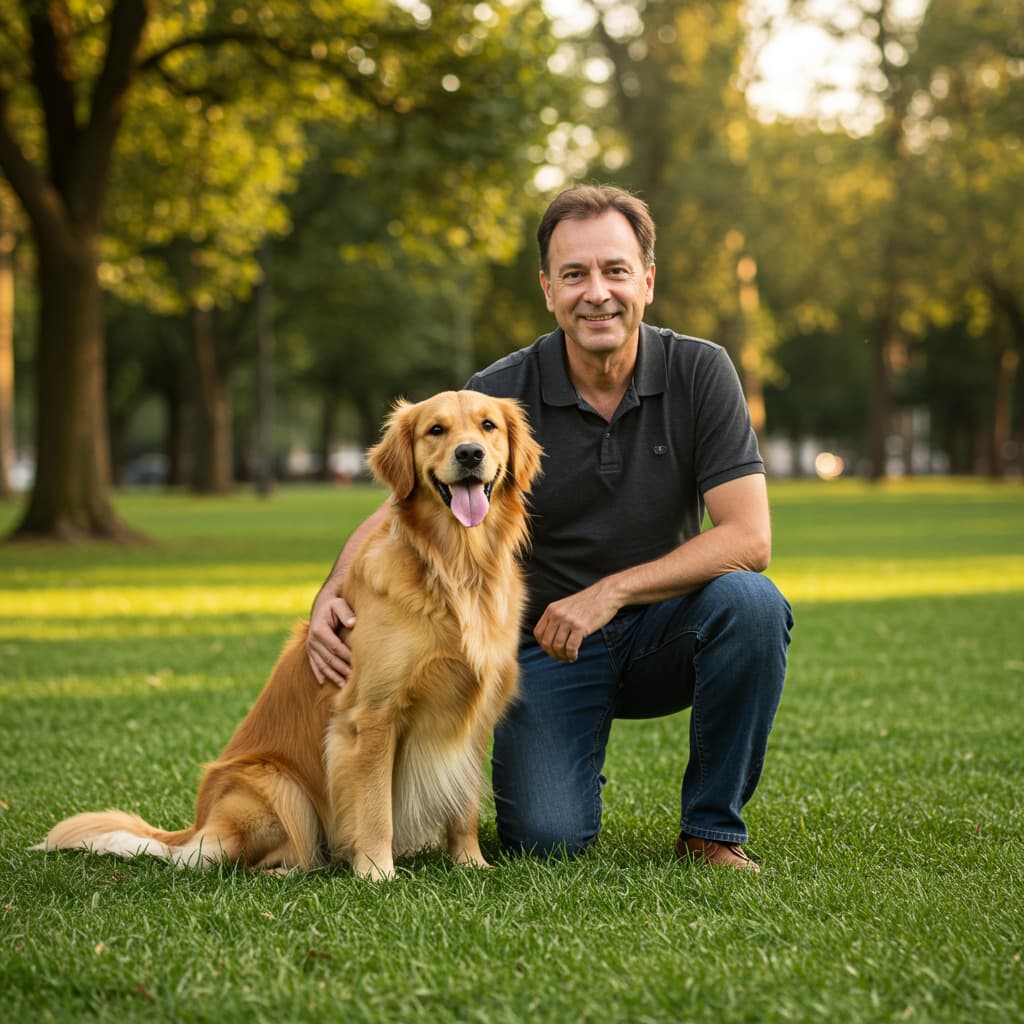
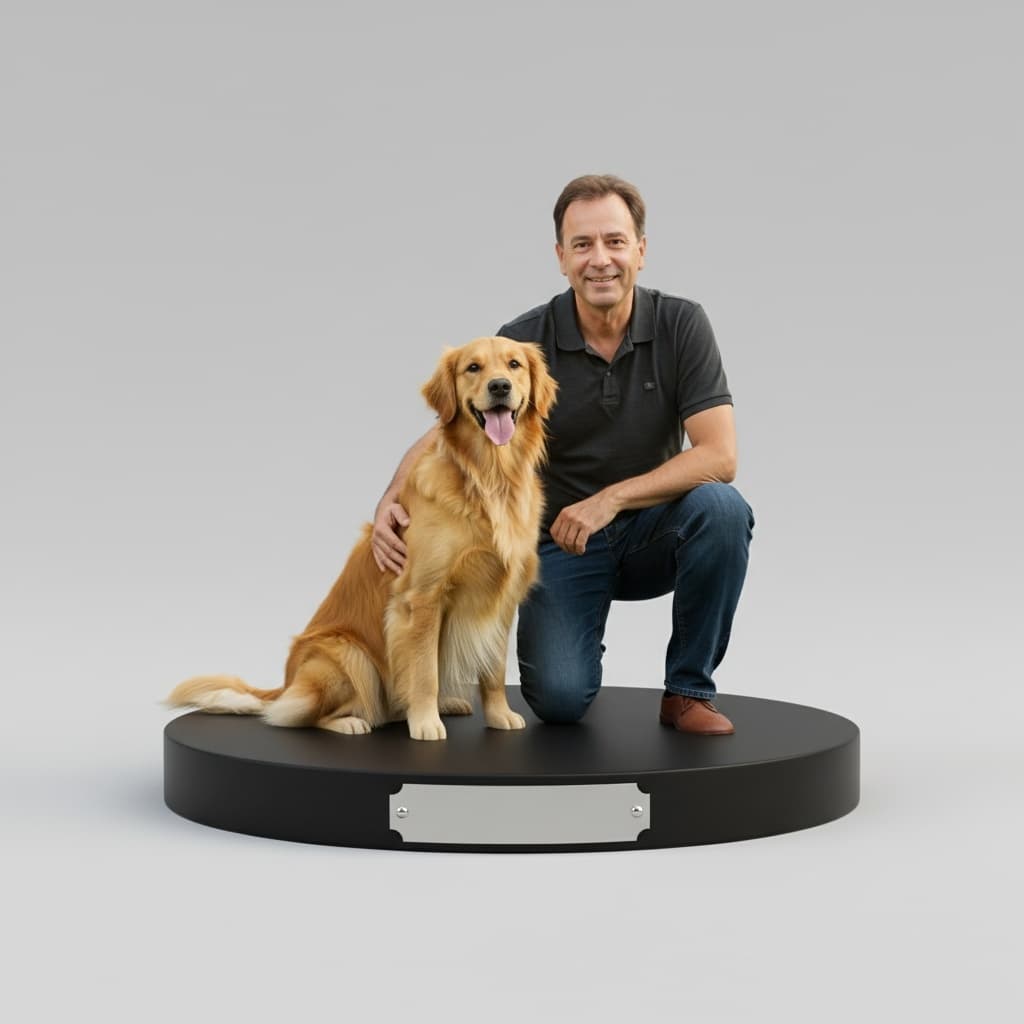
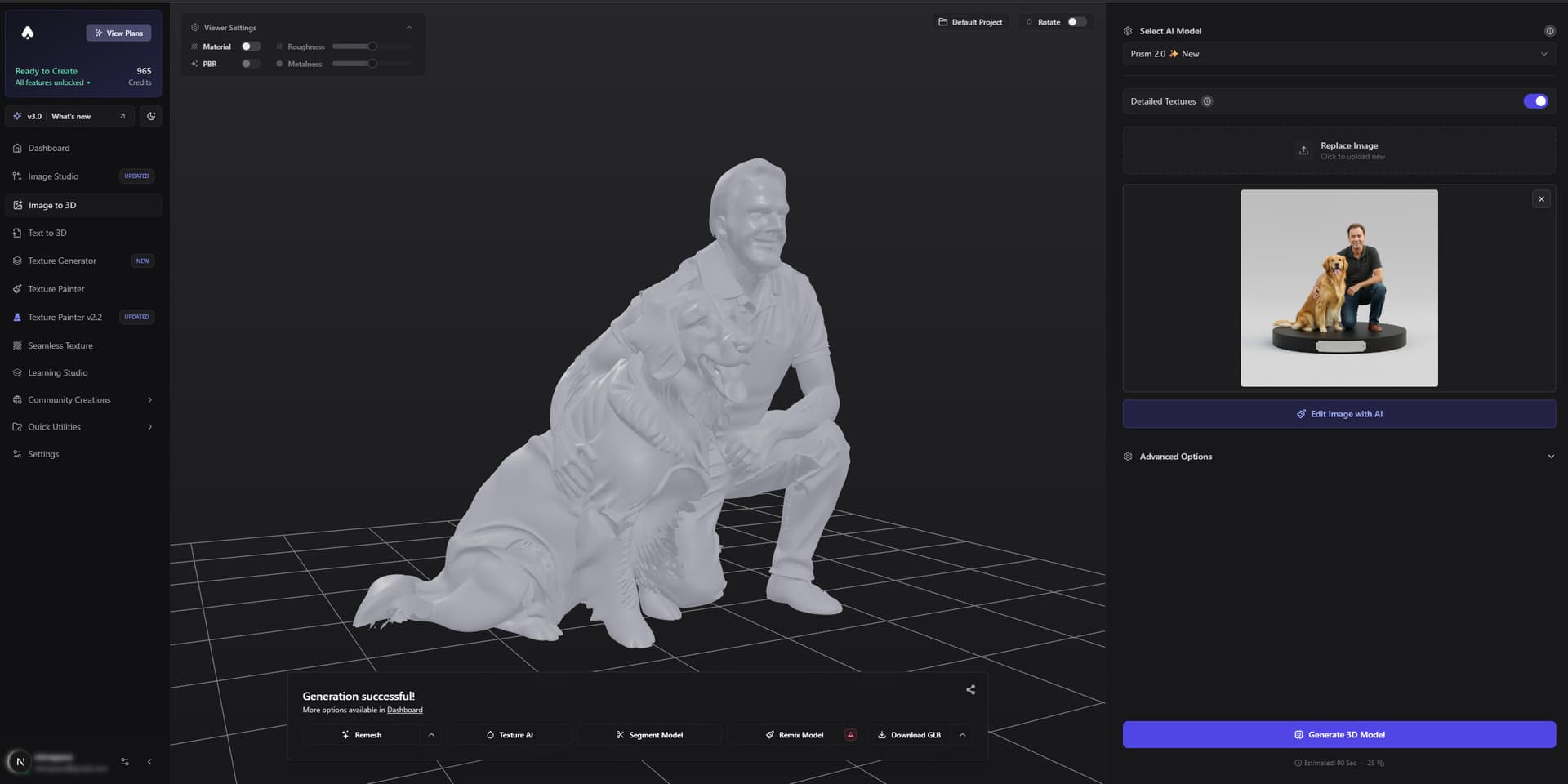
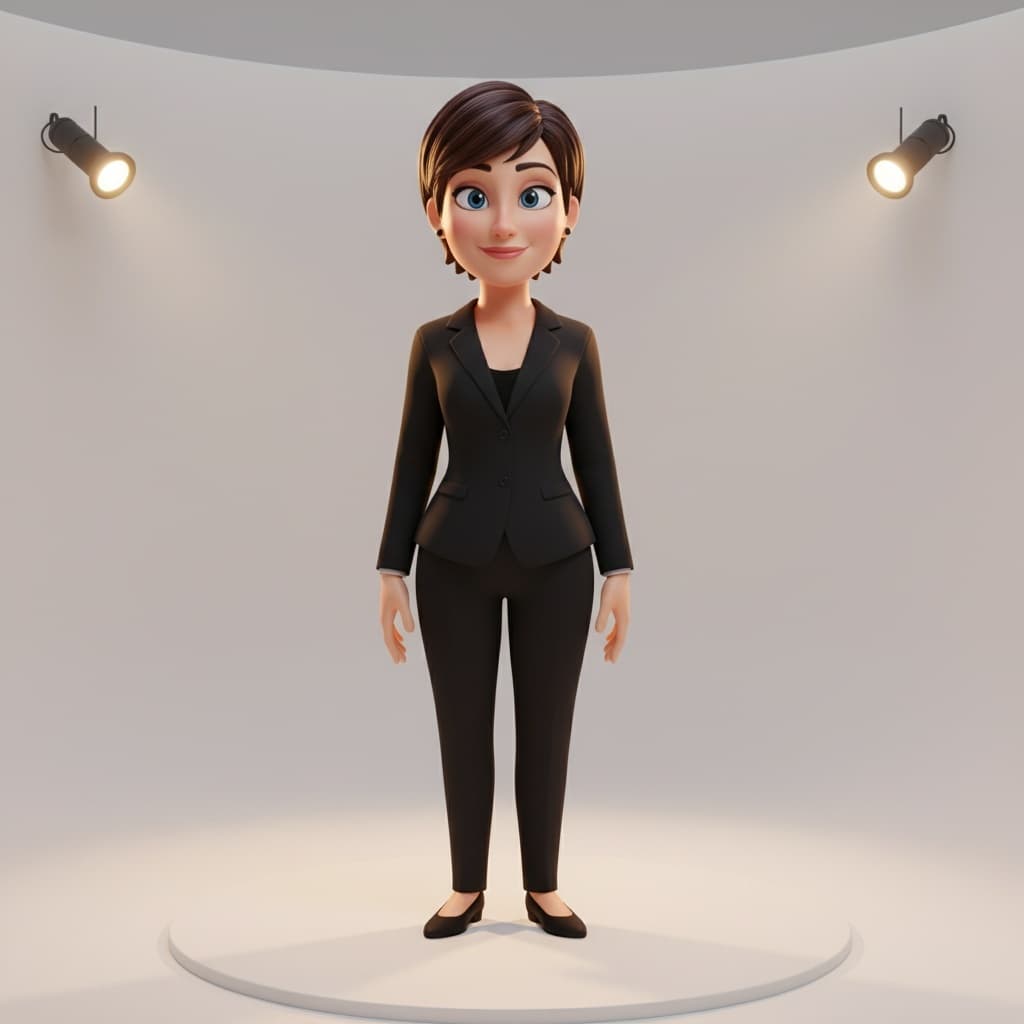
Step 1: Edit Your Photo into a Figurine (Image Studio → Edit → Gemini Edit)
We’ll first create a stylized figurine image of you that’s perfect for 3D. This is fast and gives the best results later.
- Open Image Studio → Edit → Gemini Edit
- Upload your selfie (full body works best)
- Use a prompt like one of these:
- "turn me into a funko pop figurine, full body, clear background"
- "turn me into a pixar like figurine on a pedestal"
- "turn me into a stylized 3d character like a pixar character in a studio lighting, full body view"
- Generate until you get a clean, full‑body figurine image with a plain background
- Download the edited image (we’ll use it in the next step)
Pro tip: Plain backgrounds and full‑body framing produce cleaner 3D.
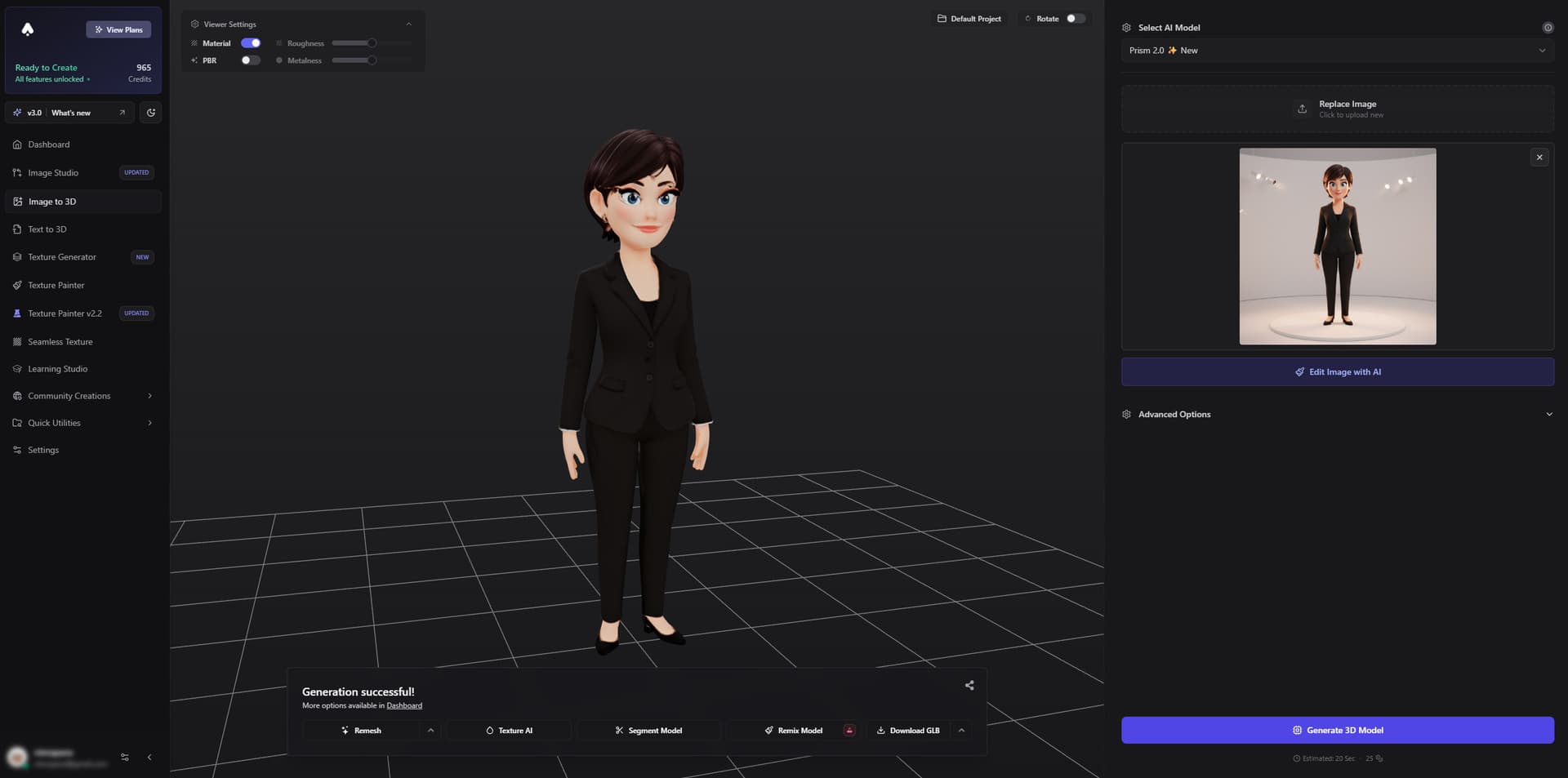
Step 2: Turn the Edited Image into 3D
Now we convert that edited figurine image into a printable 3D model.
- Go to Image to 3D
- Upload the edited figurine image
- Choose the model preset best suited for figurines (e.g., Forge Sketch)
- Generate the 3D model (GLB)
- Download when ready
Step 3 (Optional): Optimize for 3D Printing
You can download STL directly from Image to 3D. Use the Remesher only if you want to clean up geometry, hit a specific polygon target, or improve tricky prints.
Direct download:
- In Image to 3D, choose STL in the download/export menu.
Optional remesh workflow:
- Visit 3D Model Remesher
- Upload your GLB file
- Set these settings:
- Export Format: STL
- Number of Faces: ~8,000 (for better printing)
- Click Remesh Model
- Download the optimized model
Tips for Better Results
- Take your photo against a plain background
- Use good lighting (no weird shadows!)
- Stand in a simple pose (relaxed arms, balanced stance)
- Wear something that shows your style
- Make sure your whole body is in the shot
- Dont use a photo thats too dark or blurry
Common Problems and Solutions
Problem: The model looks weird Solution: Try a different photo or adjust your prompt
Problem: The 3D print fails Solution: Make sure you used the remesher tool!
Problem: Holes or thin parts Solution: Increase wall thickness and re‑export STL
Ready to Print!
Now you can either:
- Print it yourself if you have a 3D printer
- Send it to a local 3D printing service
- Use an online 3D printing service
And boom! You've got your own mini-me figurine! Pretty cool, right?
Extra Tips
- You can make multiple versions with different styles
- Try different poses (but keep them simple)
- Make figurines of your friends too (with their permission obvs)
- Paint your figurine after printing for extra detail
Remember, the first try might not be perfect, but thats totally normal! Just try again with different settings or prompts until you get something you love.
Want to see what others have created? Check out the 3D Community Library for inspiration!
Happy figurine making!

Generate 3D models with AI
Easily generate custom 3d models in seconds. Try it now and see your creativity come to life effortlessly!
FAQ
How much does it cost to make a 3D printed figurine of yourself?
If you already own a 3D printer, the material cost for a single figurine is roughly $1 to $3 in PLA filament depending on size and infill. 3D AI Studio lets you generate the model for free or with credits depending on your plan. If you use an online printing service like Craftcloud or a local shop, expect to pay $10 to $40 for a full-color resin print at around 10 to 15 cm tall.
What kind of photo works best for creating a figurine?
A full-body photo taken against a plain background with even lighting gives the best results. Stand in a relaxed, natural pose with your arms slightly away from your body so limbs are clearly separated. Avoid dark or blurry shots, heavy shadows, and cropped images. The clearer and simpler the photo, the cleaner your 3D model will be.
Can I make a Funko Pop style figurine from my photo?
Yes, that is one of the most popular styles. In Image Studio, use Gemini Edit with a prompt like "turn me into a funko pop figurine, full body, clear background" and it will restyle your photo into that big-head chibi look. The resulting image converts nicely into 3D because Funko style figures have simple geometry and thick proportions that print well without supports.
How long does it take from photo to finished figurine?
The digital part is fast. Editing your photo into a figurine style takes a minute or two, and generating the 3D model takes another one to three minutes. Printing depends on your printer and settings. A 12 cm figurine at 0.12 mm layer height on an FDM printer typically takes 4 to 8 hours. Resin printers are faster for small detailed figures, usually 2 to 4 hours plus curing time.
What size should I print my figurine at?
For FDM printers, 10 to 15 cm tall is the sweet spot. This size preserves enough facial detail while keeping print time reasonable. Below 8 cm you start losing fine features and thin parts become fragile. For resin printers you can go smaller, around 6 to 10 cm, and still get sharp details. Scale your STL in your slicer before printing.
What material should I use for printing figurines?
PLA is the go-to material for figurines. It prints at low temperatures, does not warp easily, and holds fine details well. For higher durability, PETG works too but is slightly harder to dial in. If you have a resin printer, standard or ABS-like resin gives you the sharpest details and smoothest surface finish, which is ideal for display figurines.
Do I need to paint the figurine after printing?
It depends on your printer. FDM prints in a single color, so painting adds a lot of personality. Lightly sand the surface, apply a primer coat, then use acrylic paints for details. If you use a full-color printing service or a multicolor printer, painting is optional. Either way, a clear coat spray helps protect the finish and gives a professional look.
Can I make figurines of other people as gifts?
Absolutely, personalized figurines make great gifts. Just upload their photo instead of yours and follow the same workflow. Make sure you have their permission to use the photo. Birthday figurines, wedding cake toppers, and graduation gifts are popular use cases. You can even add a small pedestal or nameplate in your slicer software.
What if my figurine has thin parts that break during printing?
Thin parts like outstretched fingers or weapon accessories are common failure points. In your slicer, enable supports for overhangs and use tree supports to minimize cleanup. You can also use the Remesher tool on 3D AI Studio to increase polygon density in weak areas. If something still breaks, print it separately and glue it on with super glue after printing.
Can I make anime-style or Pixar-style figurines?
Yes, the style depends entirely on your Gemini Edit prompt. Try "turn me into a pixar character, full body, studio lighting" for that smooth Pixar look, or "turn me into an anime character figurine, full body, clean background" for anime style. Both work well for 3D printing because they have exaggerated, solid proportions that translate nicely into printable geometry.
What printer settings work best for figurines?
For FDM, use a 0.12 mm layer height for smooth surfaces, 15 to 20 percent infill, and enable supports for overhangs above 45 degrees. Print slowly at around 40 to 50 mm per second for better detail. A 0.4 mm nozzle is standard, but a 0.2 mm nozzle captures finer facial features. For resin, use 0.03 to 0.05 mm layer height with appropriate exposure times for your resin brand.
Can I order a print if I do not own a 3D printer?
Yes, plenty of services will print your STL file and ship it to you. Craftcloud, Shapeways, and PCBWay offer various materials including full-color sandstone and resin. Local makerspaces and libraries often have 3D printers you can use for free or a small fee. Just export your model as STL from 3D AI Studio and upload it to whichever service you choose.