
How to Use Rodin Gen-2.5 Online: Complete Guide & Tips
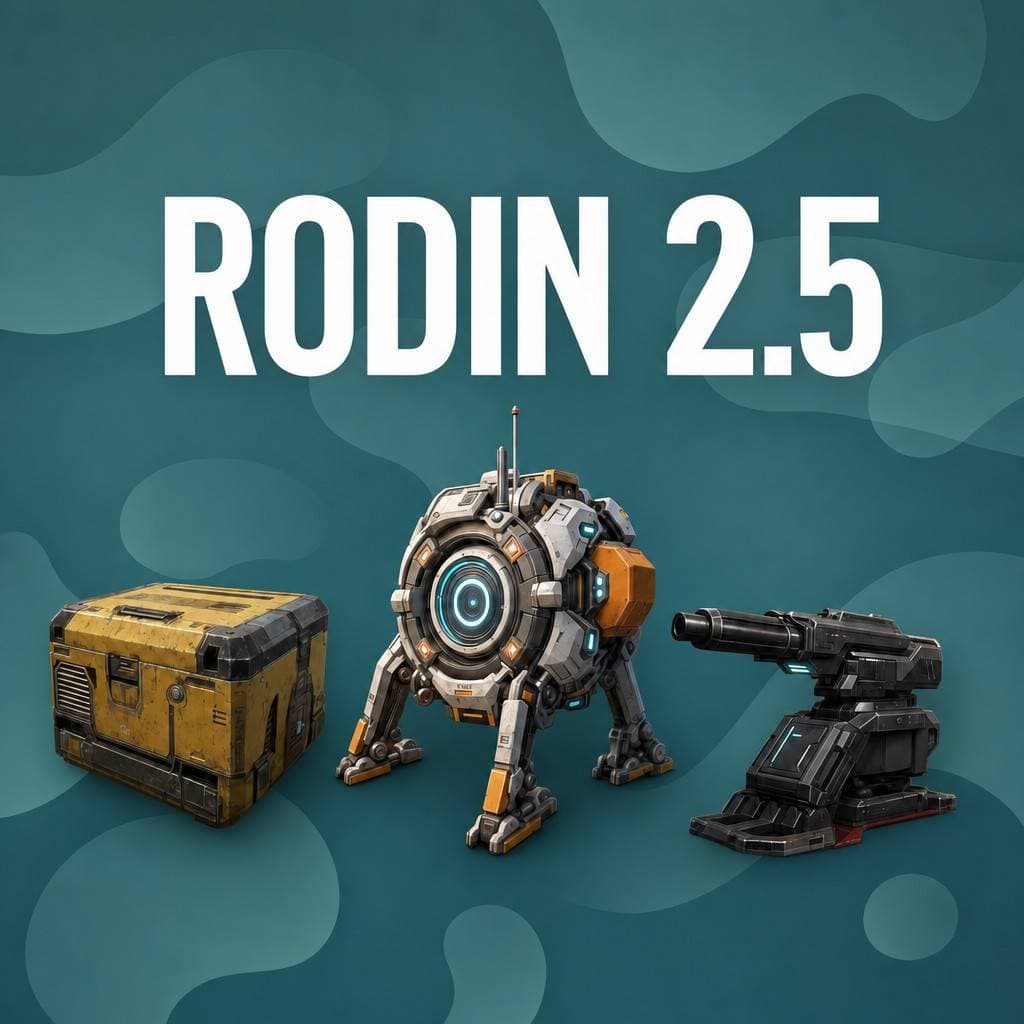
Rodin Gen-2.5 is Hyper3D's latest 3D generation model, now available on 3D AI Studio. It supports both image-to-3D and text-to-3D workflows with five quality tiers, creative mode, texture controls, and mesh options that give you real control over the output.
This guide covers everything from basic generation to advanced settings. No installation needed, it runs entirely in your browser.
Getting Started
The whole process takes under a minute to set up:
- Go to Image to 3D or Text to 3D on 3D AI Studio
- Select Rodin 2.5 from the model list
- Upload an image or type a text prompt
- Click Generate
- Preview your model in the 3D viewer, then download
That's it for the basics. The rest of this guide covers the settings that make Rodin Gen-2.5 powerful.
Understanding the Quality Tiers
This is the biggest decision you'll make for each generation. Rodin Gen-2.5 offers five quality tiers, each trading speed and cost for detail.
Lowest (20 credits, ~30-90 seconds). Quick prototyping and concept validation. Use this when you're iterating fast and just want to see if an input will work. The geometry is simplified but the overall shape is accurate.
Low (20 credits, ~30-90 seconds). Clean assets with good topology. Works well for small hard-surface props and batch generation where you need many assets quickly.
Medium (30 credits, ~2-5 minutes). Balanced structure and detail. This is the best default for most use cases. You get solid geometry with good surface definition without waiting too long.
High (30 credits, ~2-5 minutes). Rich structural detail with smooth surfaces. Good enough for production in most projects. The geometry captures fine details like buckles, straps, and panel lines.
Ultra (35 credits, ~5-10 minutes). Maximum fidelity with up to 2 million faces. This is for hero assets and final production pieces where every surface detail matters.
Choosing the Right Tier
A quick decision framework:
- Iterating on ideas? → Lowest or Low. You'll burn through credits slowly and get results in under 90 seconds.
- General production work? → Medium or High. The sweet spot for quality vs. time.
- Final hero asset? → Ultra. When the model needs to hold up to close inspection.
Tip: Start with Lowest (20 credits, 30 seconds) to test if your input works at all. If the shape and structure look right, re-generate at a higher tier. This saves you from spending 35 credits on an input that was never going to work well.
Texture Settings Explained
Rodin Gen-2.5 gives you three texture controls that are independent of the quality tier.
Texture Quality
Options: Legacy → Lowest → Low → Medium → High
This controls how much computational effort goes into generating textures. Higher settings produce sharper, more coherent texture maps with better color consistency and detail. The default is High, and it's the default for a reason. The difference between Low and High texture quality is dramatic, and the time increase is small.
HD Texture Enhancement
A post-processing step that sharpens and upscales textures after generation. The result is crisper surface detail, especially on larger flat surfaces.
One trade-off: it can slightly reduce how closely the texture matches your input image. Worth it for final renders where you want the sharpest possible textures.
Texture Delighting
Removes baked-in lighting from textures so you get flat, evenly-lit texture maps.
This is essential when your model will be lit dynamically, like in game engines, real-time apps, or any scene with its own lighting setup. Without delighting, you get double-lit results that look wrong.
Skip delighting if you want the "painted look" of baked lighting, or if you're rendering a turntable/beauty shot where the baked lighting actually looks good.
Creative vs Faithful Mode
This setting is only available on Medium and High quality tiers.
Faithful (default). The AI closely follows your input. Shapes, proportions, and details match your image or prompt as literally as possible. Best when you have a clear, detailed reference image or a very specific text prompt.
Creative. Gives the AI more freedom to fill in gaps, add detail, and produce polished results even from rough inputs. The model will "enhance" areas that are ambiguous or incomplete in your input.
When to use Creative: If your result looks incomplete or rough with Faithful mode, try Creative on the same input. It works particularly well with rough sketches, low-detail concept art, or text prompts where you want the AI to make aesthetic decisions for you.
Advanced Features
Force Symmetry
Makes the result perfectly mirrored along the vertical axis. Great for characters, vehicles, weapons, and furniture. Basically anything that should be bilaterally symmetrical. This removes minor asymmetry artifacts that can appear in normal generation.
Micro Detail Scale (Ultra only)
Picks up fine surface textures at a micro level, like fabric weave, skin pores, ornamental engravings, and wood grain. Only available at Ultra tier because lower tiers don't have enough polygon density to show these details.
Only worth enabling for close-up renders or hero assets that will be viewed at high zoom.
Bounding Box Control
Set proportions as [Width, Height, Length] to control the model's aspect ratio. The AI fits the generated model into whatever proportions you give it.
Useful for furniture (needs to fit a specific footprint), vehicles (correct length-to-width ratio), and architectural elements (door frames, windows with specific dimensions).
T/A Pose
For humanoid characters going into animation pipelines. Instead of generating in a natural pose, the model outputs in a T-pose or A-pose that's ready for rigging and skeletal animation. Skip this if you're just rendering stills.
HighPack (+10 credits)
Bumps your output to 4K textures (instead of 2K) and roughly 16x polygon density when using Quad mesh mode. Worth the extra credits for assets that need to hold up at close range or in high-res renders.
Mesh Mode
- Raw (triangles, maximum detail). This is the default. Produces the highest geometric detail. Best for rendering, 3D printing, and any use case where you're not animating the mesh.
- Quad (quad polygons, animation-ready). Produces cleaner topology suitable for deformation and animation. Use this for characters and objects that will be rigged.
Tips for Best Results
- Start with Lowest tier to validate your input. At 20 credits and 30 seconds, it's the cheapest way to check if your image or prompt will produce a good result.
- Use High texture quality. It's the default for a reason. The visual difference is significant and the time cost is small.
- Enable Creative mode if your input is a rough sketch or ambiguous photo. Faithful mode needs clear, detailed inputs to shine.
- Use Force Symmetry for any object that should be mirrored. Characters, vehicles, furniture, weapons. Symmetry removes artifacts and produces cleaner results.
- For game assets, switch to Quad mesh mode and set a quality_override poly count to match your budget.
- For 3D printing, use Raw mesh mode at High or Ultra tier. You want maximum triangle density for smooth surfaces.
- Multi-image works best with 2-5 clear, well-lit photos from different angles. This gives the AI real information about all sides instead of guessing.
Pricing Summary
| Tier | Credits | Approx. Time |
|---|---|---|
| Lowest | 20 | 30-90 sec |
| Low | 20 | 30-90 sec |
| Medium | 30 | 2-5 min |
| High | 30 | 2-5 min |
| Ultra | 35 | 5-10 min |
| +HighPack | +10 | - |
| +Multi-image | +5 | - |
Try It Now
New users get free credits to try Rodin Gen-2.5, no credit card required.

Generate 3D models with AI
Easily generate custom 3d models in seconds. Try it now and see your creativity come to life effortlessly!