
How to Convert 2D to 3D Using AI: A Step-by-Step Guide
Converting 2D images to 3D models has traditionally been a complex task requiring specialized skills. However, with the advent of AI technology, this process has become much more accessible. In this guide, we'll walk you through how to convert 2D to 3D using AI, with a focus on user-friendly tools like 3D AI Studio.
How to Convert 2D Images to 3D Models with AI
I put together a quick video showing the full process - from picking the right image to downloading your finished 3D model. Way easier to follow than reading through all the steps:
Now that you've seen how it works - here's a deeper look at what makes a good input image and how to avoid the most common mistakes:
Quick Example (Input → Edited → 3D)
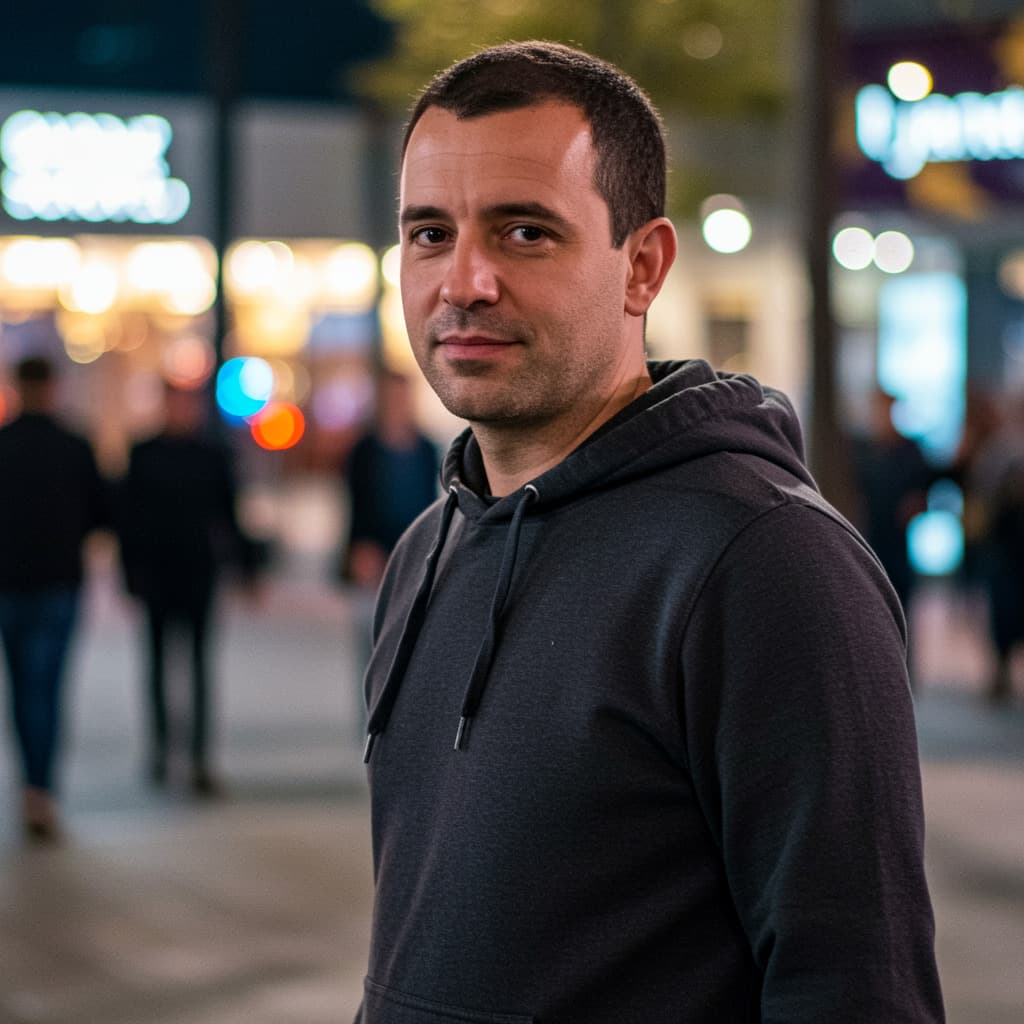
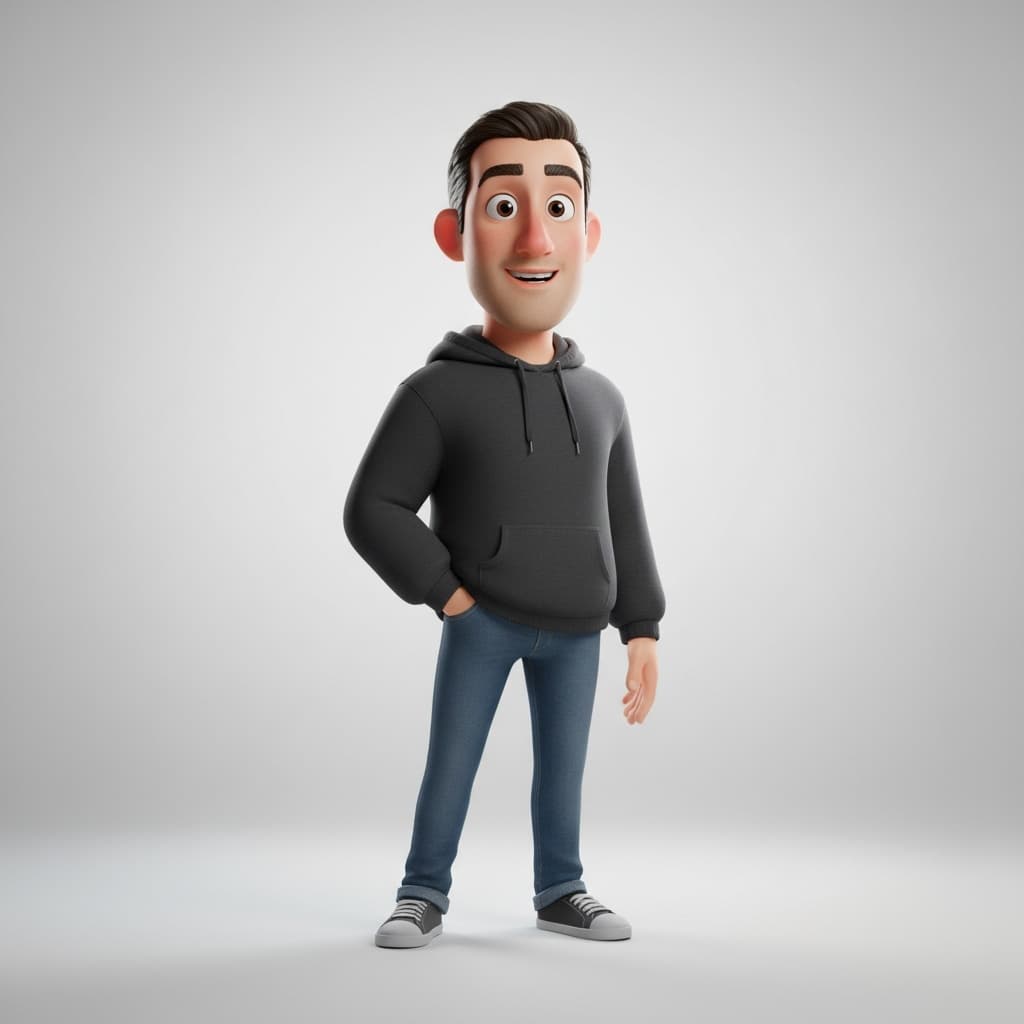
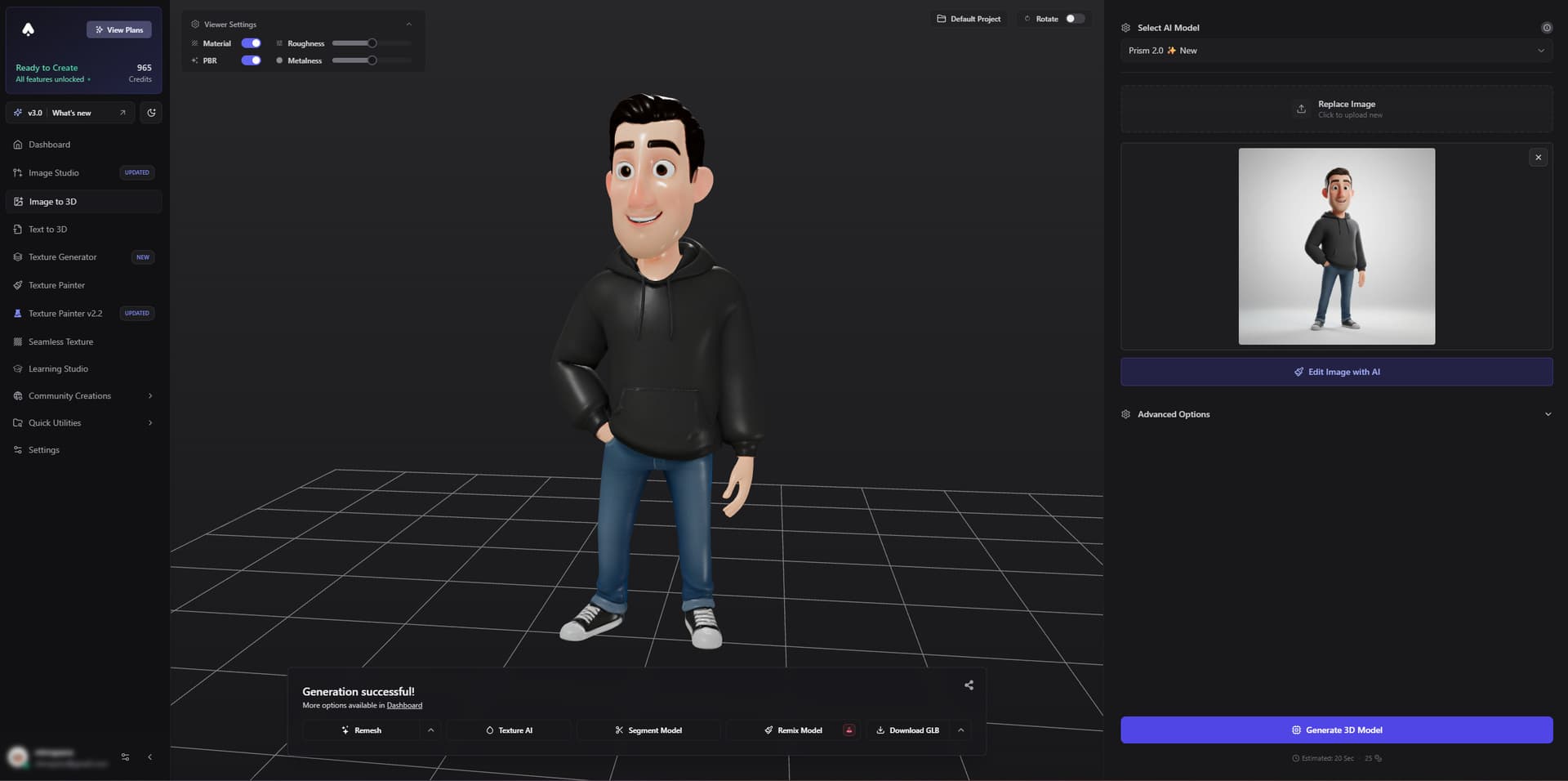
Step-by-Step Guide: How to Convert 2D to 3D Using AI
-
Choose an AI-powered 2D to 3D conversion tool
- We recommend 3D AI Studio for its user-friendly interface and powerful AI capabilities. You can try the 2D to 3D image converter right now.
-
Prepare your 2D image
- Select a clear, high-quality image of the object you want to convert to 3D.
- Ensure the image shows the object from a good angle, preferably with some depth visible.
- Optional (recommended): Use Image Studio → Edit → Gemini Edit to clean the background or stylize the subject before converting.
-
Access the 2D to 3D conversion tool
- Go to the Image to 3D tool.
- Sign up or log in to your account.
-
Upload your 2D image
- Click on the upload button and select your prepared 2D image.
-
Initiate the conversion process
- Once your image is uploaded, click on the "Convert to 3D" or similar button.
- The AI will now process your image and generate a 3D model in 1–3 minutes.
-
Review and refine the 3D model
- Once the AI finishes processing, you'll see a preview of your 3D model.
- Use the available tools to rotate and examine the model from different angles.
- If needed, you can make adjustments or try converting again with a different image.
-
Export your 3D model
- When you're satisfied with the result, export the 3D model in your preferred format (e.g., GLB, OBJ, STL). For 3D printing, choose STL.
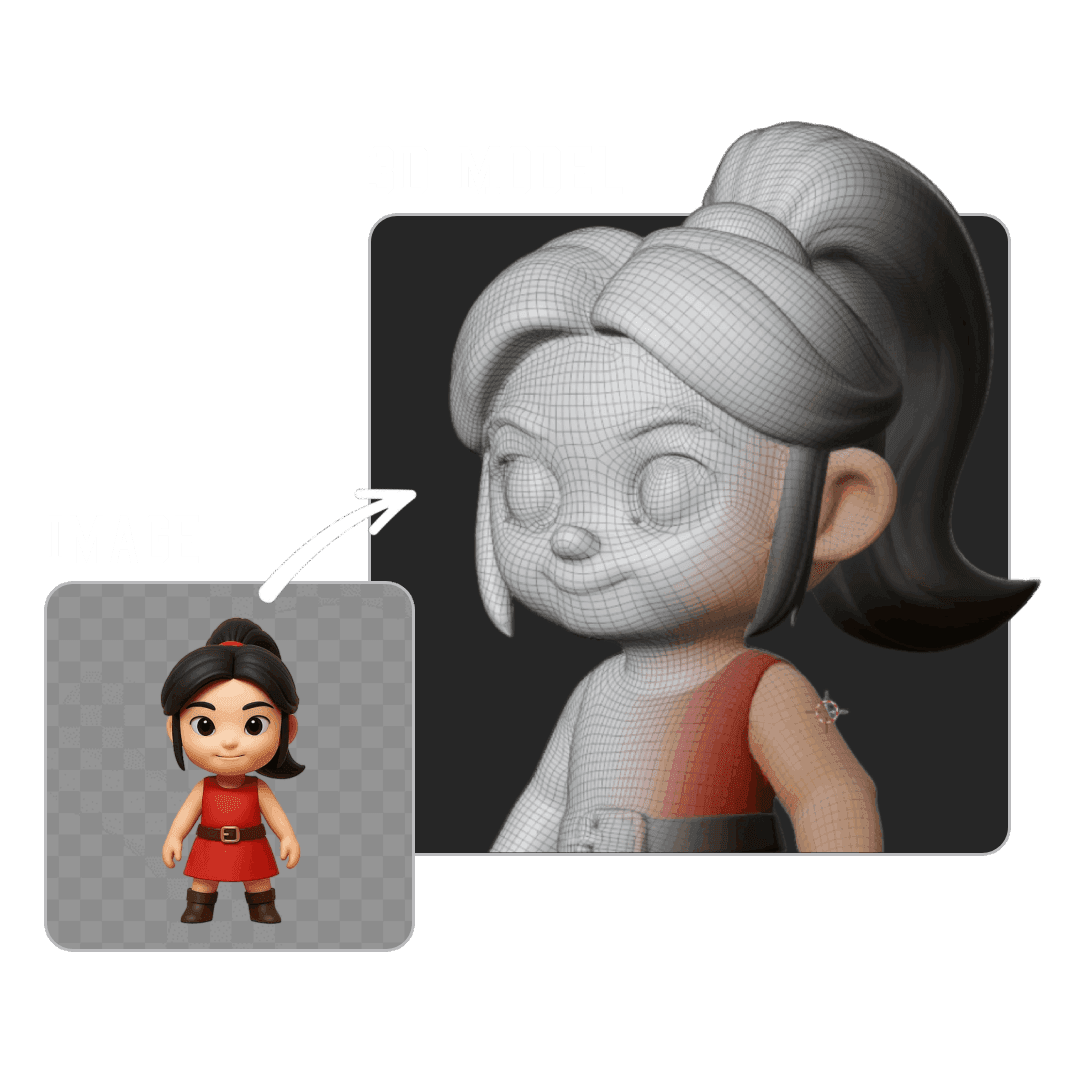
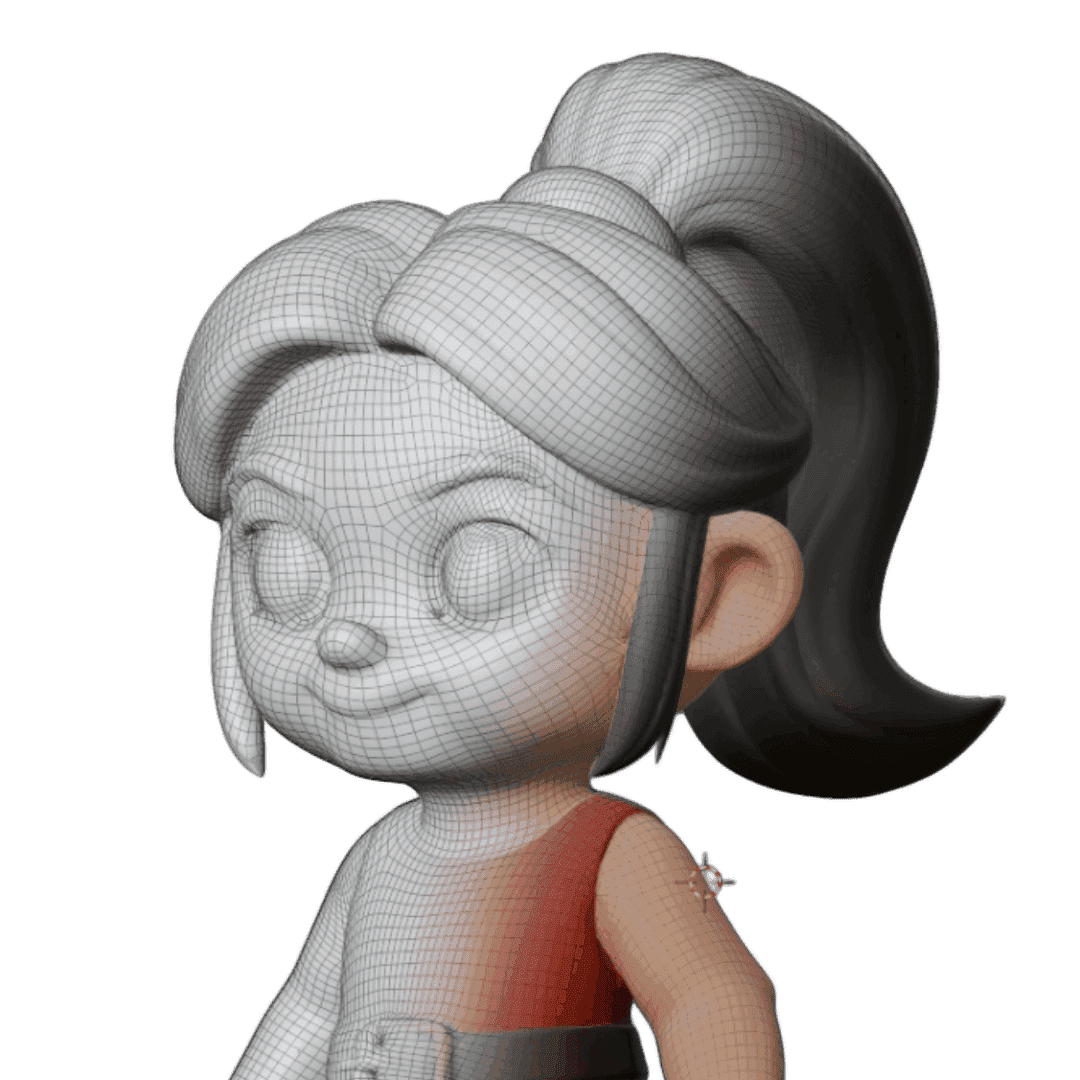
Tips for Better 2D to 3D Conversion Results
- Use high-resolution images for more detailed 3D models.
- Choose images with good lighting to help the AI understand the object's shape.
- If possible, use multiple images of the same object from different angles for better results.
- Simple objects tend to convert more accurately than complex ones.
- Clean backgrounds and full-body framing (for people/characters) help a lot.
- Experiment with different images of the same object to see which gives the best results.
Applications of AI-Powered 2D to 3D Conversion
- Product Visualization: Quickly create 3D models of products for e-commerce sites.
- Game Development: Convert concept art or reference images into 3D game assets.
- Architecture: Transform 2D blueprints or sketches into 3D building models.
- Education: Create 3D models from 2D diagrams for interactive learning experiences.
- 3D Printing: Convert photographs of objects into 3D-printable models.
Why Choose AI for 2D to 3D Conversion?
- Speed: AI can convert 2D to 3D in minutes, saving hours of manual modeling time.
- Accessibility: No need for advanced 3D modeling skills.
- Cost-effective: Reduces the need for expensive 3D modeling software and training.
- Scalability: Quickly convert large numbers of 2D images to 3D models.
Conclusion
Converting 2D images to 3D models using AI is a game-changer for many industries and creative projects. With tools like 3D AI Studio, the process is now more accessible than ever. Whether you're a professional designer, a hobbyist, or just curious about 3D modeling, AI-powered 2D to 3D conversion opens up a world of creative possibilities.
Ready to turn your 2D images into stunning 3D models? Convert 2D to 3D now — it takes less than 3 minutes.

Generate 3D models with AI
Easily generate custom 3d models in seconds. Try it now and see your creativity come to life effortlessly!
FAQ
Can I convert a 2D image to 3D for free?
Yes, you can try it for free. 3D AI Studio gives you free credits when you sign up, enough to generate your first few 3D models without paying anything. You upload an image, the AI builds a 3D model, and you can preview and export it right in the browser. If you want to keep generating after the free credits run out, paid plans start at $19/month for 1,000 credits.
What types of 2D images can I convert to 3D?
You can convert photos, product shots, concept art, digital illustrations, sketches, and even AI-generated images. The best results come from images with one clear subject, good lighting, and a simple background. Avoid images with multiple overlapping objects, heavy shadows, or transparent/reflective surfaces. If your image is not clean enough, you can prep it in Image Studio first by removing the background or adjusting the style.
How accurate is AI 2D to 3D conversion compared to manual modeling?
AI conversion is surprisingly good for most use cases like game props, product visualization, 3D printing prototypes, and concept exploration. The front and visible sides of the model usually match the original image closely. Hidden sides are estimated by the AI, so they may not be perfect. For precision engineering or exact mechanical parts, you would still want CAD software, but for creative and visual work, AI gets you 80-90% of the way in minutes instead of hours.
How long does the 2D to 3D conversion process take?
The AI generation itself takes between 30 seconds and 3 minutes depending on which model you choose and the complexity of your image. Fast models like Prism Turbo finish in under a minute. Higher quality models take a bit longer but produce more detail. The entire workflow from uploading your image to downloading a finished 3D file takes under 5 minutes in most cases.
What 3D file formats can I export after converting?
3D AI Studio supports all major formats. GLB is the best all-around choice since it bundles geometry and textures into one file and works everywhere. FBX is ideal for Unity and Unreal Engine. OBJ works well with Blender, Maya, and ZBrush. STL is the standard for 3D printing. USDZ is what you need for Apple AR experiences. You also get BLEND for native Blender workflows and 3MF for modern 3D printing setups.
Do I need any 3D modeling experience to convert 2D to 3D?
No experience needed at all. The whole process runs in your browser. You upload an image, pick a generation model, click generate, and the AI handles everything. You can rotate and inspect the result in a built-in 3D viewer, then export it in whatever format you need. Blender or other 3D software is only useful if you want to manually edit the model afterward, but it is not required for the basic workflow.
Can I convert a sketch or hand drawing into a 3D model?
Yes, sketches and hand drawings work well as input for 2D to 3D conversion. Clean digital art with defined edges and some shading gives the best results because the AI can clearly see the shape and volume of the object. Pencil sketches can also work, especially if they have some tonal variation. If your sketch is rough, try cleaning it up first in Image Studio or adding simple shading to help the AI understand depth.
What is the difference between 2D to 3D and text to 3D?
With 2D to 3D (image to 3D), you upload a specific image and the AI recreates that exact object as a 3D model. You get control over exactly what the model looks like because the image is the reference. With text to 3D, you type a description and the AI imagines the object from scratch. Text to 3D is better when you do not have a reference image yet, while image to 3D is better when you already know exactly what you want the model to look like.
Can I use multiple images for better 3D results?
Yes, multi-view input is available and it makes a real difference. If you upload photos of the same object from the front, side, back, and at an angle, the AI has much more information to work with. The result will be accurate from all sides instead of just the front. This is especially useful for product models, 3D printing, and anything where people will inspect the model from every angle.
How can I improve the quality of my converted 3D model?
Start with the best input image you can get. Clean background, even lighting, sharp focus, and the subject filling most of the frame all help. You can also prep your image in Image Studio by removing the background or using Gemini Edit to restyle it before converting. Choosing a higher quality AI model for generation also improves results. If the first attempt is close but not quite right, try a different angle or a different AI model.
Can I use the converted 3D models in games or commercial projects?
Yes, models you generate on paid plans are yours to use however you want, including in commercial games, client projects, product listings, and marketing materials. There are no royalty fees or usage restrictions. You can import them directly into Unity, Unreal Engine, Godot, or Roblox Studio using the FBX or GLB export format. Many indie game developers use 2D to 3D conversion to quickly build asset libraries for their games.
What should I do if my 2D to 3D conversion does not look right?
The most common issue is a bad input image. Try using a cleaner photo with better lighting and a simpler background. A three-quarter angle often works better than a straight front view because it shows the AI more depth information. If the shape is okay but details are off, try a different AI model since each one handles different types of objects differently. You can also run the result through the Remesher to clean up messy geometry, or go back and improve your reference image in Image Studio before trying again.