
Best Reve 2.0 Prompts for Stunning AI Images (2026)
Quick answer: The best Reve 2.0 prompts think in regions, not just sentences. Because Reve 2.0 turns your prompt into an editable layout, you get the most control by naming the subject and style and then describing where each element sits - title at the top, subject centered, logo bottom-right. Then refine region by region. Below are copy-ready prompts by category, plus how layout-based prompting works and how to turn your images into 3D models with 3D AI Studio.
Reve 2.0 rewards a slightly different prompting style than most models. Instead of writing one long description and hoping, you describe a composition the model can lay out, then edit it piece by piece. This guide covers how that works, the tips that matter, and a big set of prompts you can adapt.
- Think in regions. Describe placement (top, center, bottom-right), not just the subject.
- Name everything. Subject, style, lighting, exact text, and color - the more explicit, the better the layout.
- Iterate by region. Change one element at a time instead of rewriting the whole prompt.
- Quote your text. Put exact words in single quotes for clean in-image text.
- For 3D: prompt clean, single-subject, white-background reference images, then convert with Image to 3D.
How Reve 2.0 Prompting Works
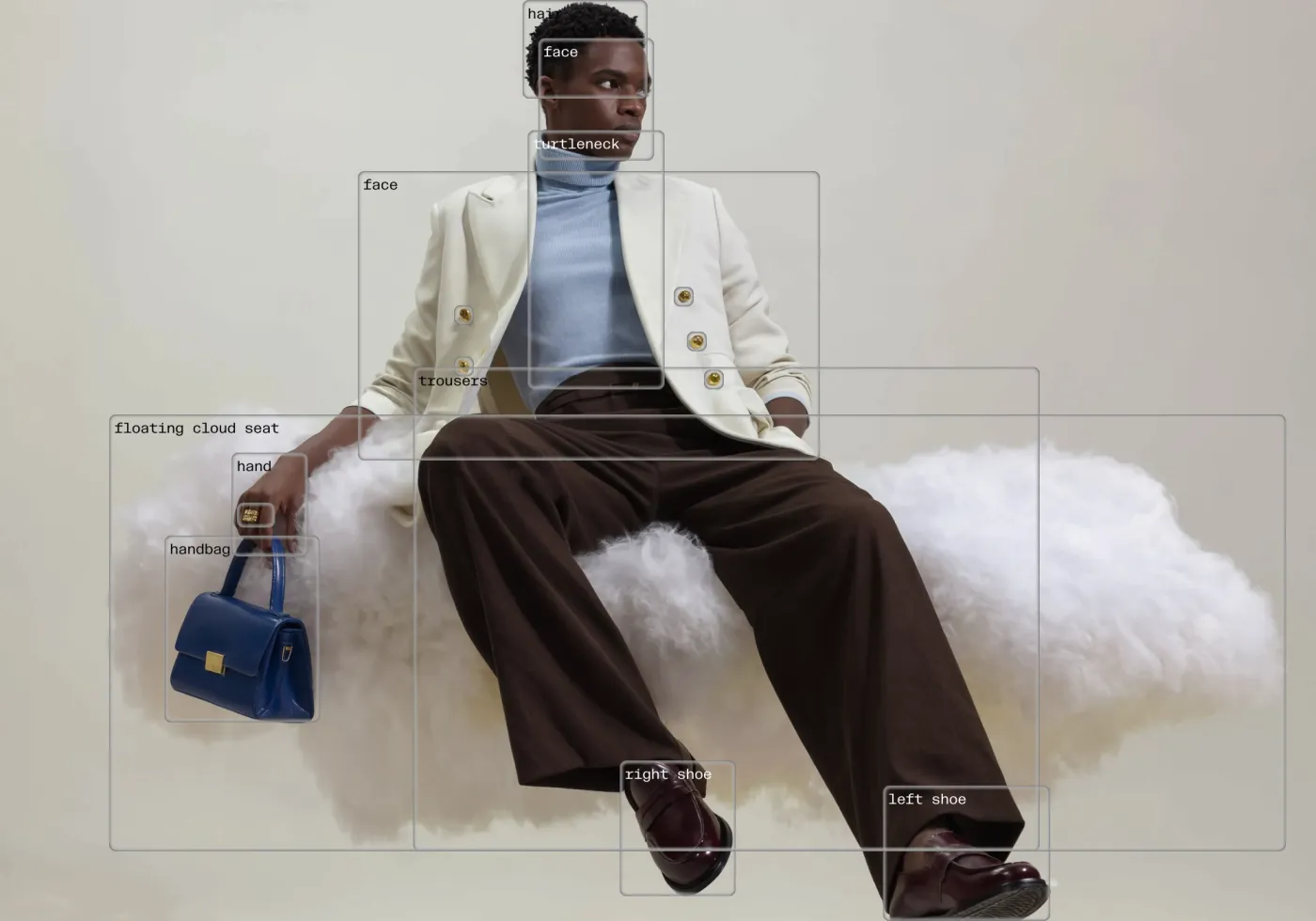
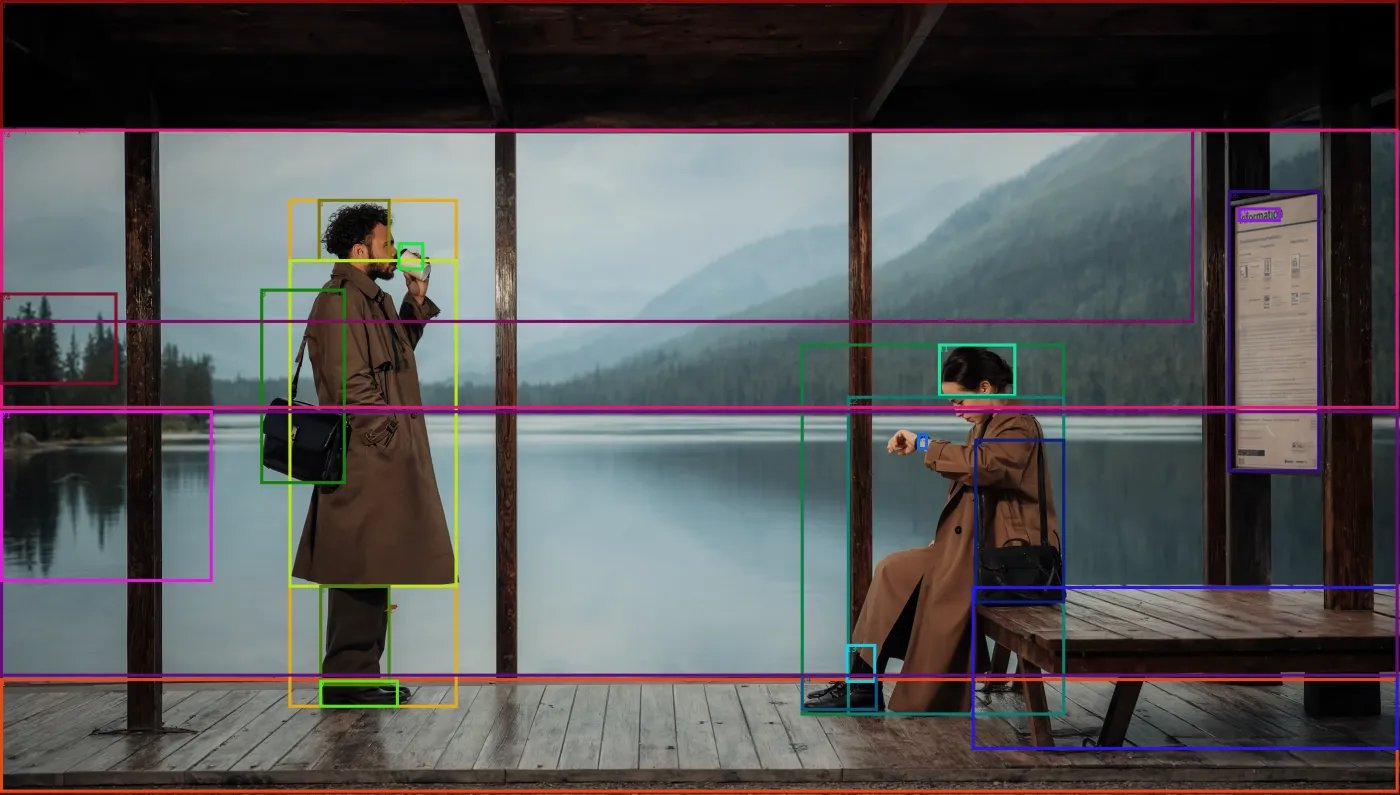
Reve 2.0 builds a structured layout from your prompt - a map of regions, each with a position, size, and description - and renders the pixels from that. The practical consequences for prompting:
- Placement is part of the prompt. Saying where things go (not just what they are) gives the model a better layout to work from.
- Editing is region by region. After generating, you can change a single element with a natural-language instruction, instead of re-rolling the whole image.
- More structure = more control. The more clearly you separate elements (subject, text, background), the more faithfully Reve reproduces your intent.
The takeaway: describe the composition like a designer briefing a layout, then refine.
7 Tips for Better Reve Prompts
- Start with the subject, then place it. "a red sports car, centered, three-quarter view."
- Describe regions explicitly. Top, center, left third, foreground, background - give each element a home.
- Quote exact text. Use single quotes: a banner that says 'SALE'. Keep it short for the cleanest result.
- Set color per element or as a palette. "navy background, white title, gold accent" - Reve can hold these by region.
- Pick the aspect ratio on purpose. Poster (2:3), banner (16:9), square (1:1) - state it.
- Generate at high resolution for finals. Reve outputs up to 4K for print-ready detail.
- Edit, do not re-roll. Got 90% there? Change the one region that is off instead of rewriting everything.
Best Reve 2.0 Prompts by Category
Posters and Layout-Driven Design (Reve's sweet spot)
A film festival poster: large title 'NIGHT BLOOM' at the top center, a single glowing flower in the middle, festival dates 'Oct 3 to Oct 9' along the bottom, dark moody palette with teal and gold accents, portrait 2:3
A product launch banner: the product centered, headline 'Built to Last' in the top left, three small feature labels stacked on the right, clean white background, soft studio lighting, wide 16:9
Photorealistic Images (up to 4K)
A photorealistic still life: a ceramic coffee cup centered on a wooden table, steam rising, a window with soft morning light on the left, shallow depth of field, natural color, 4K
A photorealistic editorial portrait of a chef in a kitchen, subject centered, warm key light from the right, stainless-steel kitchen blurred in the background, 85mm look, fine skin texture
Composed Scenes
An isometric tiny-room diorama: a cozy reading nook centered, a tall bookshelf on the left, a window with plants on the right, warm lamp light, soft pastel palette, clean background
A flat-lay desk scene from above: laptop centered, notebook and pen top-left, coffee cup bottom-right, small plant top-right, even soft lighting, minimalist
Branding and Typography
A minimalist logo lockup: the text 'NORTH ROAST' centered in a clean bold sans-serif, a small mountain mark directly above it, monochrome, flat vector, white background
A social media header: bold title 'Launch Week' on the left third, a stylized rocket on the right, accent color #00D1B2, lots of negative space, wide 16:9
3D and Game-Asset Reference Prompts (for image-to-3D)
These are written to produce clean, single-subject images that convert beautifully into 3D models. Note the recurring "centered, front view, clean white background" pattern.
A stylized 3D stone golem, full body, centered, front view, clean white background, game asset, detailed rock texture, moss accents
A stylized 3D treasure chest, closed, centered, three-quarter view, clean white background, ornate gold trim, game asset, soft even lighting
A cute 3D cottage with a thatched roof, centered, isometric three-quarter view, clean white background, stylized game asset, warm colors
A 3D sci-fi blaster pistol, centered, side profile, clean white background, hard-surface game asset, matte metal with cyan energy accents
A 3D cartoon dragon, full body, centered, front view, clean white background, friendly stylized character, smooth shading
Why "centered, white background, front view"? Image-to-3D works best when the subject is isolated and the silhouette is clear. Putting the subject in its own region on a plain background gives the 3D engine the cleanest shape to reconstruct - and Reve's layout control makes that easy.
Editing the Reve Way
The biggest difference from other models is what happens after the first generation. Because every region is addressable, you refine instead of restart:
- "Make the background pure white." (background region)
- "Move the title to the top center." (text region)
- "Change the car to matte black." (subject region)
- "Remove the object in the bottom-left." (one region)
Each instruction targets a region, so the rest of the image stays put. That makes Reve especially good for dialing in a clean reference image before converting it to 3D.
Turn Your Best Images Into 3D Models
The prompts above are designed to produce clean images with clear subjects - which makes them perfect input for Image to 3D. The workflow is simple:
- Generate your image in 3D AI Studio's Image Studio, the best place to generate and edit images online - it runs Reve 2.0 plus 15+ other models in one workspace.
- Clean it up if needed - remove the background or adjust the subject with the built-in AI edit tools.
- Upload to Image to 3D and generate with an engine like Prism 3.1.
- Export as GLB, FBX, OBJ, STL, or USDZ for games, 3D printing, AR, or the web.
The whole pipeline takes about two minutes per asset once you have a clean image.
Generate something great with Reve, then turn it into a 3D model and use it anywhere. New to the model? Start with our Reve 2.0 overview.

Generate 3D models with AI
Easily generate custom 3d models in seconds. Try it now and see your creativity come to life effortlessly!
FAQ
What makes a good Reve 2.0 prompt?
Think in regions, not just a sentence. Reve 2.0 builds a structured layout from your prompt, so describing where each element goes - title at the top, subject centered, logo bottom-right - gives you far more control than a flat description. Name the subject, style, lighting, and any exact text, then place the elements. You can refine afterward by editing individual regions.
How is prompting Reve 2.0 different from other models?
Most models render your prompt as one block of text, so changing a word changes the whole image. Reve 2.0 turns your prompt into an editable layout of regions, so you can adjust one element at a time. Practically, that means you should describe composition and placement explicitly, then iterate region by region instead of rewriting the entire prompt.
How do I control layout and color in Reve 2.0?
Describe placement in plain language (top, center, left third, background) and Reve maps it to layout regions you can edit. For color, state it per element or as an overall palette. Because each region is addressable, you can recolor or reposition a single element after generating without redrawing the rest of the image.
What are the best Reve 2.0 prompts for 3D models?
For 3D, prompt for a clean reference image: one subject, a plain white background, and a front or three-quarter view. Example: 'a stylized 3D stone golem, full body, centered, front view, clean white background, game asset'. Then upload the image to 3D AI Studio's Image to 3D to convert it into a textured 3D model you can export as GLB, FBX, OBJ, or STL.
Can I use these Reve prompts on other models?
Yes - the descriptive, placement-aware structure transfers well to Ideogram 4.0, FLUX, ImageGen 4, and GPT-Image. Reve's edge is region-level layout editing, but the prompt-writing habits (name the subject, describe placement, specify text and color) help on every model. In 3D AI Studio's Image Studio you can run a prompt across 15+ models and pick the best result, then send it to image-to-3D.
How do I edit a Reve 2.0 image after generating it?
Reve represents images as code, so each region is addressable. You select the element you want to change and adjust it with a natural-language instruction - move it, recolor it, swap it, or rewrite its description - without affecting the rest of the image. This is the core advantage of the layout approach.
Where can I use Reve 2.0?
You can use it in the Reve app at app.reve.com or through the Reve API. Once you have an image you like, bring it into 3D AI Studio to turn it into a 3D model, or to edit, upscale, and convert styles in Image Studio across 15+ models.