
How to Use Trellis 2 Online: Image to 3D Tutorial (2026)
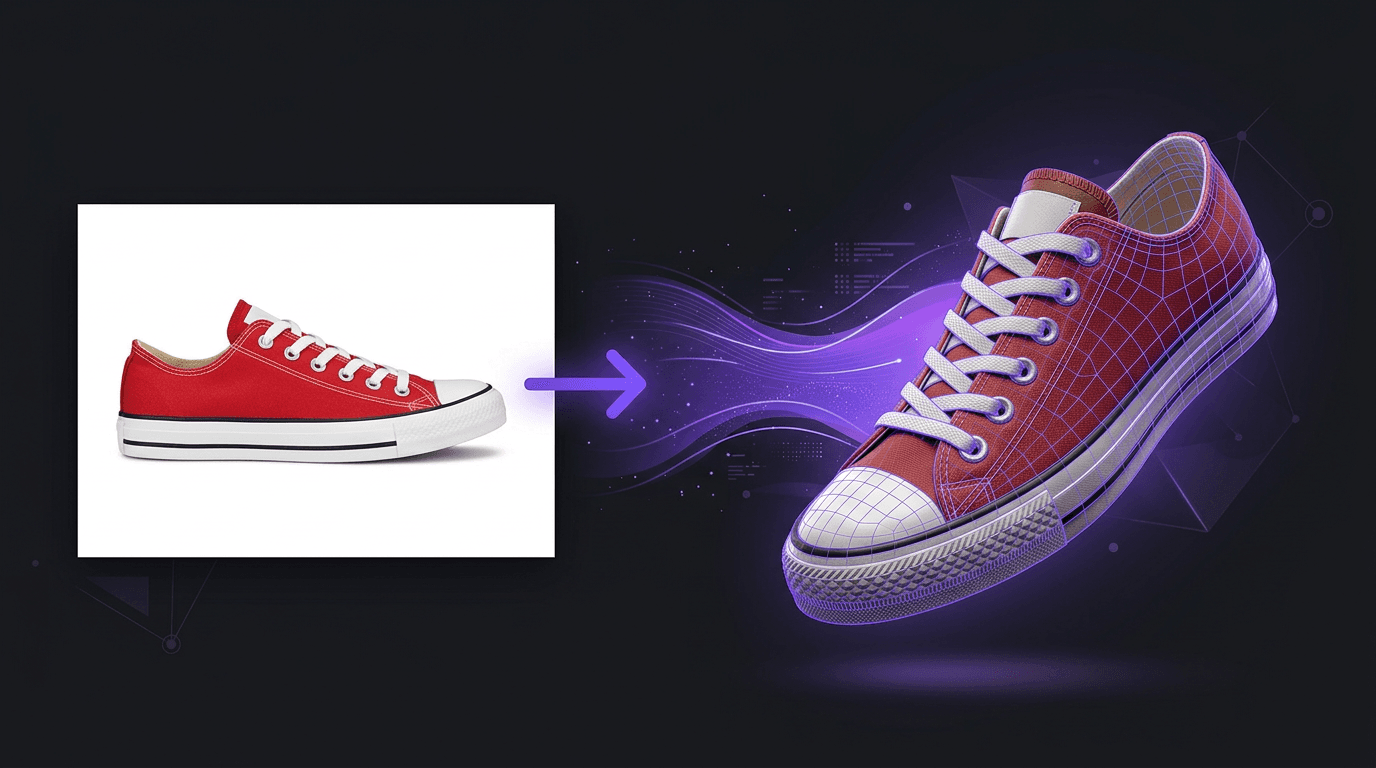
You don't need Python, a powerful GPU, or Docker to use Trellis 2. You can do it right in your browser. This tutorial walks you through the whole process, from picking a good image to downloading your finished 3D model.
What is Trellis 2?
Trellis 2 is an AI model built by Microsoft Research that turns a single image into a detailed 3D model. It has 4 billion parameters and generates models with full PBR (Physically Based Rendering) textures, which means your 3D model comes with realistic materials like color, roughness, and metallic properties baked in.
The model is open source under MIT license, so anyone can use it. But running it locally requires serious hardware (16GB+ GPU memory) and a fair bit of technical setup. The easier option is to use it online through 3D AI Studio, where everything runs in the cloud and you just upload an image.
Step by Step: Image to 3D with Trellis 2
Step 1: Pick Your Image
This is the most important step. The quality of your 3D model depends almost entirely on the image you start with. More on what makes a good image below.
Step 2: Open the Image to 3D Tool
Head to the Image to 3D tool on 3D AI Studio. You can sign up for free and get credits to try it out.
Step 3: Upload and Generate
Upload your image and hit generate. Trellis 2 will process your image and build a 3D model from it. This usually takes about 1 to 3 minutes.
Step 4: Preview Your Model
Once it's done, you'll see your 3D model in an interactive viewer right in your browser. You can rotate it, zoom in, and check it from every angle.
Step 5: Download
Download your model in the format you need. Trellis 2 outputs GLB by default, and you can convert to OBJ, FBX, STL, or PLY using the built in tools. That covers pretty much any 3D software or game engine you might use.
What Makes a Good Input Image
Getting good results from Trellis 2 comes down to giving it a good image to work with. Here's what works best:
Clear subject, simple background. The AI needs to understand what the object is and where it ends. A product photo on a white background will give much better results than a cluttered scene.
Remove the background if you can. This is probably the single biggest thing you can do to improve quality. Tools like remove.bg or even your phone's built in editor can handle this.
Good lighting, even exposure. Harsh shadows confuse the model because it can't tell what's a shadow and what's a dark surface. Soft, even lighting works best.
At least 512x512 pixels. Higher resolution means the AI has more detail to work with. If your image is small or blurry, the model will be too.
Front or three quarter angle. The AI has to guess what the back of the object looks like based on the front. A slightly angled view gives it more information to work with than a dead on front shot.
What Doesn't Work Well
Being honest here, because knowing the limitations saves you time and credits:
Transparent or glass objects. The AI struggles with see through materials. You might get a solid object where you expected glass.
Highly reflective surfaces. Mirrors, chrome, polished metal. The reflections confuse the model about what the actual surface looks like.
Multiple overlapping objects. Stick to one object per image. A photo of a desk full of stuff won't produce a clean model.
The back side. This is a fundamental limitation of single image 3D generation, not just Trellis 2 but any model. The AI is making an educated guess about what the back looks like. For symmetrical objects like a vase or a car, it works great. For something asymmetrical, the back might not match what you'd expect.
Extreme close ups. If the object fills the entire frame with parts cut off, the AI doesn't know where the object ends.
Tips from Experience
A few things we've learned from working with Trellis 2 that aren't obvious:
-
Simple objects give the best results. A coffee mug, a shoe, a toy figure, a piece of furniture. These all work really well. Start here before trying complex scenes.
-
Try different angles of the same object. If one angle doesn't give great results, try rotating the object slightly and generating again. Sometimes a different perspective makes a big difference.
-
Product photos are ideal. E commerce product photos are basically the perfect input: clean background, good lighting, clear subject. If you have product photos, start there.
-
Characters work, but keep the pose simple. Standing characters in a neutral pose work much better than action poses with extended limbs.
-
Use the Image Studio first. If you don't have a great photo, you can generate one using 3D AI Studio's Image Studio. Create a clean reference image with AI, then turn that into a 3D model.
What Can You Do with the Model?
Once you've downloaded your 3D model, you can:
- Import into Blender for editing, animation, or rendering
- Drop it into Unity or Unreal Engine for games or interactive experiences
- 3D print it using the STL export
- Use it in AR/VR applications
- Display it on a website using a 3D viewer
The GLB format includes PBR textures, so your model will look realistic in any engine that supports physically based materials, which is basically all of them at this point.
Ready to Try It?
Head to the Trellis 2 page to learn more about the model, or go straight to the Image to 3D tool to try it right now. New accounts get free credits, so you can test it without paying anything.
If you're looking for the highest possible quality and don't mind a longer wait, also check out Hunyuan 3D, which offers more control over polygon count and supports text to 3D as well. Both models are available on 3D AI Studio.
If you want even more control over the generation process, Pixal3D is built on the same Trellis 2 architecture but exposes 18 adjustable parameters across structure, shape, and texture stages. It's an experimental model best suited for technically experienced users who want to fine-tune every aspect of their 3D output. See the full comparison.

Generate 3D models with AI
Easily generate custom 3d models in seconds. Try it now and see your creativity come to life effortlessly!