
How to Turn Images into 3D Models for Free Online: Complete Beginner Guide 2026
If you want to turn an image into a 3D model, you do not need to start with Blender, Maya, CAD software, or a complicated photogrammetry setup. You can upload a photo, sketch, product shot, or concept image to an AI tool and get a textured 3D model that you can preview and export.
This beginner guide explains the full process in plain English. We will cover what image-to-3D means, what kind of image works best, how to upload and generate, what file format to choose, and how to fix common problems like flat or distorted results.
If you already have an image ready, you can test it in the free image to 3D model generator. If you want better results first, keep reading.
How to Turn Images into 3D Models Online
I put together a quick video showing the full process - from picking the right image to downloading your finished 3D model. Way easier to follow than reading through all the steps:
Now that you've seen how it works - here's a deeper look at what makes a good input image and how to avoid the most common mistakes:
From a clear image to a usable 3D model
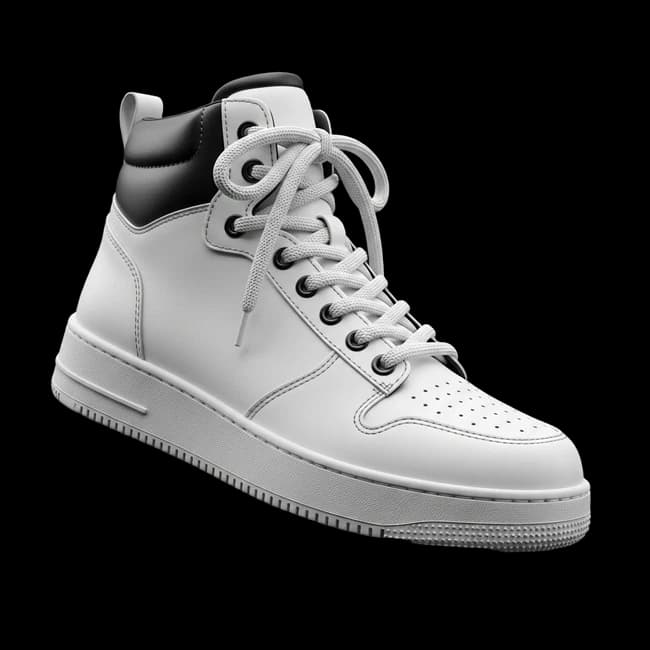
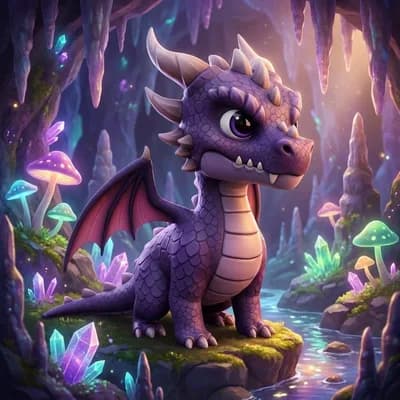
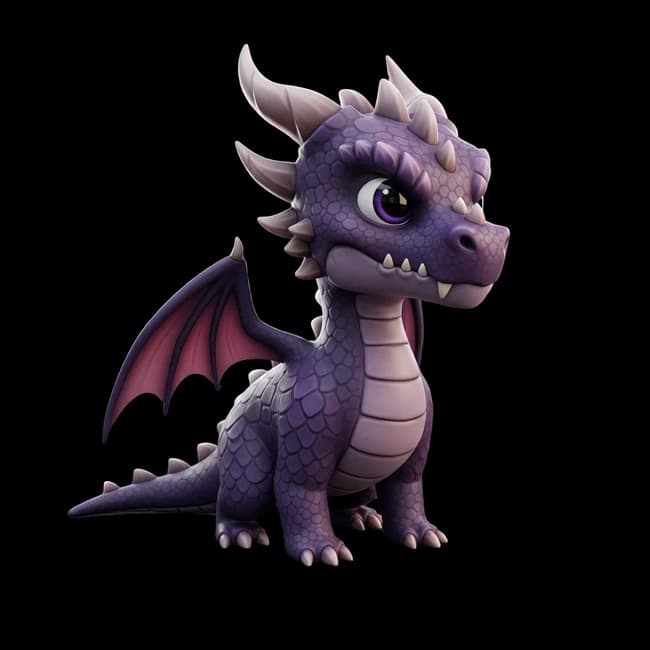
Start with one photo, sketch, or concept image. The AI builds the geometry, adds textures, and gives you a model you can preview, improve, and export.
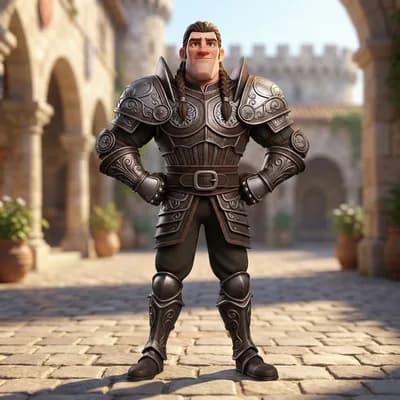 input
input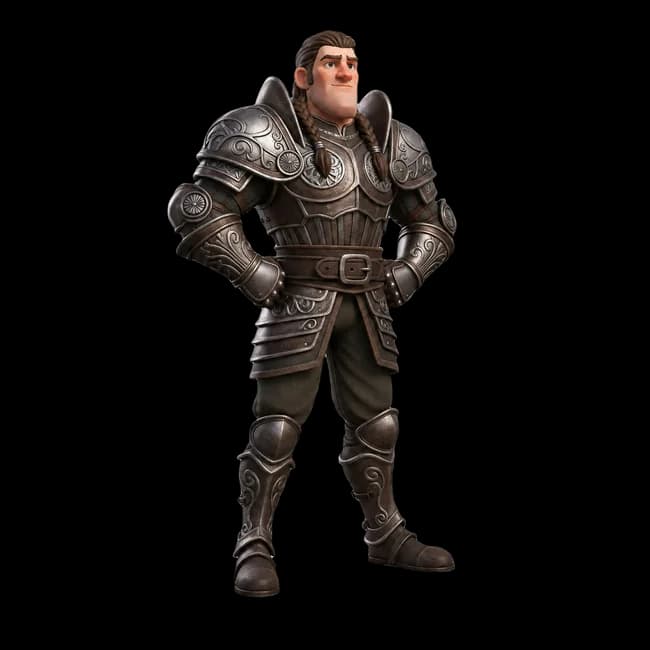 3D model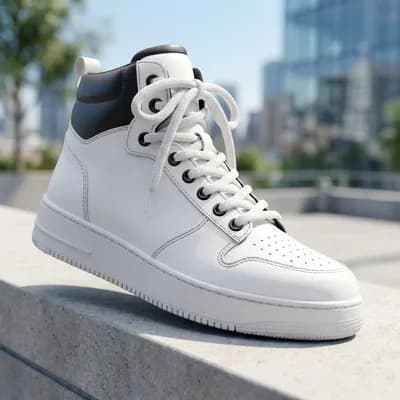
Quick answer
Yes, you can turn an image into a 3D model online. The simplest workflow is:
- Pick a clear image with one main subject.
- Upload it to an AI image-to-3D tool.
- Choose a model or quality mode.
- Generate the 3D model.
- Preview it in a 3D viewer.
- Export it as GLB, OBJ, FBX, STL, USDZ, or another format.
For quick tests, one image is enough. For better accuracy, especially with products or objects where all sides matter, multiple images from different angles can help a lot.
What does image-to-3D mean?
Image-to-3D means using AI to convert a 2D image into a 3D model. The AI looks at the subject in your image, estimates the shape and depth, builds geometry, and applies textures based on the visual details it can see.
It is not the same as traditional 3D modeling. A human artist builds every shape by hand. It is also not exactly the same as old-school photogrammetry, which often needs dozens or hundreds of photos. AI image-to-3D is faster and easier. You can start from one good image and get a model in minutes.
That speed is why people use it for game props, concept art, e-commerce product models, AR previews, 3D printing tests, and quick Blender references.
What kind of image works best?
The image matters more than most beginners think. A good input image can make the difference between a usable model and a messy one.
Use an image with:
- One clear main subject
- Good lighting
- Sharp focus
- A simple background
- Visible shape and surface detail
- Enough resolution to see edges and texture
Avoid images with:
- Heavy shadows
- Blurry subjects
- Busy backgrounds
- Multiple overlapping objects
- Transparent glass or reflective metal as the main subject
- Cropped-off parts of the object
Simple rule: if a human can clearly understand the shape from the image, the AI has a better chance too.
Example images that can work well
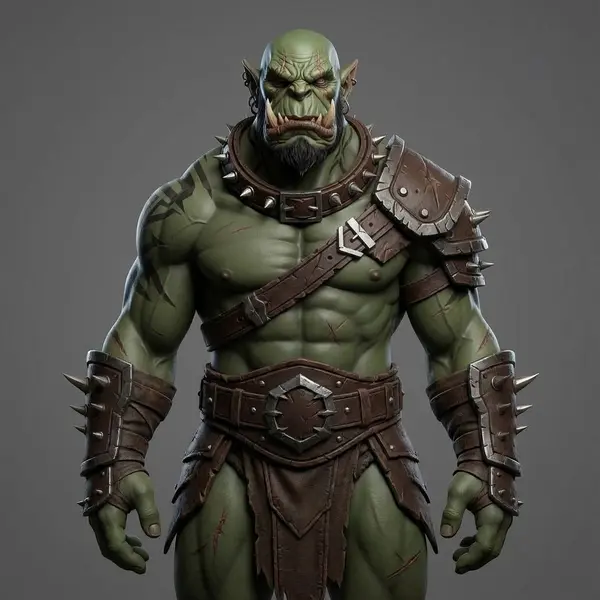
These are example inputs, not guaranteed outputs. They show what to look for before you generate: one subject, visible shape, and enough detail for the AI to understand the object.
 example input
Single character
One main subject, clear body shape, and a simple pose make this easier for the AI to read.
 example input
Object or prop
The whole object is visible, so the AI has a better chance of understanding the silhouette.
 example input
Bust or sculpture
Busts and sculptures often work well because the subject is isolated and depth is visible.
 example input
Vehicle concept
A three-quarter angle shows front and side details, which is usually more useful than a flat front view.
Step 1: Choose your image
Start with something simple. A toy, shoe, mug, chair, game prop, character bust, or product photo is easier than a full scene with many objects.
If you are using a photo, try placing the object on a table with a plain background. Natural window light works well. If you are using concept art or a drawing, clean line art is better than a rough sketch with lots of construction marks.
You can also use AI image generation first. For example, create a clean product render or character concept in Image Studio, then convert that image into 3D. This often works better than starting with a messy photo.
Step 2: Upload it to an image-to-3D tool
Once your image is ready, upload it to an image to 3D model generator. Most image-to-3D tools support JPG, PNG, and WebP images.
After upload, choose the model or generation mode that fits your goal. A fast model is good for quick ideas and testing. A higher-quality model is better for assets you plan to use in a game, 3D print, product viewer, or client presentation.
If you have several images of the same object, use multi-view input when available. Front, side, back, and three-quarter views give the AI more information than one image alone.
Step 3: Generate and preview the model
When you click generate, the AI starts by reading the image. It detects the main object, estimates the 3D shape, creates a mesh, and applies texture information from the image. Depending on the model and quality settings, this can take seconds to a few minutes.
After generation, rotate the model in the 3D viewer. Check the front, sides, back, top, and bottom if they matter for your project. The front usually matches best because the AI can see it directly. Hidden sides may be guessed.
Do not expect every first result to be perfect. Image-to-3D works best as a fast starting point. If the result is close, you can refine or remesh it. If it is far off, try a clearer image, a different angle, or a different AI model.
Step 4: Export the right file format
Different projects need different 3D formats.
| Format | Best for |
|---|---|
| GLB | Web, AR, previews, most modern workflows |
| OBJ | Blender, Maya, ZBrush, general 3D editing |
| FBX | Unity, Unreal Engine, animation workflows |
| STL | 3D printing and slicing |
| USDZ | Apple AR and iOS previews |
| BLEND | Native Blender workflows |
| 3MF | Modern 3D printing workflows |
If you are not sure, start with GLB. It stores geometry and textures in one file and works well for previews, web viewers, and many 3D tools.
Single image vs multiple images
A single image is the fastest way to start. It works well for simple objects, quick game props, concept models, and testing an idea. The tradeoff is that the AI has to guess the hidden sides.
Multiple images are better when accuracy matters. If you upload front, side, back, and angled views, the AI sees much more of the object. This helps with product models, 3D printing, hero props, and anything people will inspect from all sides.
You do not always need multi-view input. A good workflow is to generate from one image first. If the model is good enough, stop there. If the sides or back look wrong, take more images and regenerate.
Common mistakes beginners make
The most common mistake is using an image that looks cool but is hard for the AI to read. A dramatic image with smoke, shadows, reflections, and a complex background may be beautiful, but it is not always a good 3D reference.
Another mistake is starting with a full scene instead of one object. If your image has a character, a horse, a sword, a tree, and a castle in the background, the AI may not know which object you want.
Beginners also sometimes expect exact CAD-level precision. Image-to-3D is great for visual assets, concepts, game props, products, and 3D-printable starting points. For engineering tolerances or exact mechanical parts, you may still need CAD or manual cleanup.
How to fix a flat or distorted result
If your model looks flat, the input image probably does not show enough depth. Try a three-quarter angle instead of a straight front view. Side lighting can help reveal shape, but avoid harsh shadows.
If the model is distorted, check whether the subject is cropped, blurry, or surrounded by too much background noise. Try a cleaner image. If you are using a sketch, add simple shading or a clear silhouette.
If the textures look wrong, use a higher-quality image and avoid overexposed lighting. You can also refine the output later with AI texturing or manual editing.
What can you use image-to-3D models for?
For game development, image-to-3D is useful for quick props, environment objects, NPC concepts, weapons, collectibles, and background assets. You can block out a scene much faster than building every object by hand.
For 3D printing, you can turn photos, sketches, or concept art into printable starting points. You may still need to check wall thickness, repair mesh issues, and export STL, but the creative part becomes much faster.
For e-commerce, image-to-3D lets you create interactive product models from existing photos. Customers can rotate the product and understand its shape better than with flat images alone.
For artists and designers, it is a fast way to explore ideas. You can draw a concept, convert it to 3D, rotate it, and decide if the design works before spending hours modeling.
Is it really free?
Most serious image-to-3D tools use credits because 3D generation requires expensive AI compute. Free usually means you can start with free credits, try a few generations, and then upgrade or buy more credits if you need more output.
3D AI Studio works this way too. The free image to 3D model converter gives you 100 credits every month, no credit card required, and a generation costs a set number of credits depending on which AI model you pick.
That is still useful for beginners. You can test whether your image works, learn the workflow, and create your first model before committing to a paid plan.
Beginner checklist before you generate
Before clicking generate, quickly check:
- Is there one clear subject?
- Is the image sharp?
- Is the background simple?
- Is the subject fully visible?
- Is the lighting even?
- Do you need one image or multiple views?
- Do you know which export format you need?
If the answer is yes to most of these, your result will usually be much better.
Next steps
If you want to generate now, open the image to 3D model generator with your free monthly credits, upload a clear image, and preview your result in the browser. Treat the first result as a starting point, not the final word.
If you want to improve your prompts and reference images first, read the Image to 3D guide for more input tips, or try Text to 3D if you want to create a model from a description instead of an image.

Generate 3D models with AI
Easily generate custom 3d models in seconds. Try it now and see your creativity come to life effortlessly!
FAQ
Can I really turn one image into a 3D model for free?
Yes, you can get started for free. 3D AI Studio gives you free credits when you sign up, so you can test the full workflow without paying anything. Upload a photo, generate a 3D model, preview it in the browser, and export it. If you need more generations after your free credits run out, paid plans start at $19/month for 1,000 credits, or you can grab a one-time pack for $34.
What kind of image works best for converting to 3D?
The best input image has one clear subject with good lighting, sharp focus, and a simple background. Product photos, character concept art, clean sketches, and isolated object shots tend to work really well. Avoid images with busy backgrounds, heavy shadows, or multiple overlapping objects. If your photo is messy, you can clean it up first in Image Studio using background removal or Gemini Edit before sending it to the 3D generator.
How long does it take to generate a 3D model from an image?
Most generations finish in about 30 seconds to 3 minutes depending on which AI model you pick and the complexity of the input. Faster models like Prism Turbo can give you a result in under a minute, while higher quality models take a bit longer. You can preview the result right in your browser as soon as it finishes, no extra software needed.
Can I 3D print a model that was generated from a photo?
Yes, and a lot of people use image-to-3D specifically for 3D printing. Export your model as STL or OBJ, then open it in your slicer (Cura, PrusaSlicer, Bambu Studio, etc.). Before printing, check that the mesh is watertight and that thin parts are thick enough to survive the print. If the mesh needs cleanup, run it through the Remesher tool at around 8,000 faces for a clean, printable result.
Do I need to know Blender or any 3D modeling software?
Not at all. The entire workflow runs in your browser. You upload an image, the AI generates the 3D model, and you can preview and export it without touching any 3D software. Blender is only useful if you want to do manual edits afterward, like adjusting topology, adding custom materials, or rigging the model for animation. But for most use cases, you can go straight from generation to export.
What file format should I download my 3D model in?
It depends on what you want to do with it. GLB is the best all-around choice since it includes geometry and textures in one file, and works for web, AR, and most 3D tools. Use FBX if you are importing into Unity or Unreal Engine. OBJ works well for Blender and general editing. STL is the standard for 3D printing. USDZ is what you need for Apple AR on iPhones and iPads. If you are not sure, start with GLB.
Can I use a sketch or drawing instead of a photo?
Yes, sketches and drawings work well as long as the shape is clear and recognizable. Clean digital art with defined edges and some shading tends to produce the best 3D results. Rough pencil sketches can work too, but adding a bit of shading or using a three-quarter angle helps the AI understand the depth and volume of the object. You can also use Image Studio to clean up a rough sketch before converting it.
How can I get better quality 3D models from my images?
Start with the best image you can. Make sure the subject fills most of the frame, the background is clean, and the lighting is even. If your original photo is not ideal, run it through Image Studio first to remove the background or restyle it with Gemini Edit. Choosing a higher quality AI model also helps. And if the first result is close but not perfect, try uploading multiple views of the same object for more accurate geometry on all sides.
What is the difference between single image and multi-view input?
Single image is the fastest way to get a 3D model. You upload one photo and the AI estimates the hidden sides. This works great for simple objects, quick tests, and game props where the back does not need to be perfect. Multi-view input lets you upload front, side, back, and angled photos of the same object. The AI uses all of them to build a much more accurate model, which is better for product visualization, 3D printing, and anything people will inspect from every angle.
Can I use the 3D models I generate in commercial projects?
Yes, you own the models you generate on paid plans and can use them in commercial projects, games, client work, product listings, marketing, and anything else. There are no royalty fees or usage restrictions on models you create with your own credits. Check the terms of service for full details, but the short answer is yes, they are yours to use however you want.
How good are the textures on AI-generated 3D models?
The texture quality depends on your input image and which AI model you use. In general, the textures capture the colors, patterns, and surface details from your original image pretty well. They are good enough for game assets, 3D printing, product previews, and most visualization work. For production-level quality, you can enhance the textures afterward using the Texture Generator or bring the model into Blender and apply custom materials.
What should I do if my 3D model does not look right?
First, try a cleaner input image with better lighting and a simpler background. A different camera angle can also help, especially a three-quarter view instead of a straight front shot. If the shape is okay but the details are off, try a different AI model since each one has strengths for different types of objects. You can also use the Remesher to clean up messy geometry, or go back to Image Studio to improve your reference image before generating again.