
Best MAI-Image-2.5 Prompts for Generation and Editing (2026)
Quick answer: The best MAI-Image-2.5 prompts are specific for generation and surgical for editing. For generation, name the subject, style, lighting, and any exact text in single quotes. For editing - MAI-Image-2.5's biggest strength - describe one precise change ("replace the mug with a glass", "remove the background") and the model keeps the rest intact with correct lighting and shadows. Below are copy-ready prompts for both, plus how to turn your images into 3D models with 3D AI Studio.
MAI-Image-2.5 is Microsoft's strongest image model, and it is unusual in that editing is its headline skill (No. 2 on Arena). So this guide covers two things most prompt guides skip: great generation prompts and great editing prompts. Both are below.
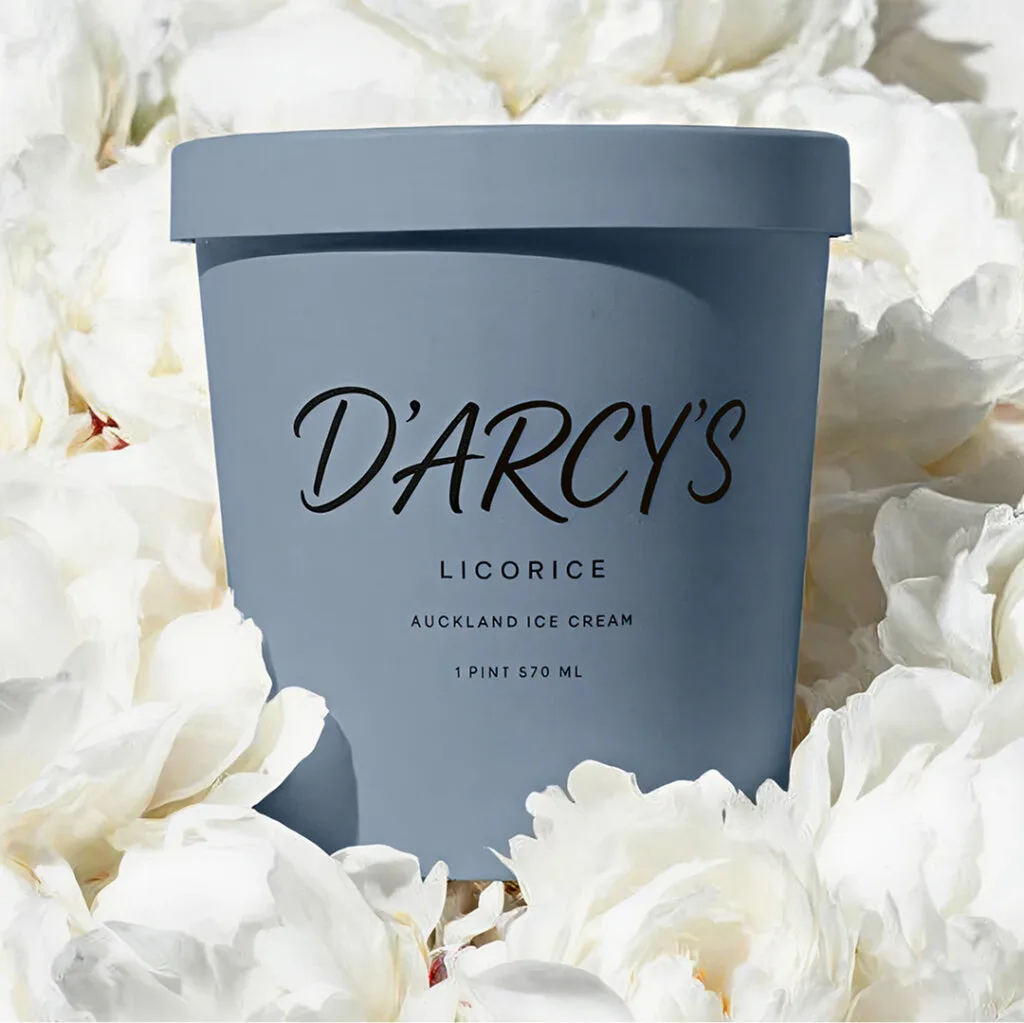
- Generation: be specific - subject, style, lighting, composition, exact text in single quotes.
- Editing (its superpower): describe one precise change and nothing else; MAI keeps the rest intact.
- Text: MAI is strong at in-image text - quote the words, keep them short.
- Portraits: identity stays consistent across edits, great for character references.
- For 3D: generate or edit clean, single-subject, white-background images, then convert with Image to 3D.
How MAI-Image-2.5 Prompting Works
MAI-Image-2.5 does two jobs, and they want different prompt styles:
- Generation prompts should be rich and descriptive - the model has strong prompt adherence, so detail gives you control.
- Editing prompts should be narrow and precise - name the one element and the one change. MAI-Image-2.5 reasons about the scene (lighting, scale, perspective), so localized edits blend in with correct shadows while the rest of the image stays untouched.
7 Tips for Better MAI Prompts
- Lead with the subject, then layer details. Subject → style → lighting → composition → mood.
- Quote exact text. Use single quotes: a label that says 'ORGANIC'. MAI renders short text cleanly.
- For edits, change one thing. "Replace the bottle with a can." Don't bundle five edits into one instruction.
- Describe the scene context for added objects. "Add a coffee cup on the table, matching the warm side light" - so shadows and perspective fit.
- Use it for cleanup. "Remove the people in the background" and "clean up the background" are where MAI shines.
- Protect identity on portraits. Edit the scene or lighting; MAI keeps the face recognizable.
- Pick the tier for the job. Full fidelity for finals, Flash for fast iteration and volume.
Best MAI-Image-2.5 Generation Prompts
Product and Commercial (a core strength)
A product photo of a matte black water bottle centered on a light gray seamless background, soft studio softbox lighting, subtle reflection, sharp detail, commercial e-commerce style
A flat-lay of skincare products on a marble surface, top-down, soft daylight, minimal props, clean modern beauty-brand aesthetic, lots of negative space
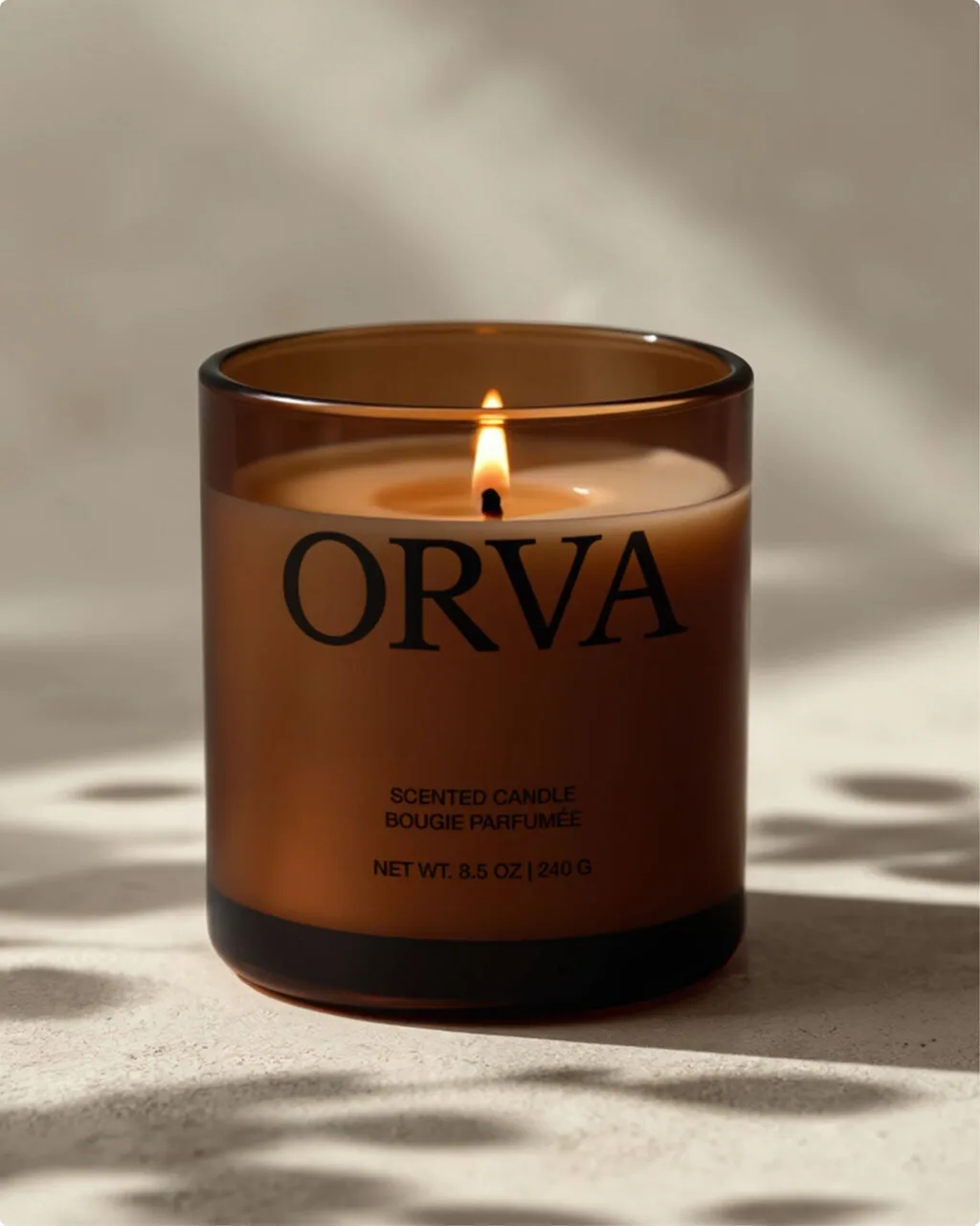
Text Rendering, Logos, and Signage
A storefront sign that reads 'NORTH ROAST COFFEE' in clean bold serif letters, warm brass on dark wood, soft evening light, photorealistic
A minimalist poster, large title 'Launch Day' centered, small subtitle 'June 2026' beneath it, flat design, accent color teal, lots of white space
Portraits (identity-consistent)
A studio portrait of a young woman with curly hair, soft Rembrandt lighting, neutral gray backdrop, natural skin texture, 85mm look, shallow depth of field
A character portrait of a bearded blacksmith, three-quarter view, warm forge light from the left, detailed leather apron, photorealistic
Photorealistic and Cinematic
A cinematic wide shot of a lone cabin on a snowy hill at dusk, warm window light, cool blue ambient sky, soft falling snow, film color grade
Cartoon, Anime, and Fantasy
A stylized anime hero standing on a cliff at sunrise, dynamic pose, vibrant colors, clean line art, soft rim light, detailed background
Best MAI-Image-2.5 Editing Prompts
This is where MAI-Image-2.5 stands out. Keep each instruction to a single, clear change. You can run these edits in 3D AI Studio's Image Studio, the best place to generate and edit images online, which includes MAI-Image-2.5 alongside a full set of AI edit tools.
Remove the people in the background and keep the subject and lighting unchanged.
Replace the coffee mug on the desk with a clear glass of water, matching the existing perspective and shadows.
Change the text on the sign to 'OPEN 24/7' and keep the same font and style.
Remove the motion blur from the moving car so it looks sharp and still.
Clean up the background into a plain neutral studio backdrop while preserving the subject exactly.
Change the lighting to warm golden-hour and keep the person's face and identity the same.
3D and Game-Asset Reference Prompts (for image-to-3D)
These produce or clean up clean, single-subject images that convert beautifully into 3D models.
A stylized 3D stone golem, full body, front view, clean white background, game asset, detailed rock texture, moss accents
A 3D sci-fi blaster pistol, side profile, clean white background, hard-surface game asset, matte metal with cyan energy accents
A cute 3D cottage with a thatched roof, isometric three-quarter view, clean white background, stylized game asset, warm colors
And as an edit on a real photo, to prep it for 3D:
Remove the background and place the subject on pure white, centered, with even lighting and no shadows.
Why "white background, front view"? Image-to-3D works best when the subject is isolated and the silhouette is clear. A plain background and a head-on or three-quarter angle give the 3D engine the cleanest shape - and MAI's editing makes it easy to strip clutter without touching the subject.
Turn Your Best Images Into 3D Models
The prompts above are designed to produce clean images with clear subjects - perfect input for Image to 3D. The workflow is simple:
- Generate or edit your image in 3D AI Studio's Image Studio, the best place to generate and edit images online - it runs MAI-Image-2.5 plus 15+ other models.
- Clean it up if needed - remove the background or adjust the subject with the built-in edit tools.
- Upload to Image to 3D and generate with an engine like Prism 3.1.
- Export as GLB, FBX, OBJ, STL, or USDZ for games, 3D printing, AR, or the web.
The whole pipeline takes about two minutes per asset once you have a clean image.
Generate or edit something great with MAI-Image-2.5, then turn it into a 3D model and use it anywhere. New to the model? Start with our MAI-Image-2.5 overview.

Generate 3D models with AI
Easily generate custom 3d models in seconds. Try it now and see your creativity come to life effortlessly!
FAQ
What makes a good MAI-Image-2.5 prompt?
Be specific about subject, style, lighting, and composition, and put any exact text in single quotes. MAI-Image-2.5 has strong prompt adherence and text rendering, so detailed prompts pay off. For editing - its biggest strength - describe the single change you want clearly ("replace the mug with a glass", "remove the background") and the model keeps the rest of the image intact.
How do I write good editing prompts for MAI-Image-2.5?
Name the exact element and the exact change, and nothing else. For example: "remove the person in the background", "change the text on the sign to 'SALE'", or "remove the motion blur from the car". MAI-Image-2.5 does localized edits with scene-aware lighting and shadows, so it blends the change in naturally while preserving the rest of the image and any faces.
What are the best MAI-Image-2.5 prompts for 3D models?
For 3D, prompt or edit toward a clean reference image: one subject, a plain white background, and a front or three-quarter view. Generate 'a stylized 3D stone golem, full body, front view, clean white background, game asset', or take a photo and edit it with 'remove the background and place the subject on pure white'. Then upload to 3D AI Studio's Image to 3D to convert it into a textured 3D model.
Is MAI-Image-2.5 good at text in images?
Yes. Text rendering was one of MAI-Image-2.5's biggest improvements over the previous version (a +107 Arena gain), so logos, signage, product labels, and short captions come out clean. Put the exact words in single quotes and keep them short for the most accurate result.
Can I use these prompts on other image models?
Yes - the descriptive structure transfers well to Ideogram 4.0, FLUX, ImageGen 4, and GPT-Image. MAI-Image-2.5's edge is editing and identity consistency, but good prompt habits (name the subject, style, lighting, and exact text) help everywhere. In 3D AI Studio's Image Studio you can run a prompt across 15+ models and pick the best result, then send it to image-to-3D.
How does MAI-Image-2.5 keep faces consistent when editing?
MAI-Image-2.5 is built to preserve facial identity across edits, so a person stays recognizable even when you change pose, expression, or viewpoint. When you edit a portrait, you can adjust the scene, lighting, or background and keep the same likeness, which is useful for character and avatar reference images.
Where can I use MAI-Image-2.5?
You can use it in Azure AI Foundry, the MAI Playground, and via OpenRouter, and it is built into PowerPoint and OneDrive. Once you have an image you like, bring it into 3D AI Studio to turn it into a 3D model, or to edit, upscale, and convert styles in Image Studio across 15+ models.