
By Jan Hammer
June 25, 2026
3D AI Studio v6.0 – Introducing Flow
This is the one I've been waiting to share with you. Say hello to Flow – and it's easily our biggest release yet. Flow is a brand-new, node-based visual workspace where you connect simple building blocks into your own custom AI pipelines. Instead of jumping between separate tools, you lay everything out on one infinite canvas: generate an image, edit it, turn it into a 3D model, batch a whole asset pack – all wired together exactly how you want.
The best part? You build it once, then reuse it forever. In this post I'll walk you through everything Flow can do, from your very first node to building reusable AI apps and letting the AI wire up entire workflows for you. And on top of Flow, we shipped three more tools – a free Gaussian Splat toolset, a LOD Generator, and Batch Remesh. Let's dive in.
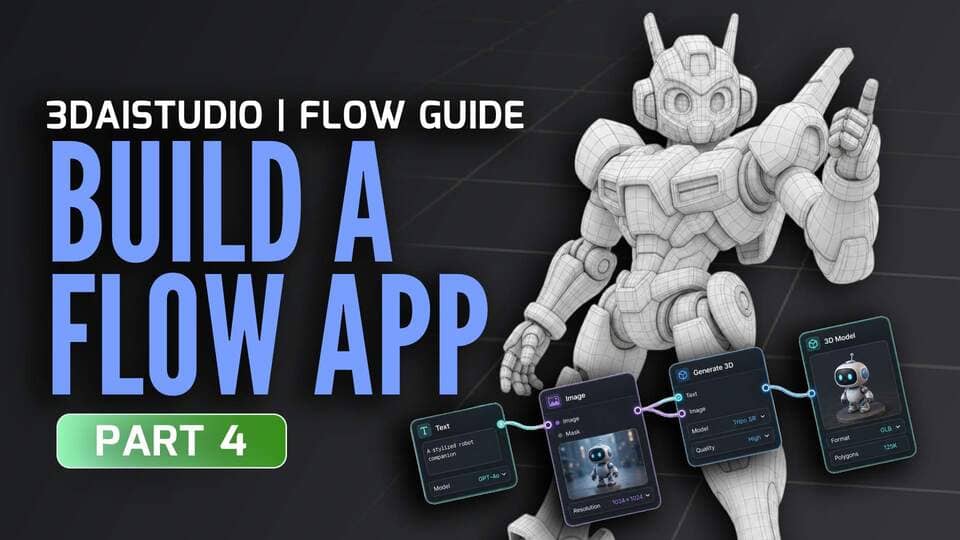
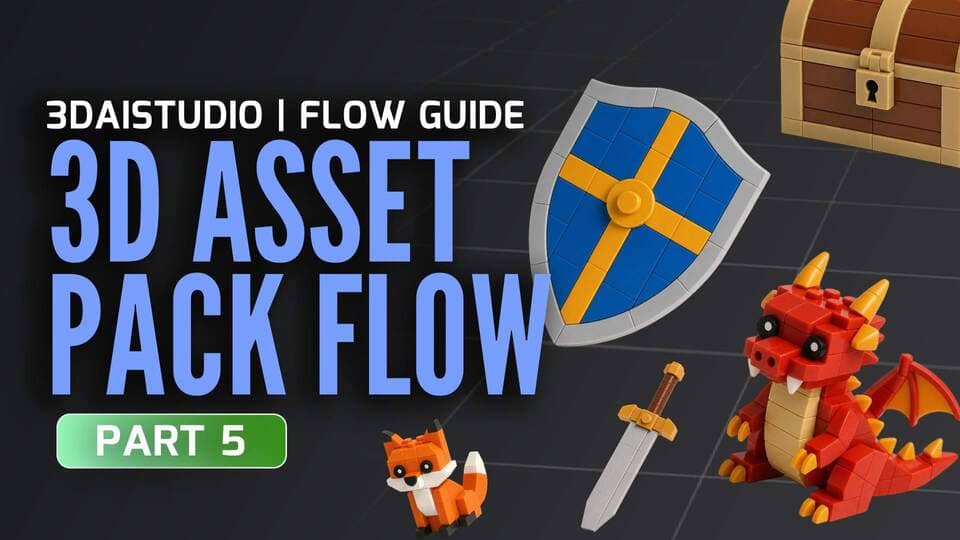
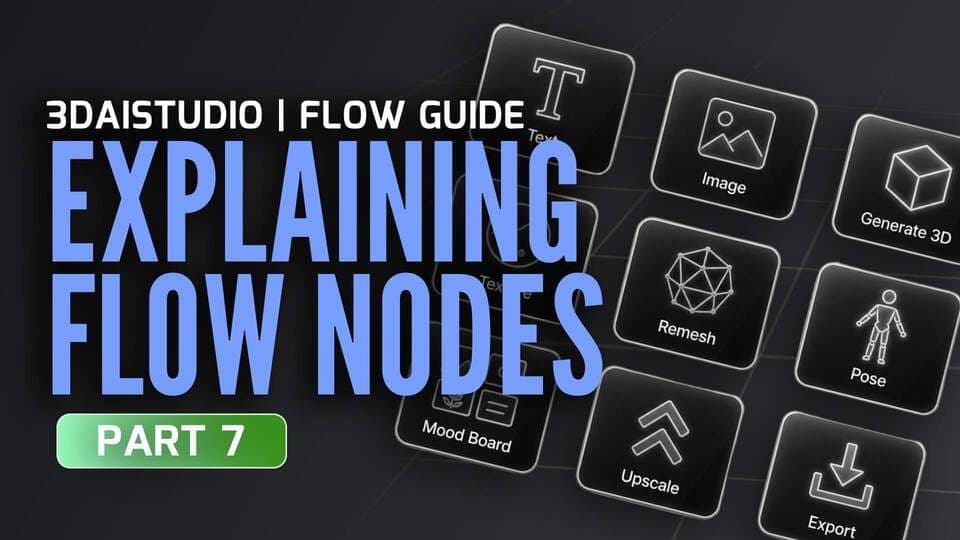
The complete Flow course – 7 short videos that take you from a blank canvas to your own reusable AI apps.
1. What Flow is, and why we built it
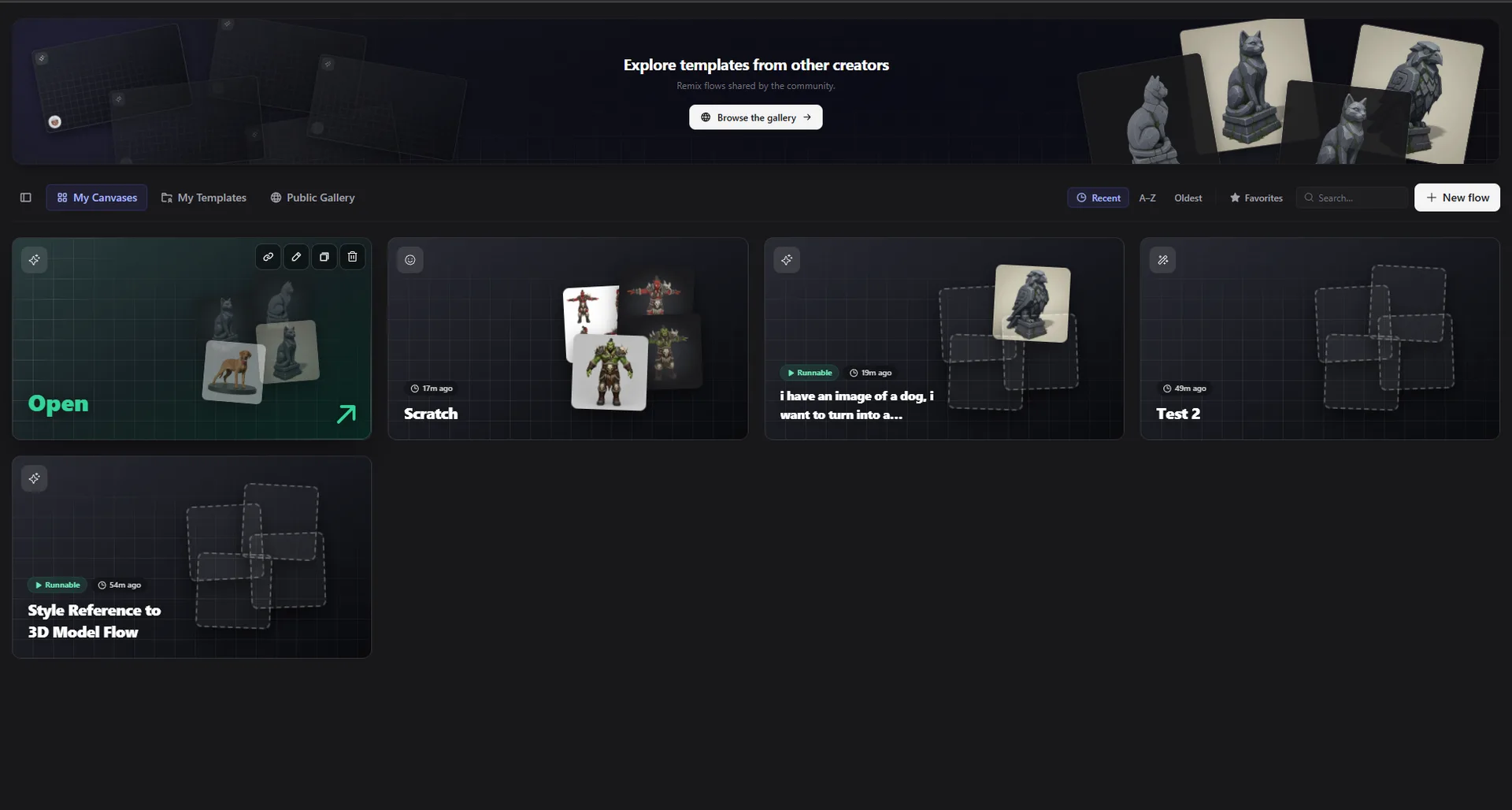
Flow is your home base for building. When you open it, you can start a new flow from a blank canvas, pick one of your templates, browse public templates in the gallery, or just describe what you want and let the AI build it for you. Every flow lives on an infinite canvas that auto-saves as you work, so you never lose your progress.
We built Flow because real creative work is rarely a single step. You generate something, refine it, change its style, turn it into 3D, make ten variations… and before Flow that meant hopping between separate tools and losing your train of thought. Now it all lives in one place, connected exactly how you think about it.
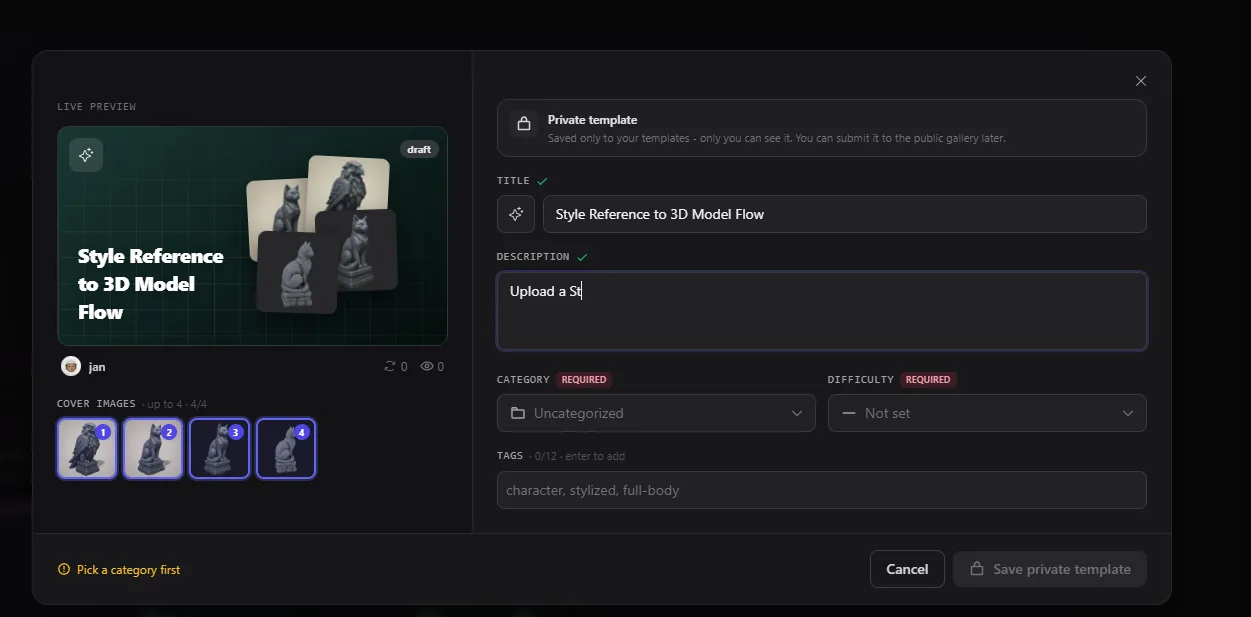
2. The core idea: everything is a node
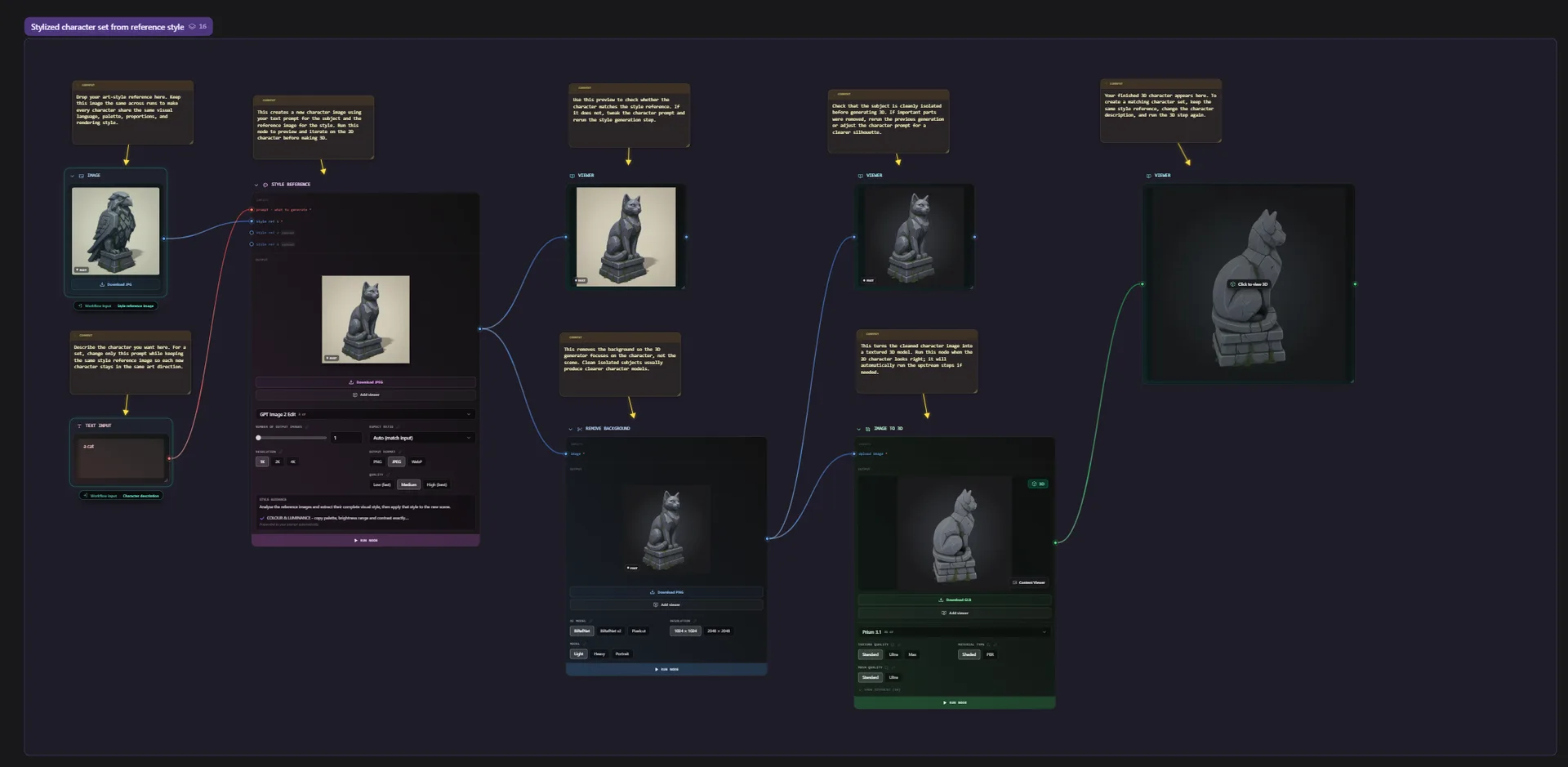
Flow is built on one simple, powerful idea. Every step is a node: it has inputs on the left and an output on the right. Connect one node's output to the next node's input, and your data flows down the chain. That's the whole mental model.
- Color-coded connections by type (text, image, 3D model, and more) so you always know what fits where.
- Nodes only produce a result when you run them. Run a single node for a quick one-off, or run a whole chain at once.
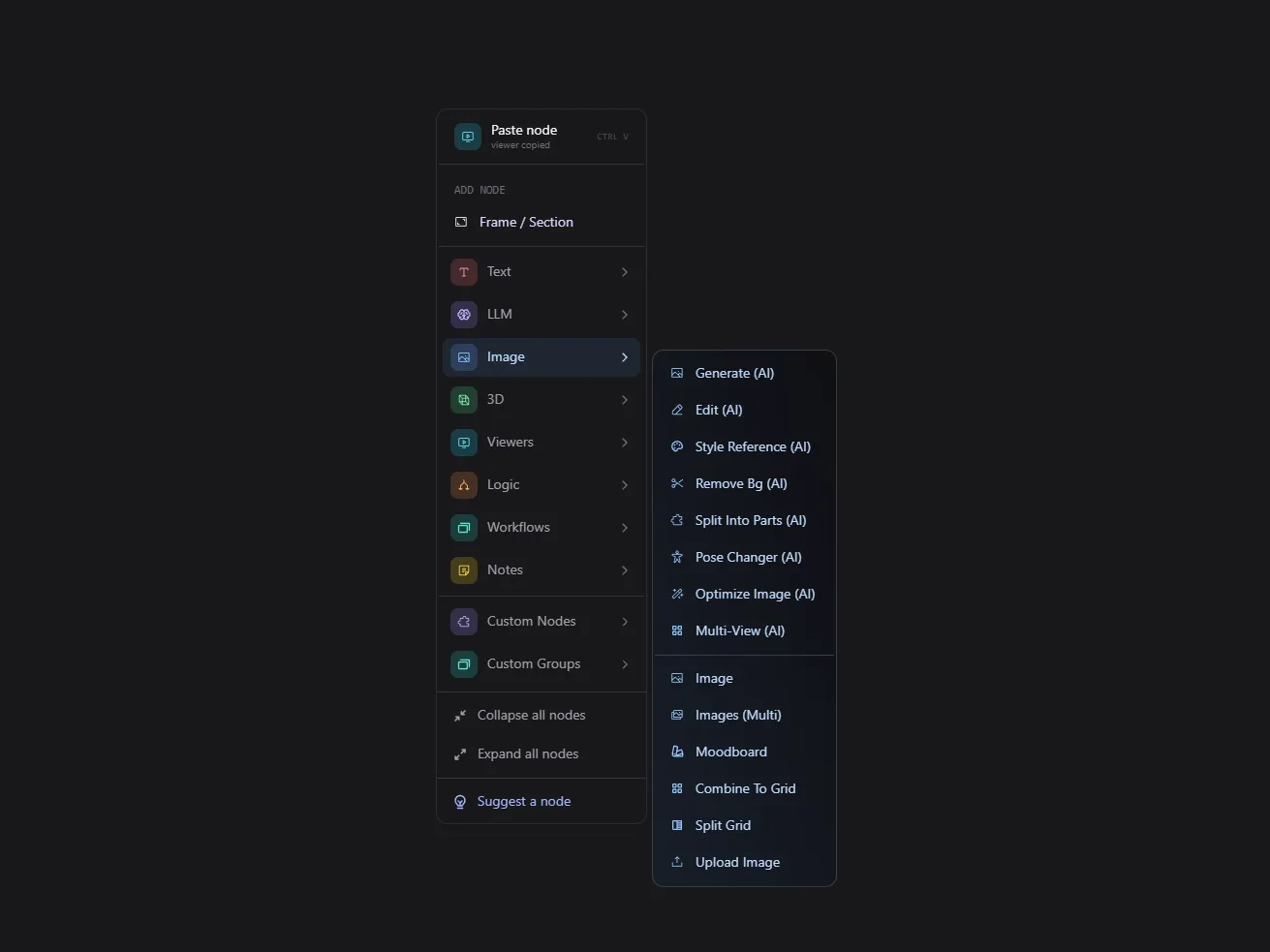
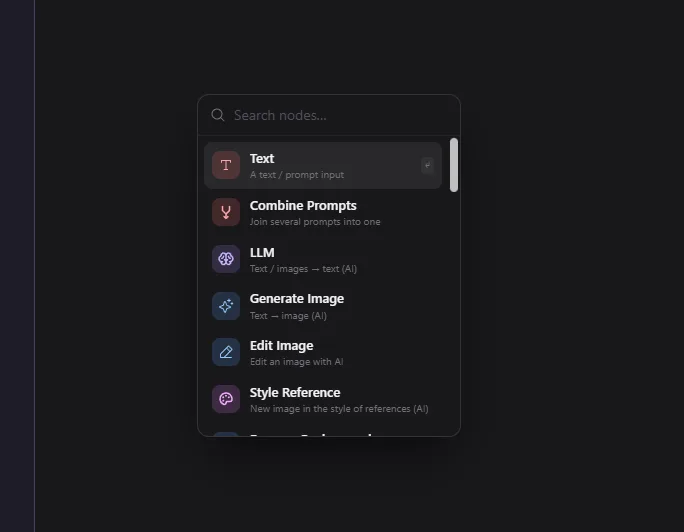
- Right-click anywhere (or press Shift + /) to browse and search every available node, with handy shortcuts like T for text and G for generate.
- Drag out from any handle to instantly see the nodes that fit there next.
3. Your first flow – text to image to edit
Let's make something. Drop a Text node and a Generate Image node, connect them, type a prompt like “a stylized robot collectable figurine in studio lighting,” and hit Run. A few seconds later you've got your image. Want to change it? Drag out an Edit Image node, tell it what to change in plain language, and run again – restyle, relight, recolor, add or remove objects, swap backgrounds, almost any change from a simple instruction.
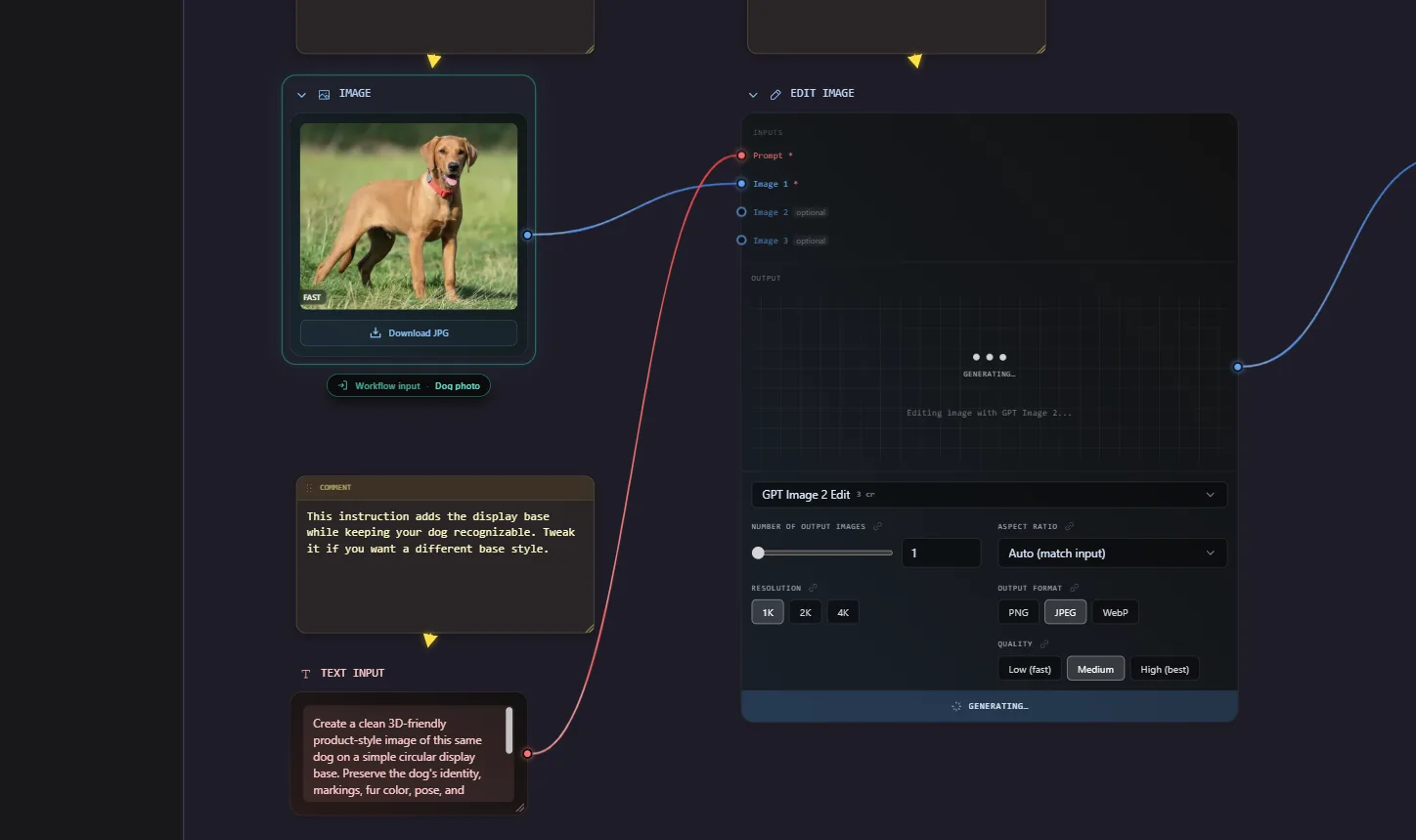
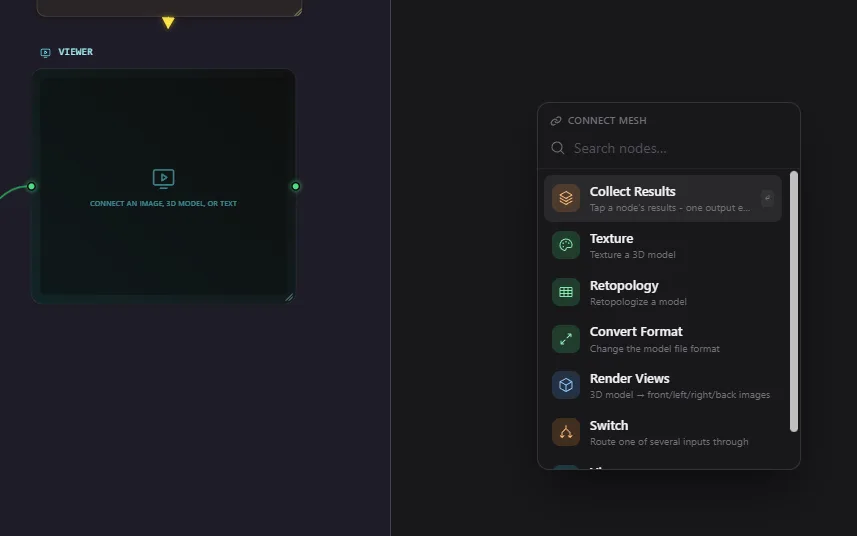
4. The big one – turning an image into 3D
This is what most people are here for. Once your image looks right, connect an Image to 3D node, pick your quality (all the way up to Ultra with PBR), and run. A couple of minutes later you've got a real 3D model you can inspect in the built-in viewer, re-mesh, retopologize, convert to GLB, FBX, STL and more, and download.
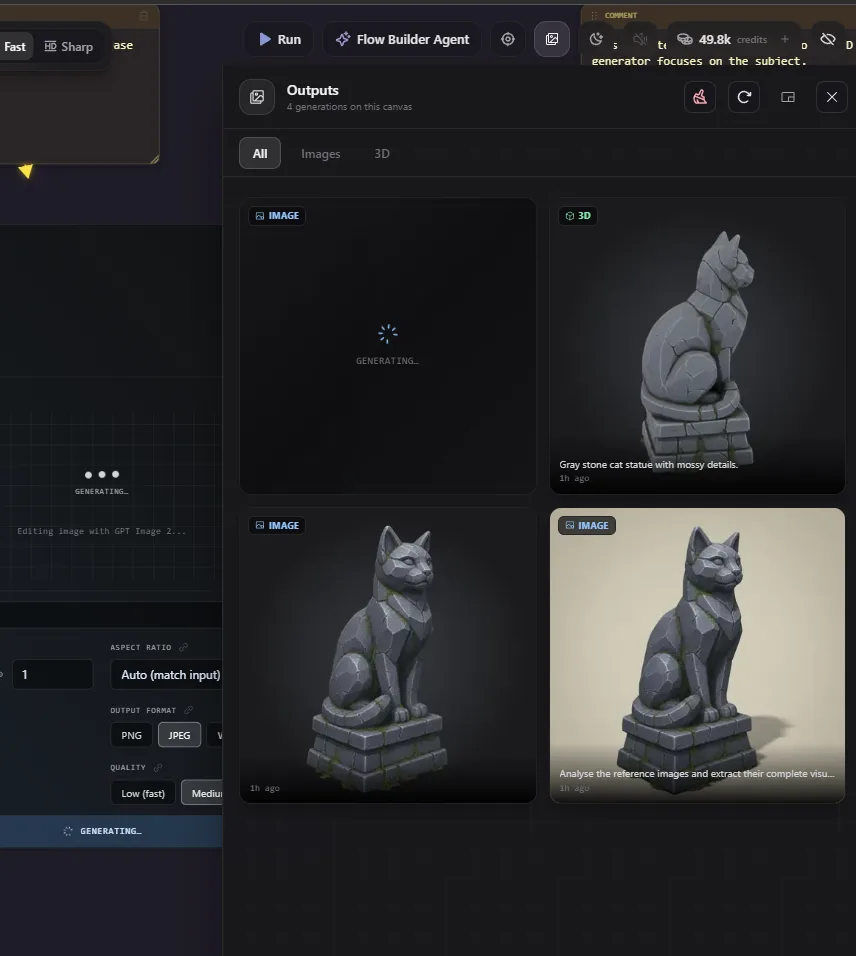
One golden rule from the tutorials: get the image right first. Images are fast and cheap to redo – 3D isn't. Flow keeps every generation on the node, so you can flip between results and pick the one you like best.
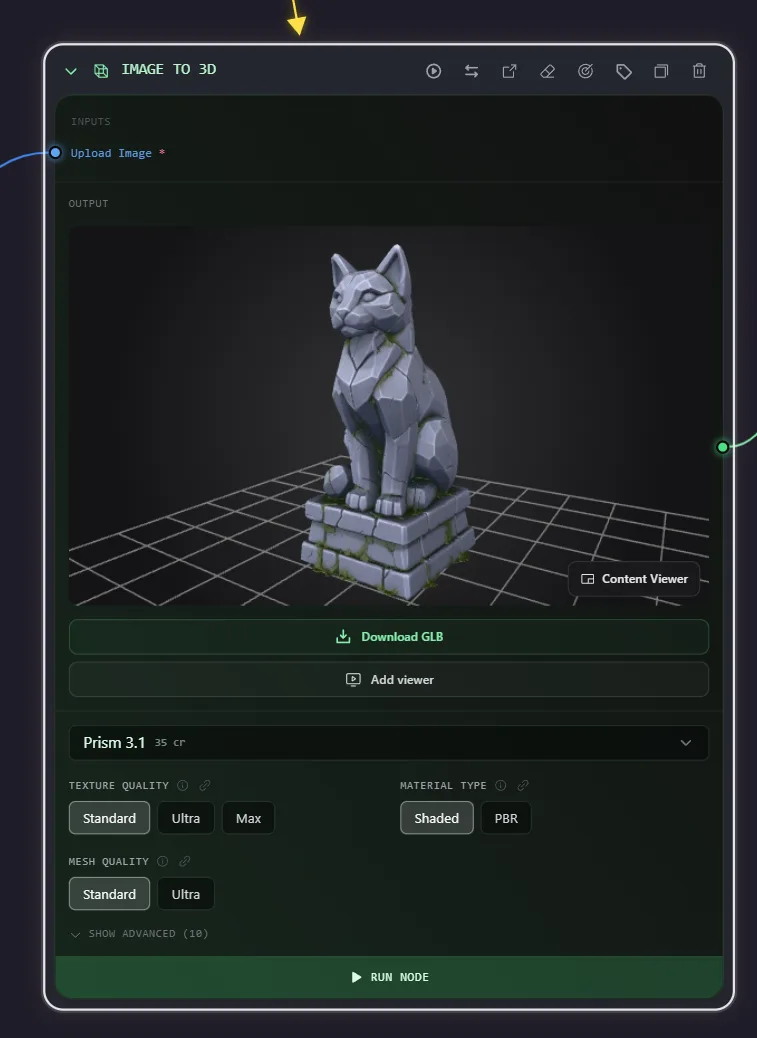
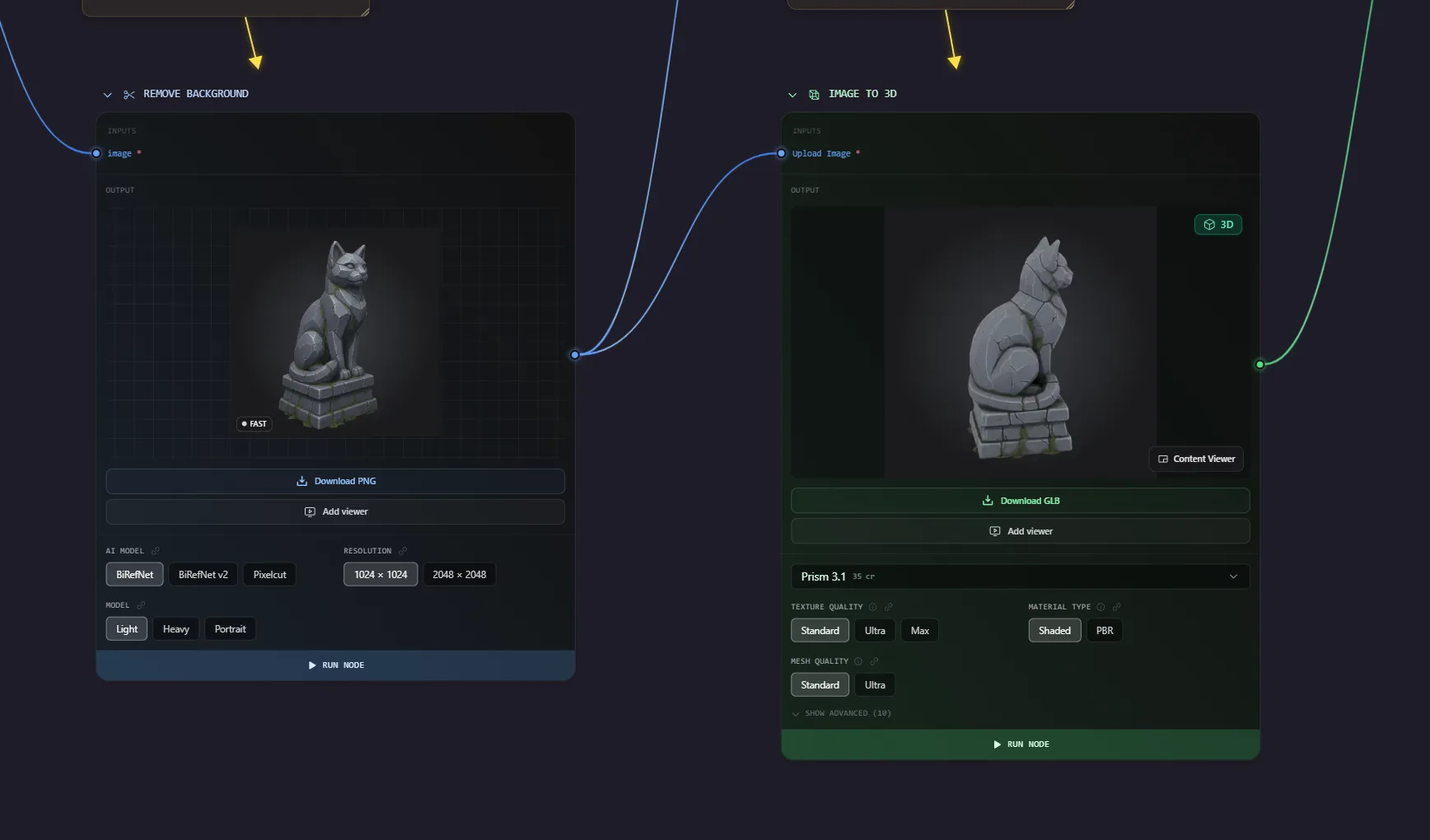
5. The clever trick – consistent edits from every angle
Want to overhaul a 3D model – give it a battle-worn finish, bolt on new armor – and have it look the same from every angle? Here's the technique that makes it possible, and it's my favorite thing in Flow:
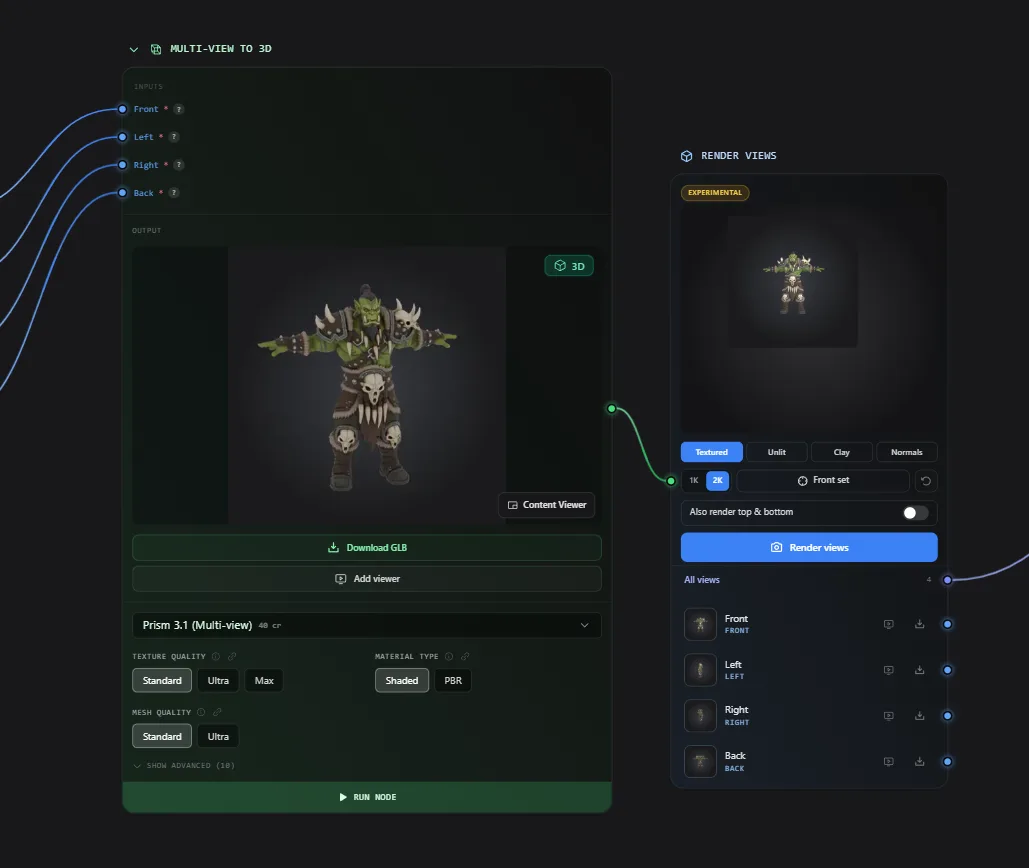
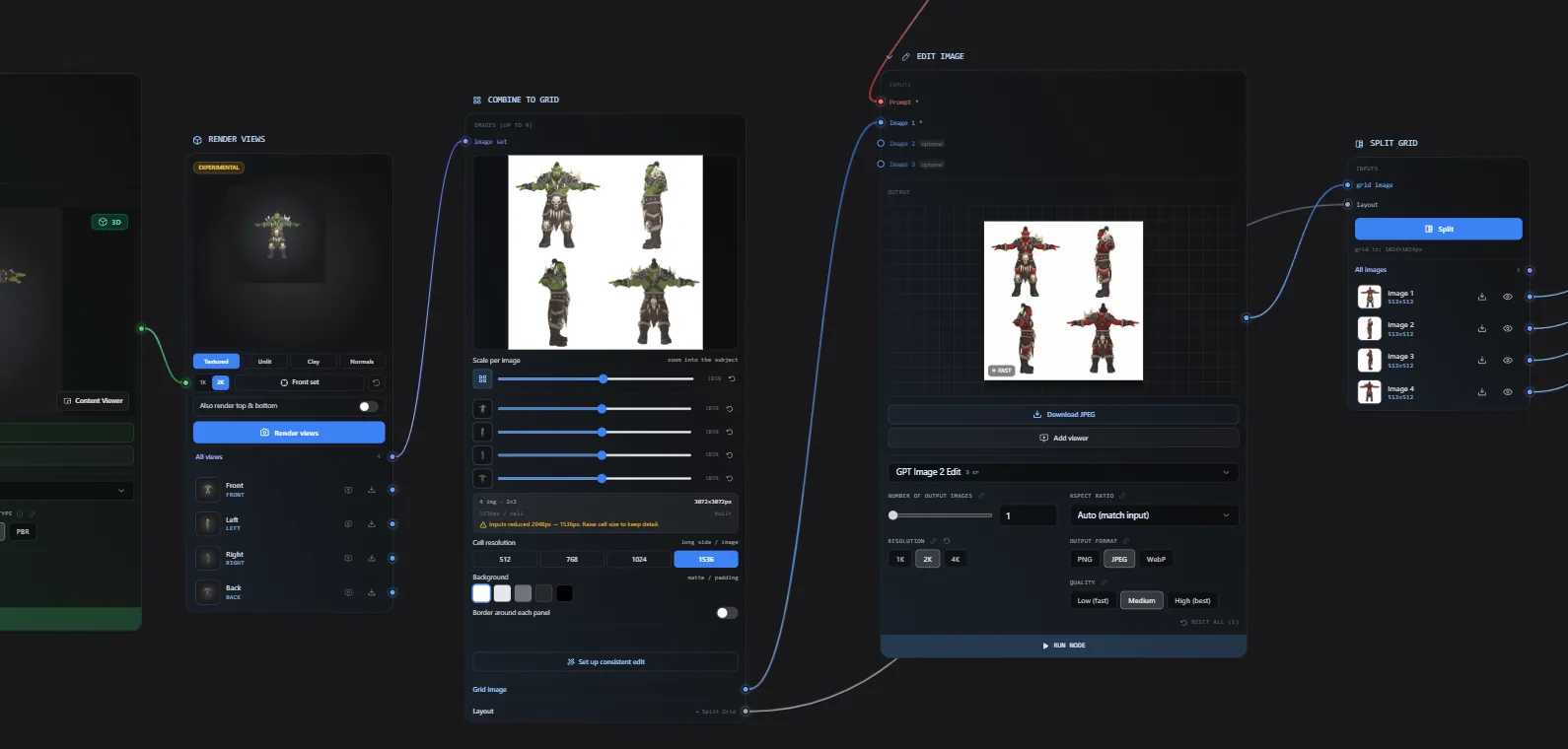
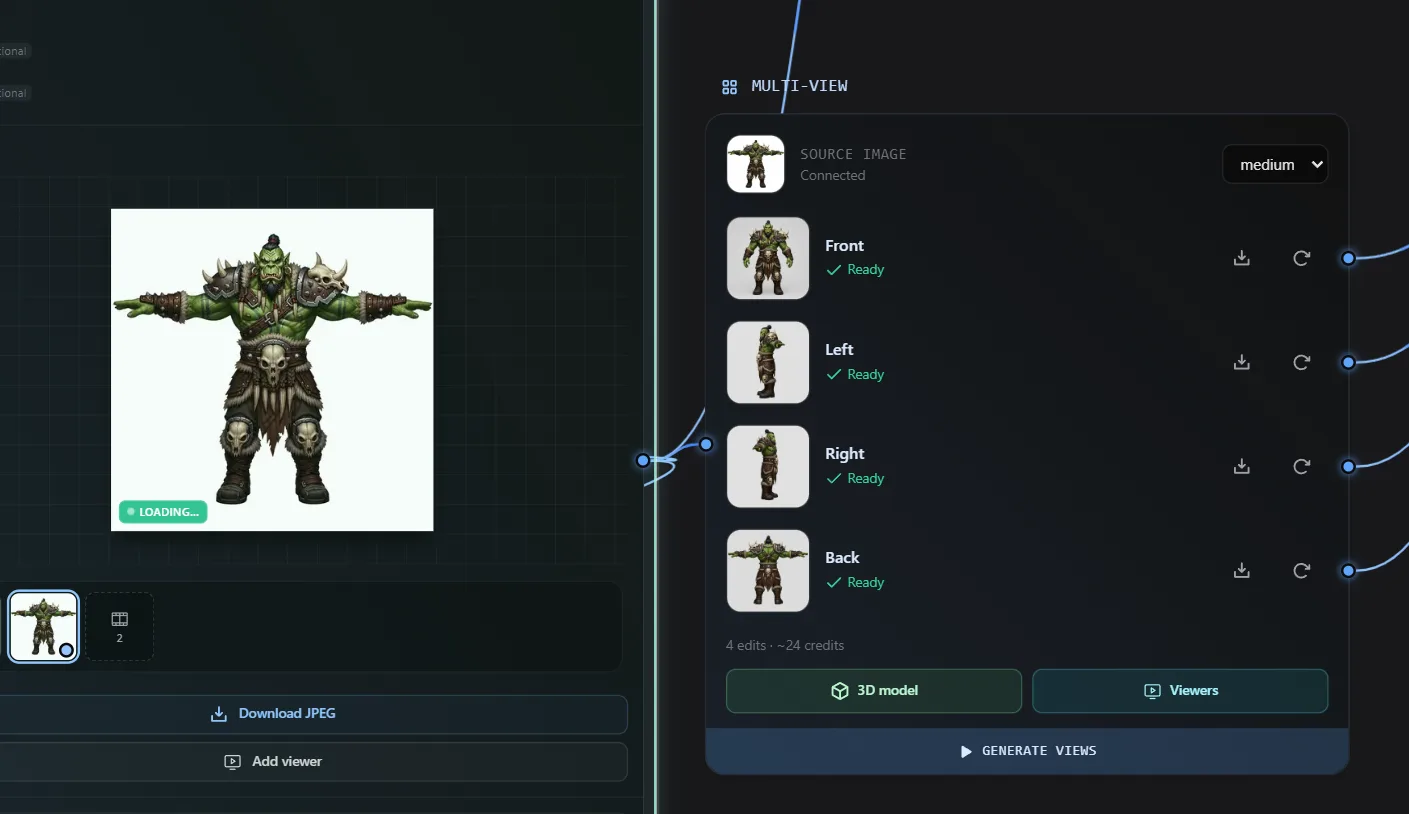
- Render Views turns your 3D model back into clean front / side / back images.
- Combine to Grid merges those views into one image – so an edit keeps the style perfectly consistent across all of them.
- Edit Image applies your change to the whole grid at once.
- Split Grid then breaks it back into four consistent views, ready for Multi-View to 3D to build a brand-new model.
6. Two ways to work – Build mode & App mode
Build mode is where you experiment: drop in nodes, wire them up, and run the one you care about. Perfect for putting things together and one-off generations.
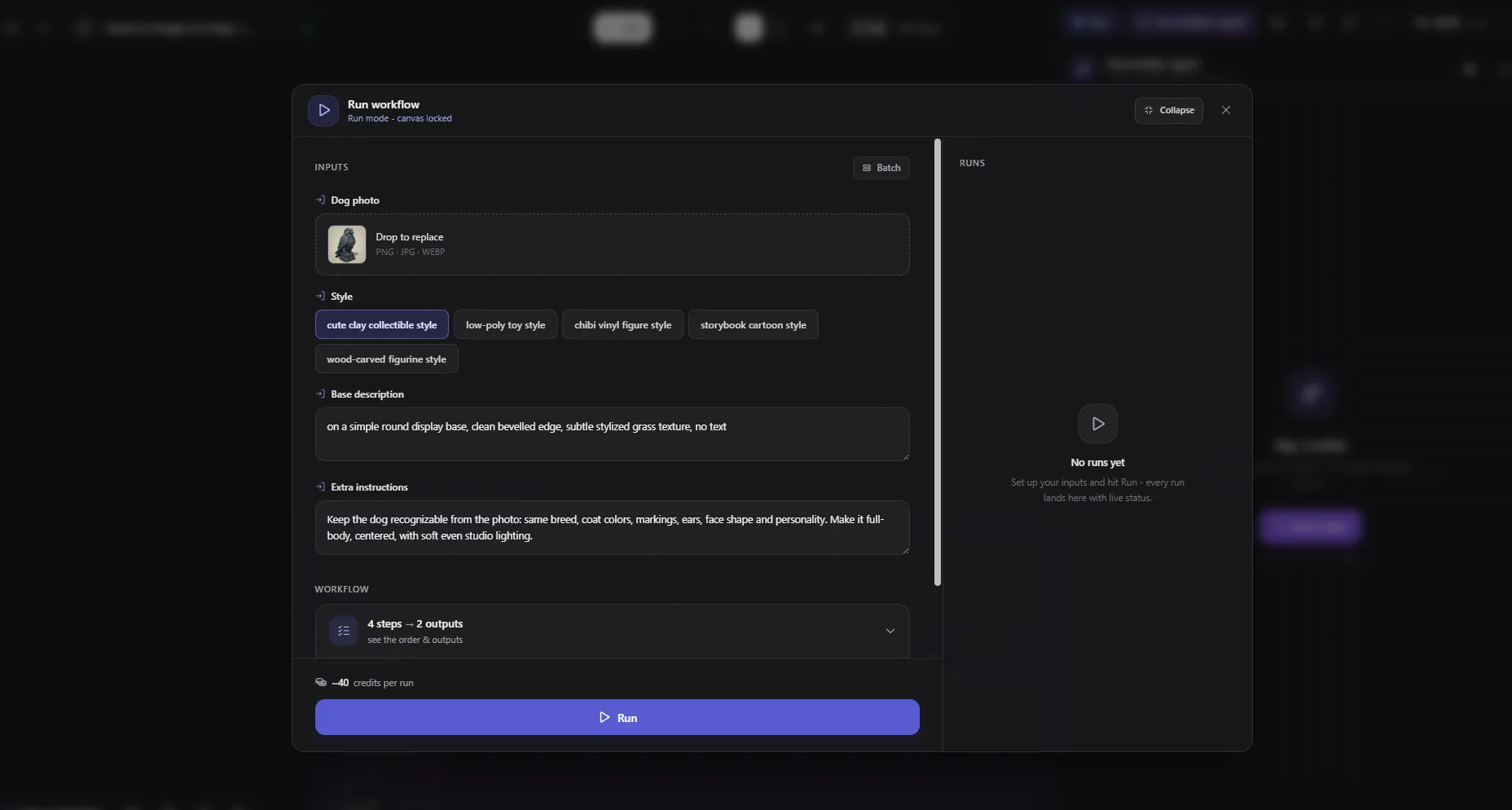
App mode is the magic. Mark which nodes are your inputs and which are your outputs, and Flow turns your canvas into a clean fill-in-the-blank form. Drop in a new photo or prompt, hit Run, and the entire pipeline runs end to end – no rewiring. Run it again and again with different inputs. A few nodes effectively become your own reusable AI app.
7. A whole asset pack in one consistent style
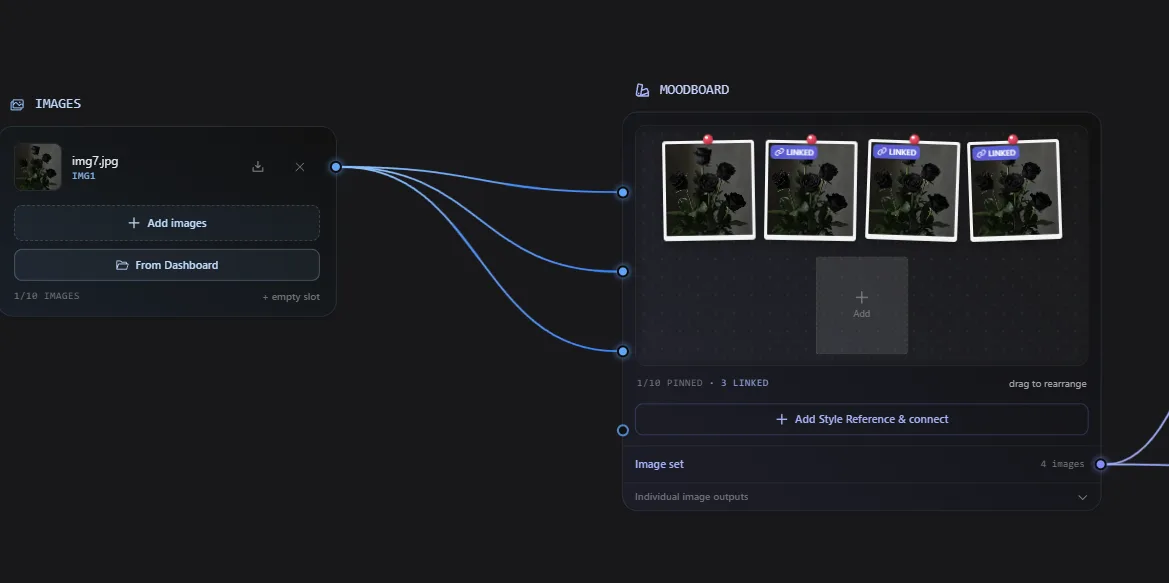
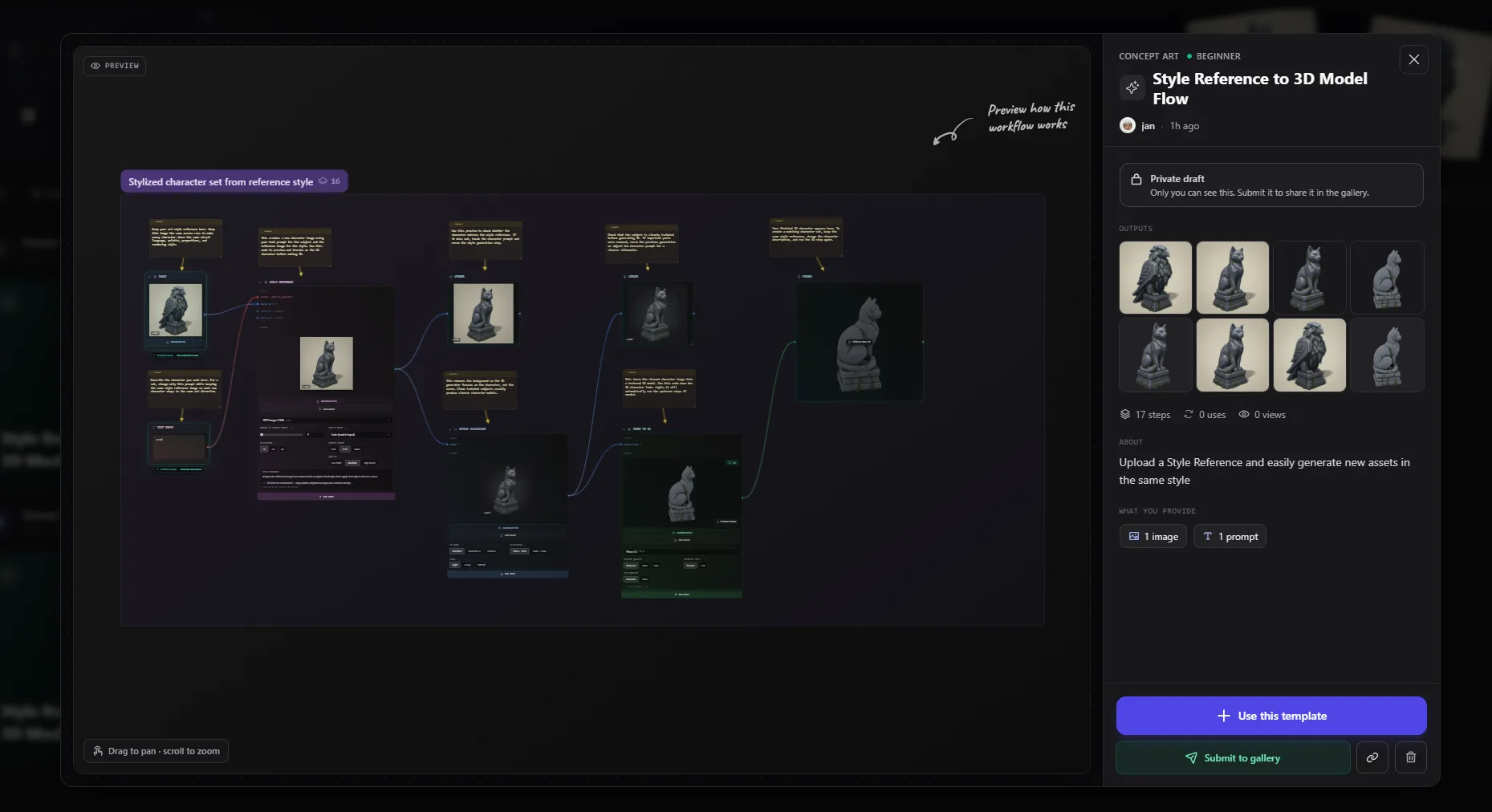
Two nodes team up for this. The Batch node is basically a for-each: give it a list and it runs the next node once per item. The Style Reference node (or a Moodboard) is the style keeper, making every new image match a reference look. Put them together and you can generate an entire game-ready asset pack – a baby dragon, a fox, a treasure chest, a shield – all in one unified style, with a single run. Then turn the whole set into 3D models at once.
8. Let the AI build the flow for you
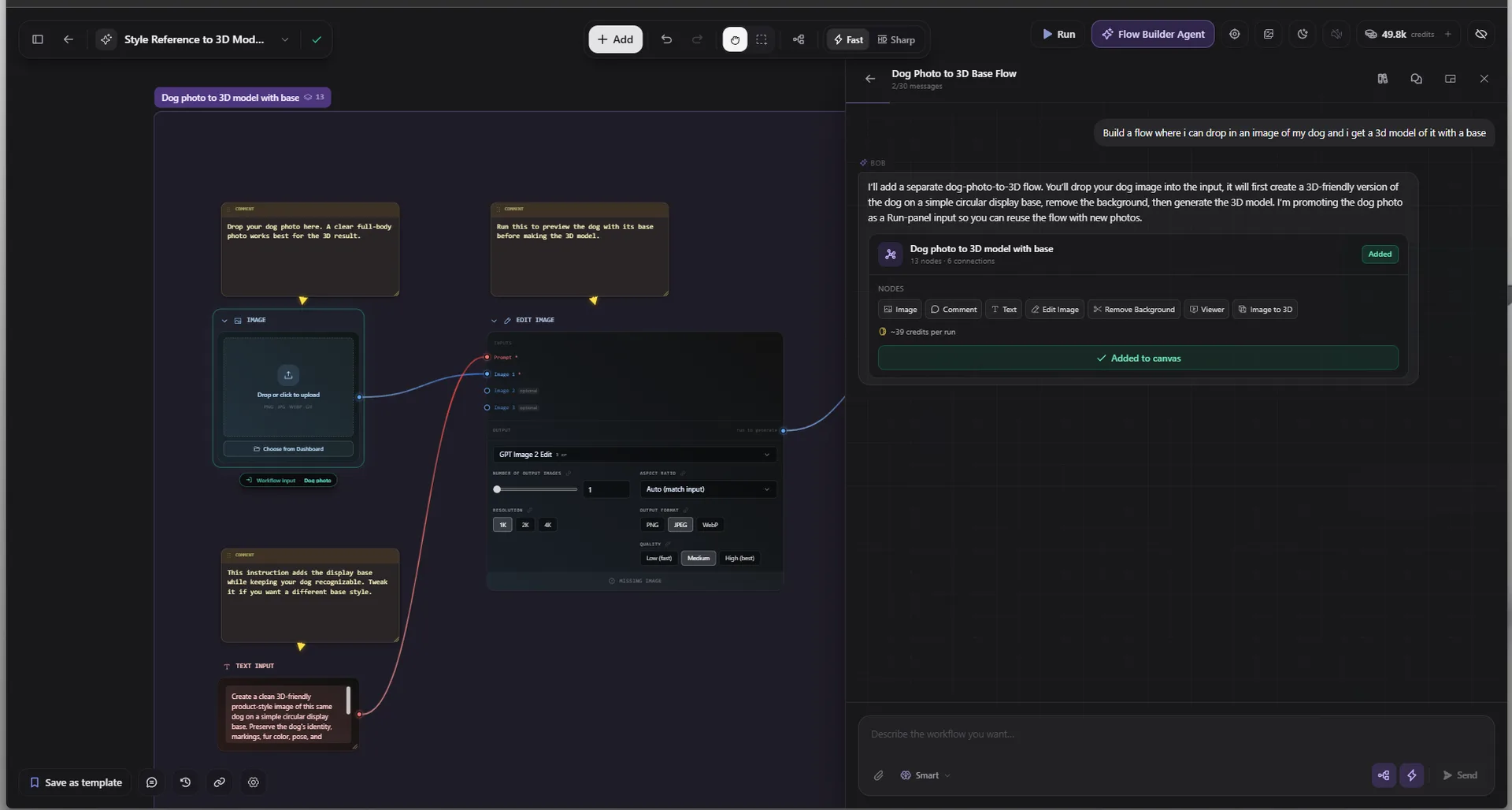
Don't feel like wiring everything by hand? Open the Flow Builder Agent and just describe what you want – “take a photo of a pet, clean it up, turn it into a cute collectible figurine on a small round playstand, then make a 3D model of it” – and it places and connects every node into a complete, ready-to-run pipeline. You can also ask it to improve or extend an existing flow, or explain how any node works if you ever get stuck.

9. Reuse, share, and never start from scratch
- Save any flow as a template, or save a group of nodes as your own reusable custom node.
- Share a flow with anyone via a link, or publish it to the gallery for the whole community.
- Full version history lets you snapshot your work and roll back to any earlier state at any time.
- A built-in Node Library explains what every node does and how it connects to others.
10. A complete toolbox of nodes
Flow ships with a deep toolbox, and you'll keep discovering new ways to combine it. A few highlights:
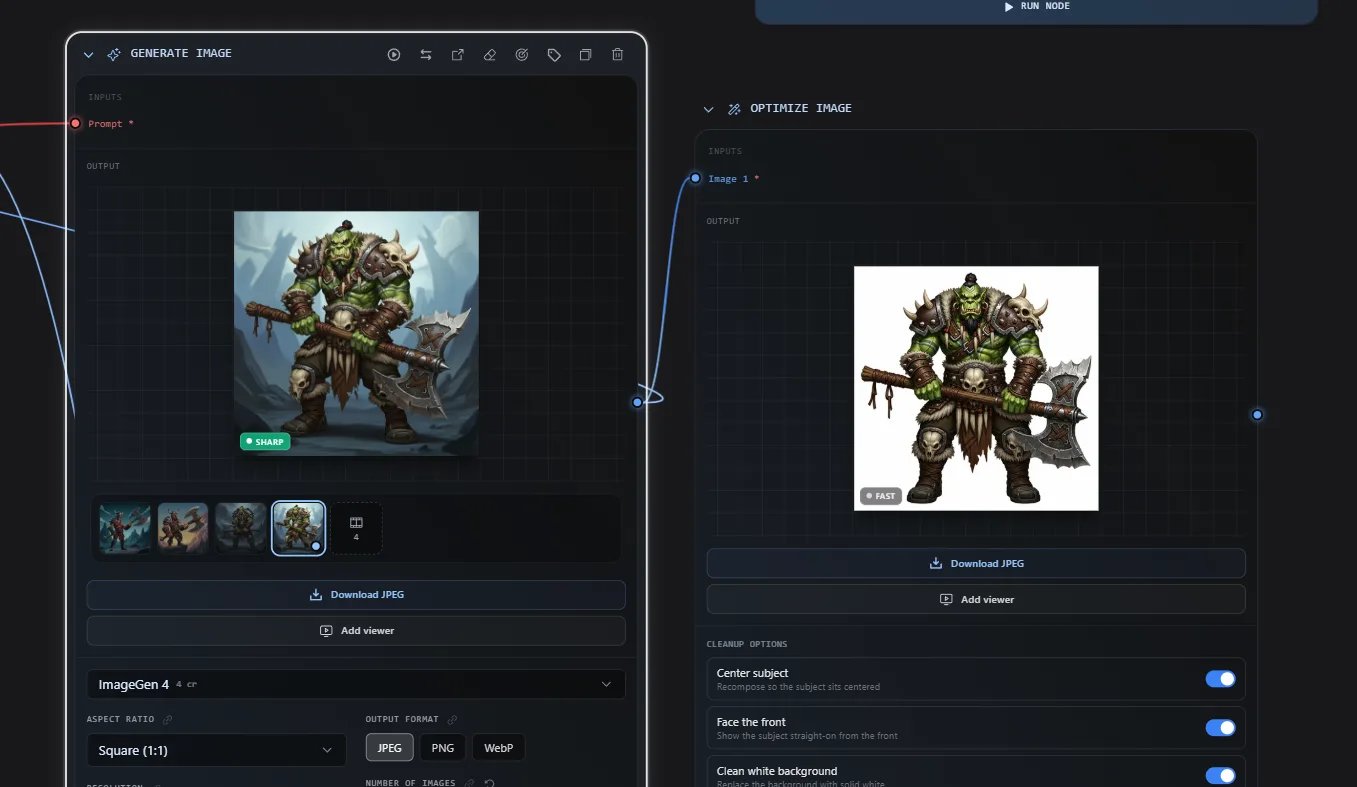
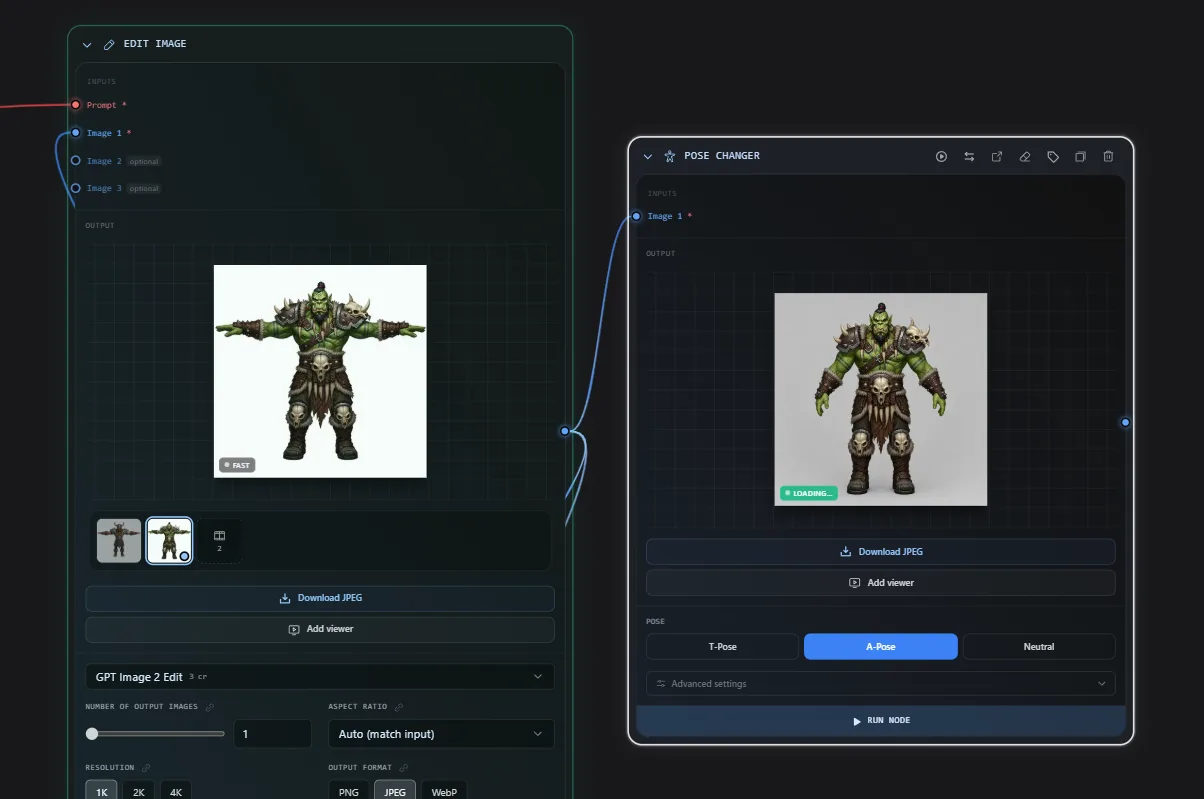
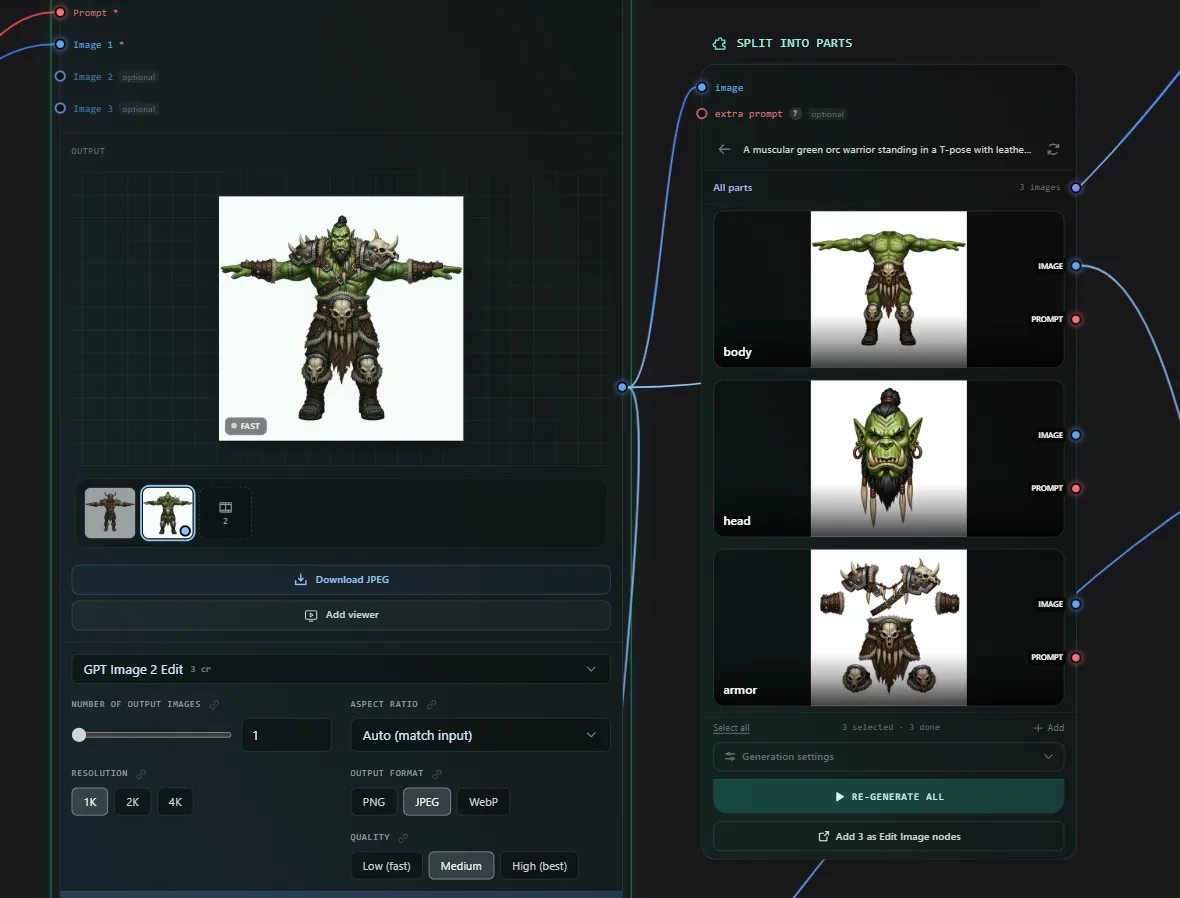
- Images: Generate, Edit, Style Reference, Remove Background, Upscale, Optimize Image (centers the subject, clean white background, sharpen & upscale), and a Pose Changer (e.g. snap a character into a T-pose).
- 3D: Image to 3D, Multi-View to 3D, Text to 3D, Texture, Retopology, and format conversion (GLB, FBX, STL, and more).
- Text & prompts: text inputs, prompt templates with fill-in variables, combine and split prompts, plus an LLM node that can describe images or write prompts for you.
- Power tools: Batch, Collect Results, Multi-View, Combine to Grid, Split into Parts, Switches, Variables, and Seeds for reproducible results.
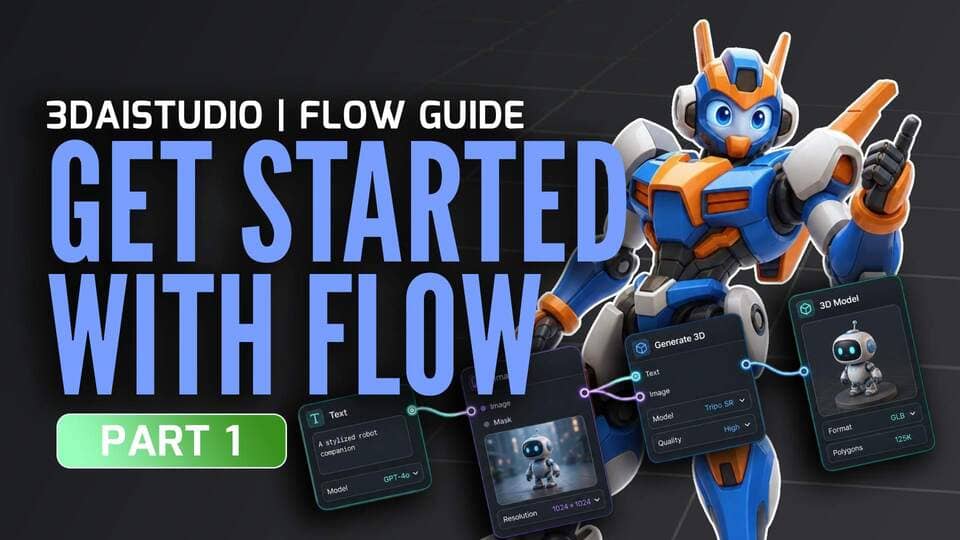
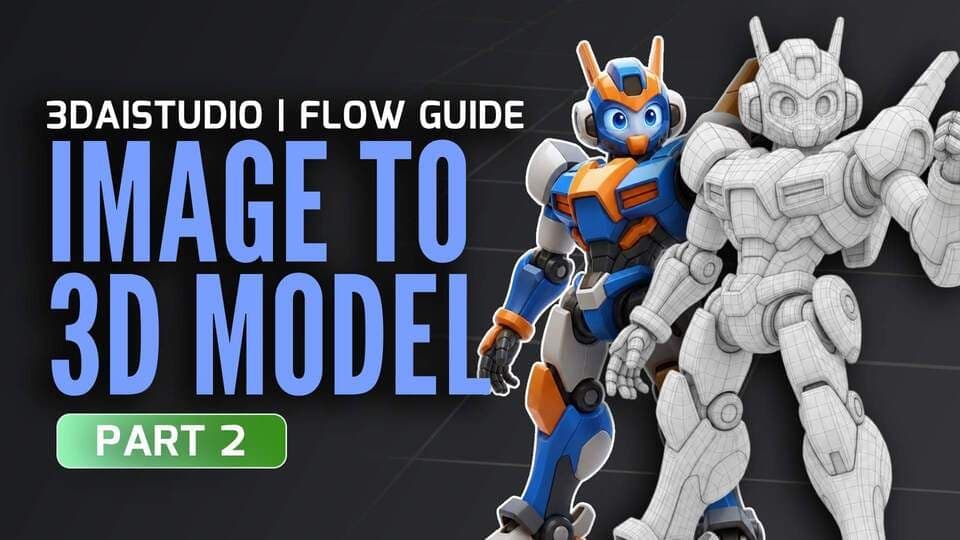
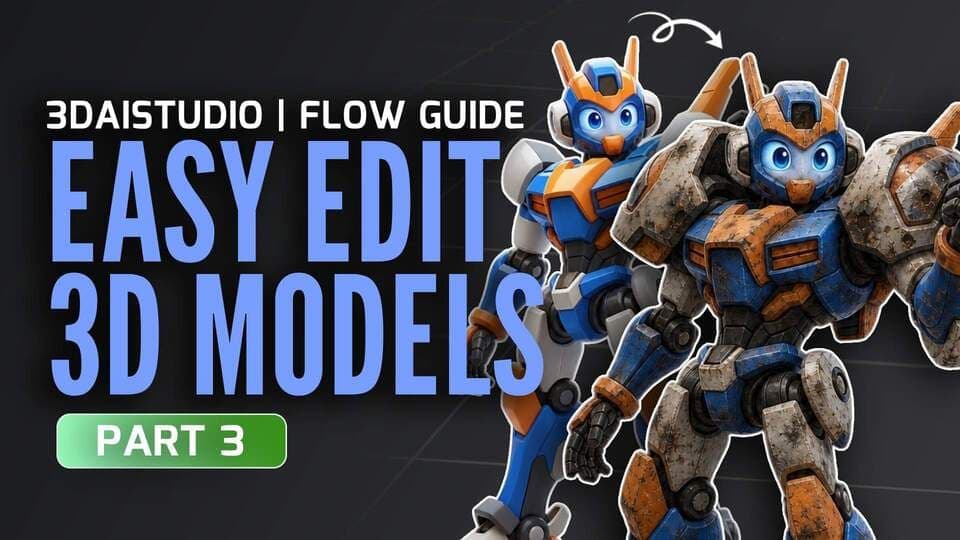
11. Learn Flow in minutes – the 7-part course
We made a complete video series that takes you from a blank canvas all the way to building your own reusable AI apps. Each part is short and focused – click any one to start watching.

Also new in v6.0
Flow is the headline, but it's not the only thing we shipped. Three more tools landed alongside it.
A free Gaussian Splat toolset
Gaussian Splatting is a modern, photorealistic 3D format built for real-time rendering. We shipped two brand-new tools for it:
- Image to Gaussian Splat: turn a single image into a 3D Gaussian Splat (.splat) with AI in about 4 minutes, preview it in real time, and download the file.
- Free Gaussian Splat Viewer: open and explore any .splat file right in your browser. Drag and drop a file, paste a URL, or try a sample scene – with orbit, zoom, auto-rotate, screenshot, and fullscreen.
LOD Generator (beta)
Create multiple Level of Detail (LOD) versions of any 3D model in one go – lighter copies for games, AR/VR, and real-time apps where performance matters.
- Choose 2–6 detail levels, each with its own polygon count, or start from a ready-made preset (Game Ready, Web, Mobile, AR/VR, or Props).
- Export to FBX, GLB, OBJ, USDZ, STL, or 3MF, with optional quad topology, texture, and scale settings.
- Every level is generated as its own model and lands right in your dashboard. Open it from the “Add LOD's” action on any 3D model.
Batch Remesh
Remesh many models at once instead of one at a time. Select up to 10 models, set your options once, and apply a clean Prism remesh to all of them in a single click – one shared configuration (format, topology, and target face count) applied to every model, each appearing in your dashboard as it finishes.
Thank you
Flow is the most ambitious thing we've ever built, and it exists because of you. So much of what made it into this release came straight from your feedback, your feature requests, and the wild workflows you kept inventing with our tools. Thank you for pushing us.
Now it's your turn. Open Flow from the sidebar, start from a blank canvas, a template, or just describe your idea to the AI – and build your first pipeline today. I genuinely can't wait to see what you make.
As always, we'd love to hear what you think. Reach out at support@3daistudio.com with your thoughts, questions, or suggestions. Happy creating!
– Jan and the entire 3D AI Studio team