
How to Turn a Single Photo into a Usable 3D Model for Blender
If you have ever stared at a photo of something - a figurine sitting on your desk, a shoe you designed on paper, a character you sketched on a napkin - and wondered how to turn that single photo into a usable 3D model for Blender, you are not alone. This is one of the most common questions in the 3D community, and the answer has changed dramatically over the past year.
Not long ago, turning a photo into a 3D model meant either learning photogrammetry (which requires dozens of photos taken from every conceivable angle) or spending hours manually modeling the object from scratch in Blender. Both approaches demand serious skill, serious time, and serious patience.
Today, thanks to AI-powered image-to-3D generation, you can go from a single photograph to a textured, downloadable 3D model in under two minutes. And from there, importing that model into Blender and making it genuinely usable - whether for rendering, game development, 3D printing, or animation - is a straightforward process that anyone can learn.
This guide walks you through the entire journey, start to finish. No fluff, no jargon walls, no steps left to your imagination. By the end, you will have a clear, repeatable workflow for turning any single photo into a 3D model that actually works inside Blender.
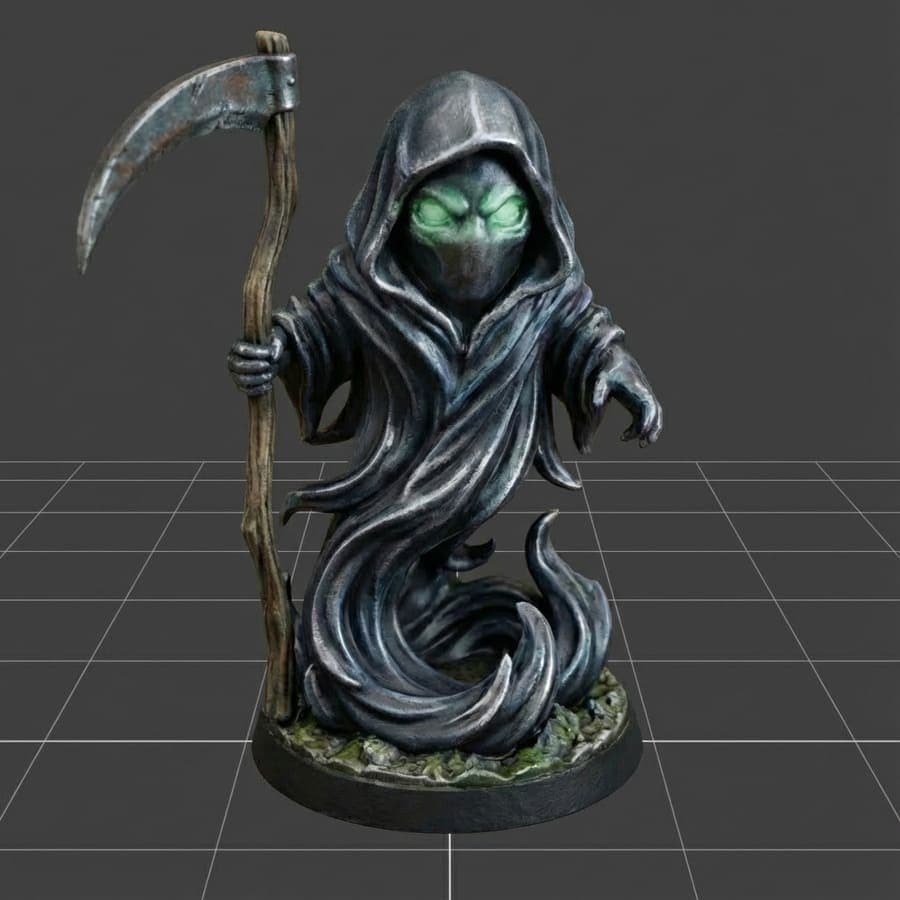
Why a Single Photo Is Now Enough
For years, the standard advice for creating a 3D model from real-world reference was to capture the object from 20, 30, or even 50 different angles. Software like RealityCapture or Meshroom would then stitch those photos together using a technique called photogrammetry, triangulating depth from the overlapping views. It works, but it is slow, finicky, and completely impractical if all you have is one good picture.
The breakthrough came with AI models trained specifically on single-image 3D reconstruction. These systems have learned, from millions of 3D objects and their corresponding 2D views, how to predict what the back, sides, and hidden surfaces of an object probably look like based on a single front-facing photo. The AI fills in the geometry that the camera never saw. It is not perfect every time, but its shockingly good - and it keeps getting better.
What this means for you is simple. If you have one clear photo of a thing, you can generate a full 3D model from it. No turntable setup, no studio lighting rig, no fifty overlapping shots. Just one image.
Choosing the Right Photo
Before you jump into generating anything, it is worth spending a minute thinking about your source image. The AI is powerful, but it is not magic, and the quality of what goes in directly shapes the quality of what comes out.
The ideal photo for single-image 3D conversion shows the object clearly against a simple background. You want good, even lighting with minimal harsh shadows - think of the kind of photo you might take for an online listing or a product page. The object should be in sharp focus, occupying most of the frame, and you want to see enough of it that the AI has something to work with when it predicts the hidden sides.
Photos that tend to cause problems are the ones with cluttered backgrounds, where the AI struggles to figure out where the object ends and the surroundings begin. Extremely reflective or transparent objects - glass bottles, chrome surfaces, clear plastic - are also tricky, because the AI has difficulty understanding surfaces that show the environment rather than their own shape. And very flat objects like cards or posters will not produce interesting results, since there is essentially no depth for the AI to infer.
That said, do not overthink this. If you can clearly see what the object is in the photo, the AI almost certainly can too. A phone photo taken in decent indoor lighting, with the object sitting on a plain table, will work fine for most purpouses.
If your photo has a busy background, a quick pass through any free background removal tool will dramatically improve your results. You can also use AI-powered image editing to clean up the image before converting it - removing distracting elements, adjusting the lighting, or even changing the style of the subject entirely. This is one of those small preparation steps that makes a surprisingly large difference in the final 3D output.
Generating the 3D Model
With your photo ready, the next step is to run it through an AI image-to-3D tool. There are several options on the market, ranging from open-source research models you can run locally on a powerful GPU to cloud-based platforms that handle everything for you.
For this workflow, we will use 3D AI Studio, which is purpose-built for exactly this kind of conversion. The reason it works well for the Blender pipeline specifically is that it exports in formats Blender reads natively - OBJ, FBX, and GLB - with proper UV mapping and textures included. That matters more than you might think, because a 3D model without good UVs is a headache to texture later, and a model without embedded textures means extra manual work in Blender to get it looking right.
Head to the Image to 3D page and upload your photo. The platform accepts standard image formats - JPG, PNG, WEBP - up to 10MB, so virtually any photo from your phone or camera will work without resizing.
Once your image is uploaded, you will see options for the generation style and quality level. For Blender work, the realistic or detailed style tends to produce the most versatile results, since stylized or low-poly outputs are harder to refine later if you need more detail. Choose the quality level based on your patience and your use case - higher quality means a slightly longer wait, but the geometry will be cleaner and the textures sharper.
Click generate, and the AI takes over. What happens behind the scenes is genuinely fascinating. The system first analyzes your image to identify the object, estimate its depth, and understand its material properties. Then it constructs a 3D mesh - the actual geometry of the model - and wraps it with a texture derived from your original photo, using AI to fill in the colors and surface details for the parts of the object that were not visible in the image. The whole process typically takes between 30 and 90 seconds.
When it finishes, you will see a fully textured 3D preview that you can rotate and inspect right in your browser. Take a moment to spin it around. Look at the back and the underside. The AI's prediction of hidden surfaces is usually impressively close to reality for everyday objects, but you want to check for any obvious issues - large holes, badly guessed geometry, or texture seams that look unnatural. If something is significantly off, try regenerating with a slightly different crop of your photo, or try an image where the object is shown from a marginally different angle.
Downloading in the Right Format for Blender
This is a step that many tutorials gloss over, but choosing the right export format makes a real difference in how smoothly the rest of your workflow goes.
For Blender, OBJ is the safest and most reliable choice in most situations. OBJ files carry the mesh geometry, UV coordinates, and a reference to the texture file (usually as an accompanying MTL file and image). Blender has excellent OBJ import support, and the format preserves UV mapping accurately, which means your textures will appear correctly mapped onto the model the moment you import it.
FBX is a good alternative if you plan to eventually bring the model into a game engine like Unity or Unreal, since FBX embeds more data (including potential animation and rigging information) in a single file. Blender reads FBX well, though occasionally you may need to adjust the scale on import since FBX files sometimes use centimeters while Blender defaults to meters.
GLB (the binary version of glTF) is the most modern option and works excellently for web-based viewing and AR, but Blender's GLB import can occasionally handle materials slightly differently from what you expect. It is perfectly usable, but OBJ tends to cause fewer surprises.
Download your model. You will typically get either a single file (GLB) or a small folder containing the mesh file plus its texture images (OBJ + MTL + textures). Keep everything together in the same folder - if the texture files get separated from the mesh file, Blender will not be able to find them on import.
Importing into Blender
Open Blender and start with a clean scene. If you are on the default startup file, you will see the familiar cube, camera, and light. Select the cube and delete it - you will not need it.
Now go to File > Import and choose the format matching what you downloaded. If you grabbed an OBJ file, select Wavefront (.obj). For FBX, select FBX (.fbx). For GLB, select glTF 2.0 (.glb/.gltf).
Navigate to your downloaded file, select it, and click Import. Your model will appear in the viewport, though it might be tiny, enormous, or facing the wrong direction depending on how it was exported. Do not worry - this is completely normal and takes about ten seconds to fix.
If the model looks like a small dot, it was likely exported in meters while being a small object. Select it, press S to scale, and drag outward until it is a reasonable size. If it is rotated strangely, press R followed by X, Y, or Z to rotate it along the appropriate axis until it is standing upright.
To see the textures on your model, you need to switch to Material Preview mode. The quickest way to do this is to hold the Z key, which brings up a pie menu, and then hover your cursor over Material Preview before releasing. Your model should now appear fully textured, looking much like the preview you saw in the browser.
If the textures are not showing up, switch to the Shader Editor at the bottom of the screen (or open a new area and set it to Shader Editor). Select your model, and you should see the material node tree. If the Image Texture node is showing a missing file, click the folder icon on that node and manually point it to the texture file you downloaded alongside the mesh. This usually only happens if the files were moved or renamed after downloading.
Making the Model Actually Usable
Here is where this guide differs from most tutorials you will find online. Generating the 3D model and importing it into Blender is the easy part. Making it genuinely usable - meaning it behaves properly in your project, looks good under different lighting, and does not cause problems downstream - requires a bit more attention.
The truth is that AI-generated 3D models are best thought of as a very good starting point rather than a finished product. Think of the AI output like a detailed rough draft of an essay. The ideas are there, the structure is sound, but it benefits from a round of editing before you publish it. The same applies here. The model will look great in a casual preview, but if you plan to render it, animate it, 3D print it, or drop it into a game engine, spending fifteen to thirty minutes on cleanup will save you hours of frustration later.
Checking and Fixing Normals
The first thing to check is your face normals. Normals are invisible arrows that point outward from each face of your mesh, telling Blender (and any rendering engine) which direction is "outside." If some normals are flipped - pointing inward instead of outward - those faces will look dark, invisible, or behave strangely with lighting.
To check normals, select your model and press Tab to enter Edit Mode. Then open the Overlays dropdown (the two overlapping circles icon in the viewport header) and enable Face Orientation. This will color your entire model in blue (correct, outward-facing normals) and red (flipped, inward-facing normals). On a clean model, everything should be blue.
If you see red patches, select all geometry with A, then go to Mesh > Normals > Recalculate Outside (or press Shift + N). This automatically flips the incorrect normals. In the vast majority of cases, this single operation fixes everything.
Removing Floating Artifacts
AI-generated models sometimes include small floating bits of geometry - tiny disconnected fragments that are not part of the main model. These are invisible in a textured preview but will cause problems for 3D printing (where they become tiny blobs of material) and can interfere with physics simulations or booleans.
While still in Edit Mode, press L while hovering over the main body of your model to select only the connected geometry. Then press Ctrl + I to invert the selection, which will select everything that is not connected to the main mesh. If anything gets selected, press X and delete those vertices. If nothing gets selected, you are clean.
Smoothing the Geometry
AI-generated meshes often have slightly uneven topology - the polygons are not perfectly uniform in size and arrangement, which can cause subtle shading artifacts, especially under dramatic lighting. A simple way to smooth this out without losing important details is to add a Smooth modifier.
In Object Mode, go to the Modifier tab (the wrench icon on the right panel), click Add Modifier, and select Smooth from the Deform section. Set the Repeat value to somewhere between 5 and 15, and toggle on the axes you want to smooth. You will see the model's surface become calmer and more even without losing its overall shape. When it looks right, click the dropdown arrow on the modifier and select Apply.
If you want more aggressive cleanup and your model's topology is messy, consider using the Remesh modifier instead. Set it to Voxel mode with a resolution that captures the level of detail you need. This will completely rebuild the model's geometry into a clean, uniform grid of polygons. It is a more destructive operation - fine details may be softened - but it gives you a perfectly clean mesh to work with. This is especially useful if you plan to sculpt additional details or need clean geometry for animation rigging.
Enhancing Detail with Displacement
One of the most powerful techniques for getting more out of an AI-generated model is to use its own texture to add geometric detail. The model's texture often contains details - surface bumps, carved patterns, fabric folds - that the mesh geometry is too smooth to represent. You can convert those texture details into actual 3D geometry using a displacement modifier, which pushes the surface of the mesh outward or inward based on the brightness values in the texture.
Here is how to do it. Select your model, go to the Modifier tab, and add a Subdivision Surface modifier first. Set it to 2 or 3 levels of subdivision - this gives the mesh enough geometry to actually be displaced with visible detail. Then add a Displace modifier and move it below the Subdivision Surface modifier in the stack.
In the Displace modifier, click New to create a new texture slot. Then switch to the Texture Properties tab (the checkerboard icon), click Open, and load the same texture image that your model uses for its color. Back in the modifier settings, change the Texture Coordinates from Local to UV, and set the Mid Level to 1.0. Start with a very low Strength value - something like 0.01 - and increase it gradually until the surface details start to emerge as actual geometry without distorting the overall shape.
This technique is particularly effective for organic models, carved surfaces, and anything with pronounced surface texture. The result is a model that looks dramatically more detailed when rendered, because the surface is now catching light in physically accurate ways rather than relying purely on a flat texture to fake depth.
When you are happy with the result, apply both modifiers (Subdivision Surface first, then Displace) to bake the detail into the mesh permanently.
Sculpting Quick Fixes
Sometimes the AI gets the overall shape right but misses specific areas - maybe the back of the model is a bit lumpy, or there is a seam where the texture wraps that creates an unnatural ridge in the geometry. For these localized fixes, Blender's sculpting tools are your best friend.
Switch to the Sculpting workspace using the tabs at the top of the Blender window. You will see your model with a set of sculpting brushes in the toolbar on the left.
The three brushes you need to know for quick fixes are straightforward. Left-click with the Draw brush to add material and push the surface outward. Hold Ctrl and left-click to push the surface inward. And hold Shift and left-click to activate the Smooth brush, which gently blends the surface under your cursor to remove bumps and irregularities.
Press F to adjust your brush size, and Shift + F to adjust brush strength. The key here is restraint - you are not trying to re-sculpt the model, just clean up a few problem spots. A few seconds of smoothing over a rough seam or a quick nudge to fix a misshapen area is usually all it takes.
Making It Usable for Your Specific Purpose
"Usable" means different things depending on what you actually plan to do with the model. An asset for a real-time game engine has completely different requirements than a model destined for a high-quality render or a 3D printer. Here is what to focus on for each common use case.
For Rendering and Still Images
If your goal is to render beautiful images of the model - product shots, portfolio pieces, scene compositions - then your main concerns are materials and lighting. The texture that came with the AI-generated model is a good starting point, but Blender's Shader Editor gives you vastly more control.
Select your model and open the Shader Editor. You will see the basic material setup, usually an Image Texture node connected to a Principled BSDF shader. From here, you can adjust the roughness to control how shiny or matte the surface appears, tweak the metallic value if the object is supposed to be metal, and add a normal map if you want to enhance the perception of surface detail without adding more geometry.
For the most realistic results, consider adding separate maps for roughness and normal information. You can generate PBR texture maps (roughness, normal, ambient occlusion) from the base color texture using free tools or AI-based map generators. Plug these into the corresponding inputs on the Principled BSDF node, and your model will respond to light in a physically accurate way that flat textures simply cannot match.
For Game Engines (Unity, Unreal, Godot)
Game engines care about polygon count and performance. An AI-generated model straight out of the generator will typically have a poly count somewhere in the range of 10,000 to 80,000 faces, which is perfectly fine for most mid-range game assets but might be too heavy for mobile games or for objects that appear hundreds of times in a scene.
To reduce the polygon count, use Blender's Decimate modifier. Set it to a Ratio that brings the face count down to your target while preserving the model's silhouette. Alternatively, for better results, use the Remesh modifier at a lower resolution and then use the Instant Meshes approach (a free external tool) for cleaner quad-based retopology.
Once the poly count is manageable, make sure your UV map is clean and non-overlapping. The AI-generated UVs are usually functional but not always optimal - running a quick Smart UV Project (select all faces in Edit Mode, then U > Smart UV Project) can sometimes produce a cleaner layout.
Export as FBX for Unity or Unreal, or GLB for Godot and web-based engines. Always test the import in your target engine as a sanity check - drop it into a basic scene, make sure the textures appear correctly, and verify the scale looks right.
For 3D Printing
3D printing is the most demanding use case in terms of mesh quality. Your slicer software (Cura, PrusaSlicer, Bambu Studio, or similar) needs a watertight mesh - meaning the surface is completely closed with no holes, no internal faces, and no self-intersecting geometry.
Start by running Blender's 3D Print Toolbox add-on (enable it in Edit > Preferences > Add-ons, search for "3D-Print"). This will analyze your mesh and flag non-manifold edges, overhanging faces, and other issues that would cause problems during printing.
To fix non-manifold geometry, select all in Edit Mode and use Mesh > Clean Up > Fill Holes followed by Mesh > Normals > Recalculate Outside. For stubborn issues, the Remesh modifier in Voxel mode will give you a guaranteed watertight mesh, though you may lose some fine detail.
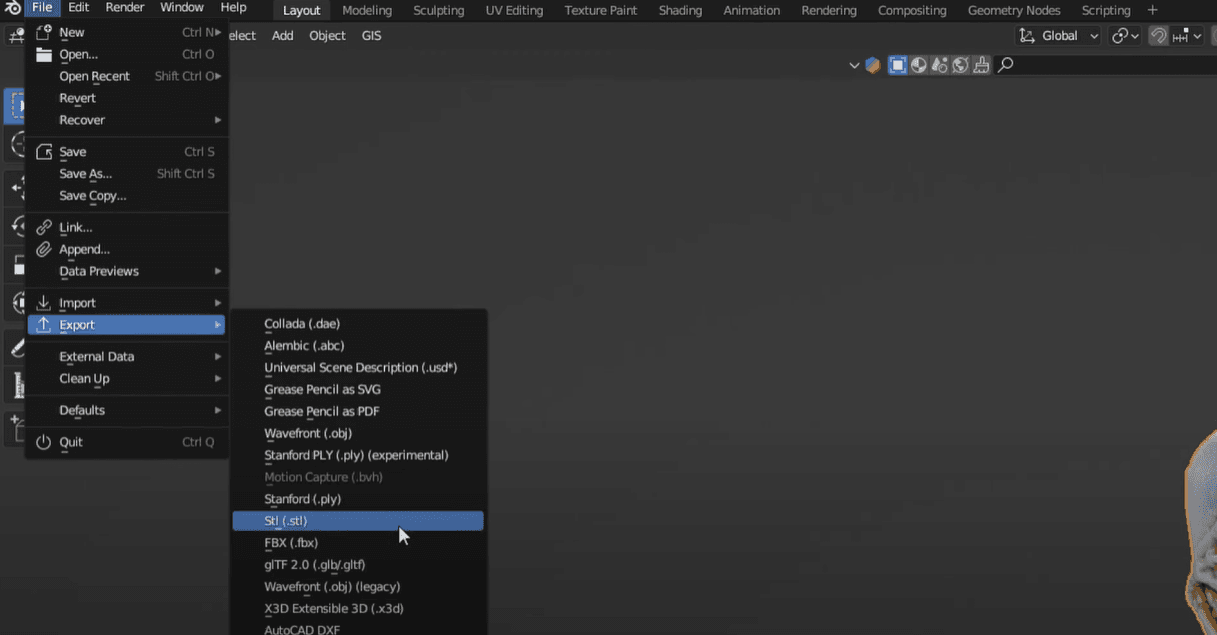
Once the mesh is clean, scale it to real-world dimensions - Blender works in meters by default, so a 10cm figurine should be 0.1 units tall. Export as STL (the universal 3D printing format) by going to File > Export > STL and making sure "Selection Only" is checked so you only export your model and not the entire scene.
For Animation and Rigging
If you want to animate the model - make a character walk, an object spin and deform, or anything involving movement - you need clean topology with proper edge loops around joints and areas of deformation. This is honestly the most demanding post-processing requirement, and it is the one area where AI-generated models need the most manual work.
The fastest path to an animated character from a single photo is to generate the model, do basic cleanup in Blender, export it as FBX, and upload it to Mixamo for automatic rigging. Mixamo will add a skeleton to your character and let you apply pre-made animations - walking, running, jumping, idle poses - that you can then download and bring back into Blender for further refinement.
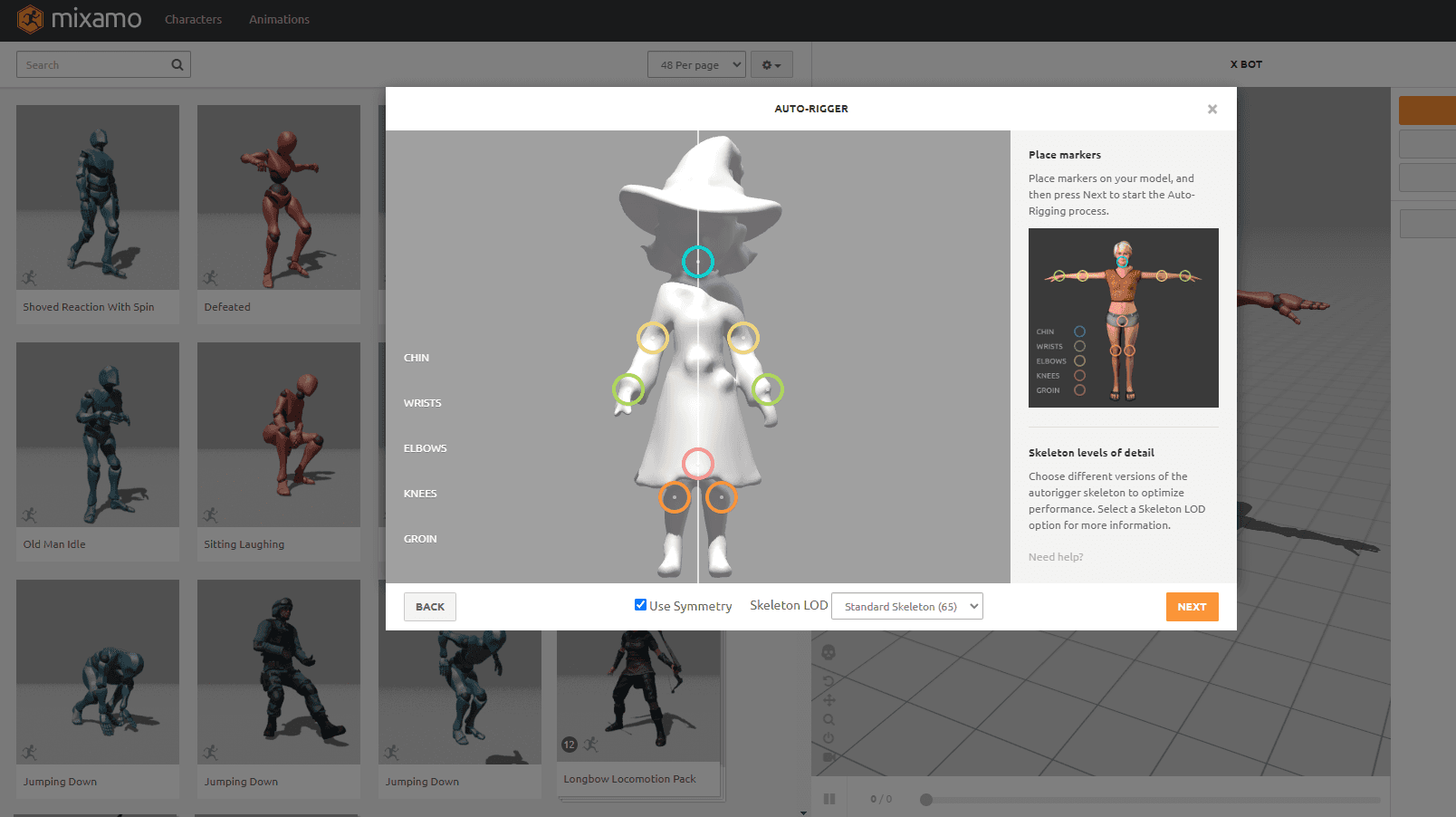
For more control over rigging, you will want to retopologize the model first. This means creating a new, clean mesh with proper edge flow on top of the AI-generated geometry. Blender's Shrinkwrap modifier, combined with the Snap to Face feature, makes this process manageable. It is more time-consuming than the other use cases, but the result is a model that deforms beautifully during animation.
Watch the Full Process in Action
Want to see this entire workflow from start to finish? This video walks through turning a photo into a 3D model step by step.
The Complete Workflow at a Glance
The entire process, from photo to usable Blender model, looks like this in practice.
You start with a single clear photo. You upload it to an AI image-to-3D service - 3D AI Studio handles this in about 60 seconds - and download the result as an OBJ file with textures. You import that OBJ into Blender, fix the scale and orientation, switch to Material Preview to see the textures, and check the normals. You remove any floating artifacts, smooth the geometry if needed, and optionally use the displacement technique to pull extra detail out of the texture. Then, depending on your goal, you either refine the materials for rendering, decimate for game engines, ensure watertight geometry for printing, or retopologize for animation.
The first time through, the whole process might take you 30 to 45 minutes as you learn each step. After that, it becomes second nature and takes 10 to 15 minutes from photo to finished, usable Blender asset. Compare that to the hours or days of manual modeling that this workflow replaces, and you start to see why AI-powered 3D generation has become such a fundamental part of modern 3D pipelines.
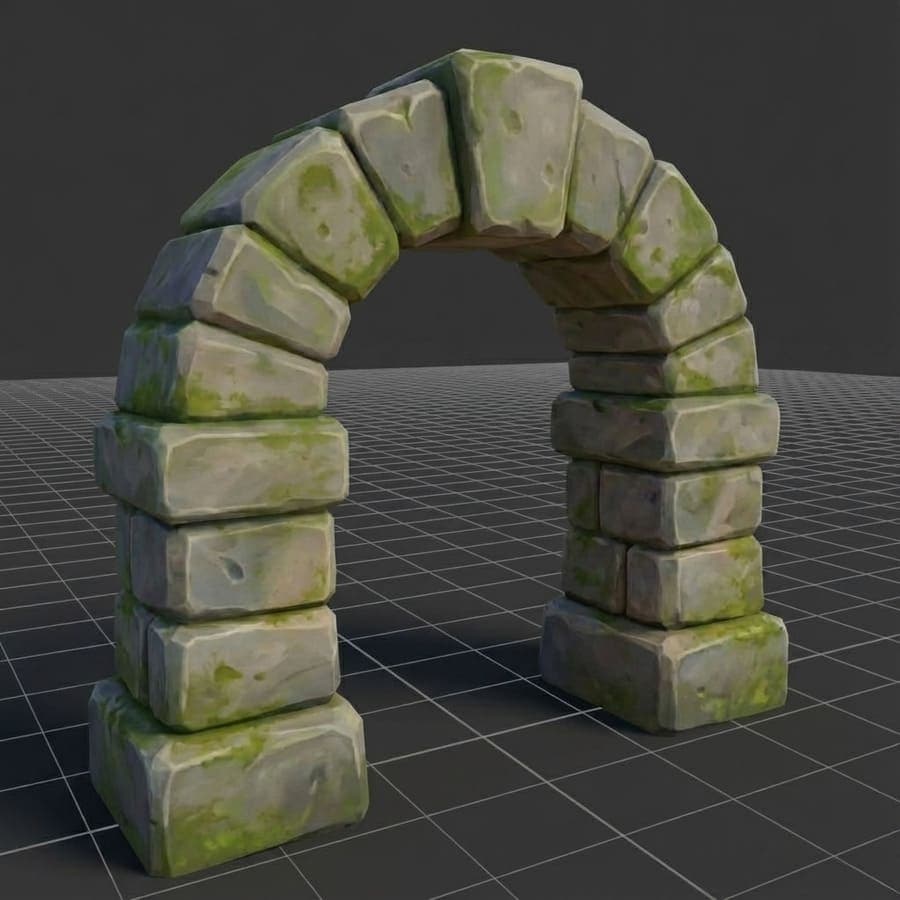
When Things Go Wrong (and How to Fix Them)
No workflow is perfect every time, and being honest about the failure modes will save you frustration. Here are the most common issues you will run into and how to deal with them.
The back of the model looks wrong. This is the most frequent issue with single-image 3D generation, because the AI is literally guessing what the back looks like. If the back is critical to your project, the best fix is to generate the model from a front-facing photo, then generate a second model from a back-facing photo (if you have one), and combine the best parts in Blender using boolean operations or manual mesh editing. Alternatively, you can sculpt corrections onto the back surface directly. For many use cases - product renders shown from the front, game assets viewed from a fixed camera angle, figurines displayed on a shelf - the back simply does not matter enough to worry about.
The model has thin or spindly parts that came out blobby. AI models struggle with very thin structures: bicycle spokes, jewelry chains, antenna wires, and similar delicate geometry. If your subject has these, expect the AI to either merge them into thicker shapes or miss them entirely. The practical solution is to generate the main body via AI and then manually model the thin parts in Blender. A simple extruded curve or cylinder can represent wires, spokes, and struts with very little effort.
Textures have visible seams. This happens when the AI-generated texture does not perfectly wrap around the model. You can fix texture seams in Blender's Texture Paint mode - switch to the Texture Paint workspace, choose a brush, sample a nearby color with S, and paint over the seam to blend it away. A few strokes is usually enough to make the seam invisible.
The model is too heavy for my project. If the polygon count is much higher than you need, the Decimate modifier is your first line of defense. Set it to Collapse mode with a ratio between 0.1 and 0.5, and watch the face count drop while the visual appearance remains surprisingly intact. For even cleaner results, use the Remesh modifier and then bake the high-poly details as a normal map onto the low-poly version.
Going Further
Once you have this basic workflow down, you can build on it in several directions.
You might explore multi-image generation, where you provide the AI with photos of the same object from two or three different angles. This gives the AI much more information to work with and typically produces significantly more accurate geometry, especially on the sides and back. 3D AI Studio supports multi-view input, which is worth trying once you are comfortable with the single-image process.
You could also experiment with generating the source image itself using AI image generation. If you do not have a photo of what you want to model - maybe it does not exist yet, or it is a fantasy creature, or it is a product you are still designing - you can describe it in text, generate a reference image, and then turn that generated image into a 3D model. This text-to-image-to-3D pipeline is remarkably powerful for concept work and rapid prototyping, and it means you are no longer limited to things you can photograph.
And for ongoing projects where you need many assets in a consistent style, training a custom AI style (sometimes called LoRA training) allows you to generate models that all share the same visual language. This is particularly valuable for game development, where visual consistency across dozens or hundreds of assets is critical.
Wrapping Up
The question - how do I turn a single photo into a usable 3D model for Blender? - has a real, practical, accessible answer in 2026. The answer is: use an AI image-to-3D tool to generate the model from your photo, import it into Blender, and spend a bit of time on cleanup and refinement to make it truly production-ready for your specific use case.
This is not a hack or a shortcut that produces throwaway results. This is a legitimate workflow used by professional game developers, product designers, 3D printing enthusiasts, and digital artists every day. The AI does the heavy lifting of creating the initial geometry and textures, and your skills in Blender handle the refinement, the creative decisions, and the final polish.
The barrier to entry for 3D modeling has never been lower. If you have a photo and a copy of Blender, you have everything you need to start creating. And the more you practice this workflow - generating, importing, cleaning, refining - the faster and better your results will get.
Get started with your first photo-to-3D conversion and see for yourself how far a single image can take you.

Generate 3D models with AI
Easily generate custom 3d models in seconds. Try it now and see your creativity come to life effortlessly!