
What's the Best Way to Generate a 3D Model from an Image for Game Development?
If you are building a game and you have concept art, reference photos, or sketches that you wish were actual 3D models you could drop into your engine, you are looking at one of the most solved problems in modern game development. The question of what's the best way to generate a 3D model from an image for game development has a clear, practical answer in 2026 - and it does not involve spending eight hours modeling a barrel from scratch or hiring a freelancer for every prop in your scene.
AI-powered image-to-3D generation has matured to the point where you can upload a single reference image and receive a fully textured 3D mesh in under two minutes. But generating the model is only half the story. The other half - the half that separates a usable game asset from a pretty preview - is knowing how to take that AI output and make it genuinely game-ready. That means proper topology, clean UVs, appropriate polygon counts, PBR materials, LODs, and a smooth import into whatever engine you are using.
This guide covers the entire pipeline, end to end. Not just the generation, but the real work of turning an AI-generated mesh into something that performs well in Unity, Unreal, or Godot and does not make your tech lead wince when they inspect the wireframe.
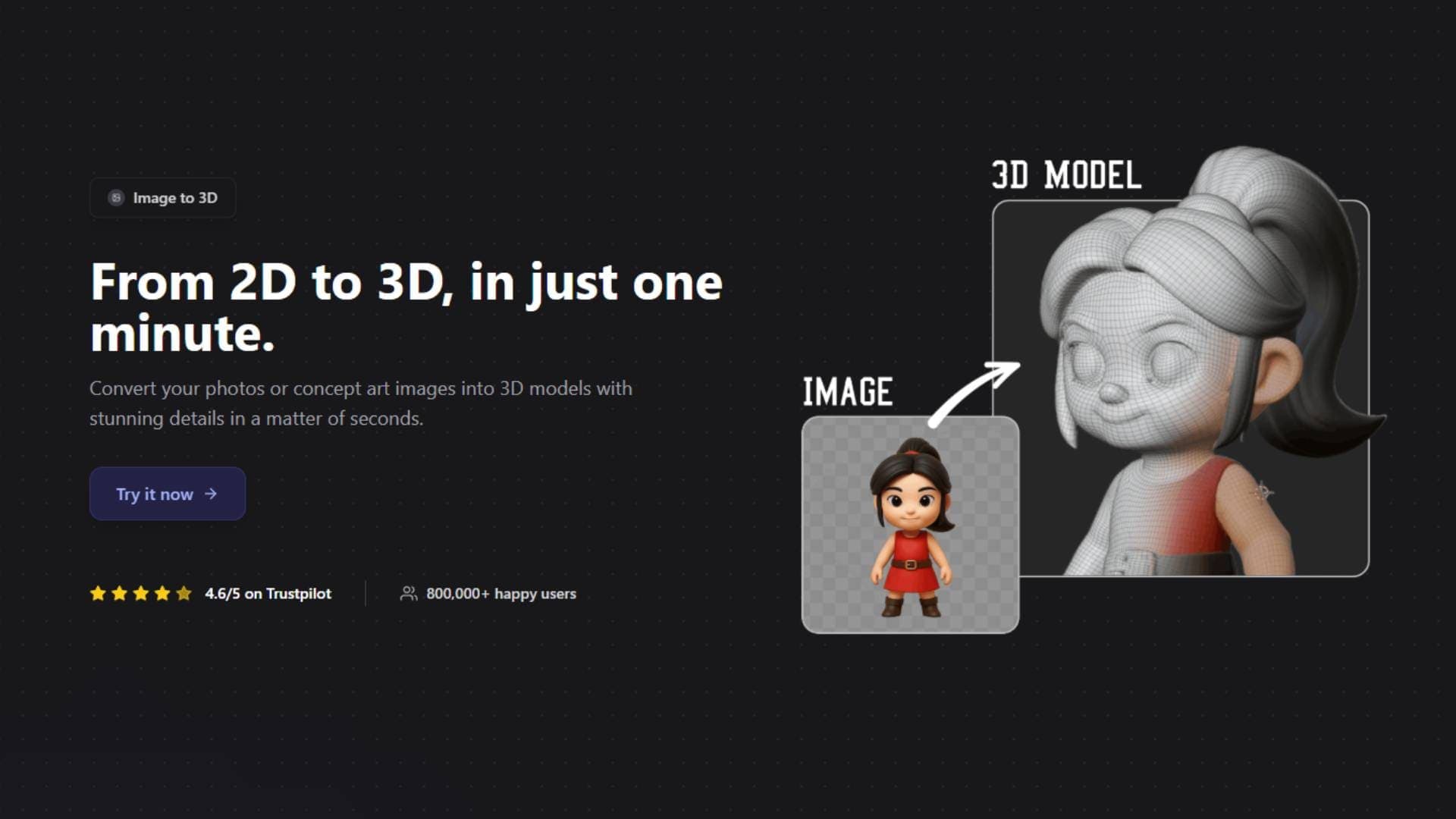
Why Image-to-3D Is a Game Changer for Game Dev
The traditional asset creation pipeline for a single game prop involves concept art, blockout modeling, high-poly sculpting, retopology, UV unwrapping, texture baking, material setup, and engine integration. For a skilled artist, that is anywhere from a few hours to a couple of days per asset. For a small team or a solo indie developer, multiply that by the hundreds of props, characters, and environmental pieces a game needs, and you start to understand why asset creation is the single biggest bottleneck in most game projects.
AI image-to-3D generation collapses the first several stages of that pipeline into seconds. Instead of spending an afternoon blocking out geometry and sculpting detail, you upload a reference image and get a mesh with textures already applied. The AI handles depth estimation, geometry construction, UV mapping, and texture generation in one pass. What comes out the other end is not a finished, ship-ready asset - but it is a dramatically better starting point than a blank Blender viewport.
The developers getting the most value from this technology are not the ones who expect push-button perfection, They are the ones who treat AI generation as a turbocharged blockout phase and then apply standard game art techniques to bring the output to production quality. That combination - AI speed for the first 70% of the work, human skill for the final 30% - is the workflow that is reshaping how games get made.
Picking the Right Source Image
The image you feed into the generator has an outsized impact on the quality of what comes out. Game development is a bit different from other 3D use cases here, because you are often working from concept art rather than photographs, and concept art has its own quirks.
The ideal source image for game asset generation shows a single, clearly defined object against a clean or transparent background. The lighting should be even and neutral - the kind of flat, diffused lighting you see in product photography or turnaround sheets. This matters because harsh shadows and dramatic lighting get baked into the AI's depth estimation, and what looks like artistic flair in a painting can become a physical bump or dent in the generated mesh.
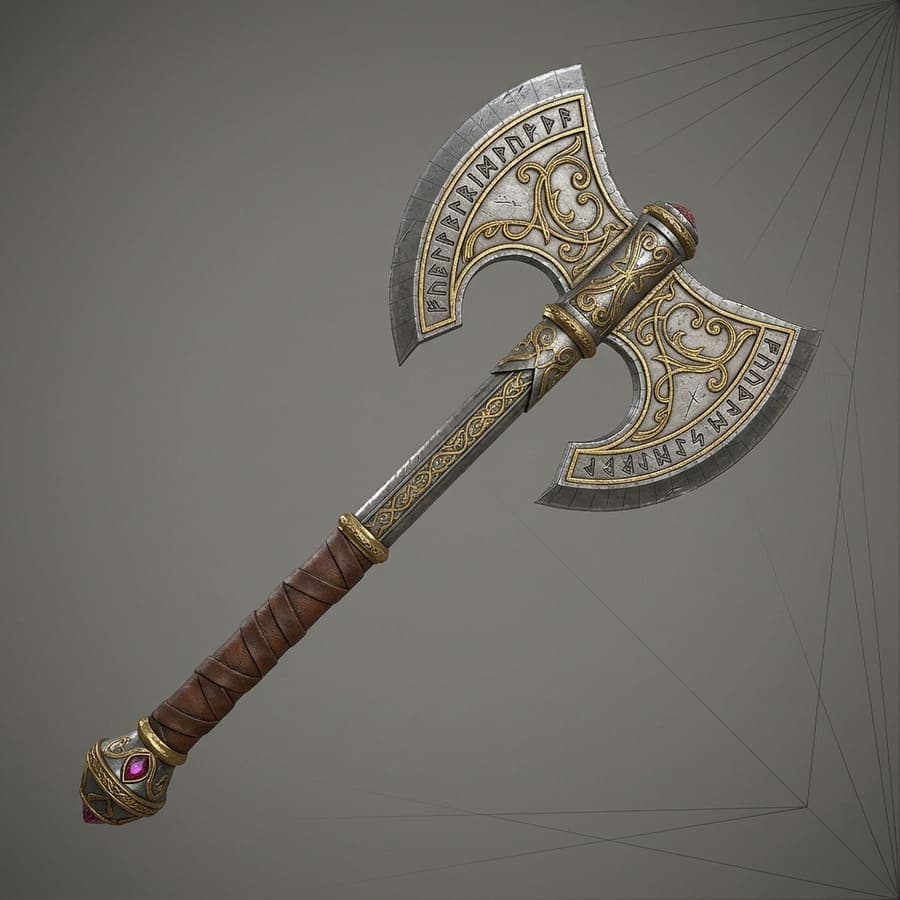
If you are working from concept art, the three-quarter view - where the object is shown slightly rotated so you can see the front and one side - tends to produce the best results. Pure front-on orthographic views give the AI less depth information to work with, while extreme angles can confuse it about the object's actual proportions. If your concept artist produces turnaround sheets with front, side, and back views, even better - some generators can accept multiple reference images and produce dramatically more accurate geometry as a result.
For photographic reference, the same rules apply but are easier to achieve. Place the object against a plain background, use even lighting, and take the photo from a natural viewing angle. A phone photo in decent indoor lighting works fine. You do not need a studio setup.
The objects that convert best are the ones that game developers need the most of: solid props, furniture, weapons, vehicles, architectural elements, and stylized characters. Objects with extremely thin structures - chain-link fences, bicycle spokes, wire meshes - are still difficult for any AI to reconstruct accurately, and you will save time modeling those by hand.
The Generation Step
With your image ready, the generation itself is the fastest part of the entire pipeline. Upload your image to an AI image-to-3D platform, configure a few settings, and wait roughly 30 to 90 seconds.
3D AI Studio is particularly well-suited for game development workflows because of how it handles the output. The platform generates meshes with proper UV mapping already applied, includes PBR-ready textures, and exports in formats that game engines read natively - GLB, FBX, and OBJ. That chain of details matters enormously in practice, because a 3D model without UVs means you are manually unwrapping before you can texture it, and a model without proper material channels means extra work in your engine's material editor.
When you configure the generation, think about your target style. If you are building a stylized mobile game, generating with a stylized or low-poly preset will give you output that is already closer to your target aesthetic and requires less post-processing. If you are working on a more realistic PC or console title, the detailed or realistic presets will produce higher-fidelity geometry and textures that respond better to PBR lighting in your engine.
Generate the model, spin it around in the preview, and evaluate it with your game developer hat on. Ask yourself three questions. Does the silhouette read correctly - would a player recognize this object at a glance from across a game level? Are the proportions believable at game scale? And is the overall shape close enough to your reference that cleanup will be a matter of refinement rather than reconstruction? If the answer to all three is yes, download it and move on. If not, try a different crop or angle of your source image, or tweak the generation settings and regenerate. The speed of generation means iteration is cheap.
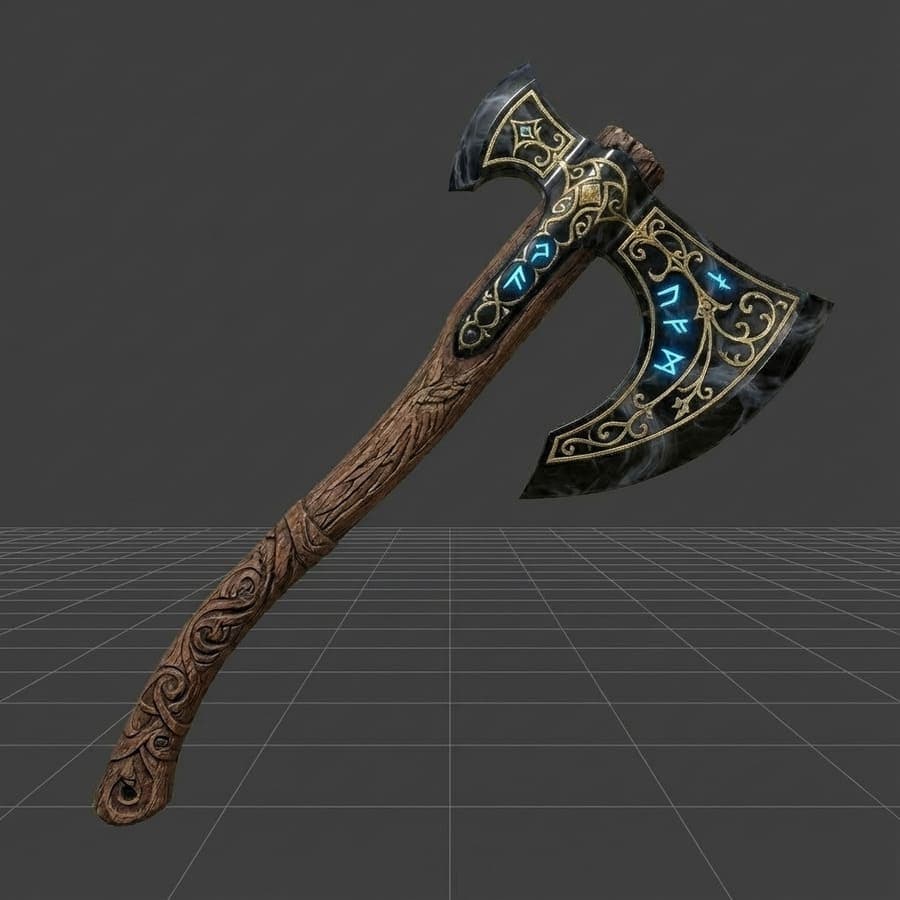
Understanding What AI Output Actually Gives You
Before diving into the post-processing pipeline, it helps to understand what you are working with when you download an AI-generated model, and where it falls short of game-ready standards. Being honest about these characteristics will save you from spinning your wheels on the wrong problems.
Geometry. AI-generated meshes typically produce triangle-based topology in the range of 10,000 to 80,000 faces. This polygon count is in the right ballpark for mid-range game assets on PC and console - a decorated barrel, a fantasy weapon, a piece of furniture - but the topology itself is unstructured. Unlike a hand-modeled asset where an artist places edge loops deliberately to support animation and define hard edges, AI topology is essentially a dense, somewhat random mesh that approximates the surface shape. This is perfectly fine for static props, environmental dressing, and any object that does not need to deform. For characters or anything that will be rigged and animated, you will need to retopologize.
UVs. The generated UV map is functional - textures will appear on the model - but it is not optimized in the way a game artist would optimize it. UV islands may overlap, texel density (the number of texture pixels per unit of surface area) might be inconsistent across the model, and seams may fall in visible locations. For background props that players will never examine closely, the generated UVs are often good enough. For hero assets and close-up objects, you will want to re-unwrap.
Textures. The output typically includes a base color (albedo) map that looks good in a preview but may contain baked-in lighting - subtle shadows and highlights that were part of the source image and got transferred to the texture. Baked-in lighting is the enemy of PBR rendering, because your game engine wants to calculate lighting dynamically. An albedo texture with shadows already in it will look wrong under different light conditions in your game. Some AI generators handle this better than others, and 3D AI Studio does a good job of separating illumination from surface color, but it is something to check for.
Materials. Basic material assignment is included, but you will likely want to set up proper PBR materials in your engine with separate roughness, metallic, and normal maps rather than relying solely on the generated base color. AI texture generation tools can help here - more on that shortly.
Knowing these characteristics lets you plan your post-processing efficiently. Static props? Minimal cleanup. Hero assets? Full retopo and material pass. The asset's role in your game determines how much work you invest.
The Post-Processing Pipeline for Game-Ready Assets
This is the section that matters most, and the one that most tutorials skip entirely. Getting a mesh from "AI output" to "game-ready asset" follows a consistent pipeline that mirrors what professional game artists do every day - just with a dramatically better starting point than a blank canvas.
Cleanup in Blender
Import your downloaded model into Blender (File > Import, choose the matching format). The first pass is basic geometry cleanup: checking normals, removing floating artifacts, and fixing any obvious mesh issues.
Select the model, enter Edit Mode, and enable Face Orientation in the Overlays dropdown. Everything should be blue (outward-facing normals). Red patches mean flipped normals - select everything with A, then Mesh > Normals > Recalculate Outside. Next, hover over the main mesh body and press L to select only connected geometry, then Ctrl+I to invert the selection and delete any floating fragments that are not part of the main object.
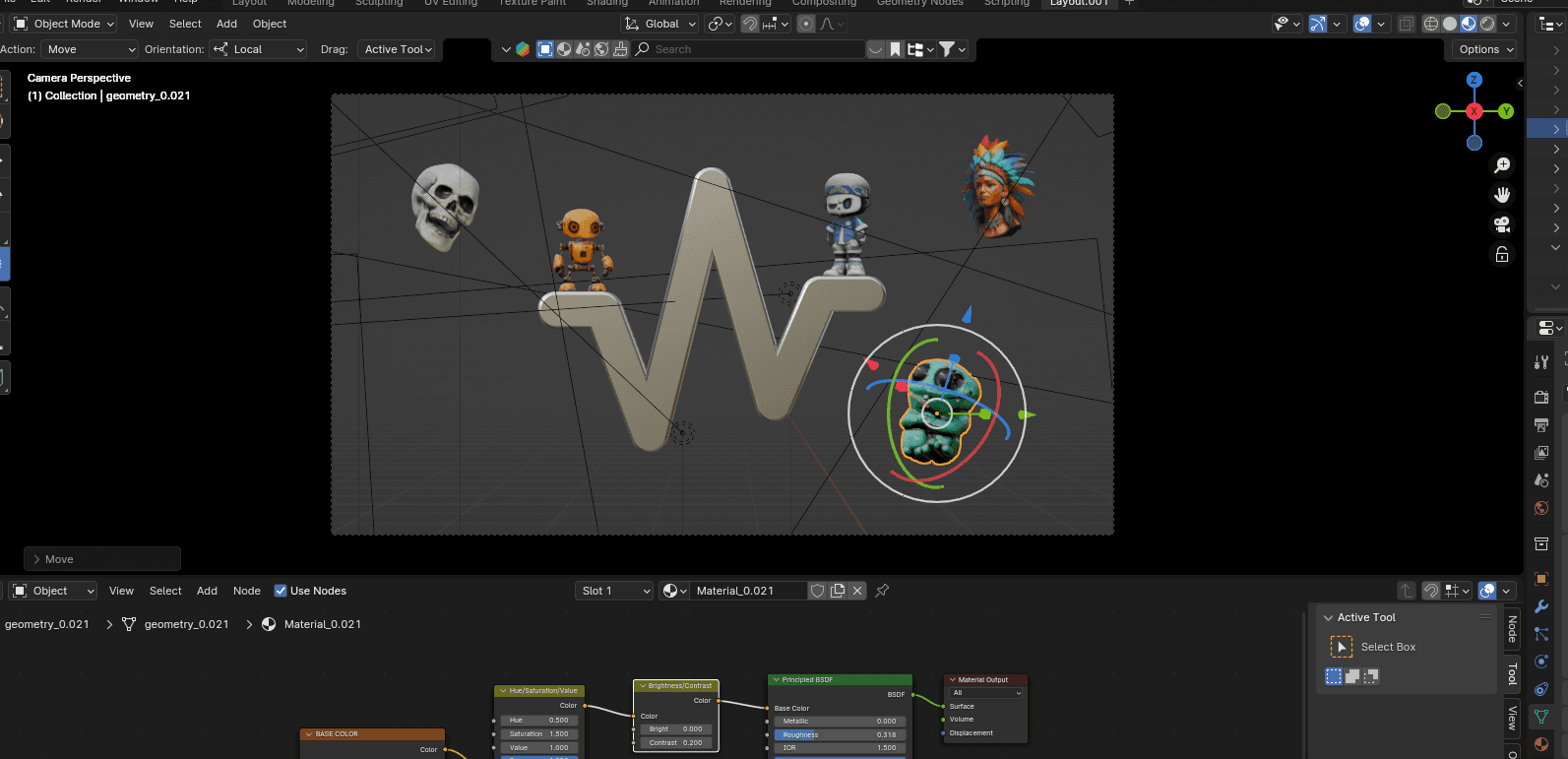
For static props that will not deform, this basic cleanup is often sufficient. The AI-generated topology is dense enough to hold the shape, and game engines handle triangle meshes without issue. If you want to reduce polygon count, apply a Decimate modifier - set it to Collapse mode with a ratio between 0.1 and 0.5, and the face count drops while the silhouette holds. For more control, use Blender's Remesh modifier in Voxel mode, which rebuilds the entire mesh as a clean, uniform grid.
Retopology (When You Need It)
Retopology - rebuilding the mesh surface with clean, intentional polygon flow - is necessary when the asset will be animated, when you need precise control over edge hardness and smoothing groups, or when the polygon count needs to be dramatically lower (think mobile game assets at 500 to 2,000 triangles).
The principle behind retopology is straightforward. You use the AI-generated mesh as a reference shape and draw a new, clean mesh on top of it. In Blender, this is done using the Shrinkwrap modifier with Snap to Face enabled, which keeps your new vertices stuck to the surface of the original mesh as you work.
For game-ready topology, the key guidelines are practical rather than dogmatic. Use quads where possible - game engines ultimately convert everything to triangles, but quads give you cleaner subdivision, better UV unwrapping, and more predictable deformation. Place edge loops around areas that will bend during animation - elbows, knees, the base of a character's neck. Avoid n-gons (polygons with five or more sides), because they create unpredictable shading artifacts. And concentrate polygon density where it matters for the silhouette - spending triangles on a character's face and hands rather than the back of their boots.
The good news is that for the majority of game assets - props, environmental pieces, weapons, vehicles, architecture - retopology is optional. The AI-generated topology, after a decimation pass, is perfectly serviceable for objects that sit still in a scene and get rendered.
UV Mapping for Games
If the generated UVs are not clean enough for your needs, re-unwrapping in Blender takes just a few minutes. Select all geometry in Edit Mode, press U, and choose Smart UV Project. This creates a reasonable automatic UV layout that avoids most stretching and overlap issues. For better results, manually place seams along hidden edges (the underside of objects, interior corners, areas that face away from the camera in normal gameplay) and use U > Unwrap for a custom layout.
The critical thing for game assets is consistent texel density. You want roughly the same number of texture pixels per unit of surface area across the entire model, so that no part looks blurrier or sharper than another. Blender's UV editor has a "Texel Density Checker" add-on that visualizes this, and the free TexTools add-on can equalize texel density across selected UV islands.
For assets that share a texture atlas - multiple props packed onto a single texture sheet to reduce draw calls - plan your UV space accordingly. Leave a small margin between UV islands to prevent texture bleeding at lower mipmap levels, and organize your islands logically so you can find and edit specific parts later.
Creating Proper PBR Materials
The base color texture from the AI generator is a starting point, but a proper PBR material setup in your game engine will make the asset look dramatically better under dynamic lighting.
At minimum, a game-ready PBR material needs four maps: base color (albedo), roughness, metallic, and normal. You can generate the roughness and normal maps from the base color texture using AI-powered PBR map generators - 3D AI Studio's texture tools can do this automatically, or standalone tools like Materialize can derive PBR channels from a single color image.
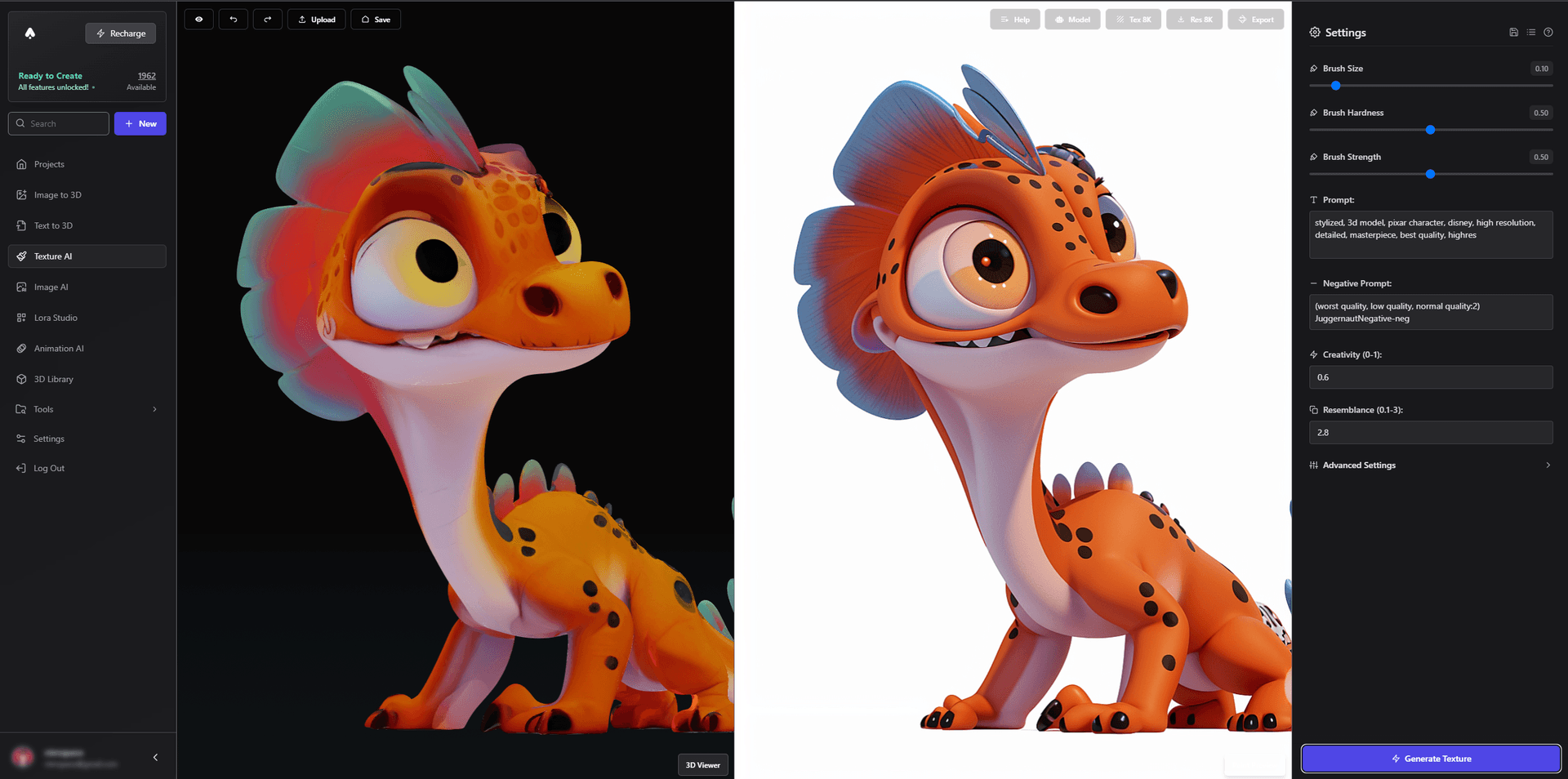
Check the base color for baked-in lighting before using it in your engine. If the texture has obvious shadows or highlights that should be calculated dynamically, you have two options: use a tool that performs delighting (removing baked illumination from a texture), or repaint the affected areas in a texture painting tool. For most stylized games, the baked lighting in AI-generated textures is subtle enough to be acceptable, especially on background props. For realistic games, delighting is more important.
Once your maps are ready, set up a standard PBR material in your engine. In Unity, create a new Material with the Standard or URP Lit shader and assign your textures to the Albedo, Metallic/Smoothness, and Normal Map slots. In Unreal, create a Material Instance and connect your textures to the corresponding nodes. The result is a model that responds naturally to every light source in your scene - sunlight, torches, ambient light, player flashlights - because the material separates surface color from surface behavior.
LOD Generation
Level of Detail is one of those optimizations that pays enormous dividends in game performance with relatively little effort. The idea is simple: create multiple versions of your model with decreasing polygon counts, and let the engine automatically swap between them based on how far the camera is from the object. A barrel that is right in front of the player renders at full detail. The same barrel fifty meters away renders with a quarter of the polygons. The barrel at the edge of the visible horizon renders as a handful of triangles. The player never notices the difference, but the GPU notices dramatically.
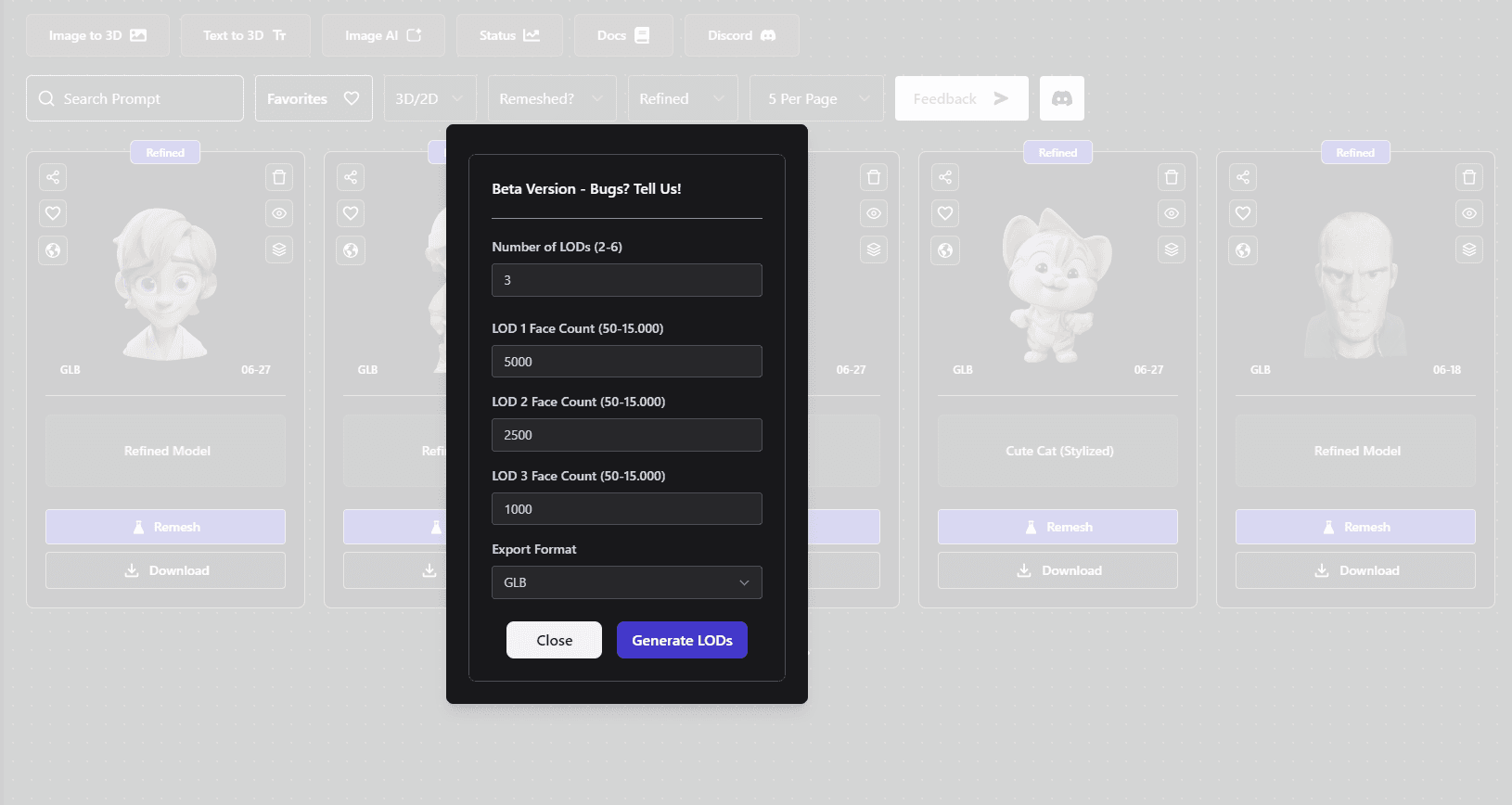
For a typical game asset, you want three to four LOD levels. LOD0 is your full-detail model. LOD1 is roughly 50% of the original polycount. LOD2 is about 25%. LOD3, if you need it, is around 10% or even lower. Blender's Decimate modifier can generate each LOD level quickly - apply it with progressively lower ratios and export each version as a separate mesh.
In Unity, import all LOD meshes, create a LOD Group component on the parent object, and assign each mesh to a LOD level with appropriate transition distances. In Unreal Engine 5, Nanite handles LOD automatically for static meshes with no manual setup required - one of the genuine quality-of-life advantages of the Nanite system. For engines without automatic LOD, set your transition distances based on the object's visual importance: a hero prop might switch to LOD1 at 20 meters, while a generic rock might switch at 10 meters.
Engine Integration: Unity, Unreal, and Godot
The final destination for every game asset is the engine, and each of the major engines has its own import expectations and best practices. Getting the import right the first time prevents subtle issues that only show up later in development.
Unity
Unity reads FBX, OBJ, and GLB natively. For most game assets, FBX is the preferred format because it embeds mesh, UVs, and material references in a single file. Drag the FBX file into your Unity project's Assets folder, and Unity will auto-import it.
After import, check three things. First, verify the scale - Unity works in meters, and assets exported from some tools arrive 100x too large or too small. Adjust the Scale Factor in the Import Settings if needed. Second, confirm that materials imported correctly by checking the model in the Scene view. If textures are missing, drag them onto the material slots manually. Third, check the normals - if the model looks faceted when it should be smooth, change the Normals mode to "Calculate" in the Model import settings and adjust the Smoothing Angle.
For mobile games, pay attention to texture compression. Set textures to ASTC format for modern mobile hardware, and keep texture resolutions at 512x512 or 1024x1024 for most props. Enable mipmaps for any texture that will be viewed at varying distances, which prevents shimmering artifacts at a small memory cost.
Unreal Engine
Unreal Engine prefers FBX for import. Drag the file into the Content Browser, and Unreal's import dialog will prompt you for settings. For static meshes, the defaults are usually fine. Enable "Generate Lightmap UVs" if your asset will be part of a baked lighting scene, and check "Combine Meshes" if the model has multiple separate mesh objects that should be treated as one.
Unreal Engine 5's Nanite system is a genuine revolution for AI-generated assets. Enable Nanite on import, and the engine will handle LOD automatically, streaming polygon detail based on screen coverage. This means you can import high-poly AI-generated meshes directly without manual LOD creation - Nanite does the work at runtime. For assets that will not use Nanite (skeletal meshes, translucent materials), set up traditional LODs using Unreal's built-in LOD generation tool.
Materials in Unreal use the Material Editor's node graph. Create a Material, add Texture Sample nodes for your base color, roughness, metallic, and normal maps, and connect them to the corresponding inputs on the Material output node. For a quick setup, use Material Instances based on a master material - define the master once with parameterized texture slots, then create instances for each asset that only need their textures swapped in.
Godot
Godot imports GLB natively and handles it well. Drop the GLB file into your Godot project folder, and the engine imports the mesh with its embedded textures automatically. Godot 4's PBR rendering pipeline supports standard PBR maps, so materials set up in Blender or generated by AI tools translate cleanly.
For optimization in Godot, use the MultiMeshInstance3D node for repeated props - it renders many instances of the same mesh in a single draw call, which is critical for scenes with lots of similar objects like trees, rocks, or crates. Set up LODs using Godot's built-in LOD system or the VisibleOnScreenNotifier3D node for manual control.
Which Assets to Generate and Which to Model by Hand
Not every asset in your game should go through the AI generation pipeline, and knowing where the technology shines versus where it struggles will save you from fighting the wrong battles.
Generate these. Environmental props are the sweet spot for AI generation: barrels, crates, chairs, tables, books, bottles, food items, rocks, tree stumps, signs, market stalls, lanterns, vases, and the thousand other objects that fill a game world with visual richness but are not the focus of gameplay. These assets are typically static, viewed from a distance much of the time, and need to look good without being individually remarkable. AI generation is perfectly suited for this because it is fast, the quality is easily good enough, and the volume you can produce in a single afternoon would take a traditional artist weeks.
Weapons, tools, and handheld items also convert well, especially for stylized games where topology perfection is less critical than visual appeal. Upload your concept art or a reference photo, generate, do a quick cleanup pass, and you have a usable game prop.
Model these by hand (or generate and heavily rework). Main characters and any mesh that needs to be rigged for skeletal animation benefit from hand-built topology with intentional edge flow around joints and deformation zones. You can absolutely start with an AI-generated mesh as a reference shape - generating a base character and retopologizing on top of it is much faster than modeling from a blank viewport - but the final topology needs to be artist-driven.
Anything with precise mechanical requirements - gears that interlock, doors that hinge on specific points, modular pieces that need to snap together perfectly - is better modeled manually because these constraints are geometric, not visual, and the AI has no way to know about them.
Extremely thin or intricate structures - chain mail, wire fences, spiderweb-like lattices - should be modeled procedurally or by hand. AI struggles to reconstruct these from images because the depth information is ambiguous.
Maintaining Style Consistency Across Generated Assets
One of the most common concerns game developers have about AI-generated assets is consistency. If every asset is generated individually, how do you prevent your game from looking like a visual collage?
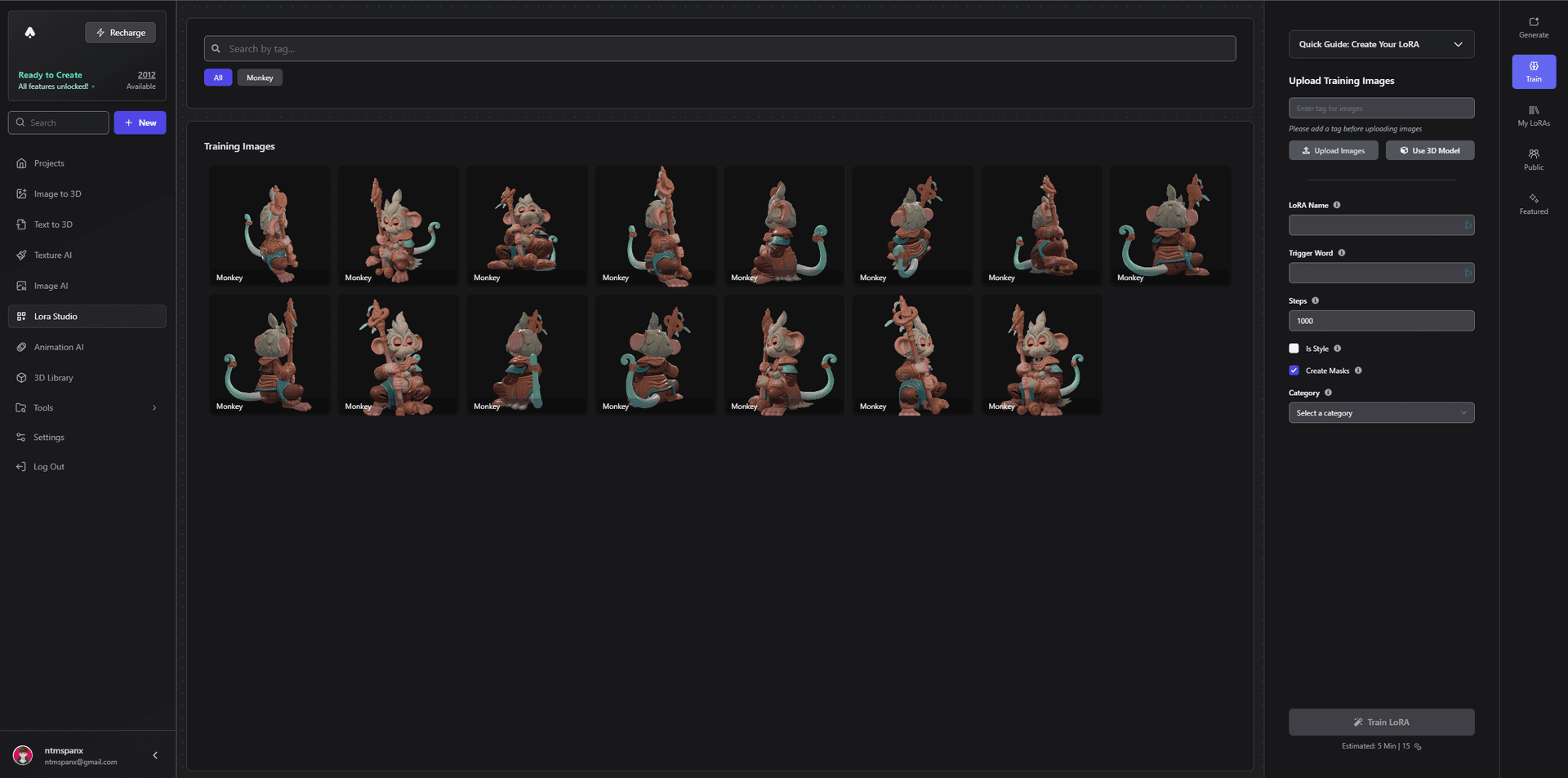
The most effective solution is to generate all your reference images in a consistent style before converting them to 3D. If you use the same AI image generation model - or better yet, a custom-trained style model - to create your concept images, the resulting 3D models will inherit that visual consistency naturally. 3D AI Studio's LoRA training lets you train a custom style on 10 to 20 reference images from your game, and then every image and 3D model generated afterward carries that same visual language.
The other approach is to enforce consistency at the material level. Define a set of master materials in your game engine - one for wood, one for metal, one for fabric, one for stone - with consistent roughness ranges, color palettes, and texture scales. After importing AI-generated assets, swap their materials for your master materials. This overrides any visual inconsistencies from the generation process and gives your entire game world a unified look, because every wooden barrel uses the same wood shader and every metal weapon uses the same metal shader.
For stylized games specifically, a shared color palette is the strongest unifying force. Define 15 to 20 colors that make up your game's visual identity, and limit your textures to those colors. Even if the geometry varies from asset to asset, a shared palette ties everything together visually.
See It in Action
If you want to see the image-to-3D generation and cleanup pipeline in real time, this video walks through the full process.
The Practical Math: How Much Time Does This Actually Save?
Let us be concrete about the numbers, because the time savings are the whole point.
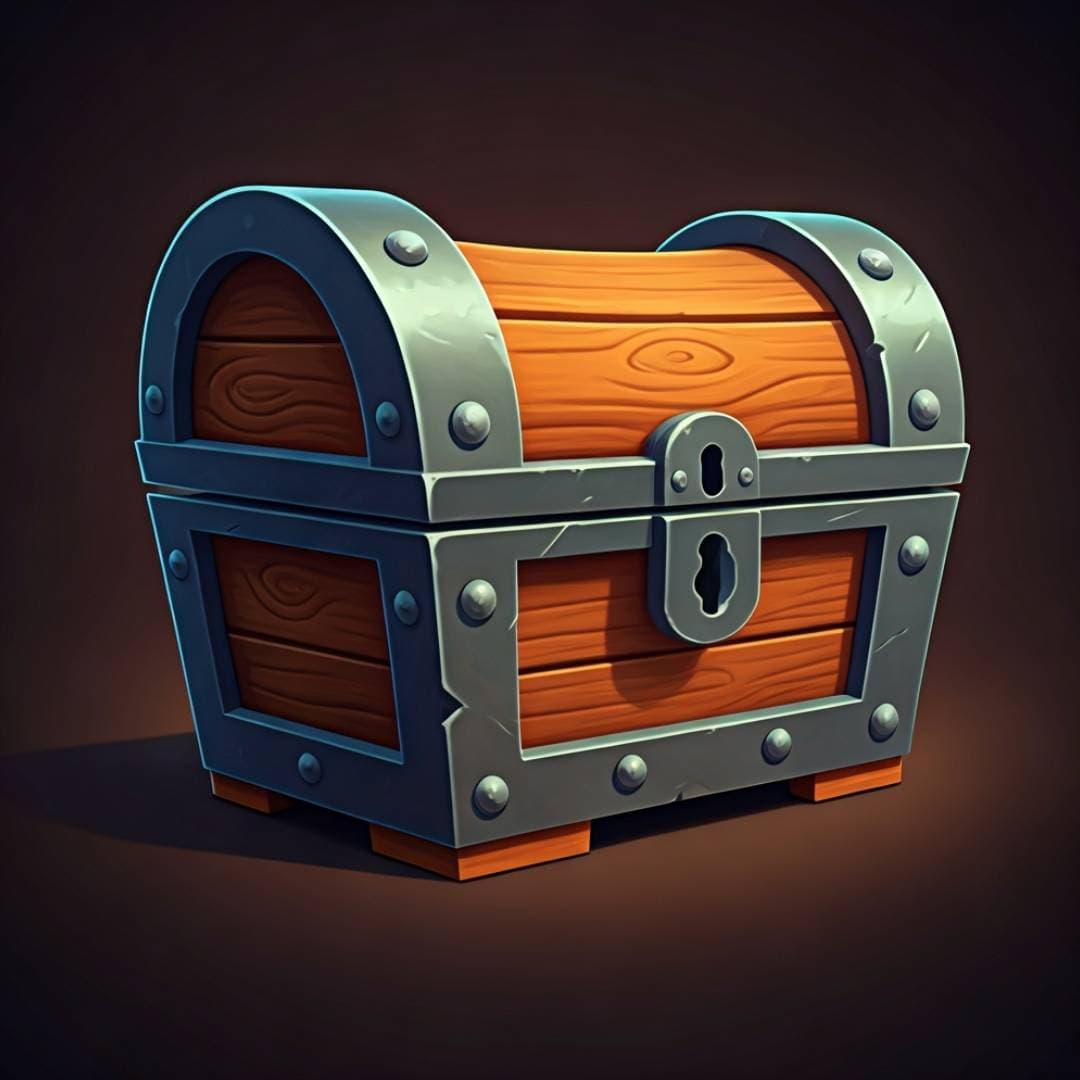
A skilled game artist creating a mid-complexity prop - a decorated treasure chest, say - from scratch in the traditional pipeline typically spends about 30 minutes on blockout modeling, an hour on high-poly sculpting, 30 minutes on retopology, 20 minutes on UV unwrapping, an hour on texturing in Substance Painter, and 20 minutes on engine integration. Call it roughly four hours per prop, assuming everything goes smoothly.
The AI-assisted pipeline for the same prop: two minutes to generate, five minutes to clean up geometry, ten minutes to adjust UVs if needed, five minutes to set up PBR materials, and five minutes for engine integration. That is roughly 30 minutes per prop - an 8x speedup for assets that do not require retopology.
For assets that do need retopology (animated characters, mechanical parts), the savings are smaller but still significant. The AI handles the sculpting equivalent, giving you a reference shape to retopologize over. Instead of spending two hours sculpting a character from scratch and then retopologizing, you spend two minutes generating, 45 minutes retopologizing the AI output, and the rest of the pipeline stays the same. That is still roughly a 40% time saving.
Multiply these numbers across an entire game's asset list - even a small indie game might need 200 to 500 unique assets - and the aggregate time savings are measured in weeks or months of development time.
Common Mistakes and How to Avoid Them
Having watched many developers adopt AI generation into their pipelines, the mistakes tend to cluster around a few predictable patterns.
Shipping AI output directly without cleanup. This is the biggest one. AI-generated meshes that look great in a textured preview can cause real problems in a game engine - z-fighting from overlapping geometry, shadow artifacts from inconsistent normals, performance hits from unnecessarily high polygon counts, and visual inconsistencies when dynamic lighting reveals baked-in shadows in the texture. Always do at least a basic cleanup pass, even for throwaway props.
Over-investing in props that do not matter. Not every barrel needs perfect quad topology and hand-painted 4K textures. For background props that a player will never examine up close, the AI-generated mesh with minimal cleanup is entirely sufficient. Save your retopology and material passes for hero assets - the treasure chest the player opens in a cutscene, the weapon they see in their hands for twenty hours, the character they stare at on the loading screen.
Ignoring polygon budgets. AI generators do not know your target platform. A mesh with 60,000 triangles is fine for a PC prop but will tank performance on mobile if you place thirty of them in a scene. Always check the face count after import and decimate to match your platform's budget. A good rule of thumb for 2026: mobile props at 500 to 3,000 triangles, PC and console props at 5,000 to 30,000 triangles, and hero assets at 30,000 to 100,000 triangles.
Neglecting LODs. If your game has any kind of open environment, LODs are not optional. A scene full of full-detail props renders a million triangles that the GPU has to process every frame, even though 80% of those props are just a few pixels on screen. LODs are easy to generate and dramatically improve frame rates. Do them.
Going Further: Batch Generation and Pipeline Automation
Once you have the basic image-to-3D workflow down, the next level is scaling it. Game projects need volume, and the AI generation pipeline scales naturally because the human bottleneck is in post-processing, not generation.
A practical batch workflow looks like this. Spend a morning generating all the concept images you need for a category of assets - all the weapons in your game, all the furniture for a building, all the rocks and vegetation for a biome. Then spend the afternoon generating 3D models from those images in sequence, downloading each one. The next day, run through the entire batch in Blender doing cleanup, decimation, and UV fixes. Then import the whole set into your engine and set up materials using your master material library.
This batched approach is faster than doing one asset at a time because you stay in the same mental mode for each stage - you are not context-switching between generation, Blender, and your engine for every single prop. A solo developer working this way can produce 20 to 40 cleaned-up, game-ready props in a single a day. A small team of two or three, with one person generating and another cleaning, can double or triple that output.
3D AI Studio supports this kind of batch workflow through its web interface, and for teams with more technical setup, the API allows programmatic generation that can be scripted into an automated pipeline.
Wrapping Up
The best way to generate a 3D model from an image for game development is not a single tool or a single technique - it is a pipeline. Upload your concept art or reference photo to an AI image-to-3D platform that exports game-friendly formats with proper UVs and textures. Download the result. Clean up the geometry in Blender: fix normals, remove artifacts, decimate to your target polycount. Re-unwrap UVs if the asset is important enough to warrant it. Set up PBR materials with separate roughness, metallic, and normal maps. Generate LODs. Import into your engine and test under game lighting conditions.
That pipeline, end to end, turns a flat image into a game-ready 3D asset in 15 to 45 minutes depending on the level of polish you need. It works for Unity, Unreal, Godot, and any engine that reads standard 3D formats. It scales from solo indie projects to small studio productions. And it frees you to spend your time on the creative decisions that actually make your game unique - gameplay mechanics, level design, narrative, art direction - rather than burning weeks on the mechanical labor of modeling and texturing props.
The technology is here, it works, and the developers who are shipping games fastest right now are the ones using it. Start generating your first game asset and see how it fits into your pipeline.

Generate 3D models with AI
Easily generate custom 3d models in seconds. Try it now and see your creativity come to life effortlessly!